
If you want to subtract one date from another in Excel, you might get a date back instead of a number. And this is because Excel copies the date format from your dates onto the answer.
But nothing to worry about. It’s an easy fix, and in this article I’ll show you seven ways to subtract dates in Excel, whether you want the gap between two dates or an earlier date to work back to.
Method #1: Using the Minus (-) Operator (Date Minus Date)
This is the one you’ll reach for most of the time. Excel stores every date as a plain number behind the scenes, so subtracting one date from another is just ordinary arithmetic.
Below I have a list of client contracts with the start date in column B and the end date in column C. I want to know how many days each contract ran for.
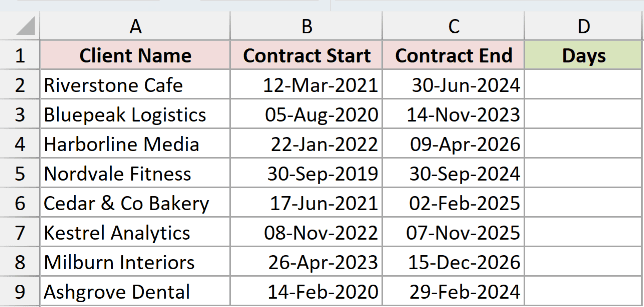
Here is the formula:
=C2:C9-B2:B9
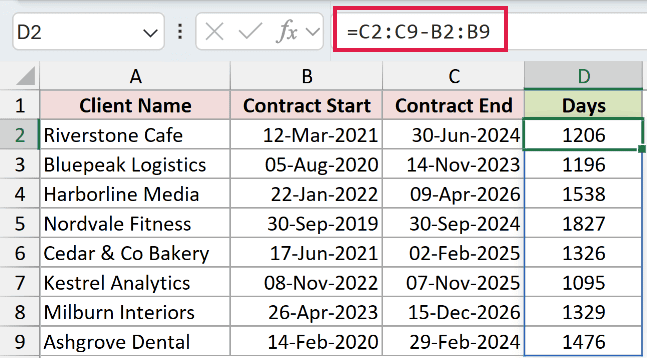
Riverstone Cafe comes back as 1206, which is how many days that contract ran.
How does this formula work?
Excel doesn’t really store dates as dates. It stores them as serial numbers counted from 1 January 1900. The start date 12-Mar-2021 is the number 44267, and the end date 30-Jun-2024 is 45473.
So when you type =C2-B2, Excel is quietly doing 45473 - 44267 and handing you 1206.
I’ve written it here as =C2:C9-B2:B9 in a single cell. Because I gave it whole ranges instead of single cells, the answer spills down the column on its own and there’s nothing to drag.
That spilling needs Microsoft 365 or Excel 2021. On Excel 2019 or older, write it as =C2-B2 in the top cell and drag it down instead. You get the same answer either way.
Note: If your answer shows up as something like 12-May-1900 instead of 1206, the cell has picked up the date format from the dates you subtracted. Select it, press Ctrl + 1, and choose General.
Method #2: Using the DAYS Function
Here’s another way to get the same answer. The DAYS function does exactly what the minus sign does, but it says out loud what the formula is for, which helps a lot on a sheet other people have to read.
Below I have the same contract list, with the start date in column B and the end date in column C. I want the length of each contract in days.
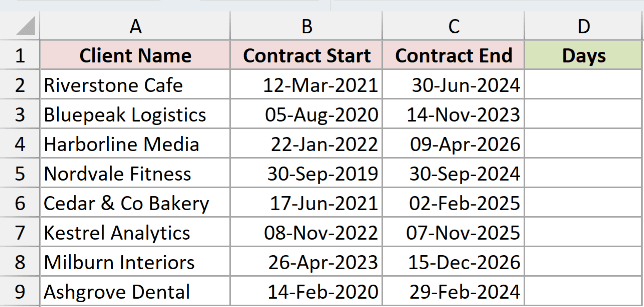
Here is the formula:
=DAYS(C2:C9,B2:B9)
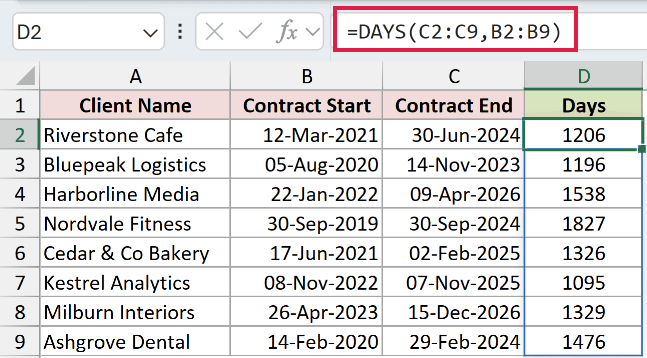
You get 1206 for Riverstone Cafe again, along with the rest of the column.
How does this formula work?
DAYS takes the end date first and the start date second, then returns the whole number of days between them. Handing it the two ranges lets the results spill down the column in one go.
There’s one more thing it does for you. If a date is sitting in the cell as text rather than a real date, DAYS tries to read it as a date instead of just failing.
Note: DAYS wants the end date first and the start date second. That’s the opposite order to DATEDIF in the next method, and swapping them is the easiest mistake to make with this function.
Method #3: Using the DATEDIF Function
Days are fine, but nobody describes a contract as 1206 days long. If you want the answer in years or months, this is the one you want.
Below I have the same contracts, and this time I want each one expressed in completed years rather than days.
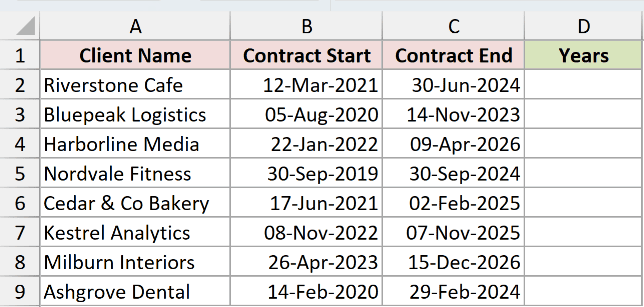
Here is the formula:
=DATEDIF(B2:B9,C2:C9,"Y")
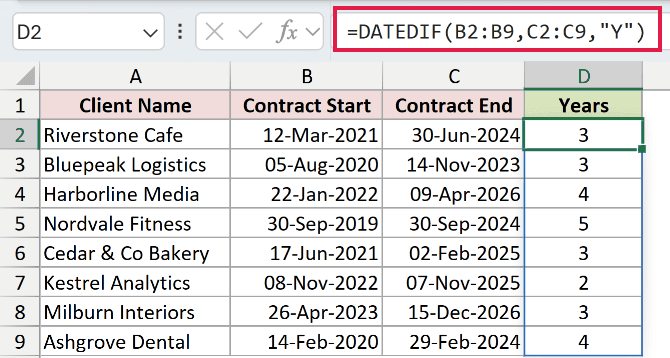
Riverstone Cafe comes back as 3, because the contract ran three full years and a bit more.
How does this formula work?
DATEDIF takes the start date first, the end date second, and then a unit code in quotes that tells it what to count.
"Y" gives completed years, "M" gives completed months, and "D" gives days. Swap the code and you get the same gap measured a different way.
If months are what you’re after, "M" on its own is enough. There’s more on counting the number of months between two dates if you need it.
The word “completed” matters. Kestrel Analytics ran from 08-Nov-2022 to 07-Nov-2025, one day short of three years, so "Y" returns 2 rather than 3.
DATEDIF also has three codes that ignore part of the date, which lets you build the full breakdown people actually say out loud:
=DATEDIF(B2:B9,C2:C9,"Y")&" years, "&DATEDIF(B2:B9,C2:C9,"YM")&" months, "&DATEDIF(B2:B9,C2:C9,"MD")&" days"
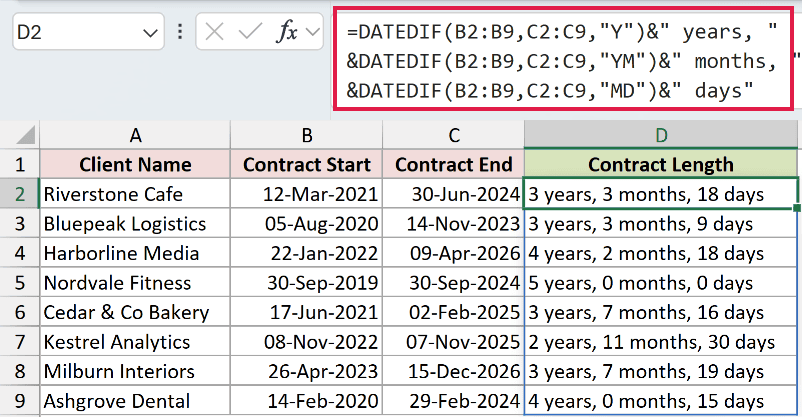
That returns “3 years, 3 months, 18 days” for Riverstone Cafe and “2 years, 11 months, 30 days” for Kestrel Analytics, which reads a lot better than 1095.
"YM" gives the leftover months once the whole years are taken out, and "MD" gives the leftover days once the whole months are taken out.
Note: Microsoft doesn’t recommend the “MD” code, and it’s easy to see why. Run DATEDIF on 31-Jan-2020 and 01-Mar-2020 and “MD” returns -1, and on 31-May-2023 and 01-Jul-2023 it returns 0. If your dates land near the end of a month, use =C2-EDATE(B2,DATEDIF(B2,C2,”M”)) for the days part instead, which returns 1 for both of those.
Method #4: Using the Minus (-) Operator (Date Minus Days)
So far we’ve been subtracting one date from another. This time we’re taking a number of days off a single date, which gives you an earlier date rather than a count.
Below I have the same contracts. Renewal letters go out 45 days before a contract ends, so I want that reminder date for each one.
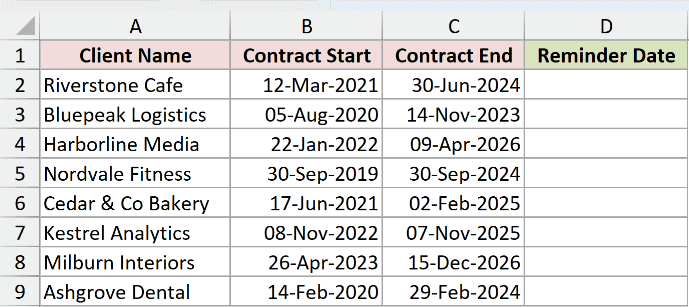
Here is the formula:
=C2:C9-45
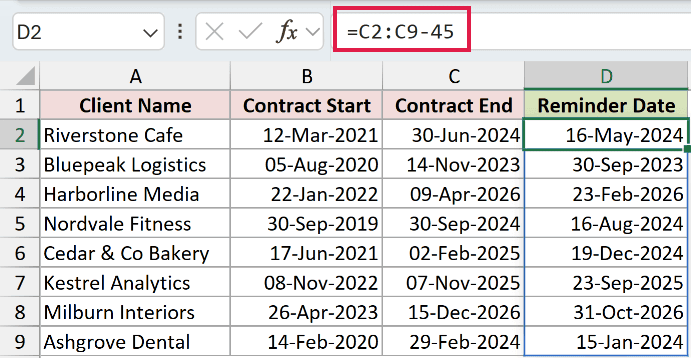
Riverstone Cafe ends on 30-Jun-2024, so the reminder date comes back as 16-May-2024.
How does this formula work?
It’s the same serial number trick as Method #1. 30-Jun-2024 is the number 45473, and 45473 minus 45 is 45428, which Excel shows back to you as 16-May-2024.
If the number of days changes from row to row, put it in its own column and point at that instead, like =C2:C9-D2:D9.
Note: This is the mirror of the problem in Method #1. Here the answer is meant to be a date, so if you get a bare number like 45428, select the cells, press Ctrl + 1 and pick a date format.
Method #5: Using the EDATE Function
Taking off a fixed number of days is fine until you want whole months. Three months isn’t always 90 days, so this function counts in months and lands on the right calendar date every time.
Below I have the same contracts. The notice window opens 3 months before a contract ends, and I want that date for each client.
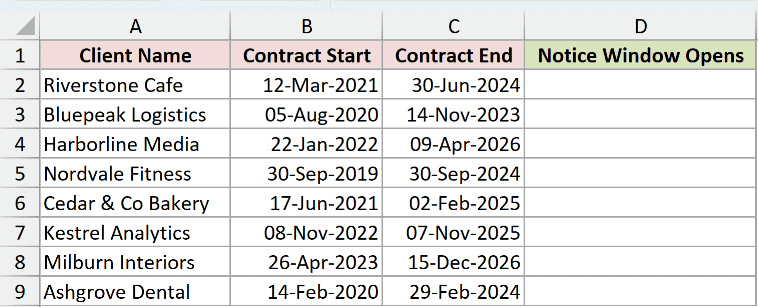
Here is the formula:
=EDATE(C2,-3)
Put that in D2 and fill it down the column. This one won’t spill on its own the way the earlier formulas do.
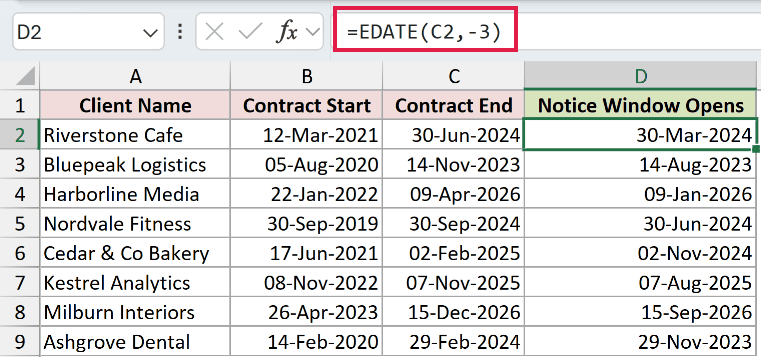
Riverstone Cafe ends on 30-Jun-2024, so the notice window opens on 30-Mar-2024.
How does this formula work?
EDATE takes a date and a number of months, and a negative number walks backwards. So -3 goes back three months and -24 goes back two years.
That’s also why it needs filling down. EDATE won’t accept a whole range, and handing it C2:C9 returns a #VALUE! error instead of spilling.
Note: When the day doesn’t exist in the month it lands on, EDATE backs up to the last day of that month. 31-Mar-2025 minus 1 month gives 28-Feb-2025, and Ashgrove Dental’s 29-Feb-2024 minus 12 months gives 28-Feb-2023.
Method #6: Using the DATE Function
If you’d rather work on the year, month and day separately, this one hands you that control. It’s the natural pick when you want to go back a whole number of years.
Below I have the same contracts. Prices get reviewed one year before each contract ends, so that’s the date I want.
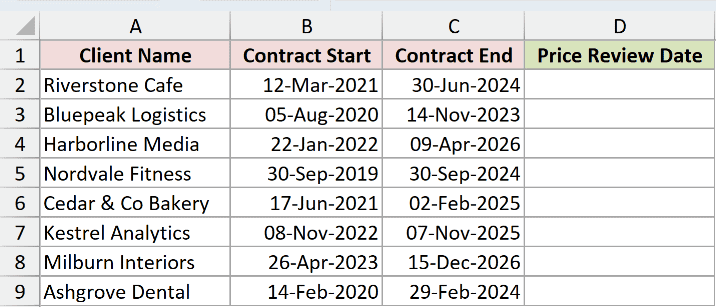
Here is the formula:
=DATE(YEAR(C2:C9)-1,MONTH(C2:C9),DAY(C2:C9))
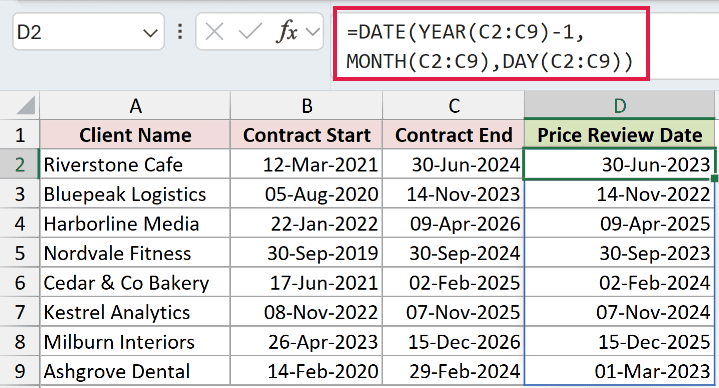
Riverstone Cafe’s contract ends on 30-Jun-2024, so the price review date is 30-Jun-2023.
How does this formula work?
The DATE function builds a date from three numbers: a year, a month and a day. YEAR, MONTH and DAY pull those three pieces out of the existing date, and subtracting 1 from the year part rebuilds it a year earlier.
Because you’re doing the arithmetic on the pieces, you can go back by months or days the same way, and the ranges let the whole column spill at once.
Look at the last row though. Ashgrove Dental’s contract ends on 29-Feb-2024, and a year before that is 29-Feb-2023, a date that doesn’t exist. Excel doesn’t complain. It rolls forward and gives you 01-Mar-2023.
Note: This is where DATE and EDATE part ways. On that same leap day, EDATE backs up to 28-Feb-2023 and DATE rolls forward to 01-Mar-2023. Neither is wrong, so pick the one that matches how your dates are supposed to behave.
Method #7: Using Paste Special With Subtract
Every method so far leaves a formula behind in a new column. If you just need to shift a column of dates back once and be done with it, you can do the whole thing without a formula at all.
Below I have the same contracts. A policy change moved every contract end date 15 days earlier, and I want to change column C itself rather than build another column.
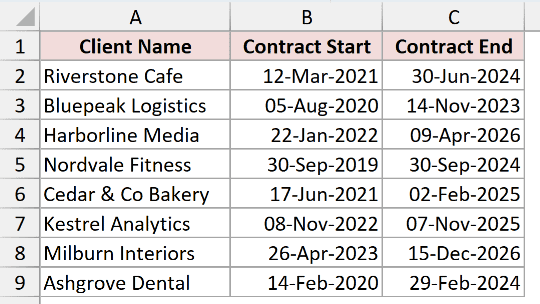
Here are the steps to subtract 15 days from every date at once:
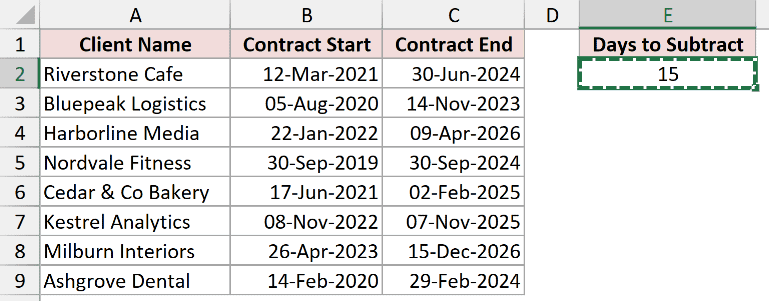
- Type 15 into any empty cell, then select that cell and press Ctrl + C.
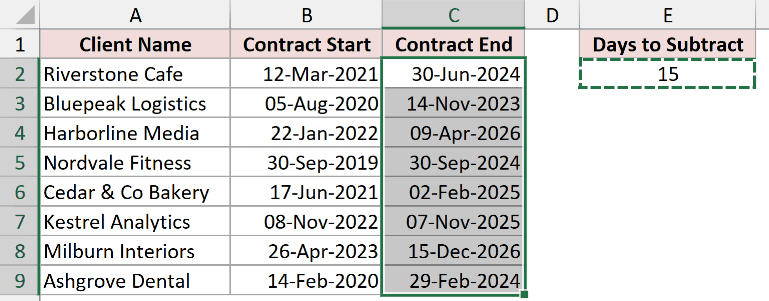
- Select the dates you want to change, which is C2:C9 here.
- Press Ctrl + Alt + V to open the Paste Special dialog box.
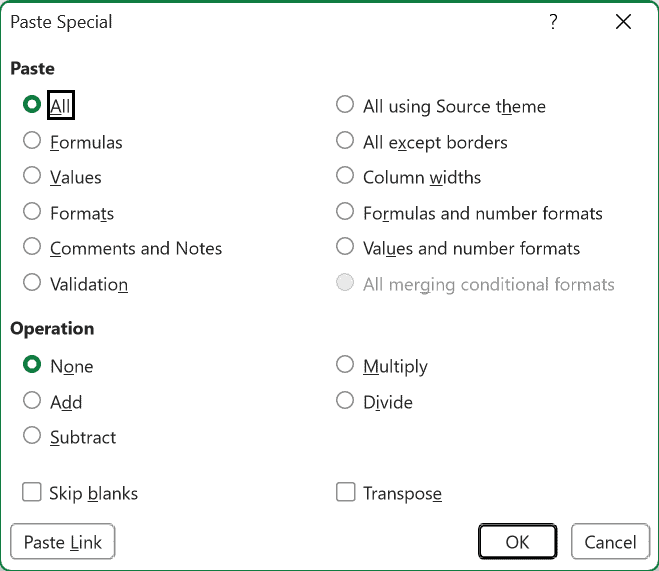
- Under Paste select Values, under Operation select Subtract, then click OK.
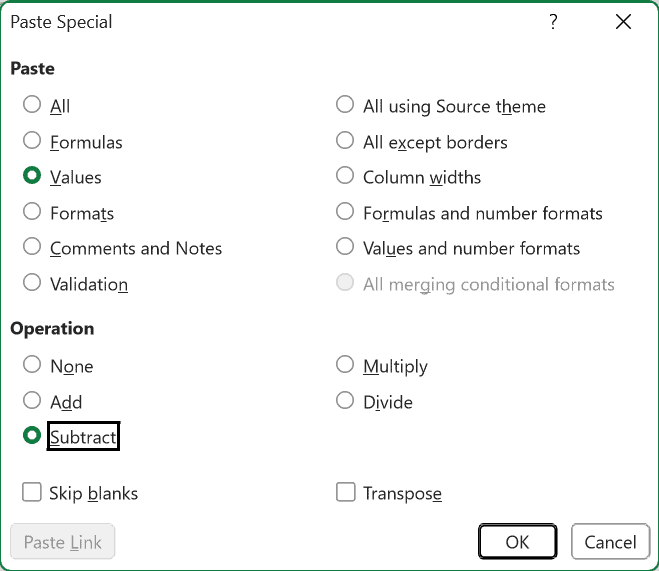
Every date in the column moves back 15 days in place. Riverstone Cafe’s 30-Jun-2024 becomes 15-Jun-2024. Now delete the helper cell with the 15 in it and you’re done.
Pick Values and not All under Paste. Choosing All drags the helper cell’s formatting across as well, and your dates turn into serial numbers like 45458.
Note: This one overwrites your original dates and there’s no formula left to trace it back. Take a copy of the sheet first, because Undo is the only way back once you’ve saved and closed the file.
Additional Notes About Subtracting Dates in Excel
- Excel counts dates from 1 January 1900, and that’s the whole reason subtraction works on them. It also means dates before that can’t be subtracted at all.
- The range formulas here, like
=C2:C9-B2:B9, spill down the column on their own, and that needs Microsoft 365 or Excel 2021. On an older version write the same formula against the first row, so=C2-B2, and drag it down. EDATE in Method #5 is filled down either way. - Subtracting gives you the gap between two dates, not the number of days including both of them. Add 1 if you need the end date counted too.
- A negative answer is fine as a number, but a date-formatted cell can’t display it and you’ll get a row of hashes instead. Setting the cell to General fixes it. There are a few other reasons dates show as hashtags too, and a column that’s simply too narrow is the most common one.
- DATEDIF returns a
#NUM!error if you give it the later date first. Check the order before you blame the formula. - None of this counts working days. Skipping weekends and holidays needs NETWORKDAYS instead, which I’ve covered in calculating days between two dates.
- Dates that arrived from another system are often text that only looks like a date. They line up on the left of the cell instead of the right, and they won’t subtract until you convert them.
Frequently Asked Questions
Can I subtract dates that also have a time in them?
Yes, and the answer comes back with a decimal on it, because the time is stored as the fraction after the decimal point. =C2-B2 on two date-time values might give 2.75, meaning 2 days and 18 hours.
Wrap it in INT() for whole days only, or format the cell as [h]:mm to see the total in hours.
Why do I get a #VALUE! error when I subtract two dates?
At least one of them isn’t really a date, it’s text that looks like one. The quickest check is to click the cell and look at which side it sits on, since real dates align right and text aligns left.
Running the column through Text to Columns or wrapping the cell in DATEVALUE() turns it into a real date.
How do I subtract a date from today without typing today’s date in?
Use TODAY() in place of one of the dates, so =TODAY()-B2 gives the days since the contract started.
It updates itself every time the file opens, which is either exactly what you want or a nasty surprise. There’s more on this in counting the days from a date to today.
Does subtracting two dates include both the start and the end day?
No. =C2-B2 counts the gap between them, so a Monday to a Friday gives 4, not 5. If you’re counting days a person actually worked or a room was booked, add 1.
Conclusion
For the gap between two dates I’d reach for the plain minus sign first, and only move to DATEDIF when days stop being a useful unit and you’d rather say years and months.
Going the other way, subtract a number for days, EDATE for whole months, and DATE when you want to change the year on its own. Paste Special is there for the one-off column shift where you’d rather not leave a formula behind.
Other Excel articles you may also like:
- Days Between Dates Calculator
- Calculate Days Left in the Year (Formula)
- TODAY Function in Excel
- EOMONTH Function in Excel
- How to Convert Days to Years in Excel (Formulas)
- Convert Days to Months in Excel
- Calculate Date Difference in Power Query (Days, Months, Years)
- How to Add Days to a Date in Excel
- How to Add Months to a Date in Excel
- How to Add Years to a Date in Excel
