
Excel’s HEX2BIN function converts a hexadecimal value to binary text. It handles positive and signed negative hex codes within its supported range.
The result stays as text, which preserves leading zeros when you use the optional places argument. That matters when each digit represents a fixed bit position.
In this article, I’ll show you how to create fixed-width binary patterns, read individual flags, and handle values above the size limit.
HEX2BIN Function Syntax in Excel
The HEX2BIN function uses a hexadecimal value and an optional output width.
=HEX2BIN(number, [places])
- number (required) is the hexadecimal value you want to convert. It can contain up to 10 characters. Enter hex codes as text to prevent Excel from changing them.
- places (optional) is the number of characters to use, padded with leading zeros. If omitted, HEX2BIN uses the minimum necessary. Too few places returns #NUM!, and the argument is ignored for negative inputs.
When to Use HEX2BIN Function
- Convert hexadecimal status codes into readable binary flags.
- Pad binary results so each bit stays in a consistent position.
- Check whether a particular permission or hardware flag is turned on.
- Read signed hexadecimal values stored in two’s complement form.
- Identify values that exceed HEX2BIN’s supported range before using another conversion method.
Example 1: Convert Hex Status Codes to Binary
Start with status codes exported from a packaging-line machine log.
Below is the dataset. Column A lists each machine, column B contains its status code, and column C will hold the binary text.
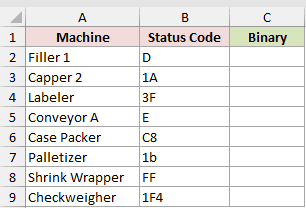
Our goal is to convert each status code into its binary equivalent.
Here is the formula entered in C2:
=HEX2BIN(B2)
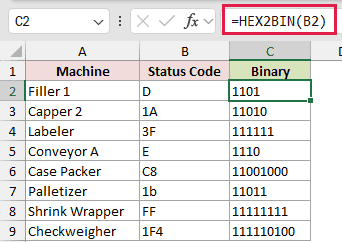
Copy the formula down through C9. HEX2BIN does not accept a range directly, so fill-down is the normal method here.
Each result uses only as many digits as needed. D returns 1101, C8 returns 11001000, and 1F4 returns 111110100.
Hex input is case-insensitive. The lowercase 1b in B7 returns 11011.
Example 2: Pad Binary Results to Eight Bits
This example turns eight hexadecimal bytes into an LED-matrix pattern.
Below is the dataset. Columns A and B contain the row numbers and hex bytes, while column C will hold each eight-bit pixel pattern.
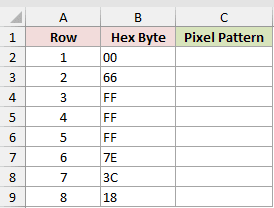
Each binary result needs eight characters so the bit positions line up.
Here is the formula entered in C2:
=HEX2BIN(B2,8)
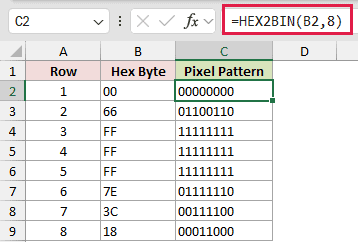
Copy the formula down through C9. The places argument adds leading zeros without changing the underlying value.
The first two rows return 00000000 and 01100110. The completed eight-row pattern forms a heart because every result has the same width.
Pro Tip: In Microsoft 365 and Excel 2024, enter =MAP(B2:B9,LAMBDA(h,HEX2BIN(h,8))) in an empty output column instead of copying formulas down. It needs eight clear cells to spill the converted results.
Example 3: Read Access Flags from Hex Codes
Here’s a practical way to read permissions stored as individual bits.
Below is the dataset. Columns A and B contain employees and access codes. Columns C and D will show Server Room access and the number of allowed doors.
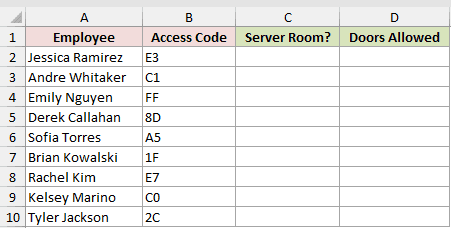
The task is to test the third bit for Server Room access, then count all enabled door permissions.
Here is the formula entered in C2:
=MID(HEX2BIN(B2,8),3,1)="1"
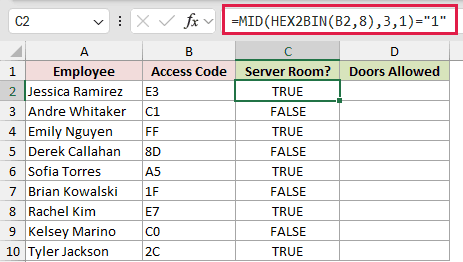
HEX2BIN creates an eight-character pattern, and MID reads its third character. Comparing that character with 1 returns TRUE or FALSE.
Padding is essential because the bit position must stay fixed. Without it, 1F becomes 11111, whose third character is 1, so it would wrongly read TRUE.
Padded to 00011111, the third character is 0. The formula returns TRUE for Jessica Ramirez and correctly returns FALSE for Brian Kowalski.
Next, we can count the enabled doors with this formula in D2:
=LEN(SUBSTITUTE(HEX2BIN(B2),"0",""))
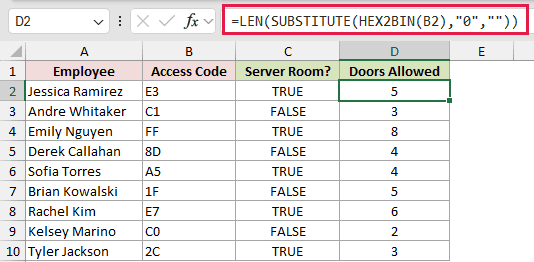
SUBSTITUTE removes every zero from the binary text. LEN counts the remaining ones, and each 1 represents one enabled door.
Jessica Ramirez has 5 allowed doors, Emily Nguyen has 8, and Kelsey Marino has 2. Copy both formulas down to row 10.
Example 4: Convert Signed Negative Hex Values
Now consider scale calibration offsets that include positive and negative values.
Below is the dataset. Columns A to C identify each scale, its decimal offset, and its stored hex code. Column D will hold a ten-bit binary result.
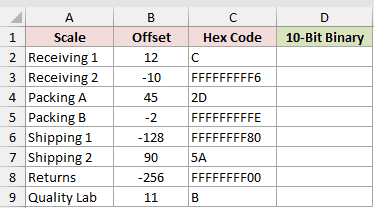
Every result needs ten characters so positive and negative patterns line up.
Here is the formula entered in D2:
=HEX2BIN(C2,10)
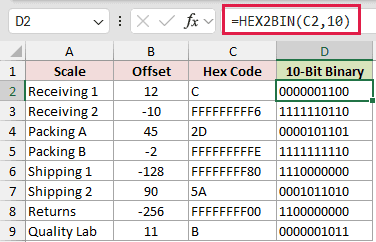
Copy the formula down through D9. Positive results receive leading zeros, while negative inputs use ten-character two’s complement binary.
The formula returns 0000001100 for Receiving 1’s offset of 12. It returns 1111110110 for Receiving 2’s offset of -10.
The leading 1 identifies a negative value in these ten-bit results. For negative hex values, Excel ignores the places argument and returns ten characters.
Example 5: Convert Hex Values Above the Limit
The final example uses the eight hextets from a private IPv6 address.
Below is the dataset. Column B contains each hextet. Column C will show HEX2BIN results, while column D will hold full 16-bit conversions.
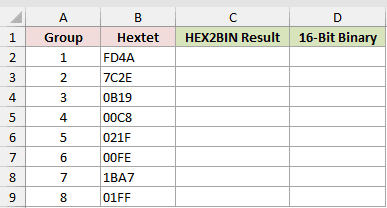
Here, we need to identify which hextets HEX2BIN accepts and convert every value to a 16-bit result.
First, enter this formula in C2 and copy it down:
=HEX2BIN(B2)
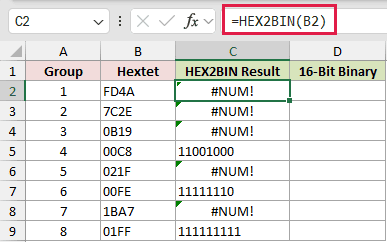
HEX2BIN supports positive values only through 1FF. It returns #NUM! for FD4A, 7C2E, 0B19, 021F, and 1BA7 in this dataset.
The valid rows still convert normally. 00C8 returns 11001000, 00FE returns 11111110, and 01FF returns 111111111.
For every 16-bit value, enter this formula in D2 and copy it down:
=BASE(HEX2DEC(B2),2,16)
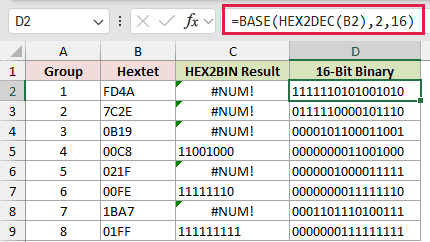
HEX2DEC first converts the hextet to decimal. BASE then converts that number to base 2 and pads the result to 16 characters.
FD4A returns 1111110101001010 with this method. The last hextet, 01FF, returns 0000000111111111.
Tips & Common Mistakes
- HEX2BIN accepts values from FFFFFFFE00 through 1FF, representing -512 through 511. A value outside that range returns #NUM!.
- The places argument only pads a result. Too few places or a value above 10 returns #NUM!, while a non-integer places value is truncated (8.9 behaves like 8).
- Invalid hex characters and a 0x prefix return #NUM!. Remove prefixes and clean imported codes before conversion.
- Store hexadecimal codes as text. Otherwise, Excel may reinterpret entries that resemble numbers or scientific notation before HEX2BIN sees them.
- HEX2BIN results are text. Use BIN2DEC to convert binary text back to a number before arithmetic.
HEX2BIN works well for flags and fixed-width patterns when each input stays inside its ten-bit range.
Related Excel Functions / Articles:
