
Excel’s BITAND function compares two nonnegative whole numbers at the binary level and returns the decimal value represented by the bits they share.
It’s useful when one stored code represents several on-or-off settings, with each setting assigned to a different bit.
In this article, I’ll show you how to compare decimal numbers in binary, decode a handling bitmask, and test a stored schedule for a date.
BITAND Function Syntax in Excel
The BITAND function takes two numbers and returns the value of the bits set in both.
=BITAND(number1, number2)
- number1 (required) is the first nonnegative whole number to compare.
- number2 (required) is the second nonnegative whole number to compare.
When to Use BITAND Function
- Check whether a particular setting is turned on inside a stored code.
- Test whether all or any required flags appear in a value.
- Decode compact status, handling, amenity, or certification codes.
- Filter and count records carrying a chosen flag.
- Match a stored weekday schedule against a particular date.
Example 1: Compare Two Numbers With BITAND
Let’s start by making the shared bits visible.
Below is the dataset. Each row has a pair of decimal numbers, followed by the BITAND result column and the binary-view columns.
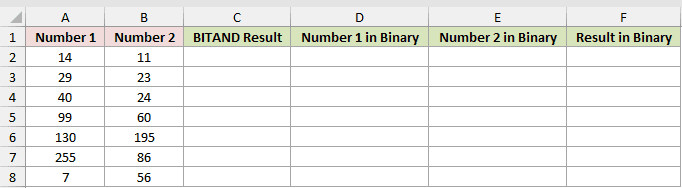
We want to compare every pair with one spilling BITAND formula.
Here is the formula:
=BITAND(A2:A8,B2:B8)
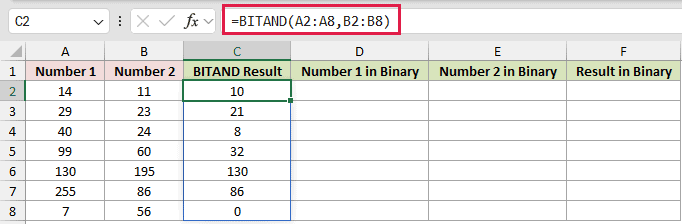
BITAND checks matching bit positions and keeps only those set in both numbers. The first pair, 14 and 11, returns 10.
To make the result easier to inspect, display the inputs and results as binary strings.
=DEC2BIN(+A2:C8,8)
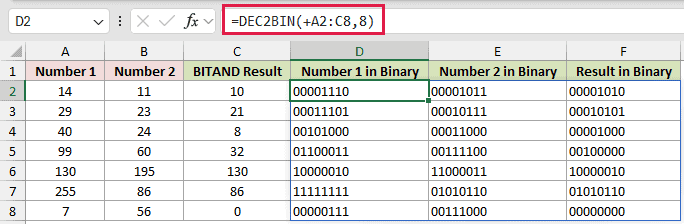
The first row displays 00001110, 00001011, and 00001010. You can see that the result keeps only the shared positions.
The unary plus lets DEC2BIN return the full range as a spill. Without it, =DEC2BIN(A2:C8,8) returned one #VALUE!.
Pro Tip: BITAND is available from Excel 2013. The range-based BITAND and DEC2BIN formulas spill in Excel 2021, Excel 2024, and Microsoft 365. In Excel 2013 through 2019, enter each formula per row and fill it down.
Example 2: Test a Single Flag
A preference code is a practical place to use a single-flag test.
Below is the dataset. Customer preference codes sit beside the result column, with the preference legend in the right-hand panel.
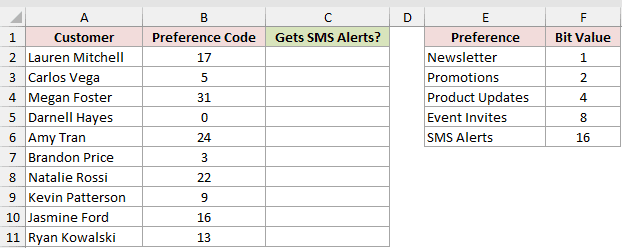
We want to identify every customer whose code includes the SMS Alerts flag.
Here is the formula:
=IF(BITAND(B2:B11,16)=16,"Yes","No")
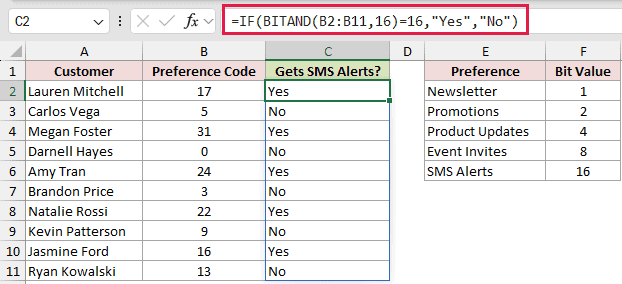
The SMS Alerts flag has a value of 16. BITAND returns 16 when that flag is present and 0 when it isn’t.
The IF function converts that numeric test into a clearer Yes or No result. Lauren Mitchell returns Yes, while Carlos Vega returns No.
Example 3: Check All or Any Flags
The next example separates two questions that look similar but need different tests.
Below is the dataset. It lists rentals and amenity codes, two result columns, and a legend showing each amenity’s bit value.
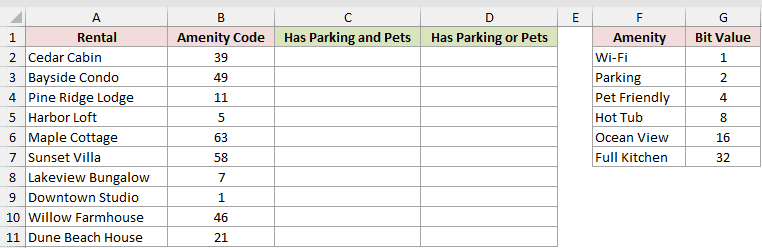
We want to check whether each rental has both requested amenities, then compare that with having either amenity.
Here is the formula for requiring both Parking and Pet Friendly:
=BITAND(B2:B11,6)=6
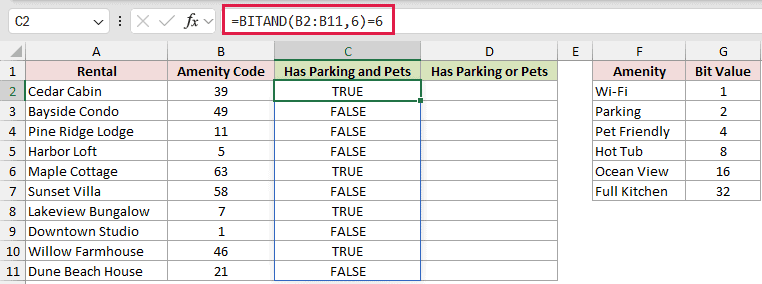
The mask is 6 because Parking has a bit value of 2 and Pet Friendly has a bit value of 4.
Requiring the BITAND result to equal the mask means every requested flag must be present. This replaces a longer AND test built from separate BITAND checks.
Cedar Cabin returns TRUE, while Pine Ridge Lodge returns FALSE.
Here is the comparison formula for accepting either amenity:
=BITAND(B2:B11,6)>0
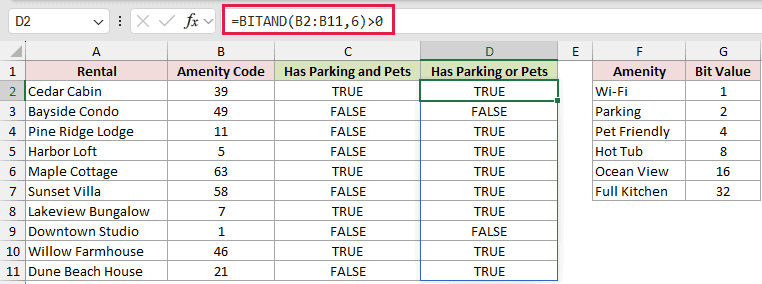
The greater-than-zero test needs only one shared bit. Pine Ridge Lodge now returns TRUE because its code includes Parking, even though it doesn’t include Pet Friendly.
Pro Tip: Compare the BITAND result with the full mask when every flag must be on. Check whether it exceeds zero when any flag is enough. Mixing these tests changes which records qualify.
Example 4: Decode a Handling Bitmask
A handling code can also be expanded into labels someone can read.
Below is the dataset. Order IDs and handling codes appear on the left, the result column sits beside them, and the handling legend is on the right.
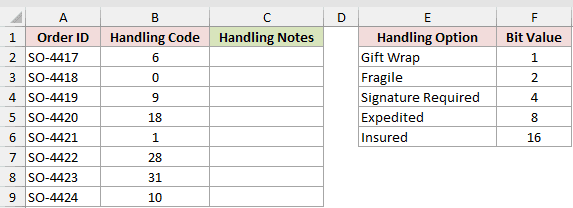
We want to list every handling option included in each order’s code.
Here is the first-row formula, which is copied down column C:
=TEXTJOIN(", ",TRUE,FILTER($E$2:$E$6,BITAND(B2,$F$2:$F$6)>0,"None"))
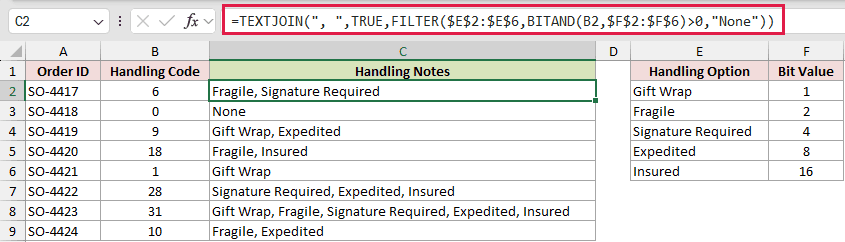
BITAND tests the order code against every value in the legend. FILTER keeps the matching labels, and TEXTJOIN combines them into one cell.
SO-4417 returns Fragile, Signature Required. SO-4418 returns None, while SO-4423 returns every handling option in the legend.
This example uses a per-row formula because TEXTJOIN collapses each order’s matches into one text result. FILTER requires Excel 2021 or later.
In Microsoft 365 and Excel 2024, MAP can run the same row calculation from one formula.
Example 5: Filter and Count Flagged Records
A stored flag can also drive a short report.
Below is the dataset. It contains technicians, certification codes, the certification legend, a result area for matching names, and a labelled cell for the count.
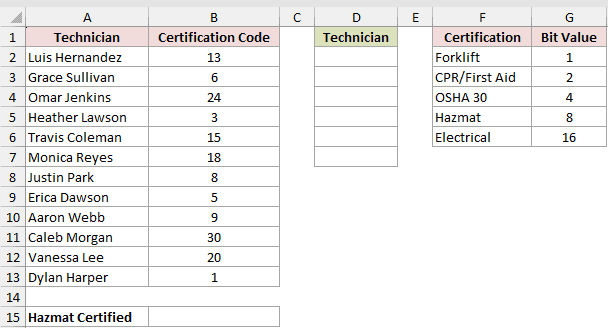
We want to list the Hazmat-certified technicians and count the same qualifying records.
Here is the formula that returns the names:
=FILTER(A2:A13,BITAND(B2:B13,8)=8)
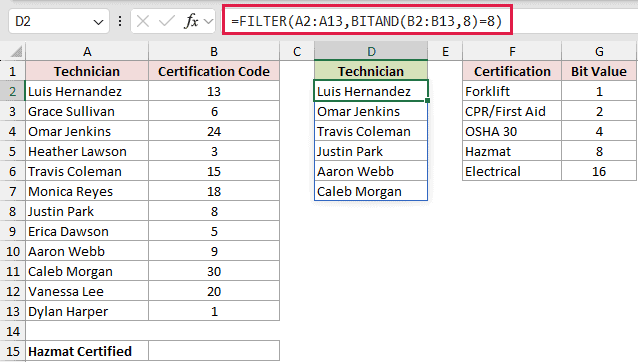
BITAND tests each certification code against the Hazmat flag. FILTER returns Luis Hernandez, Omar Jenkins, Travis Coleman, Justin Park, Aaron Webb, and Caleb Morgan.
The same test can also produce a count:
=SUM(--(BITAND(B2:B13,8)=8))
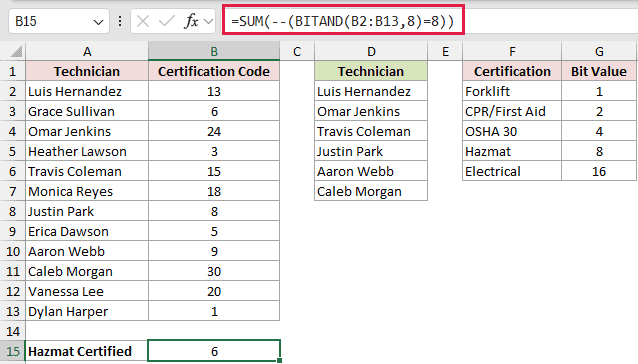
The comparison produces TRUE or FALSE for every technician. The double unary converts them to ones and zeros, which SUM adds to return 6.
Example 6: Check a Weekday Bitmask
Finally, let’s use a date to test a delivery schedule stored as a bitmask.
Below is the dataset. It lists suppliers, delivery schedules, day codes, a result column, the target delivery date, and a weekday bit-value legend.
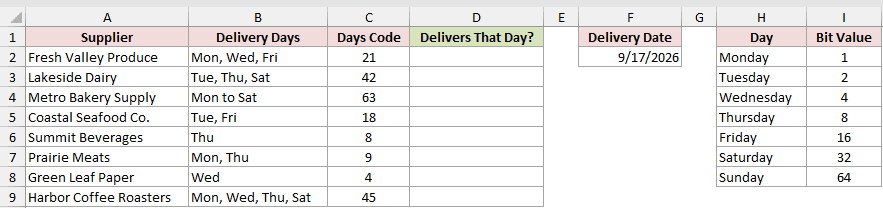
We want to check which suppliers deliver on the date stored in F2.
Here is the formula:
=IF(BITAND(C2:C9,2^(WEEKDAY(F2,2)-1))>0,"Yes","No")
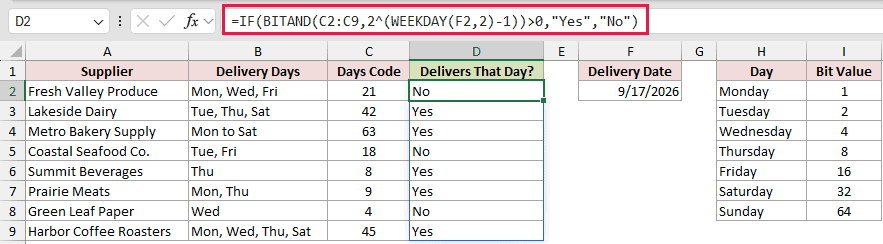
The date 9/17/2026 is a Thursday. WEEKDAY(F2,2) returns 4 because return type 2 counts Monday as 1, matching the legend.
The exponent then creates the Thursday mask: 2^(4-1) = 8.
BITAND tests that mask against every supplier code. Lakeside Dairy and Summit Beverages return Yes, while Fresh Valley Produce and Coastal Seafood Co. return No.
Tips & Common Mistakes
- BITAND accepts whole numbers from 0 through 281474976710655. A decimal such as 12.5, a negative value, or 2^48 returns #NUM!.
- Numbers stored as text are converted when possible. For example,
=BITAND("12",10)returned8in testing. - BITAND returns the shared bit value, not TRUE or FALSE.
- A blocked spill range returns #SPILL!. Clear the cells where the results need to appear.
- For Example 2’s legend,
=BITAND(code,29)clears the Promotions bit. Mask 29 keeps every other bit, so 31 becomes 29, 17 stays 17, and 3 becomes 1. - For a plain odd-or-even test, ISODD and ISEVEN state the intent more clearly than
BITAND(number,1), which tests the lowest bit. BITOR sets flags, while BITXOR toggles them.
BITAND works best when each bit has a clear meaning in your data.
Define the flag legend first, then build each mask from those bit values.
Related Excel Functions / Articles:
