
The IMCONJUGATE function in Excel returns a complex number’s conjugate by reversing the imaginary part’s sign and keeping the real part unchanged.
Conjugates help you divide complex numbers and calculate AC power. Multiplying a complex number by its conjugate cancels the imaginary part and produces a real value.
Excel still returns that conjugate as text. Even when the result looks like an ordinary number, you’ll need to account for its type in later calculations.
I’ll show you how to conjugate a column, interpret shortened results, and use conjugates in division and power calculations.
IMCONJUGATE Function Syntax in Excel
IMCONJUGATE takes the complex number you want to conjugate:
=IMCONJUGATE(inumber)
- inumber (required): A complex number written as
a+biora+bj, a cell containing it, or a result from COMPLEX. Plain real numbers also work.
Use lowercase i or j for the imaginary suffix. If you type complex text directly into a formula, put it inside double quotes.
The function returns text and preserves the input’s suffix when an imaginary part remains.
When to Use IMCONJUGATE Function
- Reverse the imaginary sign of complex values stored in a worksheet.
- Multiply complex values by their conjugates to obtain squared magnitudes.
- Work through complex division by making the denominator real.
- Calculate complex power from voltage and the conjugate of current.
Example 1: Conjugate a Column of Complex Numbers
Let’s start with values whose real and imaginary parts have different signs.
Below is the dataset. Column A contains complex numbers, and column B has the Conjugate header and empty cells for the results.
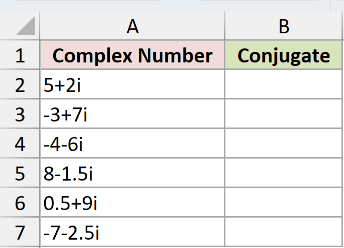
We want to reverse each imaginary sign without changing the real part.
Enter this formula in B2, then copy it down to B7:
=IMCONJUGATE(A2)
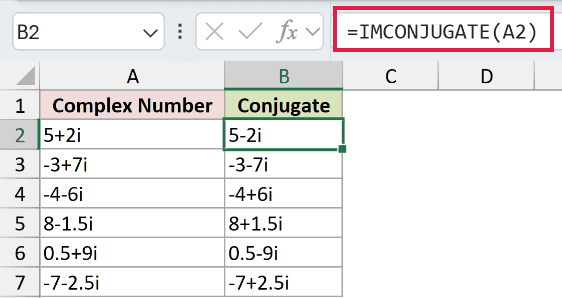
The input 5+2i returns 5-2i. For -4-6i, the result is -4+6i. The negative real part stays negative.
Decimals work the same way. The input 8-1.5i returns 8+1.5i, with no change to either part’s size.
These are per-row formulas. Passing a bare range to IMCONJUGATE returns a single #VALUE!, so selecting the whole input column isn’t a substitute for filling down.
Pro Tip: Use =IMCONJUGATE(+A2:A7) to spill in Excel 2021, Excel 2024 and Microsoft 365. The plus coerces the range into an array. In Excel 2019 and earlier, fill the per-row formula down.
Example 2: Understand Shortened Results and Invalid Inputs
Some conjugates look shorter because Excel simplifies the complex text it returns.
Below is the dataset. Column A identifies each input type, column B holds the inputs, and column C is reserved for conjugates, including a deliberate error demonstration.
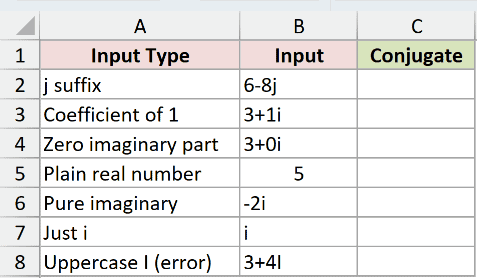
We want to see how notation changes and identify the invalid uppercase suffix.
Enter this formula in C2, then copy it down to C8:
=IMCONJUGATE(B2)
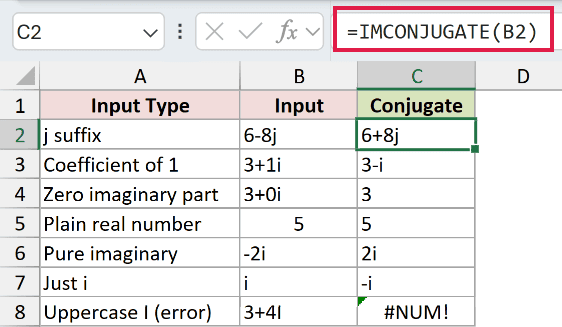
Each row highlights a different input detail:
6-8jreturns6+8j. Excel keeps the lowercasejsuffix.3+1ireturns3-i. Excel omits the coefficient of 1 when writing the imaginary part.3+0ireturns3. The zero imaginary part disappears.- The plain number
5returns5, because a real number is its own conjugate. The returned value is still text. -2ireturns2i, whileireturns-i. A pure imaginary input stays pure imaginary.- The deliberate error in
C8is#NUM!, caused by the capitalIin3+4I. Change the suffix to lowercase to correct the input.
Excel writes the same value in a shorter form by omitting a coefficient of 1 or a zero imaginary part.
Example 3: Multiply by the Conjugate
Now let’s use conjugates to produce values with no imaginary part.
Below is the dataset. Column A holds complex numbers; columns B and C will hold conjugates and products. Column D is the IMABS Squared comparison.
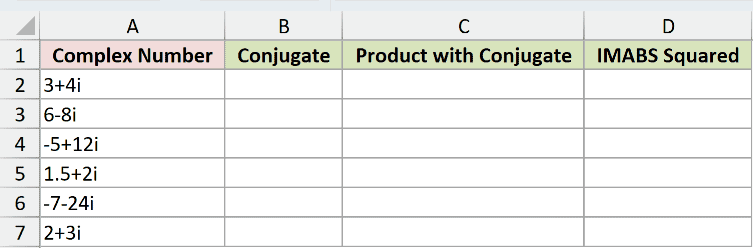
We want to multiply each value by its conjugate, then compare the product with its squared magnitude.
First, enter the conjugate formula in B2 and copy it down to B7:
=IMCONJUGATE(A2)
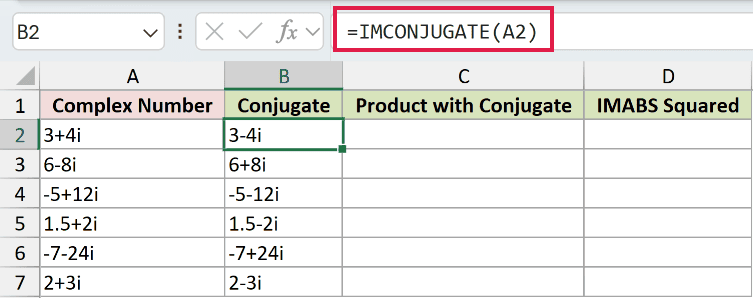
The first input, 3+4i, returns 3-4i.
In C2, multiply the original value by its conjugate, then copy down to C7:
=IMPRODUCT(A2,B2)
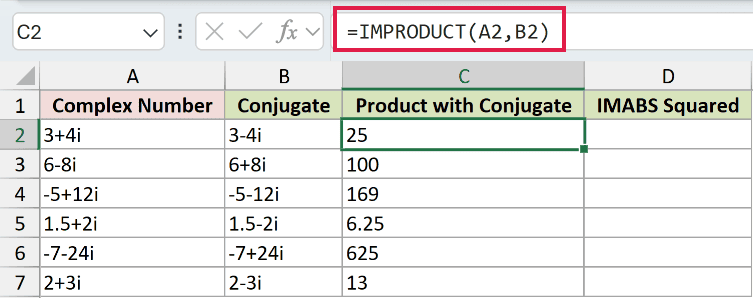
The first product is 25. Multiplying by the conjugate cancels the imaginary terms, but IMPRODUCT returns this real value as text.
For the numeric comparison, enter this in D2 and copy down to D7:
=IMABS(A2)^2
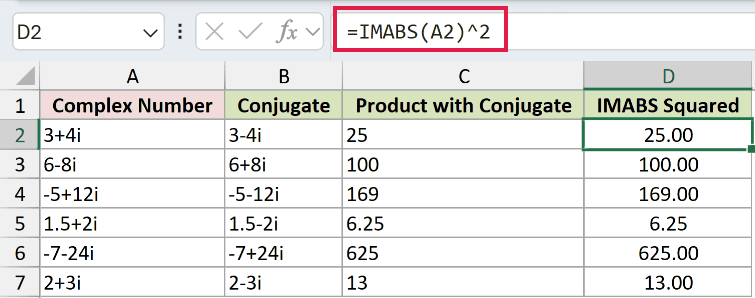
IMABS returns the magnitude as a number. Squaring it produces the same mathematical value as multiplying by the conjugate.
The comparison in D2 displays 25.00, while C2 displays the text 25. The comparison uses a numeric format because its result is a number.
For 1.5+2i, both columns display 6.25. Column C contains text, while the comparison in column D contains numbers.
If you only need the numeric squared magnitude, the IMABS comparison formula is the more direct choice.
Example 4: Divide Using the Denominator’s Conjugate
The same cancellation explains how conjugates help with complex division.
Below is the dataset. Columns A and B hold numerators and denominators. Columns C and D will hold transformed products, and column E will hold quotients.
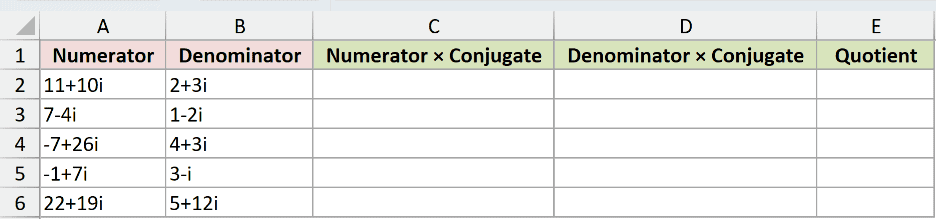
We want to multiply the numerator and denominator by the denominator’s conjugate, then divide using the resulting real denominator.
In C2, multiply the numerator by that conjugate, then copy down to C6:
=IMPRODUCT(A2,IMCONJUGATE(B2))
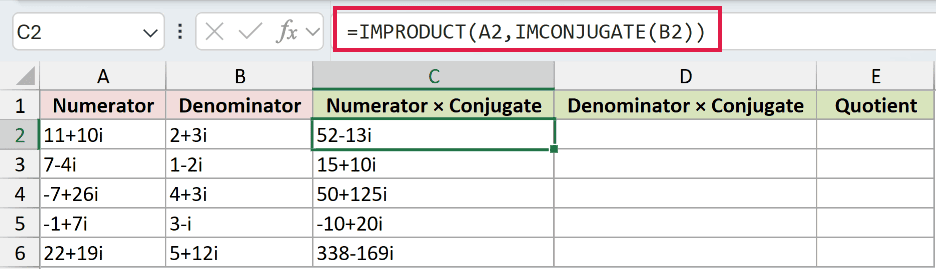
The first transformed numerator is 52-13i.
In D2, multiply the denominator by its own conjugate, then copy down to D6:
=IMPRODUCT(B2,IMCONJUGATE(B2))
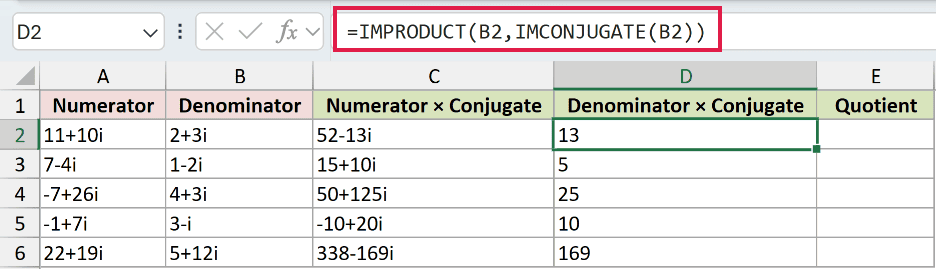
The first transformed denominator is 13. It has no imaginary part, which makes the remaining division straightforward.
Enter the quotient formula in E2, then copy it down to E6:
=COMPLEX(IMREAL(C2)/D2,IMAGINARY(C2)/D2)
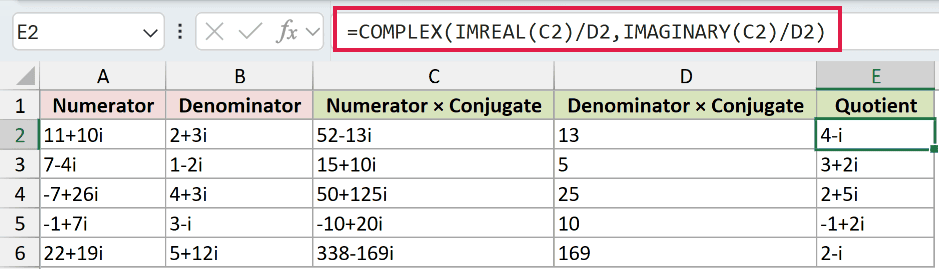
How this formula works:
- IMREAL extracts the transformed numerator’s real part, and IMAGINARY extracts its imaginary part.
- Each part is divided by the real denominator in
D2. Excel converts this digit-only text to a number during division. - COMPLEX puts the divided parts back together as complex text.
The first quotient is 4-i. The remaining rows return 3+2i, 2+5i, -1+2i, and 2-i.
Multiplying the top and bottom by the same nonzero conjugate preserves the quotient. The new denominator is real.
Pro Tip: IMDIV is the direct choice when you only need the quotient. Use the expanded conjugate method when you want to see or check the intermediate steps.
Example 5: Calculate Complex Power From Current
For an AC power calculation, choosing the conjugate affects the reactive power’s sign.
Below is the dataset. Columns A through C list meter points, voltages and currents. Columns D through F are reserved for complex, real and reactive power.
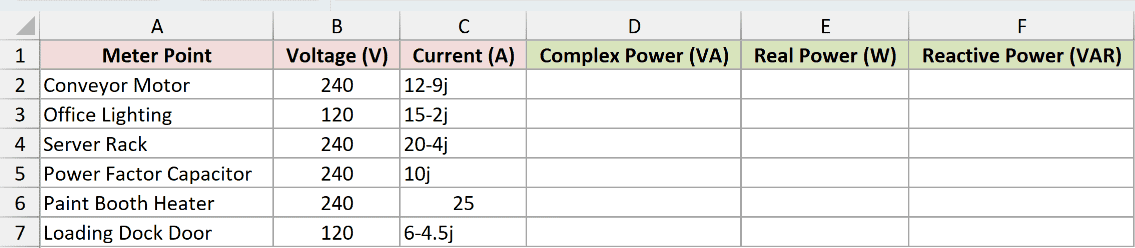
We want to multiply voltage by the current’s conjugate, then extract the real and reactive power as numbers.
Voltage is the zero-angle reference here, so its values are purely real. Complex power is voltage multiplied by the conjugate of current.
Enter this formula in D2, then copy it down to D7:
=IMPRODUCT(B2,IMCONJUGATE(C2))
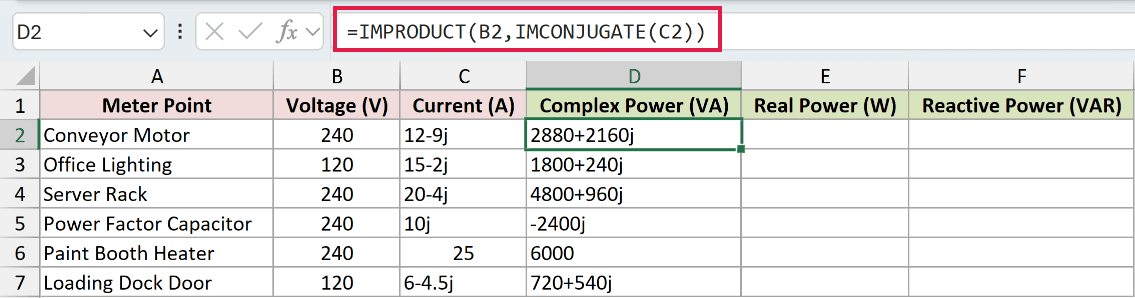
The Conveyor Motor returns 2880+2160j. The Power Factor Capacitor returns -2400j, while the Paint Booth Heater returns the digit-only text 6000.
To extract real power, enter this formula in E2 and copy down to E7:
=IMREAL(D2)
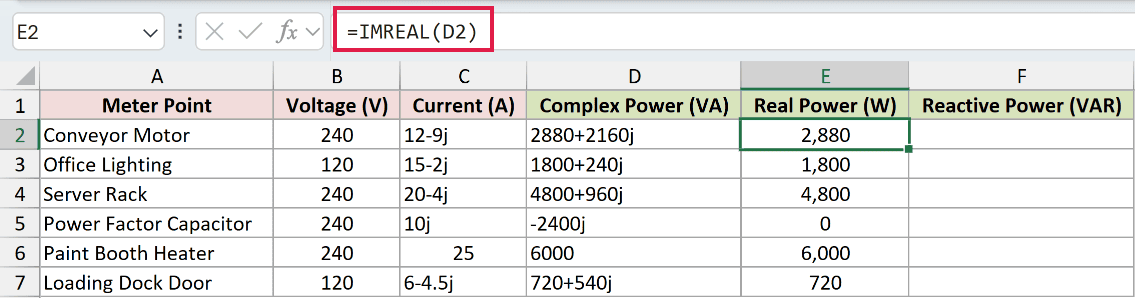
The Conveyor Motor’s real power displays as 2,880 watts. The Paint Booth Heater displays 6,000 watts, now as a number you can use in ordinary calculations.
To extract reactive power, enter this formula in F2 and copy down to F7:
=IMAGINARY(D2)
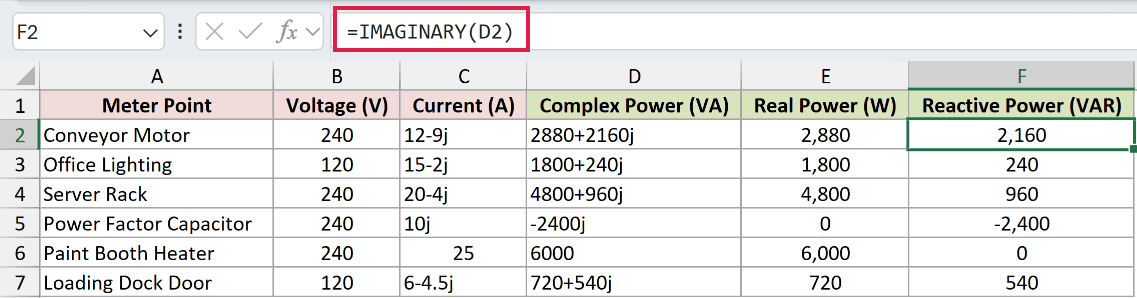
The Conveyor Motor returns 2,160 VAR, indicating a lagging, inductive load. The Power Factor Capacitor returns -2,400 VAR, indicating a leading, capacitive load.
The Paint Booth Heater returns 0 VAR because its current is purely real.
With these purely real voltage references, multiplying by the original current instead of its conjugate would reverse the reactive power’s sign.
Tips & Common Mistakes
- Keep complex results separate from numeric totals. IMCONJUGATE and IMPRODUCT return text. Extract the real or imaginary part before using ordinary numeric totals.
- Number formats don’t round complex text. If you need fewer decimal places, work with the extracted numeric parts before rebuilding the complex value.
- Don’t flip the real sign. Conjugation changes only the imaginary sign. Making the entire complex value negative is a different operation.
- Use COMPLEX when the parts are separate. It builds complex text from real and imaginary coefficients, ready for IMCONJUGATE.
- Match the next function to your goal. IMREAL extracts the real part, IMAGINARY extracts the imaginary part, and IMABS returns the magnitude as a number.
- Adding a value to its conjugate with IMSUM doubles the real part. Subtracting its conjugate with IMSUB doubles the imaginary part and cancels the real part.
You’ve seen how IMCONJUGATE handles signs and shortened results, and how conjugates help with multiplication, division and AC power.
Keep the text result in mind when you move on to numeric calculations.
Related Excel Functions / Articles:
