
Checking whether a cell contains some text in Excel is easy, but pulling out the whole word that holds that text takes a bit more work.
Say a note reads “Rush shipment through the express carrier” and you search for “press”. You don’t want TRUE or a position number. You want “express”.
Excel has no single function for this. The right formula depends on your Excel version, and on whether you need the first match or every match in the cell.
I’ll show you how to return every matching word with TEXTSPLIT and FILTER, the first match with REGEXEXTRACT, and a match in older Excel with MID and SEARCH.
Method #1: Using TEXTSPLIT and FILTER (All Matches)
This is the method I’d reach for first. It returns every word that contains your search text, not just the first one.
It works in Microsoft 365 and Excel 2024, since both have the TEXTSPLIT function.
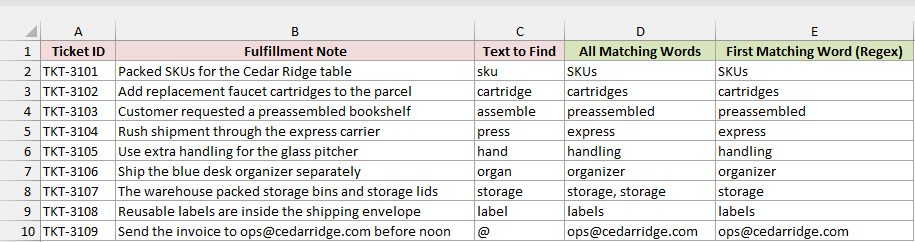
Below I have a dataset with ticket notes in column B and the text to find in column C. I want every word in each note that contains that text.
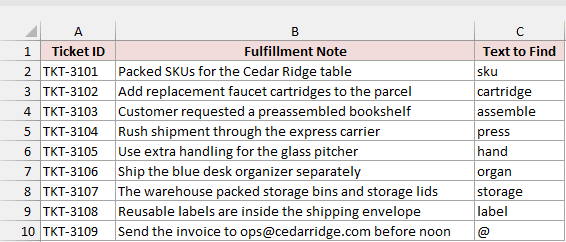
Here is the formula for cell D2:
=TEXTJOIN(", ",TRUE,FILTER(TEXTSPLIT(B2," "),ISNUMBER(SEARCH(C2,TEXTSPLIT(B2," "))),"No match"))
Copy it down to D10 to cover every note.
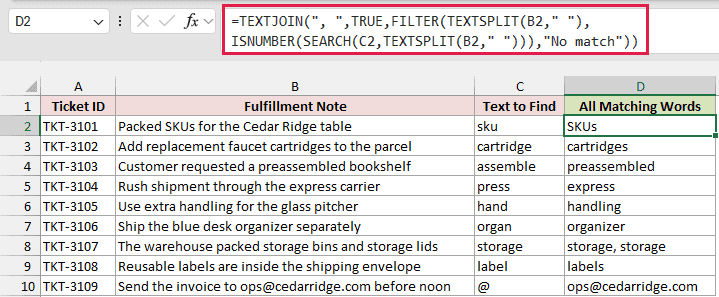
The note for TKT-3107 mentions storage twice, so the result is “storage, storage”. For TKT-3104, a search for “press” returns “express”.
How does this formula work?
TEXTSPLIT(B2," ") splits the note at every space, so each word becomes its own item in an array.
SEARCH(C2,...) looks for the search text inside each of those words. It returns a position number when it finds the text and a #VALUE! error when it doesn’t.
ISNUMBER turns those results into TRUE or FALSE, and FILTER keeps only the words marked TRUE. If no word matches, FILTER returns “No match”.
TEXTJOIN then joins the words FILTER kept into one cell, with a comma and a space between them.
I’m filling this formula down instead of spilling it because TEXTJOIN combines everything it gets into one cell.
Point it at the whole column and every note would merge into one answer.
Note: SEARCH ignores case, so “sku” finds “SKUs” in TKT-3101. If case matters, swap SEARCH for FIND. The FAQ below shows how.
Method #2: Using the REGEXEXTRACT Function
If you only need the first matching word, REGEXEXTRACT can do it with a shorter formula. It pulls out the part of the text that matches a pattern you describe.
REGEXEXTRACT is only available in Microsoft 365. It isn’t in Excel 2024 or older versions.
Below I have the same ticket notes in column B, with the text to find in column C. Column D already holds the results from Method #1.
This time, I want only the first matching word for each note in column E.
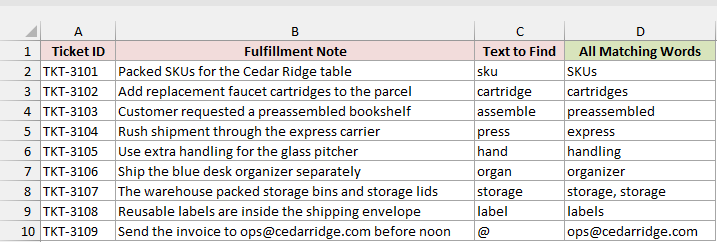
Here is the formula for cell E2:
=IFERROR(REGEXEXTRACT(B2:B10,"\S*"&C2:C10&"\S*",0,1),"No match")
Since the formula uses whole ranges, it spills down the column automatically. You enter it once in E2.
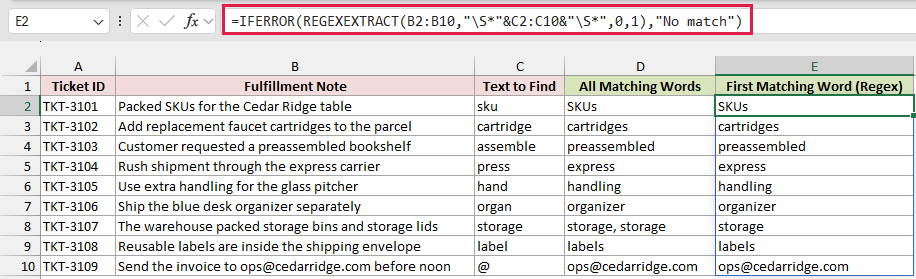
TKT-3109 returns the full email address ops@cedarridge.com. TKT-3107 returns a single “storage”, since this method stops at the first match.
How does this formula work?
"\S*"&C2:C10&"\S*" builds one pattern per row. \S means any character that isn’t a space, and * means zero or more of them.
So the pattern reads as “any non-space characters, then the search text, then more non-space characters”. That covers the whole word around the match.
The 0 tells REGEXEXTRACT to return only the first match. The 1 makes the match ignore case, so “sku” still finds “SKUs”.
When a note has no match, REGEXEXTRACT returns #N/A, and IFERROR shows “No match” instead.
Note: I used \S instead of the more common \w on purpose. \w only matches letters, digits, and underscores, so it stops at the @ sign and the dot and cuts an email address short.
Your search text also becomes part of the pattern, and characters like ., *, ?, and + have special meanings in a pattern.
If your search text contains any of them, put a backslash in front of each one (\. for a dot), or use Method #1 instead.
Method #3: Using MID and SEARCH (Any Excel Version)
If you’re on Excel 2021 or older, you won’t have TEXTSPLIT or REGEXEXTRACT. This formula uses older text functions, so it works in any version of Excel.
Like Method #2, it returns the first matching word.
Below I have the same ticket notes in column B and the text to find in column C. Columns D and E hold the results from the first two methods.
I want the first matching word in column F, using only functions that every Excel version has.
Here is the formula for cell F2:
=IFERROR(TRIM(MID(SUBSTITUTE(B2," ",REPT(" ",99)),MAX(1,SEARCH(C2,SUBSTITUTE(B2," ",REPT(" ",99)))-50),99)),"No match")
Copy it down to F10. A fill-down formula works in every version, which is the whole point of this method.
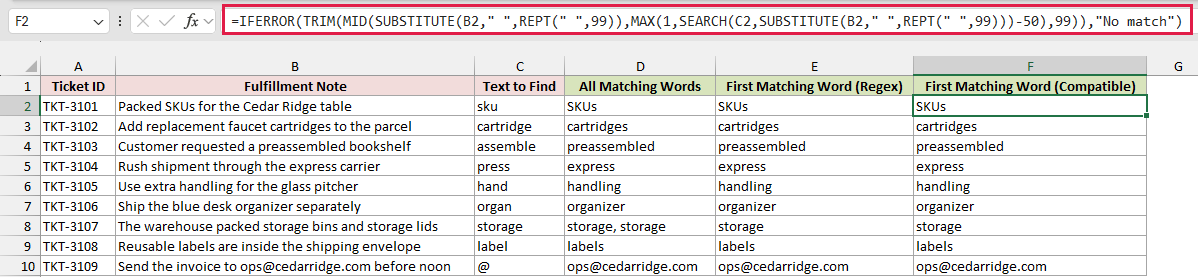
Every row matches the Method #2 result, including ops@cedarridge.com for TKT-3109.
How does this formula work?
SUBSTITUTE(B2," ",REPT(" ",99)) replaces every space in the note with 99 spaces. That pushes each word far away from its neighbors.
SEARCH(C2,...) then finds where the search text starts inside that padded note.
MID starts 50 characters before that spot and takes 99 characters. Since the words are now 99 spaces apart, that window holds the matching word plus a lot of spaces.
MAX(1,...) keeps the start position from dropping below 1 when the match is near the start of the note. TRIM removes the extra spaces.
If SEARCH can’t find the text, it returns an error, and IFERROR shows “No match”.
Note: The padding comes with two limits. Words up to 49 characters always come back whole, but longer ones can get cut off. And once a cell has more than about 320 spaces, the padded text gets too long for Excel, so you’ll see “No match” even when the word is there.
Which Method Should I Use?
Here’s a quick way to pick:
| If you need | Use |
|---|---|
| Every matching word | Method #1 (TEXTSPLIT and FILTER) |
| Only the first match in Microsoft 365 | Method #2 (REGEXEXTRACT) |
| A formula for Excel 2021 or older | Method #3 (MID and SEARCH) |
| An exact-case match | FIND instead of SEARCH, or 0 as the last REGEXEXTRACT argument |
| The second matching word | INDEX with FILTER (see the FAQ) |
Additional Notes About Extracting a Word Containing Text in Excel
- All three methods treat a word as the text between two spaces. Punctuation attached to a word stays with it, so a note ending in “labels.” returns “labels.” with the period.
- Keep the search cell filled in. An empty search cell matches every word, so Method #1 returns the whole note and Methods #2 and #3 return its first word.
- If you need the text before a specific character rather than a whole word, the TEXTBEFORE function is a better fit. For the text after it, use TEXTAFTER.
- To pull text from a fixed position instead, you can extract part of the text with LEFT, MID, and RIGHT.
Frequently Asked Questions
Here are answers to a few common questions about extracting words in Excel.
How do I make the search case-sensitive?
Swap SEARCH for FIND in Method #1 or Method #3, since FIND only matches the exact case. In Method #2, change the last argument from 1 to 0.
Here is Method #1 with FIND:
=TEXTJOIN(", ",TRUE,FILTER(TEXTSPLIT(B2," "),ISNUMBER(FIND(C2,TEXTSPLIT(B2," "))),"No match"))
On the Case and Second Match sheet, searching TKT-3110 for “ORD” returns “reordered, ORD-5521” with SEARCH, but only “ORD-5521” with FIND.
How do I get the second word that contains the text?
Use FILTER to collect the matching words, then INDEX to pick the second one. This works in Microsoft 365 and Excel 2024:
=IFERROR(INDEX(FILTER(TEXTSPLIT(B2," "),ISNUMBER(SEARCH(C2,TEXTSPLIT(B2," ")))),2),"No second match")
For TKT-3111, a search for “label” returns “labels”, since “Relabel” is the first match. Change the 2 to 3 to get the third match.
Why does my formula return a #NAME? error?
Your Excel version doesn’t have one of the functions. TEXTSPLIT needs Microsoft 365 or Excel 2024, and REGEXEXTRACT needs Microsoft 365. Method #3 works everywhere.
Conclusion
Pulling out a word that contains specific text comes down to splitting the note into words and keeping the ones that match.
TEXTSPLIT and FILTER is my default because it returns every match.
I hope you found this article helpful.
Other Excel articles you may also like:
