
Time-series data records how something changes over time, such as daily website visits, monthly sales, or annual expenses. Looking at the numbers alone can make it hard to tell a lasting trend from a short-lived change.
In Excel, you can start with a line chart, measure the change between periods, and summarize dates in a PivotTable.
If you need to estimate future values, the right forecasting method depends on whether your data follows a steady trend or a repeating seasonal pattern.
I’ll show you five ways to analyze time-series data in Excel, including how to compare quarterly totals and build a short forecast.
Method #1: Creating a Line Chart
A line chart is where I’d start. It makes rises, dips, and possible patterns easier to see than a list of numbers.
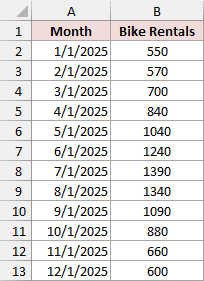
Below, I have monthly bike rentals for the fictional Riverside Bike Rentals business. The dates run from January to December 2025, with one rental total for each month.
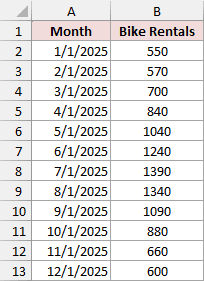
You can find these values in columns A and B of the Rentals 2025 sheet in the download. The workbook includes the finished chart, so you can inspect it or create another one by following these steps.
- Select A1:B13, including the headers.
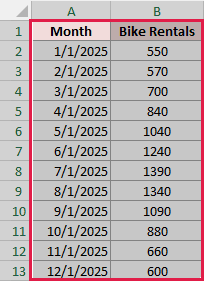
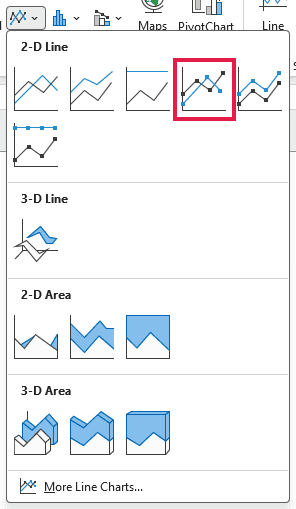
- Go to Insert > Insert Line or Area Chart and choose Line with Markers under 2-D Line.
- Click the chart title and replace it with Bike Rentals in 2025.
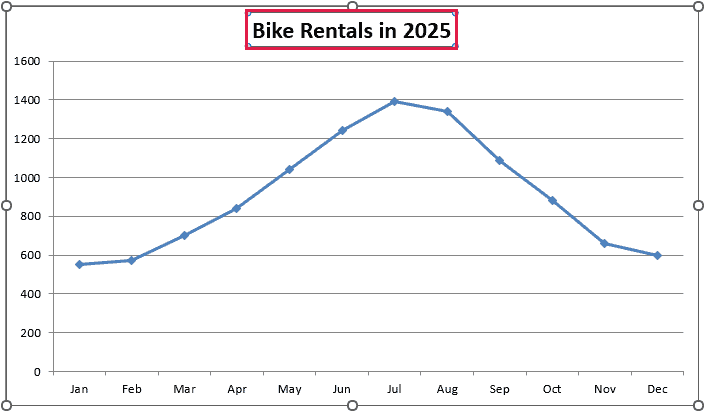
Rentals rise from 550 in January to a peak of 1,390 in July, then fall to 600 in December. That suggests a summer peak, but one year’s data doesn’t establish a repeating seasonal pattern. For that, I’d compare several years.
Keep the dates in chronological order and use actual Excel dates, even if you display them as month names. If Excel treats your dates as text, sorting or charting them can give misleading results.
Method #2: Using a Percentage Change Formula
A chart shows the shape of the series. Percentage change answers a different question: how much did this period increase or decrease compared with the previous one?
For this example, I’ll use the monthly rental totals in A1:B13 on the Rentals 2025 sheet.
Column C contains the finished Monthly Change calculation. To try it yourself in a copy of the workbook, clear the formula in C3. This also clears its spilled results. Leave C2 blank because this excerpt has no December 2024 value to compare with January.
Enter this formula in C3:
=B3:B13/B2:B12-1
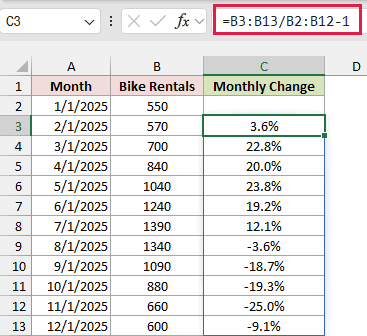
The formula spills through C13 in Excel for Microsoft 365, Excel 2021, and Excel 2024. The workbook formats these results as percentages with one decimal place. If you’re starting on a blank sheet, apply Percentage format with one decimal place to the result cells.
How does this formula work?
Each value in B3:B13 is divided by the corresponding previous month’s value in B2:B12. Subtracting 1 converts that ratio into a rate of change.
For February, Excel calculates 570 divided by 550, minus 1. The result displays as 3.6%. August shows -3.6%, which means rentals fell compared with July.
In Excel 2019 or an earlier version without spilling, enter =B3/B2-1 in C3 and copy it down through C13 instead.
A large percentage increase doesn’t always mean the business is growing over the long term. In a seasonal business, comparing July with June answers a different question from comparing July with the previous July.
If the previous value is zero, this percentage-change calculation is undefined.
Method #3: Grouping Dates in a PivotTable
Grouping dates in a PivotTable helps when you want to summarize many observations into periods, such as quarters or years. Keeping the year alongside the quarter lets you compare Q3 across years without mixing all the Q3 values together.
The Rental History sheet contains 36 monthly rental totals in A1:B37, covering January 2023 through December 2025. The image below shows the beginning of that history.
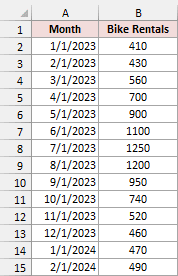
The completed PivotTable is beside the data in the download. To build your own without overwriting it, use a new worksheet as follows.
- Select A1:B37 on the Rental History sheet, then go to Insert > PivotTable > From Table/Range. Check the source range, choose New Worksheet, and click OK.
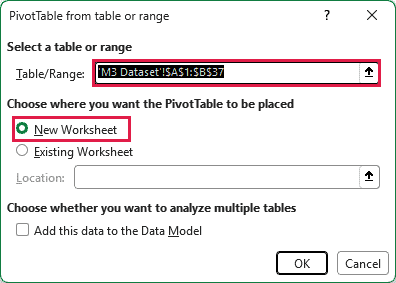
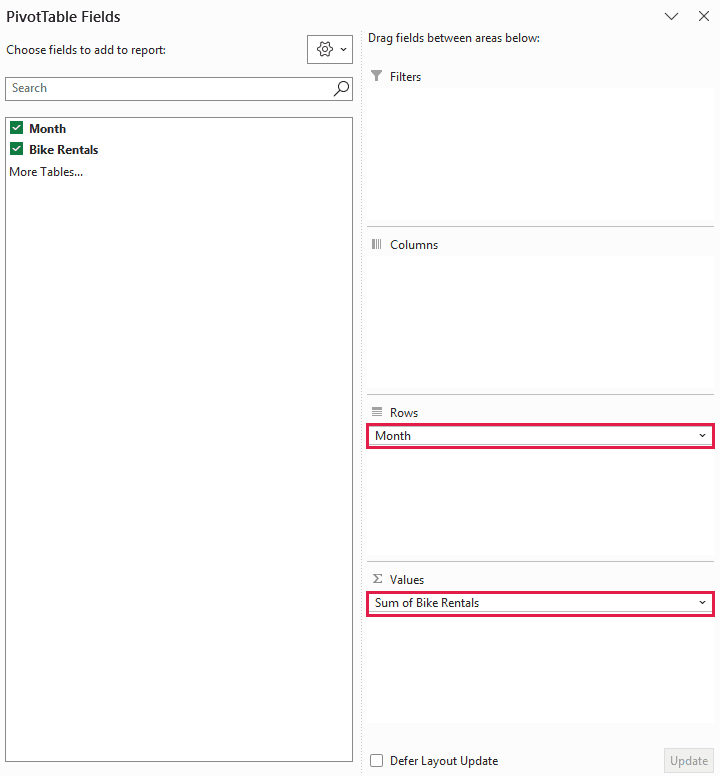
- In PivotTable Fields, drag Month to Rows and Bike Rentals to Values. The Values area should show Sum of Bike Rentals. If it shows Count, open Value Field Settings for that field and choose Sum.
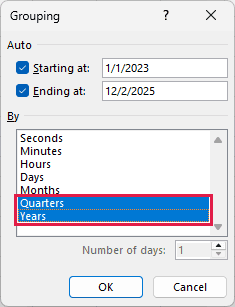
- Right-click a date label in the PivotTable and choose Group. In the Grouping dialog, select Quarters and Years, deselect the other periods, and click OK. If Excel has already grouped your dates, use a grouped date label to reopen this dialog.
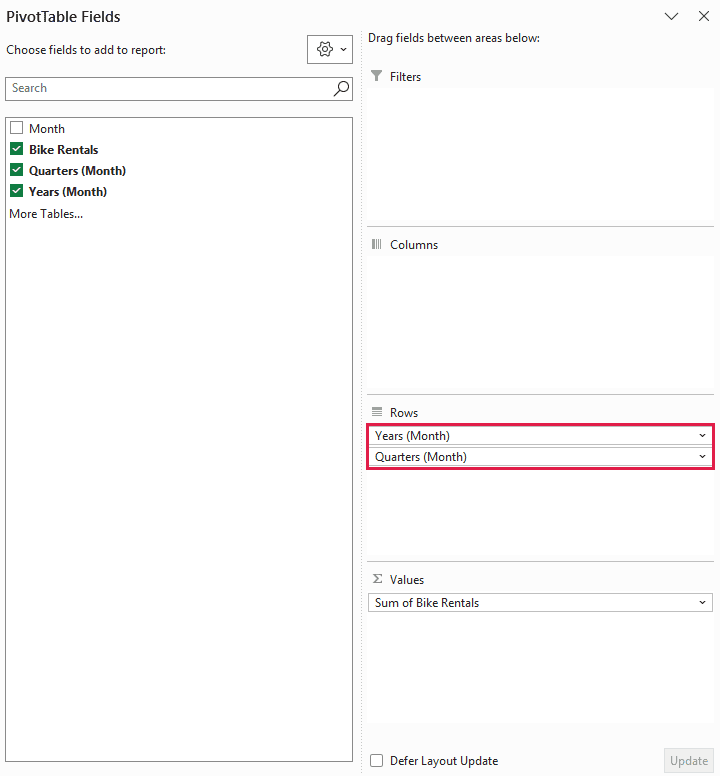
- Check the Rows area. Keep the year field above the quarter field and remove any separate month-level field so the report shows one row per quarter within each year.
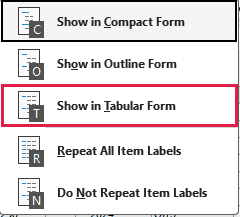
- With a PivotTable cell selected, go to Design > Report Layout > Show in Tabular Form.
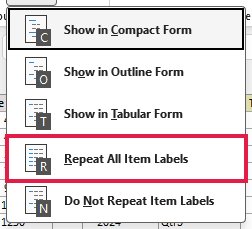
- Choose Design > Report Layout > Repeat All Item Labels so each quarter has a visible year label.
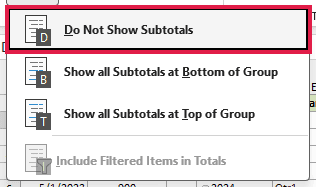
- Choose Design > Subtotals > Do Not Show Subtotals to remove the separate yearly subtotal rows.
The report now shows a separate total for each quarter within each year. In the completed workbook, I’ve shortened the headings to Year, Quarter, and Total Rentals. Excel’s default field headings may be longer; they don’t change the totals.
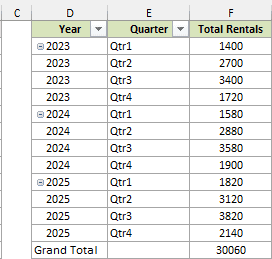
Q3 rentals rise from 3,400 in 2023 to 3,580 in 2024 and 3,820 in 2025. Q3 is also the busiest quarter in each of these three years. This gives us stronger evidence of a seasonal pattern than the one-year chart alone.
If you change existing source values, refresh the PivotTable to update its totals. If you add rows beyond row 37, update its source range too. Refreshing alone won’t expand the fixed range used in this example.
Method #4: Using the FORECAST.LINEAR Function
FORECAST.LINEAR estimates a future value by fitting a straight line to known values. I’d use it when the history follows a roughly linear trend and doesn’t have a strong repeating seasonal pattern.
The Passholders sheet uses a separate series: active passholders increase fairly steadily through 2025. Column A holds the dates, column B numbers the months from 1 to 12, and column C contains the passholder counts.
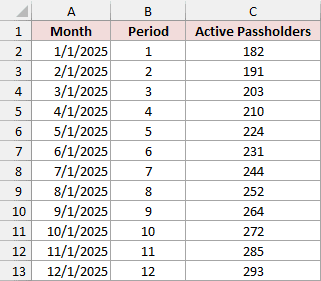
The forecast area in E1:G4 contains the next three months and period numbers 13, 14, and 15. Using period numbers treats each month as one equal step, regardless of how many days it contains.
To recreate the calculation, clear the existing formula in G2, then enter:
=FORECAST.LINEAR(F2:F4,$C$2:$C$13,$B$2:$B$13)
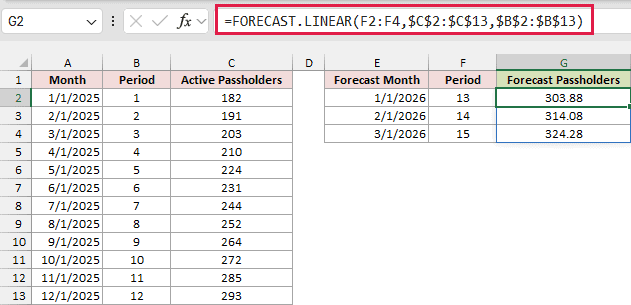
In Excel for Microsoft 365, Excel 2021, and Excel 2024, the formula spills into G2:G4. The forecasts are 303.88, 314.08, and 324.28 passholders, displayed to two decimal places.
How does this formula work?
F2:F4 supplies the future period numbers. C2:C13 contains the known passholder counts, and B2:B13 contains their corresponding period numbers.
Excel fits a straight line across all 12 observations, then evaluates that line at periods 13, 14, and 15. It doesn’t simply add the most recent month’s increase three times.
The fractional results are model estimates. If you’re planning capacity, you can round them to whole people after deciding whether your situation calls for rounding up or to the nearest person.
In Excel 2016 or 2019, use =FORECAST.LINEAR(F2,$C$2:$C$13,$B$2:$B$13) in G2 and copy it down through G4. Excel versions before 2016 use the older FORECAST function for this same linear calculation.
I wouldn’t apply this straight-line forecast to the rental series above without accounting for its seasonal pattern. A steadily rising line would miss the recurring summer peaks and winter dips.
Method #5: Using the Forecast Sheet Feature
For data with recurring peaks and dips, Forecast Sheet can model a repeating seasonal pattern and create a forecast table and chart together. This feature is available in desktop Excel for Windows, including Microsoft 365 and Excel 2016 or later.
I’ll use the 36 monthly rental totals in A1:B37 on Rental History. We have three complete annual cycles, with a summer peak in each year. The image below shows part of the source data.
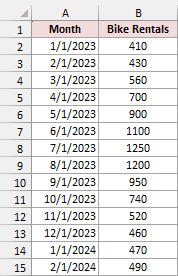
The completed example is on Rental Forecast. To create another forecast from the source data, follow these steps.
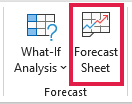
- Select A1:B37 on Rental History, then go to Data > Forecast > Forecast Sheet.
- Keep the line chart option. Set Forecast End to March 1, 2026, using the date format Excel expects on your computer.
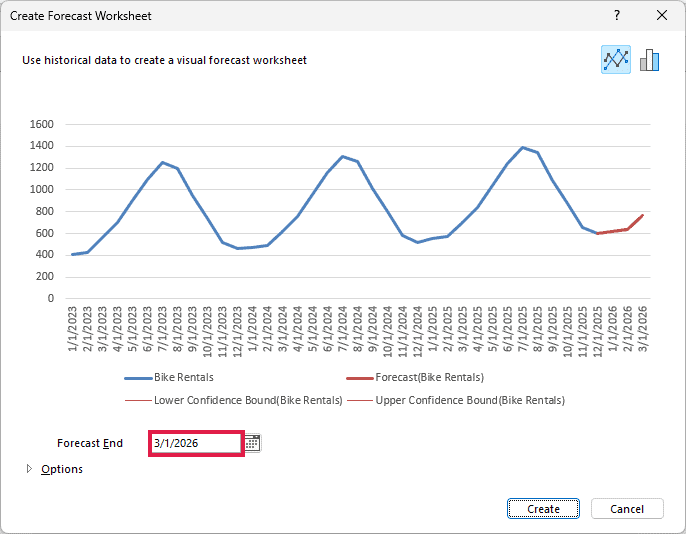
- Expand Options. Set Forecast Start to December 1, 2025, leave the Confidence Interval at 95%, and under Seasonality choose Set Manually and enter 12.
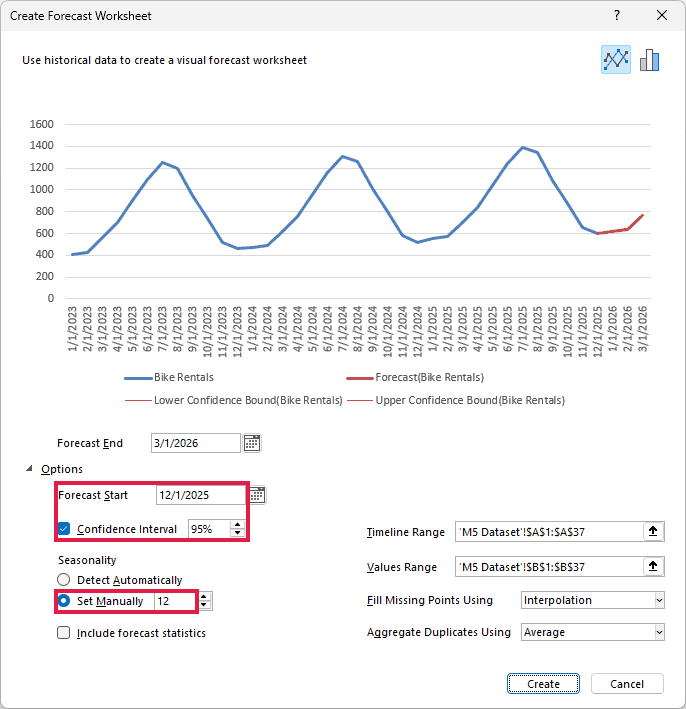
- Click Create. Excel creates a new sheet containing the history, forecast values, confidence bounds, and chart.
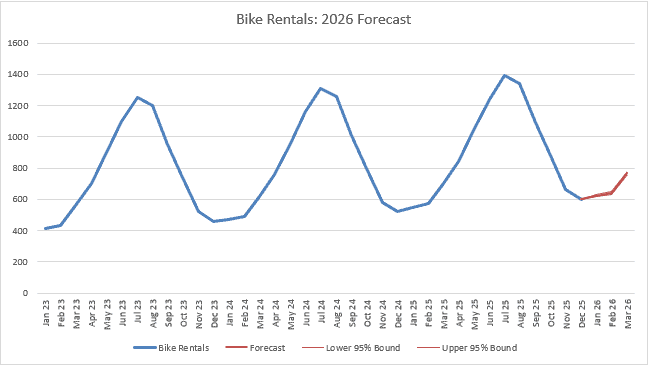
The period is 12 because this series has monthly observations and an annual seasonal cycle. That number describes observations per cycle, not how many months to forecast. Microsoft’s guidance calls for at least two complete cycles when setting seasonality manually.
The completed Rental Forecast sheet labels the confidence columns Lower 95% Bound and Upper 95% Bound. The new forecast values appear in rows 38:40. The December 2025 value in row 37 connects the historical line to the forecast; it isn’t a new prediction.
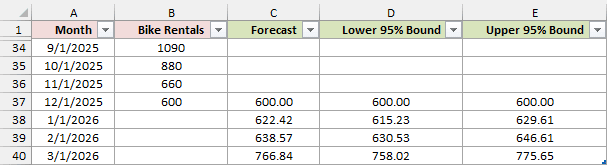
The forecast is approximately 622.42 rentals for January 2026, 638.57 for February, and 766.84 for March. For January, the displayed lower and upper bounds are 615.23 and 629.61.
Excel generates FORECAST.ETS formulas for the point forecasts and uses FORECAST.ETS.CONFINT to calculate the interval widths. The bounds describe uncertainty under the model’s assumptions. They don’t guarantee the actual result will fall inside them.
These fictional values follow an unusually consistent pattern, so the interval is narrow. Real demand can change because of weather, closures, promotions, or other factors the historical series doesn’t explain.
Additional Notes
Before using any of these methods on your own data, check a few things that can change what the results mean:
- Keep one consistent definition of each measure. Switching from completed rentals to bookings partway through the history creates a break that isn’t a real change in demand.
- Separate missing observations from genuine zeros. A closed shop can have zero rentals; a missing report means you don’t yet know the total.
- Match the summary to the measure. Adding monthly rentals gives a useful quarterly total, but adding three month-end passholder counts would count some of the same people repeatedly.
- Investigate unusual observations before removing them. A one-off event may explain a spike, but deleting it without checking can make the history look more predictable than it was.
Frequently Asked Questions
Here are a few questions that come up when applying these methods to a different dataset.
Can I Analyze Irregularly Spaced Time-Series Data in Excel?
Yes, but choose a method that respects the spacing. An XY scatter chart with a date-based horizontal axis can show unequal gaps between observations. A linear forecast can also use actual date serial numbers as its known x-values when elapsed time is the relevant predictor.
For a seasonal forecast, I’d first organize the data into a meaningful regular interval, such as weekly or monthly totals. Don’t assign consecutive period numbers to irregular observations unless you deliberately want to treat each observation as an equal step.
How Can I Check Whether a Forecast Is Useful?
Hold back some recent observations, build the forecast using only the earlier history, and compare the predictions with the values you held back. Use a test period that resembles the length and season of your intended forecast.
Also compare it with a simple baseline, such as the same month last year for seasonal data. A more complicated method isn’t useful merely because Excel can calculate it.
How Can I Compare Two Series With Different Units?
For comparing relative growth, you can express each series as an index starting at 100. Divide each observation by that series’ first value and multiply by 100, provided the starting value is nonzero and meaningful for the comparison.
Both series then share a starting point, so you can compare proportional changes. Keep the original values available too, since an index hides the difference in their actual sizes.
Conclusion
I’d start with the line chart and percentage changes to understand the history, then use the quarterly PivotTable to check whether patterns repeat across years. Choose a forecasting method only after that check, and test it against observations you kept out of the model.
Other Excel articles you may also like:
