
Smoothing data in Excel helps you see a pattern when individual values jump up and down. Instead of treating each jump as a change in direction, you calculate a series that responds more gradually.
The amount of smoothing matters. A longer averaging window hides more short-term variation, but it also reacts more slowly when the underlying pattern changes.
I’ll show you how to use moving averages, weighted averages, median smoothing, and exponential smoothing, including Excel’s built-in Data Analysis tools.
Method #1: Using the AVERAGE Function
I’d start with a moving average. You average a few consecutive values, then move the same-sized window down one row at a time.
Below I have daily bicycle counts from a trail counter. The dates are in A2:A13 and the counts are in B2:B13. We’ll calculate a three-day average to make the daily fluctuations easier to follow.
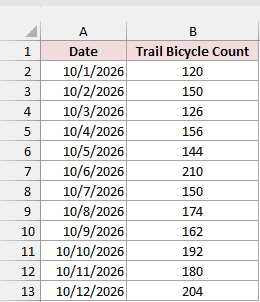
On the Rolling Smoothers sheet, enter this formula in C4, then fill it down through C13:
=AVERAGE(B2:B4)
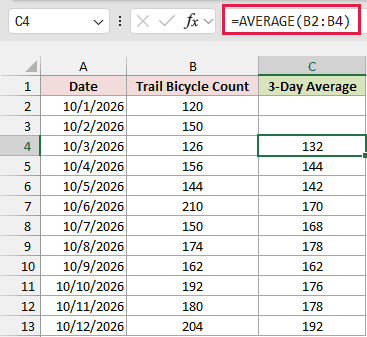
The first result is 132, the average of 120, 150, and 126. It sits beside October 3 because it includes that day and the two preceding days. This is a trailing moving average.
How does this formula work?
AVERAGE adds the three numbers and divides their total by three. When you fill the formula down, the relative references move with it, so the next row averages B3:B5.
AVERAGE returns one answer for each window. Filling down makes those changing windows easy to inspect; passing the entire column to AVERAGE would return one overall average instead.
Leave C2:C3 blank because those dates don’t have three observations yet. Increasing the window to seven observations would give you a seven-day average when your data contains one row per day.
For a retrospective view, you can place each average beside the middle day of its window. Enter this formula in D3 and fill it down through D12:
=AVERAGE(B2:B4)
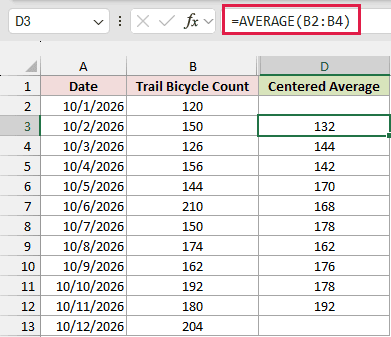
The formula is the same, but its position changes the interpretation. The result 132 now sits beside October 2, the middle of October 1, 2, and 3. This is a centered moving average.
It leaves the first and last dates blank. Because it uses the following day’s count, you can’t calculate today’s centered value until tomorrow’s observation arrives.
Note: Excel may flag these formulas with “Formula omits adjacent cells.” A moving average deliberately excludes values outside its window. After checking the references, you can choose Ignore Error for those cells.
Method #2: Using the Moving Average Tool
If you’d rather enter an interval in a dialog, use the Analysis ToolPak’s Moving Average tool. It calculates a trailing average without requiring you to write the formula yourself.
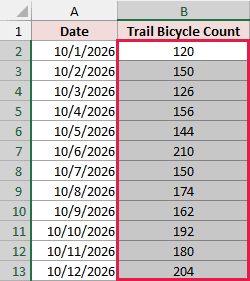
Below I have the same 12 daily trail bicycle counts on the ToolPak Moving Average sheet. We’ll use the counts in B2:B13 and place the three-day results under the Moving Average header in C1.
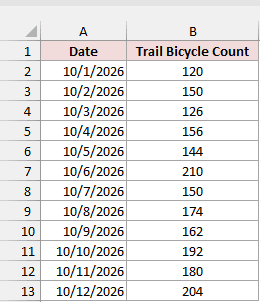
These steps use desktop Excel for Windows. If Data Analysis is missing from the Data tab, enable the Analysis ToolPak through File > Options > Add-ins > Manage: Excel Add-ins > Go. On a Mac, use Tools > Excel Add-ins.
Note: The download already contains completed results. Clear C2:C13 before repeating this method, leaving the header in C1. Keep the original counts in column B.
Here are the steps to run the tool:
- Select the counts in B2:B13.
- On the Data tab, click Data Analysis in the Analysis group.
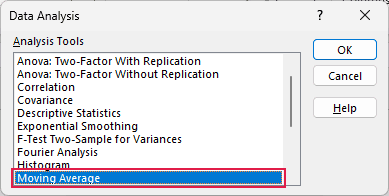
- Select Moving Average in the list, then click OK.
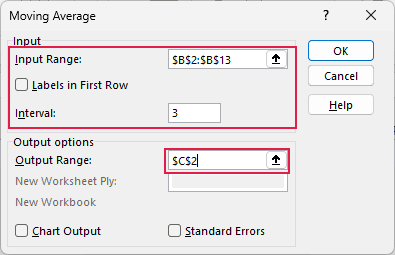
- Set Input Range to $B$2:$B$13 and Interval to 3. Select Output Range and enter $C$2. Leave Labels in First Row, Chart Output, and Standard Errors unchecked.
- Click OK to calculate the moving averages.
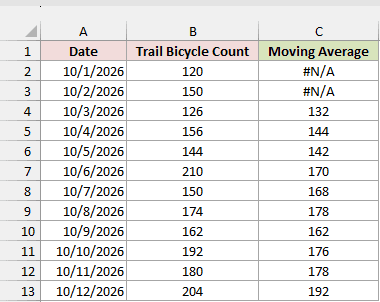
The first two output cells show #N/A because there aren’t three observations available for those rows. The first calculated average, 132, appears in C4. The remaining values match the trailing averages from Method #1.
The input excludes the header, which is why Labels in First Row stays unchecked. Starting the output at C2 keeps each result beside the correct date.
Method #3: Using the SUMPRODUCT Function
A simple moving average gives every observation in its window equal weight. If you want the newest count to matter more, calculate a weighted moving average instead.
Below I have the daily trail counts in B2:B13. On the Rolling Smoothers sheet, we’ll put weighted three-day averages in column E. The weights will be 1 for the oldest day, 2 for the middle day, and 3 for the newest day.
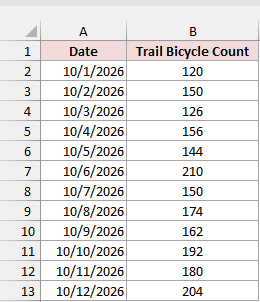
Enter this formula in E4 and fill it down through E13:
=SUMPRODUCT(B2:B4,{1;2;3})/6
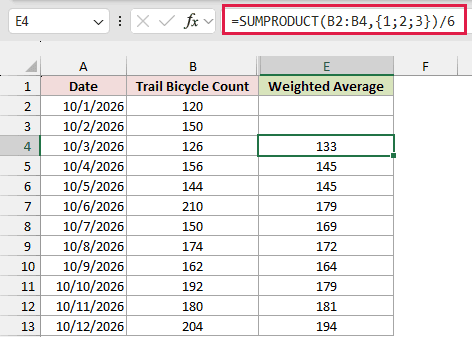
The first weighted average is 133. The newest observation receives half the total weight, compared with one-third in an ordinary three-day average.
How does this formula work?
SUMPRODUCT multiplies 120 by 1, 150 by 2, and 126 by 3, then adds those products. Dividing the total of 798 by the sum of the weights, 6, returns 133.
The semicolons in {1;2;3} create a vertical array that matches the three cells in B2:B4. Those weights stay fixed while the source range moves down with each formula.
If you change the weights, change the denominator to their total too. The weights here illustrate the method; they aren’t a universal best choice for every dataset.
Method #4: Using the MEDIAN Function
When an isolated spike pulls an average away from its neighbors, a moving median is another option. It takes the middle value within each window.
Below I have the trail bicycle counts in B2:B13, including a count of 210 on October 6. We’ll calculate three-day medians in column F of the Rolling Smoothers sheet.
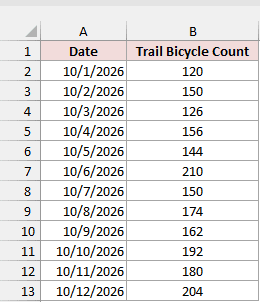
Enter this formula in F4 and fill it down through F13:
=MEDIAN(B2:B4)
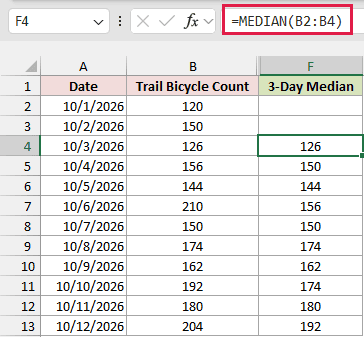
The first result is 126, the middle value when 120, 150, and 126 are arranged in order.
How does this formula work?
MEDIAN returns the middle number from each three-day window. It doesn’t rearrange the cells on your sheet. As the formula fills down, each window advances by one day.
For October 4 through October 6, the values are 156, 144, and 210. Their median is 156, while their average is 170. The single high count has less influence on the median.
Keep the original count of 210. It could be a real busy day, and smoothing doesn’t tell you whether an observation is a mistake.
Method #5: Applying an Exponential Smoothing Formula
You can also combine each new observation with the previous smoothed result. This gives older observations progressively less influence without choosing a fixed three-day or seven-day window.
Below I have the same trail counts on the Exponential Smoothing sheet. We’ll calculate the smoothed counts in column C and use a smoothing constant of 0.3 in F1.
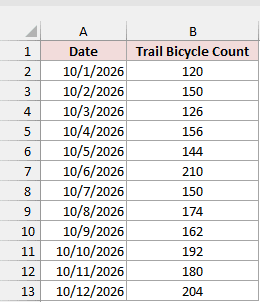
Start the series by entering this formula in C2:
=B2
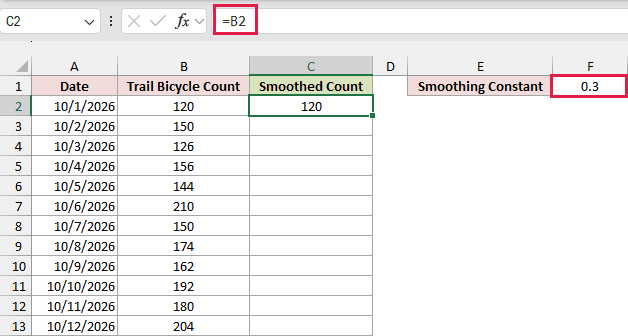
The first smoothed value is the first observed count, 120. Enter this formula in C3, then fill it down through C13:
=$F$1*B3+(1-$F$1)*C2
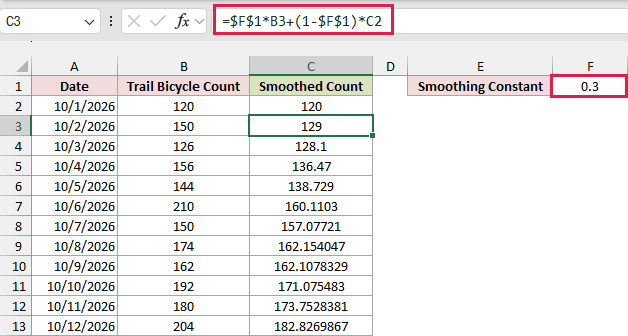
The October 2 result is 129: 30% of the current count of 150 plus 70% of the previous smoothed count of 120.
How does this formula work?
The reference $F$1 stays fixed as you fill down. B3 refers to the current day’s observation, and C2 refers to the previous day’s smoothed result. The next row uses B4 and C3.
The smoothing constant is often called alpha. A smaller alpha gives each new observation less influence, producing more smoothing and a slower response. A larger alpha follows recent changes more closely.
This row-by-row formula makes the dependency on the previous result visible. You can change F1 to compare different constants without rewriting the column.
Note: Use a smoothing constant between 0 and 1. The value 0.3 is an example, not a fitted recommendation. Simple exponential smoothing doesn’t separately model a trend or a seasonal cycle.
Method #6: Using the Exponential Smoothing Tool
The Analysis ToolPak also has an Exponential Smoothing tool. Its output is a one-step-ahead forecast series, so its rows differ from the current-period smoothed values in Method #5.
Below I have the daily trail counts on the ToolPak Exponential sheet. We’ll use B2:B13 as input and put the output in column C under the One-Step Forecast header.
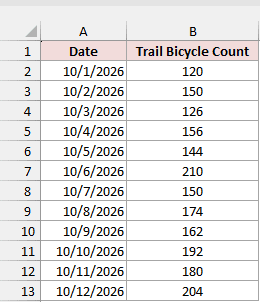
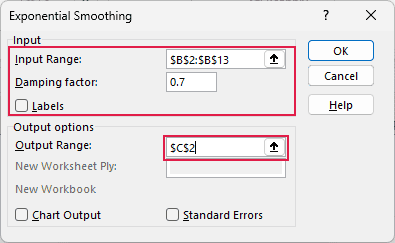
The tool asks for a Damping factor. Enter 0.7 to give the previous smoothed result a weight of 70%, corresponding to the smoothing constant of 0.3 used above.
Note: Clear the downloaded results in C2:C13 before repeating these steps. Leave the header and original data intact. Enable the Analysis ToolPak first if Data Analysis is missing from the Data tab.
Here are the steps:
- Select B2:B13.
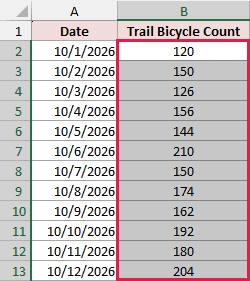
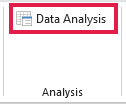
- On the Data tab, click Data Analysis.
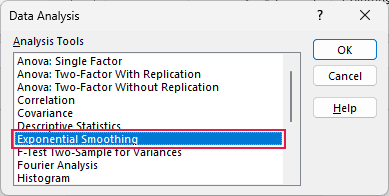
- Select Exponential Smoothing, then click OK.
- Set Input Range to $B$2:$B$13 and Damping factor to 0.7. Select Output Range and enter $C$2. Leave Labels, Chart Output, and Standard Errors unchecked.
- Click OK to generate the results.
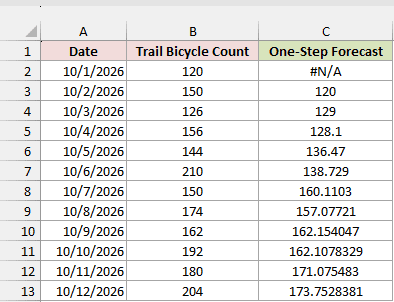
C2 shows #N/A, C3 shows 120, and C4 shows 129. The 129 beside October 3 uses information through October 2. In Method #5, 129 appears beside October 2 because it is that day’s smoothed level.
That one-row difference is expected. Compare the timing of the values before deciding that two smoothing methods disagree.
Additional Notes About Smoothing Data in Excel
Keep these points in mind when applying the examples to your own data:
- Sort the dates from oldest to newest before calculating rolling results. Each formula uses neighboring rows in their current order.
- Keep the original observations in a separate column. Smoothing can hide a genuine change you need to investigate.
- Treat blanks and zeros differently. A zero is an observation; AVERAGE and MEDIAN ignore empty cells in referenced ranges, which can leave a window with fewer observations than intended.
- Choose the window or smoothing constant to suit the pattern you need to see. More smoothing can delay the apparent arrival of a change.
Frequently Asked Questions
These questions help separate numerical smoothing from chart formatting and forecasting.
Does Excel’s Smoothed Line Option Change the Data?
No. It changes the curve drawn between plotted points, while the underlying worksheet values stay the same.
A moving-average trendline calculates averages for display on a chart. You can add a trendline when you only need that visual view; use worksheet formulas when you also need the smoothed numbers in cells.
Can I Smooth Data With Irregular Dates?
You can average neighboring observations, but a three-row window won’t necessarily cover three days. Decide whether each observation should have equal weight or whether elapsed time matters before choosing the calculation.
Should I Smooth Data Before Calculating Totals?
Use the original observations for totals, such as the actual number of bicycles counted. Smoothing changes the values and may omit edge periods, so adding the smoothed series won’t reliably reproduce the original total.
Can Smoothing Reveal Seasonality?
It depends on the window. Averaging over a full seasonal cycle can suppress that cycle, which may help you see the longer trend. A shorter window may retain it. The 12-day example here isn’t enough to establish a reliable seasonal pattern.
Conclusion
I’ve shown how to smooth data with moving averages, weighted averages, medians, and exponential smoothing. I’d start with a simple moving average because its window is easy to check, then compare the smoothed series with the original observations.
I hope you found this article helpful!
Other Excel articles you may also like:
