
Flash Fill can turn one example into a completed column, saving you from typing or copying the same pattern row by row.
When it stops working, the cause is usually a setting, a break in the data layout, an unclear example, or the way Excel stores the source values.
I’ll walk you through seven causes and show you the fix for each one.
Reason #1: Flash Fill Is Turned Off
Excel can suggest a Flash Fill result while you type. If that preview never appears, check the feature’s setting before changing your data.
Fix #1: Turn On Automatically Flash Fill
Go to File > Options > Advanced > Editing options. Check Automatically Flash Fill, then click OK.
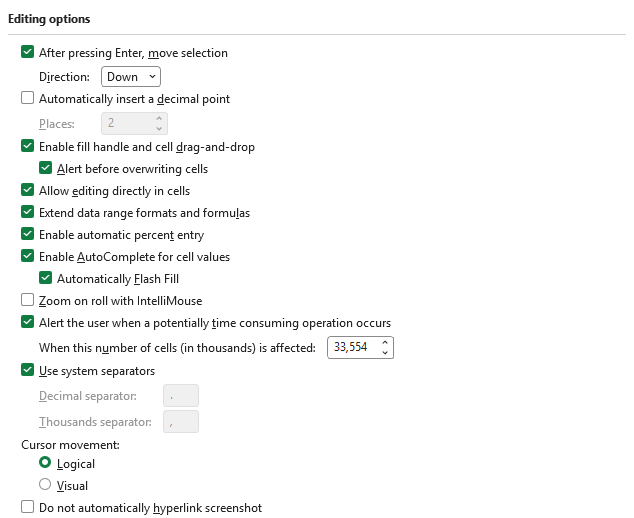
Now type an example beside your source data. Excel should display a preview when it recognizes the pattern.
Fix #2: Run Flash Fill Manually With Ctrl + E
The automatic preview is optional. You can still run Flash Fill yourself when it does not appear.
Type an example in the first result cell, then select the blank cell below it. On the Data tab, click Flash Fill, or press Ctrl + E.
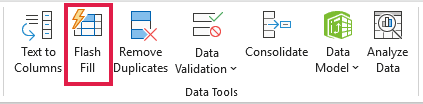
If Ctrl + E also fails, work through the layout and example problems below.
Reason #2: There’s a Blank Column Between the Data and the Result
Flash Fill expects the source and result columns to sit next to each other.
On the Reason 2 Gap Column sheet, full names are in A2:A9, column B is blank, and the example Jessica is in C2.
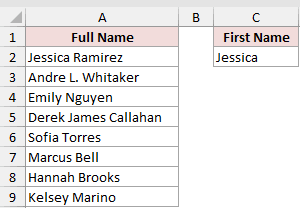
When I select C3 and press Ctrl + E, Excel fills nothing and displays its Flash Fill message.
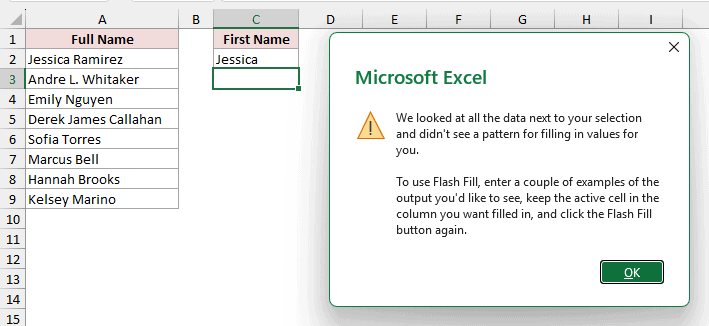
Fix: Delete the Blank Column
Delete blank column B, select B3, and press Ctrl + E.
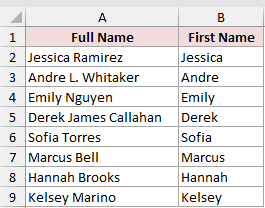
Excel fills B3:B9 with Andre, Emily, Derek, Sofia, Marcus, Hannah, and Kelsey.
Note: A hidden blank column between the source and result causes the same failure. Unhide and delete that column before running Flash Fill again.
Reason #3: One Example Isn’t Enough
Sometimes Flash Fill works but chooses the wrong pattern. This happens when one example can be interpreted in more than one way.
On the Reason 3 One Example sheet, cell B2 contains the short-name example Jessica R..
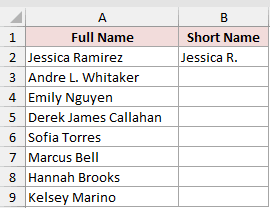
After I press Ctrl + E in B3, Excel produces results such as Andre L. W. and Derek James C..
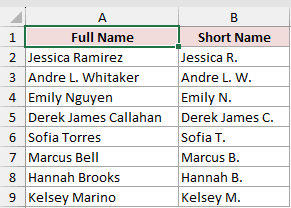
Excel has treated every word before the surname as part of the first name. A second example makes the intended pattern clear.
Fix: Add a Second Example
Use these steps to give Flash Fill a clearer pattern:
- Clear B3:B9, then type
Andre W.in B3.
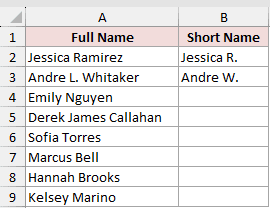
- Select B4 and press Ctrl + E.
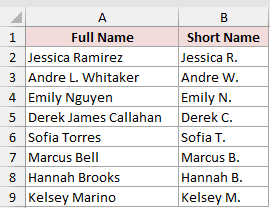
Excel fills B4:B9 with Emily N., Derek C., Sofia T., Marcus B., Hannah B., and Kelsey M.
Reason #4: Your Example Has a Typo
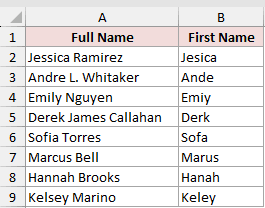
Flash Fill learns from what you type, including mistakes. A misspelled example can create a consistently wrong pattern down the column.
On the Reason 4 Typo sheet, B2 contains Jesica instead of Jessica. Flash Fill returns Ande, Emiy, Derk, Sofa, Marus, Hanah, and Keley.
Fix: Correct the Example and Run It Again
Change B2 to Jessica, clear B3:B9, select B3, and press Ctrl + E.
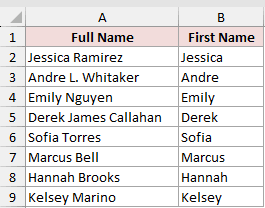
Excel fills the correct first names: Andre, Emily, Derek, Sofia, Marcus, Hannah, and Kelsey.
Reason #5: The Result Column Already Has Values
Flash Fill needs a clear destination. An existing entry farther down the result column can stop the operation.
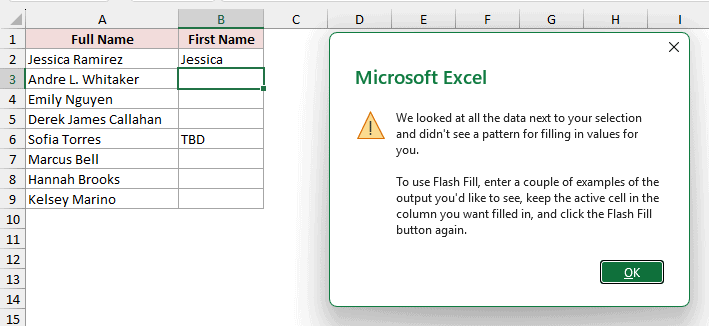
On the Reason 5 Existing Value sheet, B2 contains Jessica, but B6 already contains TBD.
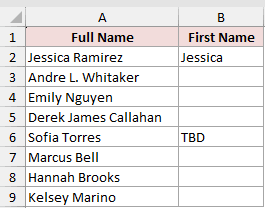
When I select B3 and press Ctrl + E, Excel fills nothing and shows the same Flash Fill message.
Fix: Clear the Existing Values
Delete TBD from B6, select B3, and press Ctrl + E.
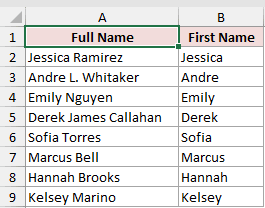
Excel fills B3:B9, including Sofia in B6.
Reason #6: Numbers Lose Their Leading Zeros
Flash Fill may appear to work while returning the wrong numbers. The issue starts when Excel stores a value such as 0042 as the number 42.
On the Reason 6 Leading Zeros sheet, the employee IDs are in A2:A9. With B2 stored as 42, Flash Fill returns 7, 5, 11, 20, 58, 73, and 6.
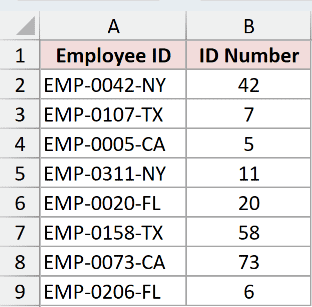
Excel learned the example as the last two digits, so the longer IDs lose real digits, not just their zeros.
Fix: Format the Column as Text First
Use these steps to keep all four digits:
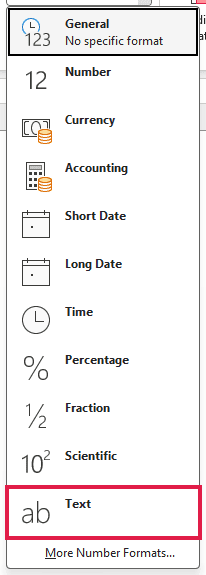
- Select B2:B9. On the Home tab, open the Number Format box and choose Text.
- Type
0042in B2, select B3, and press Ctrl + E.
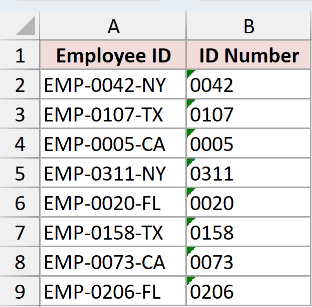
Excel fills B3:B9 with 0107, 0005, 0311, 0020, 0158, 0073, and 0206.
Reason #7: The Source Column Has Real Dates
When your source cells are real dates, Flash Fill sees their stored serial numbers instead of the dates you see on screen.
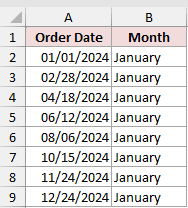
You may then get January repeated in every row.
On the Reason 7 Dates sheet, A2:A9 contains 2024 order dates. After January is entered in B2, Flash Fill repeats January in every row.
Fix: Use the TEXT Function Instead
The TEXT function reads each date value and returns its month name.
I use a filled-down formula here because it works in every Excel version that includes the TEXT function.
Enter this formula in D2 and fill it down through D9:
=TEXT(A2,"mmmm")
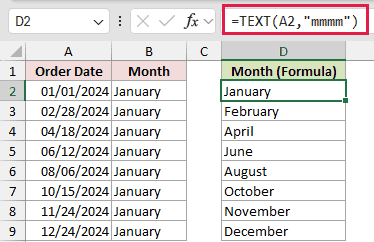
The results are January, February, April, June, August, October, November, and December.
How does this formula work?
A2 points to the order date. The "mmmm" format code tells Excel to return the full month name.
As the formula is filled down, the reference changes from A2 to A9 and returns the month for each date.
Additional Notes About Flash Fill Not Working in Excel
- Flash Fill is available in Excel 2013 and later. Excel 2010 and older versions do not include it.
- Flash Fill results are static values. If the source changes, run Flash Fill again or use a formula that recalculates.
- Flash Fill works down columns, not across rows. Transpose horizontal source data before using it.
- A blank row ends the fill. Flash Fill stops at the gap, so run it again below the blank row or delete the blank rows first.
Frequently Asked Questions
Why Is Ctrl + E Not Working in Excel?
Check that the source and result columns are adjacent, the destination is empty, and your example clearly shows the pattern you want.
How Do I Turn On Flash Fill in Excel?
Go to File > Options > Advanced > Editing options, check Automatically Flash Fill, and click OK.
Why Is Flash Fill Giving Wrong Results?
The example may be ambiguous or misspelled. Stored numbers and real dates can also differ from what Excel displays, leading to unexpected patterns.
Does Flash Fill Update Automatically When Data Changes?
No. Flash Fill creates static values. Run it again after changing the source, or use a formula when the results must recalculate.
Is Flash Fill Available in Excel 2010?
No. Microsoft introduced Flash Fill in Excel 2013, so it is not available in Excel 2010 or earlier versions.
Conclusion
Flash Fill works best when your example and source values tell the same clear story.
If Excel is reading something different from what you see, use a formula built for the underlying data.
I hope you found this article helpful.
Other Excel articles you may also like:
