
Excel’s BITXOR function compares two nonnegative whole numbers bit by bit and returns a decimal number whose set bits mark the positions that differ.
That makes it handy when a system stores several on/off choices inside one decimal code. Matching bits disappear from the result.
In this article, I’ll show you how to correct a reversed flag, decode changed settings, and count schedule changes.
BITXOR Function Syntax in Excel
The BITXOR function takes exactly two numbers:
=BITXOR(number1, number2)
- number1 (required) is the first nonnegative whole number you want to compare.
- number2 (required) is the second nonnegative whole number you want to compare.
When to Use BITXOR Function
- Compare two bitmask codes and isolate the flags that changed.
- Toggle the same flag on or off across a list of codes.
- Separate settings that were switched on from settings that were switched off.
- Count how many encoded choices changed between two versions.
- Check whether two coded values are identical without comparing each bit separately.
Example 1: Compare Two Numbers Bit by Bit
Let’s start with a clear binary view of what BITXOR returns.
Below is the dataset. Columns A and B hold the numbers, column C will hold BITXOR results, and columns D:F will show the three values in binary.
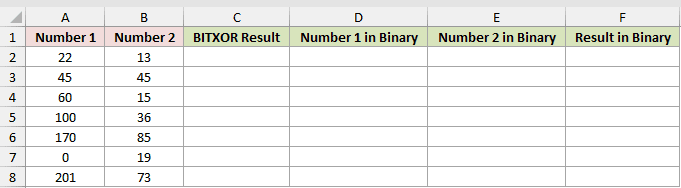
We want to compare every pair and return the bit values that differ.
Here is the BITXOR formula:
=BITXOR(A2:A8,B2:B8)
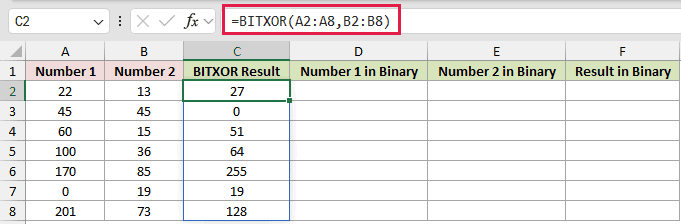
Now we’ll convert the two inputs and the BITXOR result to binary text:
=BASE(A2:C8,2,8)
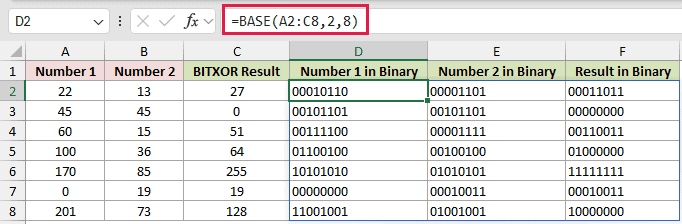
The first pair, 22 and 13, returns 27. Its binary result is 00011011, with a 1 wherever the input bits differ.
The equal pair, 45 and 45, returns 0. The pair containing 0 and 19 returns 19 because XOR with zero leaves the other number unchanged.
Both formulas spill across their output ranges. This works in Excel 2021, Excel 2024, and Microsoft 365.
The BITXOR function itself is available in Excel 2013 and later.
In Excel 2019 and earlier, fill the BITXOR formula down column C. Fill the BASE formula across columns D:F and down through row 8.
Pro Tip: BASE is the better binary helper for this spilled table. DEC2BIN returns one #VALUE! from a bare range and cannot convert a value above 511.
Example 2: Toggle a Reversed Product Flag
Here’s a practical use for BITXOR’s toggle behavior.
Below is the dataset. Columns A:B contain products and feed tag codes, column C will hold corrected codes, and columns E:F contain the tag legend.
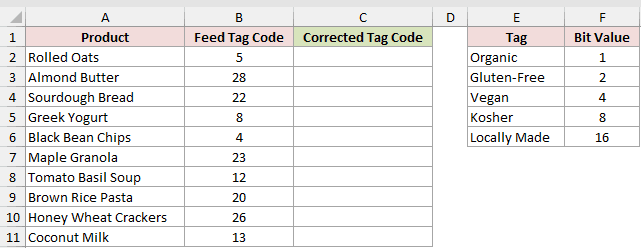
We want to flip the Gluten-Free bit in every feed code because the supplier mapped that flag backward.
Here is the formula:
=BITXOR(B2:B11,2)
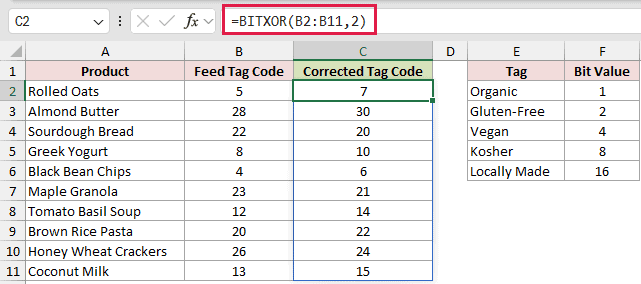
The mask value 2 represents Gluten-Free. BITXOR adds that flag where it is off and removes it where it is on.
Rolled Oats changes from 5 to 7, while Sourdough Bread changes from 22 to 20. The same formula corrects both directions.
The spill adds the flag to seven products and removes it from Sourdough Bread, Maple Granola, and Honey Wheat Crackers.
Applying the same XOR mask a second time restores the original code, so the operation is its own undo.
Pro Tip: BITOR only switches a flag on, while BITAND can clear it. BITXOR is the right choice when the same bit must flip in either direction.
Example 3: Decode Changed Terminal Settings
Now let’s turn a numeric change code into readable setting names.
Below is the dataset. Columns A:C hold terminals and monthly setting codes. Columns D:E will hold the change code and decoded names, while G:H contains the legend.
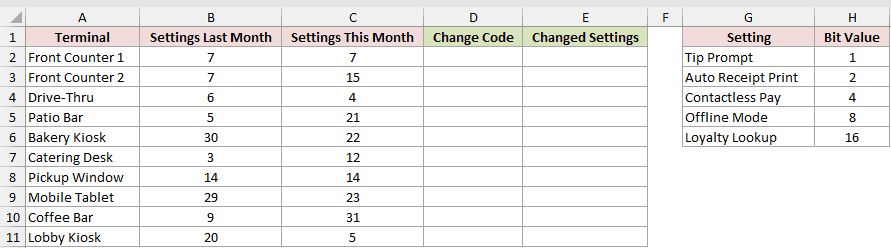
We want to isolate the changed bits, then translate each change code into a settings list.
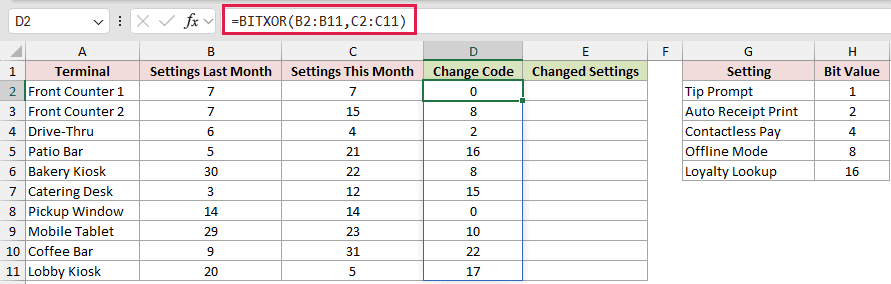
First, return the change code for every terminal:
=BITXOR(B2:B11,C2:C11)
Next, enter this decoding formula in E2 and copy it down through E11:
=TEXTJOIN(", ",TRUE,FILTER($G$2:$G$6,BITAND(D2,$H$2:$H$6)>0,"No change"))
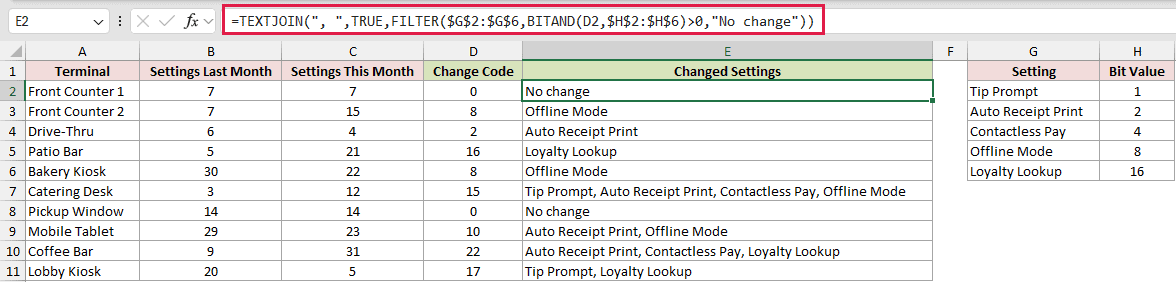
BITXOR returns 0 for Front Counter 1 and Pickup Window, so the decoding formula returns No change for both rows.
Catering Desk returns a change code of 15. The decoded result lists Tip Prompt, Auto Receipt Print, Contactless Pay, and Offline Mode.
The TEXTJOIN formula stays per-row because it collapses each row’s matches into one text result. FILTER requires Excel 2021 or later.
Pro Tip: Microsoft 365 and Excel 2024 can replace the copied-down decoding step with MAP and LAMBDA when you want one formula to return every text result.
Example 4: Separate Added and Dropped Services
This example takes the change audit one step further by showing its direction.
Below is the dataset. Columns A:C contain stores and yearly service codes, columns D:E will list added and dropped services, and columns G:H contain the legend.
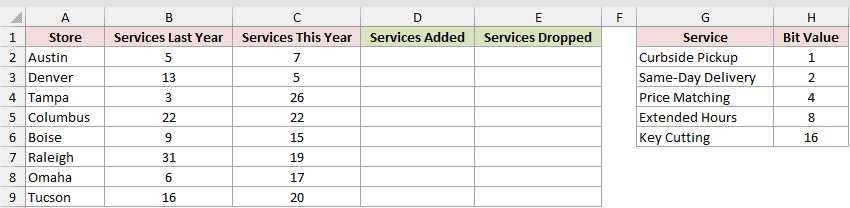
We want separate text lists for services switched on and services switched off.
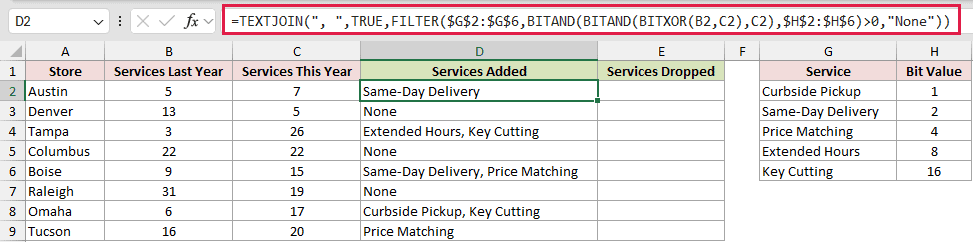
Enter this formula in D2 to list the services added, then copy it down:
=TEXTJOIN(", ",TRUE,FILTER($G$2:$G$6,BITAND(BITAND(BITXOR(B2,C2),C2),$H$2:$H$6)>0,"None"))
Enter this formula in E2 to list the services dropped, then copy it down:
=TEXTJOIN(", ",TRUE,FILTER($G$2:$G$6,BITAND(BITAND(BITXOR(B2,C2),B2),$H$2:$H$6)>0,"None"))
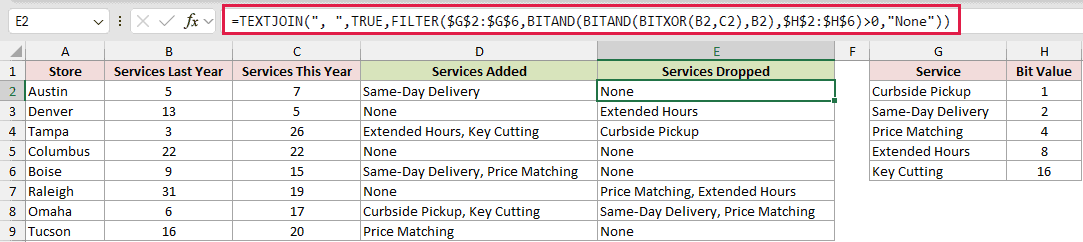
Both formulas begin with the changed bits. The added formula keeps bits present in this year’s code, while the dropped formula keeps bits from last year’s code.
Omaha shows both directions. Its added list contains Curbside Pickup and Key Cutting, while its dropped list contains Same-Day Delivery and Price Matching.
Columbus returns None in both columns because its service code remains 22 in both years.
These formulas are copied down because TEXTJOIN produces one text result for each store.
Example 5: Count Changed Schedule Days
Finally, let’s count the set bits instead of decoding their names.
Below is the dataset. Columns A:C contain employees and weekly schedule codes, column D will hold the change count, and columns F:G contain the day legend.
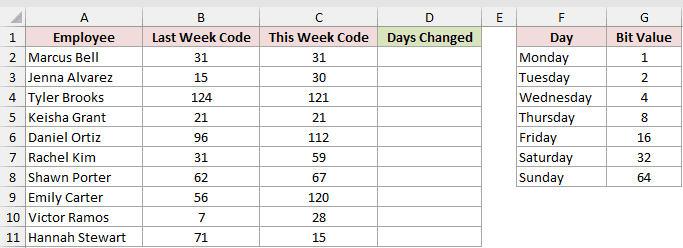
We want to count how many day flags changed between last week and this week.
Here is the formula:
=LEN(SUBSTITUTE(BASE(BITXOR(B2:B11,C2:C11),2),"0",""))
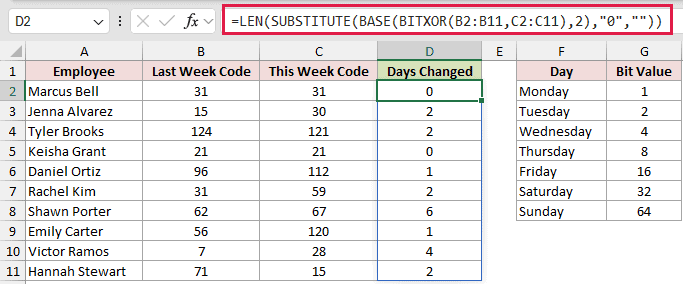
BITXOR identifies the changed days. BASE converts that code to binary, SUBSTITUTE removes the zeros, and LEN counts the remaining ones.
Marcus Bell’s unchanged schedule returns 0. Jenna Alvarez’s move from 15 to 30 returns 2 because Friday was added and Monday was dropped.
Shawn Porter’s schedule returns 6, while Emily Carter’s returns 1. A moved day counts as two changes because one bit turns off and another turns on.
Tips & Common Mistakes
- BITXOR accepts whole numbers from 0 through 281474976710655. A negative number, a decimal, or 2^48 returns #NUM!.
- Numeric text is converted to a number. TRUE counts as 1, a blank counts as 0, and nonnumeric text returns #VALUE!.
- BITXOR takes exactly two arguments. Microsoft 365 and Excel 2024 users can combine a whole column with REDUCE and LAMBDA when needed.
- BITXOR and XOR are different functions. XOR evaluates logical values and returns TRUE or FALSE. With 5 and 3, XOR returns FALSE, while BITXOR returns 6.
- A blocked spill area causes #SPILL!. Clear the output cells before entering a range formula.
- A zero result means every compared bit matches.
BITXOR is most useful when one decimal code represents several independent flags.
Treat its result as a change mask. Each set bit marks one position that differs.
Related Excel Functions / Articles:
