
The BITRSHIFT function in Excel moves the binary digits of a nonnegative whole number to the right and returns the shifted value.
Bits that fall from the right are discarded. A negative shift reverses the direction and moves the bits left.
In this article, I’ll show you how to visualize right shifts, unpack packed fields, and rebuild dates from DOS stamps.
BITRSHIFT Function Syntax in Excel
The BITRSHIFT function uses a number and a shift amount.
=BITRSHIFT(number, shift_amount)
- number (required) is the nonnegative whole number whose binary digits you want to move.
- shift_amount (required) controls how far the bits move. A positive value moves them right, while a negative value moves them left.
When to Use BITRSHIFT Function
- Divide whole numbers by powers of two while dropping the remainder.
- Read a high-order field from a packed number.
- Move a middle field into position before applying a bit mask.
- Decode dates or other structured values stored inside one integer.
Example 1: See How BITRSHIFT Moves Bits
Let’s start by watching the bits move.
Below is the dataset. Columns A and B hold each number and shift amount. Columns C through E are prepared for the shifted value and two binary views.
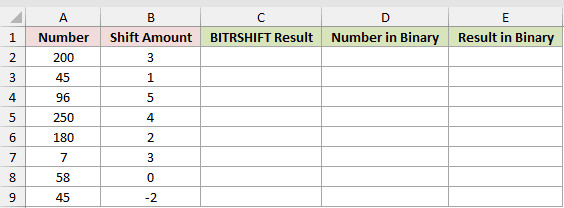
We want to shift every number and compare the binary value before and after the move.
Here is the BITRSHIFT formula:
=BITRSHIFT(A2:A9,B2:B9)
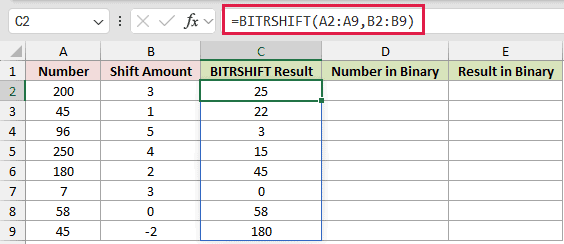
With a shift of 3, 200 becomes 25. With a shift of 0, 58 stays 58.
On the final row, a shift of -2 moves 45 left and returns 180.
This range formula spills in Excel 2021, Excel 2024, and Microsoft 365. In Excel 2019 and earlier, calculate the first row and fill the formula down.
Here is the formula that displays each original number in binary:
=BASE(A2:A9,2,8)
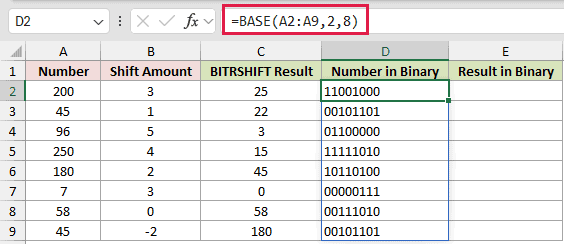
For 200, the first BASE formula returns 11001000.
And here is the binary view of each shifted result:
=BASE(C2:C9,2,8)
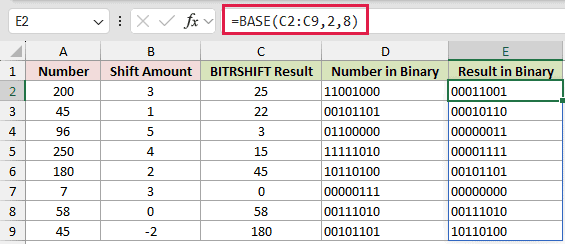
After the shift, the second BASE formula returns 00011001 for that row.
The paired binary columns make the dropped rightmost bits easy to spot. BASE handles the ranges directly and keeps each view at eight digits.
DEC2BIN returns one #VALUE! for a range and #NUM! at 512. BASE spills natively and has no 511 cap.
Example 2: Halve Players After Each Round
Here’s a practical way to use repeated halving.
Below is the dataset. It lists tournament names, starting players, rounds played, and an empty Players Left column for the results.
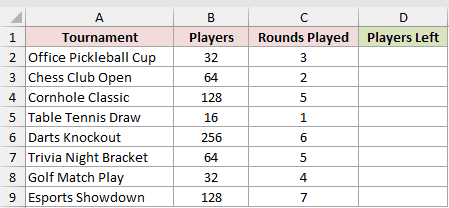
We want to find how many players remain after the stated knockout rounds.
Here is the formula:
=BITRSHIFT(B2:B9,C2:C9)
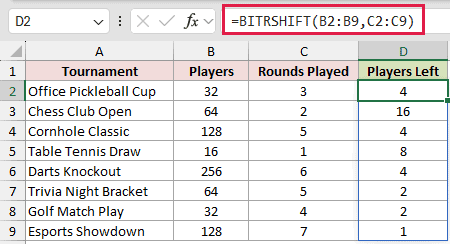
Each right shift halves the player count and discards any remainder. This matches dividing by a power of two and applying INT.
The Office Pickleball Cup drops from 32 players to 4 after 3 rounds. The Esports Showdown reaches 1 after 7 rounds.
Example 3: Split a 16-Bit Reading
Now let’s separate two values stored inside one sensor reading.
Below is the dataset. Columns A and B hold each zone and raw reading. Columns C and D are ready for temperature and humidity.
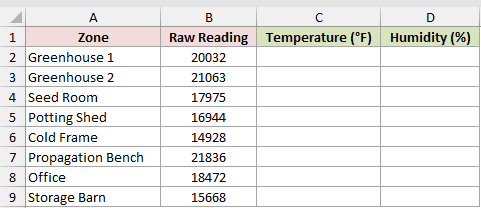
We want to extract the high byte as temperature and the low byte as humidity.
Here is the temperature formula:
=BITRSHIFT(B2:B9,8)
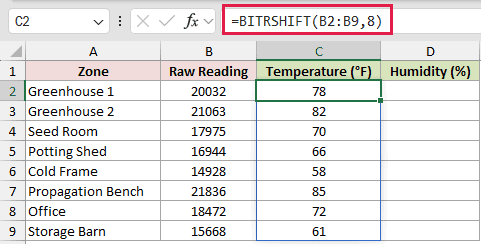
The temperature sits in the top field, so shifting the reading is enough. Greenhouse 1’s reading of 20032 returns 78 degrees Fahrenheit.
Here is the humidity formula:
=BITAND(B2:B9,255)
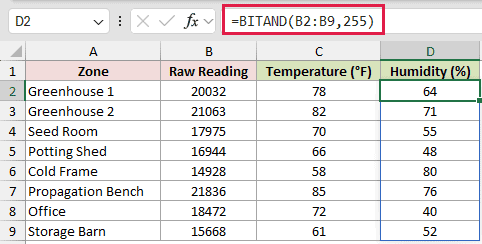
The humidity sits in the lowest field, so it needs a mask but no shift. The same Greenhouse 1 reading returns 64% humidity.
The top field needs only a shift, while the lowest field needs only a mask.
Example 4: Decode Packed SKU Fields
Let’s use a layout card to decode several fields at once.
Below is the dataset. Columns A and B hold products and packed SKU codes. Columns C through E await decoded fields, while the card defines their positions and widths.
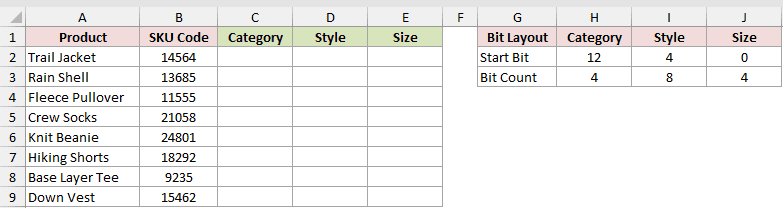
We want one formula to return the Category, Style, and Size fields for every product.
Here is the formula:
=BITAND(BITRSHIFT(B2:B9,H2:J2),2^H3:J3-1)
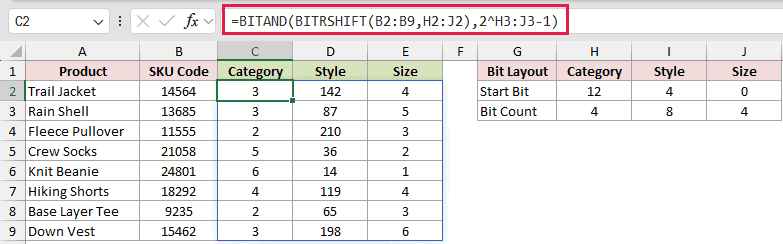
BITRSHIFT moves each field to the lowest position. Two raised to a bit count, minus 1, creates a mask with that many 1-bits.
BITAND applies each mask after the shift.
Pairing the column B2:B9 with rows H2:J2 and H3:J3 returns C for Category, D for Style, and E for Size.
The one formula spills an 8×3 result grid. Trail Jacket returns Category 3, Style 142, and Size 4.
Shifting alone is the mistake for a middle field because higher bits remain attached. Trail Jacket’s 14564 shifted by 4 becomes 910, not Style 142.
Example 5: Convert Packed DOS Dates
Finally, let’s turn packed date stamps into real Excel dates.
Below is the dataset. It lists scanned files and DOS stamps, leaves the Scan Date column ready, and includes a card for the date-field layout.
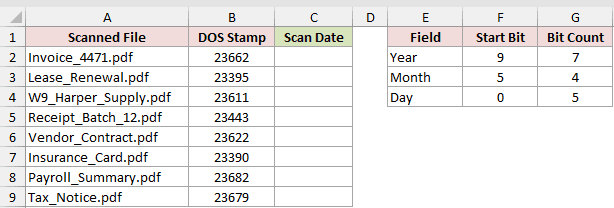
We want to extract the year, month, and day fields and pass them to DATE.
Here is the formula:
=DATE(BITRSHIFT(B2:B9,9)+1980,BITAND(BITRSHIFT(B2:B9,5),15),BITAND(B2:B9,31))
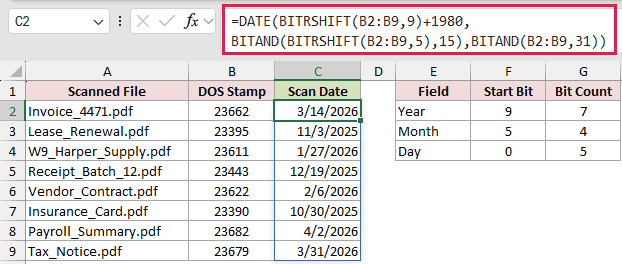
The year occupies the top 7 bits and gets 1980 added. The month uses the middle 4 bits, while the day uses the lowest 5 bits.
DATE turns those extracted fields into real Excel dates. Invoice_4471.pdf returns 3/14/2026, while Lease_Renewal.pdf returns 11/3/2025.
These dates are shown in m/d/yyyy format. Excel may display them in your regional date format.
Tips & Common Mistakes
- BITRSHIFT is available in Excel 2013 and later. Range formulas spill in the newer versions noted in Example 1.
- A shift amount of 0 returns the original number. Shifting past every remaining bit returns 0.
- BITRSHIFT requires a nonnegative whole-number input. Decimal or negative numbers return #NUM!, while a decimal shift amount is truncated.
- In testing, shifting 13 by 1.9 returned 6. A negative decimal shift also truncates toward zero before moving the bits left.
- Numeric text can be converted automatically. The text value “13” works, and a blank number is treated as 0.
- The input cap is
2^48-1.=BITRSHIFT(2^48,1)returns#NUM!becausenumberis above that cap. - The same cap applies to left moves.
=BITRSHIFT(1,-47)returns 140737488355328, while=BITRSHIFT(1,-48)returns#NUM!. - Keep the spill area empty. A blocked output range causes a #SPILL! error.
- BITLSHIFT is the direct left-shift function. BITAND masks fields, while BITOR and BITXOR handle other bitwise comparisons.
- The same shift-and-mask pattern can unpack RGB values. A packed value of 16744512 separates into 255, 128, and 64.
Shift the value to position the field you need.
Then apply a mask whenever higher bits could remain.
Related Excel Functions / Articles:
