
Excel’s ERFC.PRECISE function returns the complementary error function integrated from a lower bound to infinity. With the right scaling, it helps calculate probabilities outside normal-distribution limits.
ERFC.PRECISE and ERFC give matching results in this workbook. Both preserve tiny complementary values that can disappear when subtracting ERF from 1.
An outlier rule can flag readings even when they follow a normal distribution. ERFC.PRECISE helps estimate how many readings you’d expect to review.
ERFC.PRECISE Function Syntax in Excel
The ERFC.PRECISE function takes one argument:
=ERFC.PRECISE(x)
- x (required): The numeric lower bound of the integral. You can enter a number or reference a cell containing one.
When to Use ERFC.PRECISE Function
- Calculate the complementary error function for positive, zero, or negative inputs.
- Calculate very small complementary values without subtracting a rounded ERF result from 1.
- Compare ERFC.PRECISE with ERFC when checking an existing workbook.
- Estimate how many normally distributed readings fall outside a chosen outlier threshold.
Example 1: Calculate ERFC.PRECISE for Different Inputs
The sign of the input determines whether the result falls above or below 1.
Below is the dataset with lower bounds in A2:A10 and an empty result column labeled ERFC.PRECISE Result.
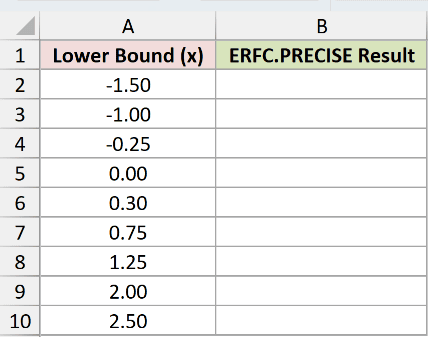
We want to calculate the complementary error function for each lower bound, starting in B2.
Here is the formula:
=ERFC.PRECISE(A2)
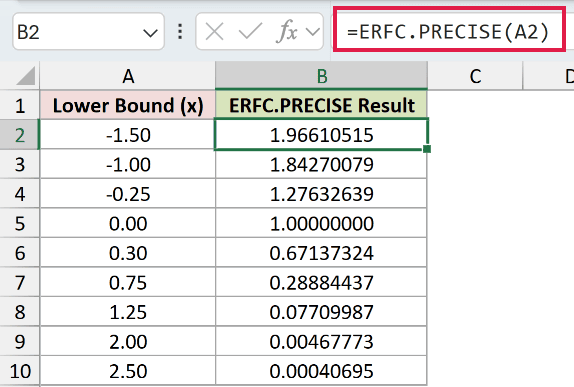
The formula reads -1.5 from A2 and returns 1.96610515, displayed to eight decimal places. Fill B2 down through B10 to calculate the remaining rows.
At zero in A5, the result is exactly 1. Negative inputs return values above 1, while positive inputs return values below 1.
As the lower bound increases, the result gets smaller. For 0.30, B6 displays 0.67137324. At 2.50, B10 displays just 0.00040695.
Pro Tip: Use a single-cell reference and fill down. Passing a bare range directly to ERFC.PRECISE returned one #VALUE! error in Microsoft 365 testing, rather than spilling results.
Example 2: Compare ERFC.PRECISE, ERFC, and Subtraction
At an input of 6, ERFC.PRECISE and ERFC retain a tiny positive value, while subtraction returns zero.
Below is the dataset with x values in A2:A8 and empty result columns labeled ERFC.PRECISE, ERFC, and 1 – ERF.
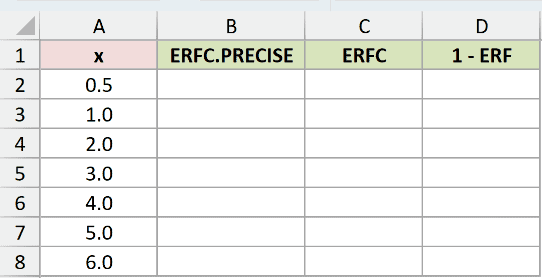
We want to compare the three calculations as x increases from 0.5 to 6, starting with ERFC.PRECISE in B2.
Here is the formula:
=ERFC.PRECISE(A2)
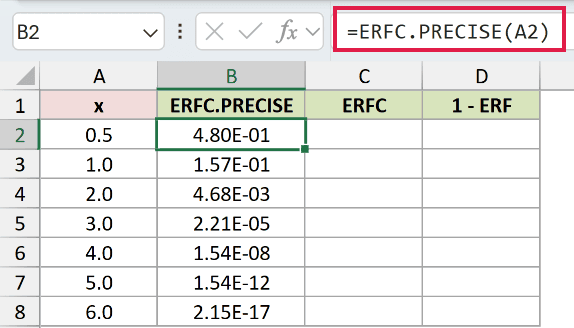
Fill B2 down through B8. For x = 0.5, the result is approximately 0.4795001222, displayed as 4.80E-01 in scientific notation.
Next, enter the ERFC comparison in C2 and fill it down through C8.
Here is the formula:
=ERFC(A2)
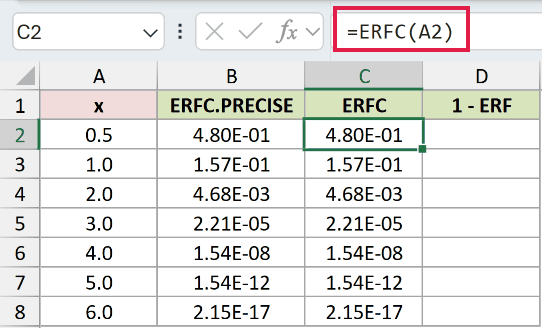
Columns B and C match throughout this table. At x = 6, both return approximately 2.15197367125E-17, displayed as 2.15E-17.
Finally, enter the subtraction version in D2 and fill it down through D8.
Here is the formula:
=1-ERF(A2)
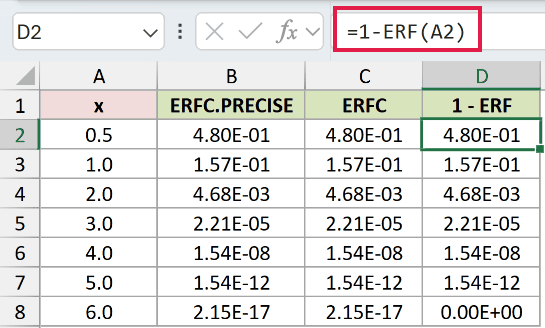
Mathematically, subtracting ERF from 1 produces the complementary error function. At x = 0.5, all three formulas return the same value.
For larger inputs, ERF approaches 1. Subtracting that nearly equal value from 1 loses precision because Excel stores numbers with a limited number of significant digits.
At x = 6, D8 returns 0. The direct functions in B8 and C8 still retain the tiny positive result.
Pro Tip: Don’t assume ERFC.PRECISE is more accurate than ERFC. Both preserve tiny values here. Use either function directly to avoid precision loss from subtracting ERF from 1.
Example 3: Estimate Normal Readings Flagged as Outliers
An outlier rule can flag ordinary sensor readings simply because they fall far from the mean.
Below is the dataset with Outlier Flag Rule (± Std Devs) in column A and an empty Normal Readings Flagged per 10,000 result column.
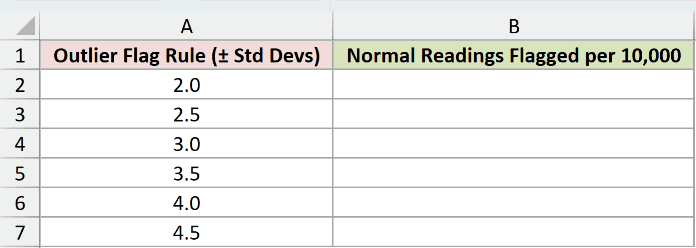
We want to estimate the number of normally distributed readings each rule would flag per 10,000, starting in B2.
Here is the formula:
=ERFC.PRECISE(A2/SQRT(2))*10000
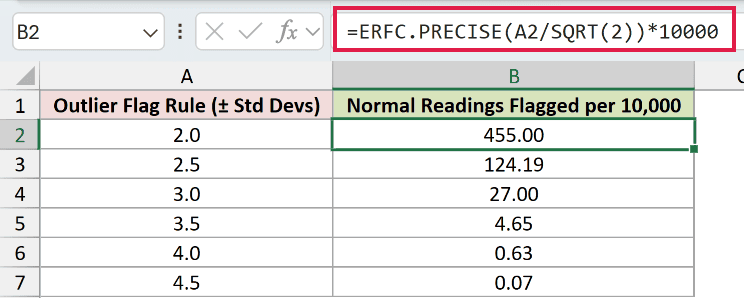
Fill B2 down through B7. The first rule, ±2 standard deviations, returns 455.00 expected flags per 10,000 readings.
How this formula works:
- A2 contains 2, meaning the rule flags readings more than two standard deviations above or below the mean.
- A2/SQRT(2) converts that standard-deviation threshold to the input scale used by the error function.
- ERFC.PRECISE(A2/SQRT(2)) returns the combined probability outside both limits under a normal distribution.
- Multiplying by 10000 converts that probability into an expected number of flagged readings.
The ±3 rule in row 4 returns 27.00, compared with 455.00 for ±2. Moving the limits farther from the mean flags fewer normally distributed readings.
At ±4.5 standard deviations, B7 displays 0.07. That fractional value represents an average expected count across repeated sets of 10,000 readings.
Pro Tip: These estimates assume normal readings, with thresholds measured in the distribution’s standard deviations from its mean. Review flagged readings before deciding whether they’re errors or should be deleted.
Tips & Common Mistakes
- Check the input type. Nonnumeric input returns #VALUE!. Use a numeric lower bound or a reference to a numeric cell.
- Keep the fill-down approach for these examples. A bare range argument failed to spill in Microsoft 365 testing. The approved formulas calculate one row at a time.
- Negative inputs are valid. They return values between 1 and 2, which exceed the probability range of 0 to 1. The raw result isn’t always a probability. Zero returns exactly 1.
- Keep the scaling for normal probabilities. Example 3 divides the standard-deviation threshold by SQRT(2). Its result covers both tails before conversion to a count.
- Distinguish ERF.PRECISE from ERFC.PRECISE. They are mathematical complements: their values at the same input add to 1. Use ERFC.PRECISE directly when a tiny complementary result matters.
- Use scientific notation for tiny results. A fixed decimal format can display a positive value as zero. Scientific notation makes values such as 2.15E-17 visible.
- Check version support. Microsoft lists ERFC.PRECISE for Excel 2016, 2019, 2021, 2024, and Microsoft 365.
Related Excel Functions / Articles:
