
The GAMMALN function in Excel returns the natural logarithm of the gamma function. This lets you work with factorials and counts that are too large to calculate directly.
A logarithm represents a number on a smaller scale. You can subtract logs to divide huge quantities, then use EXP when the final answer fits in Excel.
I’ll show you how to calculate large factorials, find shared-birthday probabilities, and report combination counts that COMBIN can’t return.
GAMMALN Function Syntax in Excel
GAMMALN takes a positive input:
=GAMMALN(x)
- x (required): The positive number whose gamma function you want the natural logarithm of. You can supply a number, cell reference, or range.
Zero and negative inputs return #NUM!. Text that isn’t numeric returns #VALUE!.
GAMMALN works in every Excel version. GAMMALN.PRECISE is the Excel 2010 name and returns identical results; neither function is more accurate.
When to Use GAMMALN Function
- Calculate the logarithm of a factorial when FACT overflows.
- Work out probabilities involving ratios of large factorials.
- Express enormous combination counts without calculating the full number.
- Combine large counts and tiny probabilities on the log scale before converting back.
Example 1: Calculate Log Gamma and Convert Back
Let’s start by seeing the difference between a log-gamma result and the gamma value itself.
Below is the dataset. Column A contains positive inputs, while columns B and C have headers and empty result cells for log gamma and its EXP conversion.
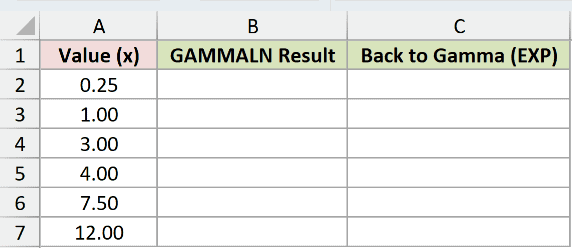
We want to calculate log gamma for each input, then convert those results back to gamma values.
Enter this formula in B2:
=GAMMALN(A2:A7)
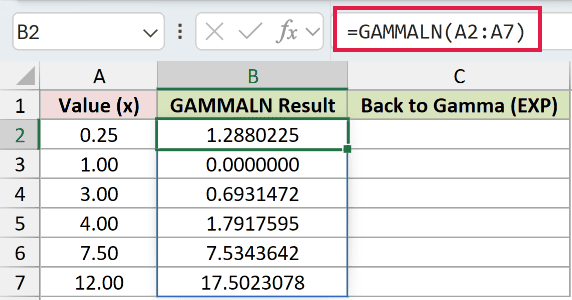
The formula spills into B2:B7. The input 0.25 returns 1.2880225, while 4.00 returns 1.7917595. Positive fractional inputs work too.
Range formulas spill in Excel 2021, Excel 2024, and Microsoft 365. In Excel 2019 and earlier, use individual cell references and fill the per-row formula down.
Now enter the EXP conversion in C2:
=EXP(GAMMALN(A2:A7))
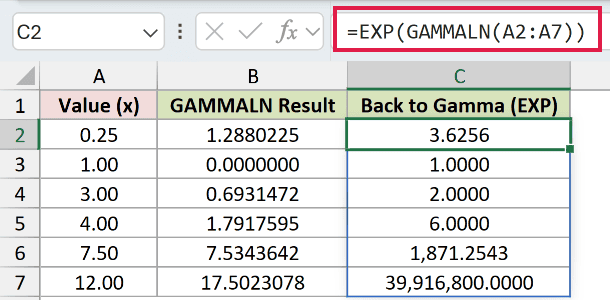
EXP reverses the natural logarithm. For the input 4.00, C5 displays 6.0000. The input 7.50 produces 1,871.2543 in C6.
If you only need gamma values of manageable size, GAMMA calculates them directly. GAMMALN becomes useful when you need to keep the calculation on the log scale.
Example 2: Handle Factorials Beyond FACT’s Limit
Factorials grow quickly, but their logarithms stay manageable much longer.
Below is the dataset. Column A lists factorial inputs; columns B through D provide spaces for the FACT comparison, log factorial, and digit count.
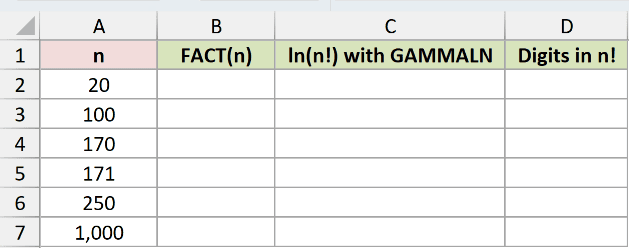
We want the log factorial and its digit count, even where the direct FACT comparison fails.
Enter the log-factorial formula in C2:
=GAMMALN(A2:A7+1)
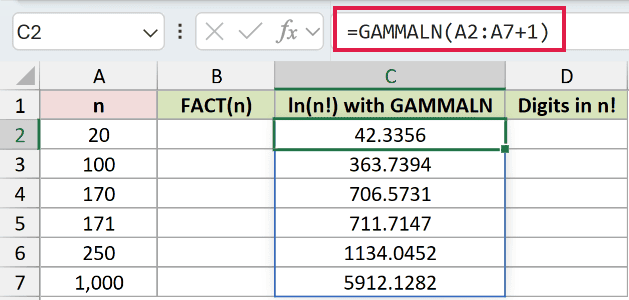
The +1 is essential because gamma’s integer input corresponds to the factorial of the preceding integer. Adding it makes the result the natural logarithm of the requested factorial.
For 171, the log factorial is 711.7147. For 1,000, it is 5912.1282.
For comparison, enter FACT in B2. This comparison deliberately reaches Excel’s numeric limit:
=FACT(A2:A7)
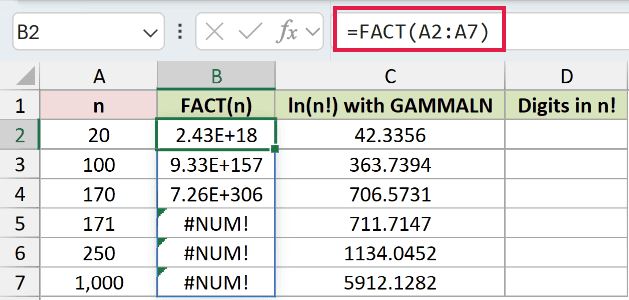
The FACT comparison returns 7.26E+306 for 170. Its rows for 171, 250, and 1,000 return #NUM! because the factorials are too large.
To calculate the number of digits without building those factorials, enter this in D2:
=INT(GAMMALN(A2:A7+1)/LN(10))+1
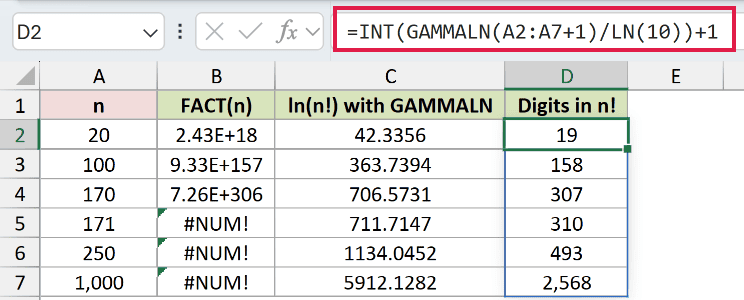
Dividing by LN(10) converts the natural logarithm to a base-ten logarithm. INT takes its whole-number part, and the final addition turns that into a digit count.
The factorial of 171 has 310 digits. The factorial of 1,000 has 2,568 digits, even though Excel can’t hold the full number.
Pro Tip: Applying EXP to a huge log factorial can overflow again. Keep the result in log form until you’ve combined the terms and know the final value is manageable.
Example 3: Find Shared-Birthday Probabilities
A probability can be small enough for Excel even when the factorials used to calculate it aren’t.
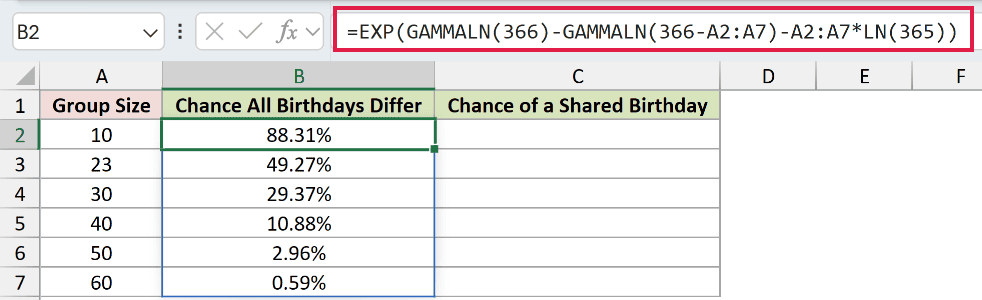
Below is the dataset. Column A lists group sizes, with empty result cells in B and C for different-birthday and shared-birthday probabilities.
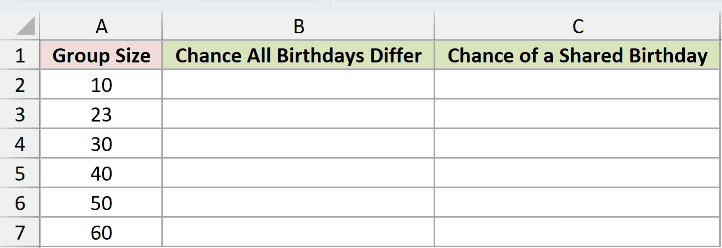
We want the chance that at least a pair of people in each group share a birthday.
Enter the all-different probability in B2:
=EXP(GAMMALN(366)-GAMMALN(366-A2:A7)-A2:A7*LN(365))
This model assumes equally likely, independent birthdays and ignores leap days.
How this formula works:
- The GAMMALN difference represents the log of the birthday arrangements with no repeated dates.
- Subtracting the group-size term accounts for all possible birthday arrangements.
- EXP converts the final log probability back to an ordinary probability.
For a group of 23, the chance that all birthdays differ is 49.27%.
To calculate the chance of a shared birthday, enter this in C2:
=1-B2:B7
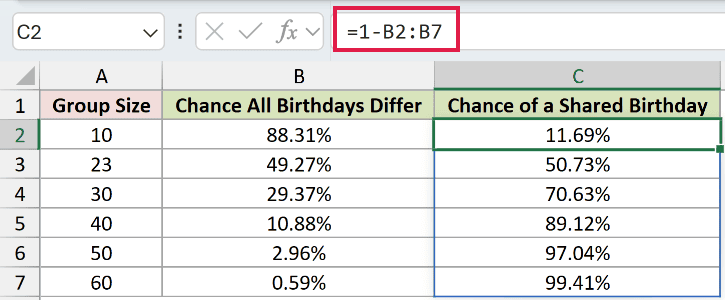
This takes the complement of the all-different probability. The shared-birthday chance is 50.73% for 23 people and 99.41% for 60 people.
The shared-birthday chance covers a match between any two people in the group.
Example 4: Report Counts That COMBIN Can’t Hold
Sometimes the final answer itself is too large, so converting the whole log result back won’t help.
Below is the dataset. Columns A and B list tickets sold and winners drawn; columns C through E reserve results for the COMBIN comparison, logarithm, and readable count.
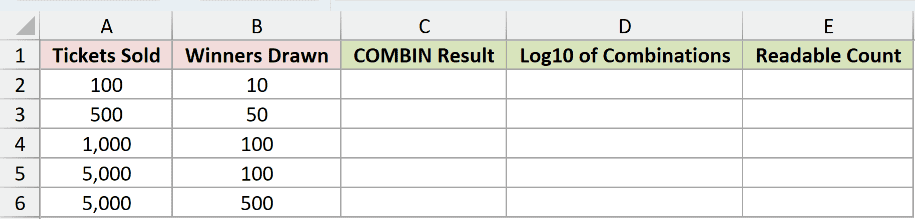
We want to describe how many winning-ticket sets are possible when tickets can’t repeat and drawing order doesn’t matter.
Enter the log-count formula in D2:
=(GAMMALN(A2:A6+1)-GAMMALN(B2:B6+1)-GAMMALN(A2:A6-B2:B6+1))/LN(10)
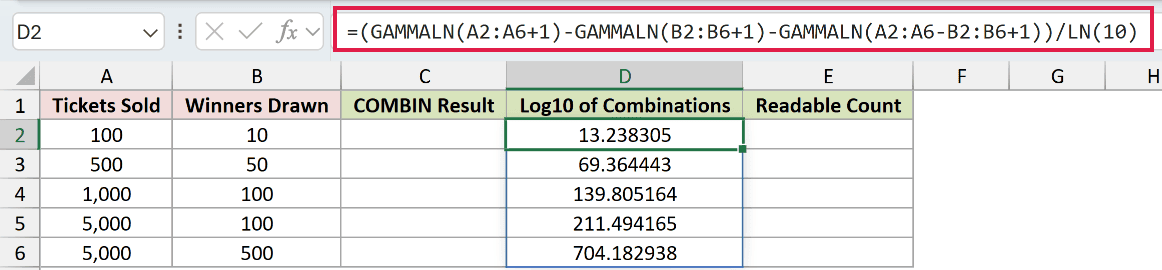
The formula subtracts the log factorials for selected and unselected tickets from the total-ticket log factorial. Dividing by LN(10) converts the answer to a base-ten logarithm.
For 500 winners drawn from 5,000 tickets, D6 displays 704.182938. This expresses the count on a logarithmic scale.
Enter the direct COMBIN comparison in C2:
=COMBIN(A2:A6,B2:B6)
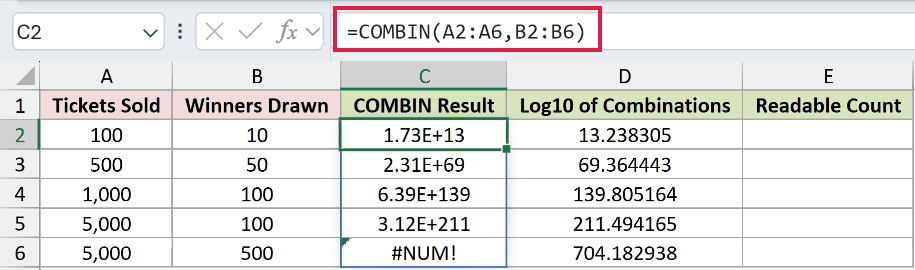
The COMBIN comparison returns 3.12E+211 for 100 winners from 5,000 tickets. Its 500-winner comparison in C6 deliberately returns #NUM! because that count is too large.
To display a readable count without creating the enormous number, enter this in E2:
=TEXT(10^MOD(D2:D6,1),"0.00")&" x 10^"&INT(D2:D6)
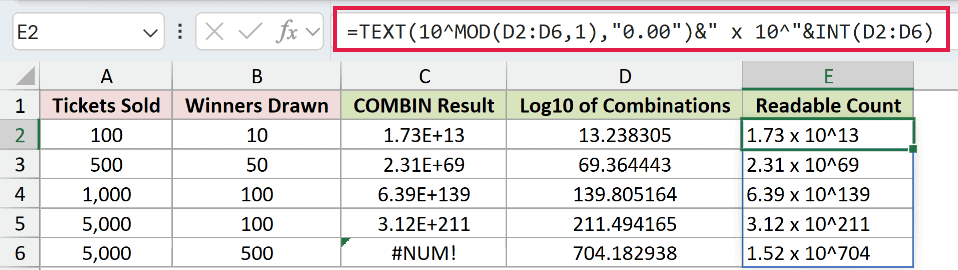
MOD extracts the logarithm’s fractional part for the leading value. INT provides the exponent, and TEXT joins them into a readable label.
The last row displays 1.52 x 10^704. This is rounded text for reporting; use column D’s numeric logarithm for further calculations.
Example 5: Calculate Large Coin-Flip Probabilities
Logs also help when a probability calculation combines a huge count with a tiny probability.
Below is the dataset. Columns A and B contain coin-flip counts and desired heads; columns C and D reserve space for GAMMALN probabilities and a BINOM.DIST check.
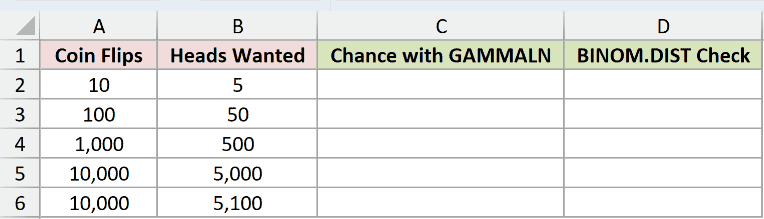
We want the probability of exactly the requested number of heads in independent flips of a fair coin.
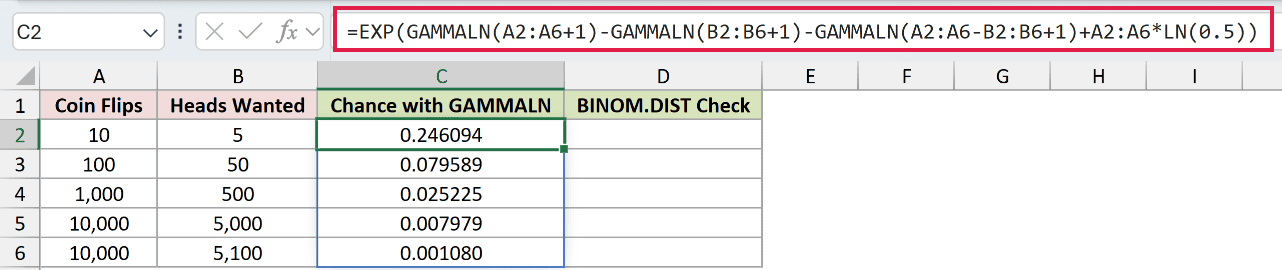
Enter this formula in C2:
=EXP(GAMMALN(A2:A6+1)-GAMMALN(B2:B6+1)-GAMMALN(A2:A6-B2:B6+1)+A2:A6*LN(0.5))
How this formula works:
- The GAMMALN terms calculate the log of the number of arrangements with the requested heads count.
- The final LN term adds the log probability of each arrangement for a fair coin.
- EXP converts the combined log probability back after the large and small terms have been combined.
For 5,000 heads in 10,000 flips, the probability is 0.007979. For 5,100 heads in the same number of flips, it is 0.001080.
Enter the BINOM.DIST cross-check in D2:
=BINOM.DIST(B2:B6,A2:A6,0.5,FALSE)
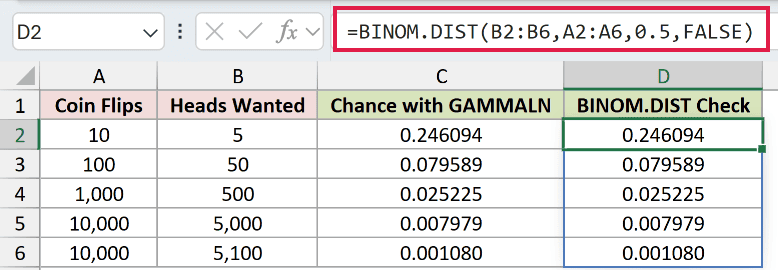
FALSE requests exactly the specified heads count. The check displays the same 0.007979 and 0.001080 for those rows.
BINOM.DIST is the more direct choice for this task. The GAMMALN version shows the log calculation you can adapt when a built-in probability function doesn’t fit.
Example 6: Understand GAMMALN Errors
GAMMALN accepts positive fractions, but its input rules are stricter than GAMMA’s.
Below is the dataset. Column A contains test inputs, B and C reserve results for GAMMALN and the GAMMA comparison, and D describes each test case.
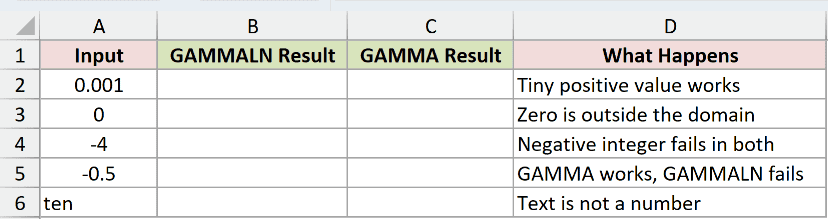
We want to identify invalid GAMMALN inputs and compare them with GAMMA’s behavior.
Enter this formula in B2:
=GAMMALN(A2:A6)
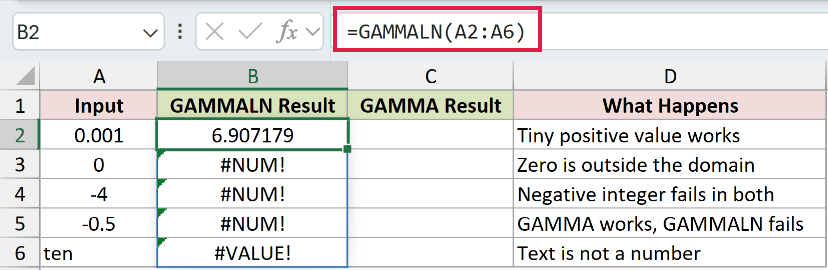
The errors are deliberate demonstrations:
- 0.001: This positive input works and returns 6.907179.
- 0: B3 returns #NUM! because zero is outside GAMMALN’s domain.
- -4: B4 returns #NUM! because the input is negative.
- -0.5: B5 also returns #NUM!. A negative fraction is still invalid.
- ten: B6 returns #VALUE! because this text isn’t numeric.
Now enter the GAMMA comparison in C2:
=GAMMA(A2:A6)
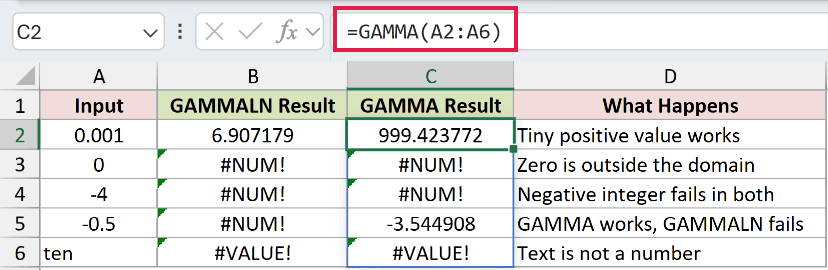
The GAMMA comparison returns 999.423772 for 0.001 and -3.544908 for -0.5. GAMMA accepts this negative fraction, while GAMMALN returns an error.
The comparison’s zero and negative-integer rows return #NUM!. Its text row returns #VALUE! because GAMMA can’t interpret the word as a number either.
Tips & Common Mistakes
- Don’t forget the factorial offset. Add the
+1shown in Example 2 when you want a log factorial. Leaving it out changes which factorial you’re calculating. - Check empty inputs. GAMMALN treats a truly blank referenced cell as zero and returns
#NUM!. A missing input isn’t skipped automatically. - Numeric text can work. A number stored as text is converted, while a word such as
tenreturns#VALUE!. - Keep spill destinations clear. Existing content in the output area can cause
#SPILL!. Enter each range formula only in its starting cell. - Don’t expect extra accuracy from PRECISE. GAMMALN and GAMMALN.PRECISE returned identical results in testing.
- Stay on the log scale when needed. EXP is useful after large terms cancel, as in the birthday example. It can’t make an oversized final count fit in Excel.
Revisit Example 4 when you need to report a count that Excel can’t store as a number.
Other Excel articles you may also like:
