
The GAMMA function in Excel returns the gamma-function value of a number. It extends the factorial relationship to fractional and negative noninteger inputs.
For positive integers, GAMMA(n) equals (n-1)!. That one-position shift matters whenever you compare GAMMA with an ordinary factorial.
In this article, I’ll show you how to calculate fractional gamma values, compare GAMMA with factorials, and use it in a probability density formula.
GAMMA Function Syntax in Excel
The GAMMA function needs one argument:
=GAMMA(number)
numberis the value, cell reference, or numeric range whose gamma-function value you want.
When to Use GAMMA Function
- Calculate gamma values for fractional inputs.
- Connect positive integers with their shifted factorial values.
- Write or audit formulas based on the gamma probability density.
- Test valid and invalid values across GAMMA’s mathematical domain.
Example 1: Calculate Fractional Gamma Values
Fractional inputs show why GAMMA is different from a regular factorial.
Below is a list of six positive values and an empty GAMMA Value column.
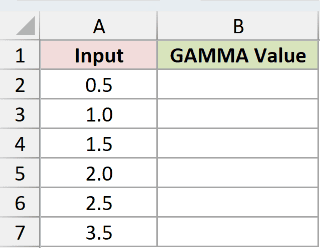
I want Excel to calculate the gamma-function value for every input.
Here is the formula:
=GAMMA(A2:A7)
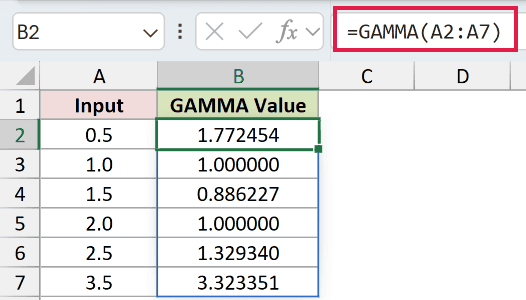
The first result is 1.772454 for an input of 0.5. An input of 2.5 returns 1.329340, while 3.5 returns 3.323351.
This one formula spills six results in Excel 2021, Excel 2024, Microsoft 365, and Excel for the web.
Pro Tip: Excel 2019 and earlier do not spill this range formula. Use =GAMMA(A2) and copy it down instead.
Example 2: Compare GAMMA With FACT
Positive integers reveal the link between GAMMA and factorials.
Below are the integers 1 through 6 with empty columns for GAMMA and FACT results.
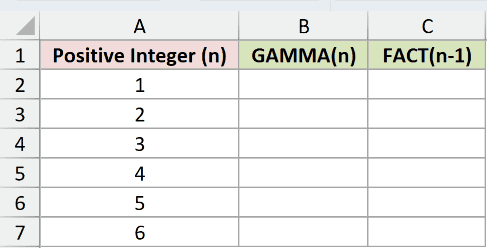
I first want to calculate GAMMA for every integer.
Here is the GAMMA formula:
=GAMMA(A2:A7)
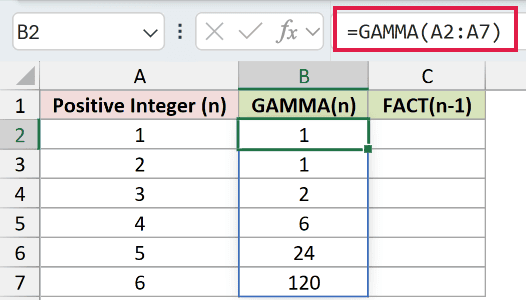
The results are 1, 1, 2, 6, 24, and 120. GAMMA returns the factorial of one less than each input.
Now I want to confirm that relationship with FACT.
Here is the FACT formula:
=FACT(A2:A7-1)
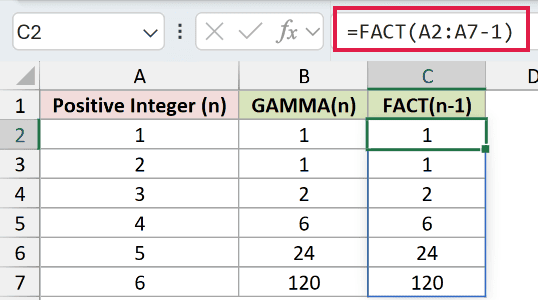
The FACT function calculates the factorial of n-1. Its results match the GAMMA column row for row.
Pro Tip: Use FACT when your inputs are positive integers and you want an ordinary factorial. GAMMA is useful when the input can be fractional.
Example 3: Use GAMMA in a Density Formula
GAMMA often appears as one term inside a larger statistical formula.
Below is a parameter card with a wait time of 6, shape of 3, scale of 2, and two empty result cells.
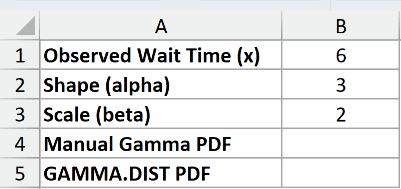
I want to calculate the gamma probability density from its underlying equation.
Here is the manual formula:
=(B1^(B2-1)*EXP(-B1/B3))/(GAMMA(B2)*B3^B2)
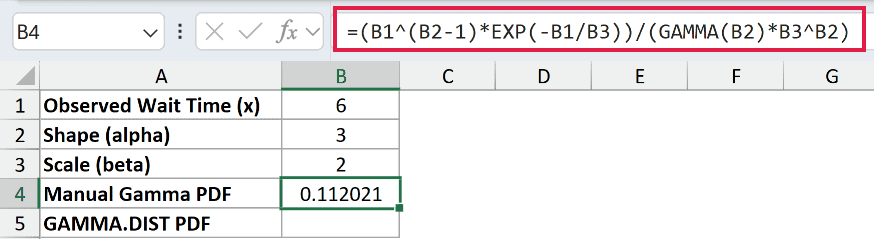
The numerator raises the observed value to alpha-1, then multiplies it by an exponential term from EXP.
The denominator uses GAMMA to normalize the shape parameter. With these inputs, the density is 0.112021.
I can check the result with Excel’s dedicated distribution function.
Here is the GAMMA.DIST formula:
=GAMMA.DIST(B1,B2,B3,FALSE)
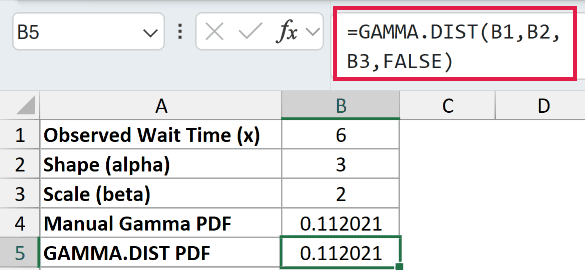
FALSE tells GAMMA.DIST to return the probability density rather than the cumulative probability. It returns the same 0.112021 result.
Pro Tip: Use GAMMA.DIST when you need the distribution result directly. Use GAMMA when you are building or checking the underlying expression.
Example 4: Handle GAMMA Domain Errors
Negative values do not all behave the same way in GAMMA.
Below are a negative noninteger, zero, a negative integer, and text, with an empty result column.
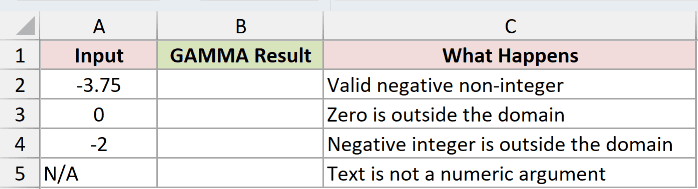
I want to see which inputs return a value and which return an error.
Here is the formula:
=GAMMA(A2:A5)
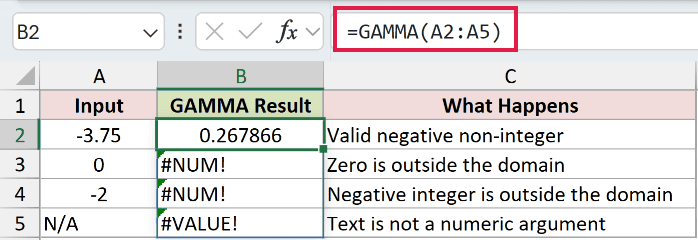
The negative noninteger -3.75 is valid and returns 0.267866. Zero and the negative integer -2 return #NUM!.
The text value N/A returns #VALUE! because GAMMA requires a numeric argument.
Pro Tip: Do not reject every negative input. GAMMA rejects zero and negative integers, but many negative nonintegers are valid.
Tips & Common Mistakes
- Remember the shift: for a positive integer
n, GAMMA returns(n-1)!, notn!. - Use GAMMA.DIST for a gamma-distribution density or cumulative probability. It requires
x,alpha,beta, andcumulativearguments. - Use GAMMALN when you need the natural logarithm of gamma or want to avoid overflow from a very large gamma value.
- Zero and negative integers return
#NUM!. Nonnumeric arguments return#VALUE!. - Keep the spill area clear when a range formula returns several results.
I covered fractional values, factorial equivalence, GAMMA’s role in a probability density, and the input values that produce errors.
I hope you found this article helpful.
Related Excel Functions / Articles:
