
The GAMMALN.PRECISE function in Excel returns the natural logarithm of the gamma function for a positive number.
That logarithm is useful when factorials become too large for Excel to calculate directly. You can work with their logs instead, then combine them in probability formulas.
Despite its name, GAMMALN.PRECISE returns the same results as GAMMALN. The newer name doesn’t mean a more accurate answer.
I’ll show you how to calculate log factorials, check Poisson probabilities, and use log gamma terms in a conversion forecast.
A range input lets GAMMALN.PRECISE calculate log gamma for several values at once, spilling the results into neighboring cells.
GAMMALN.PRECISE Function Syntax in Excel
GAMMALN.PRECISE takes a required input:
=GAMMALN.PRECISE(x)
- x (required): The positive number whose log gamma you want. You can supply a number, cell reference, or range.
The result expresses gamma on a natural-log scale. Positive decimal inputs work too.
GAMMALN.PRECISE is available in Excel 2010 and later.
When to Use GAMMALN.PRECISE Function
- Calculate log factorials when FACT would overflow.
- Build log-probability formulas for count data, such as daily signups.
- Calculate a beta-binomial probability from past conversion data.
- Compare the sizes of large multinomial counts without calculating the full counts.
Example 1: Compare GAMMALN.PRECISE With GAMMALN
Let’s start by checking what the function returns and how it compares with GAMMALN.
Below is the dataset. Column A contains positive inputs, column B will hold GAMMALN.PRECISE results, and column C is the GAMMALN comparison.
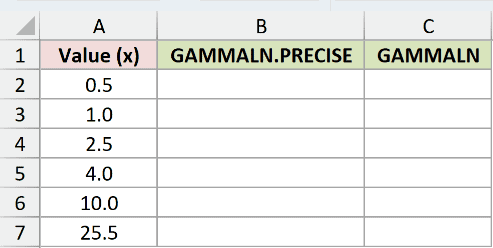
We want to calculate log gamma for each input and compare the function names.
Enter this formula in B2:
=GAMMALN.PRECISE(A2:A7)
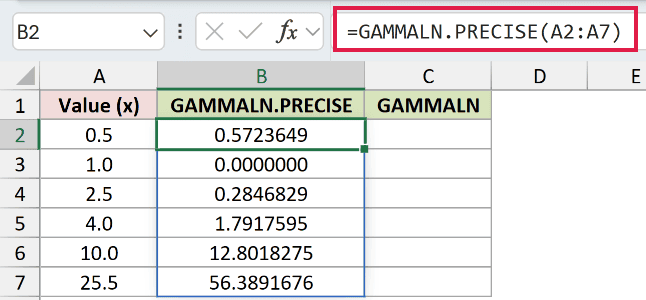
The formula spills into B2:B7. For input 0.5, it returns 0.5723649; for 4.0, it returns 1.7917595.
Range formulas spill in Excel 2021, Excel 2024, and Microsoft 365. In Excel 2019 and earlier, use a per-row version and fill it down.
For the GAMMALN comparison in C2, enter:
=GAMMALN(A2:A7)
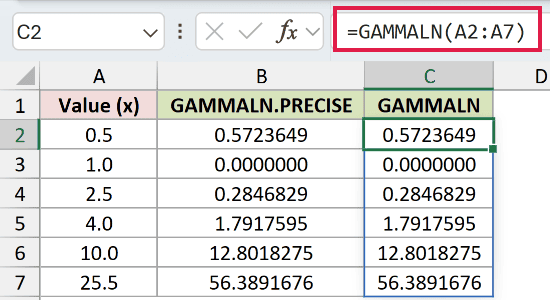
The comparison demonstrates that both function names return the same values, including 56.3891676 for 25.5.
Both functions returned bit-identical results across 1,000 tested inputs. There’s no accuracy advantage to choosing the PRECISE name.
Example 2: Calculate Log Factorials Beyond FACT
Factorials grow quickly, but their logarithms stay manageable much longer.
Below is the dataset. Column B contains sequencing-read counts, column C is reserved for the FACT comparison, and column D will hold log factorials.
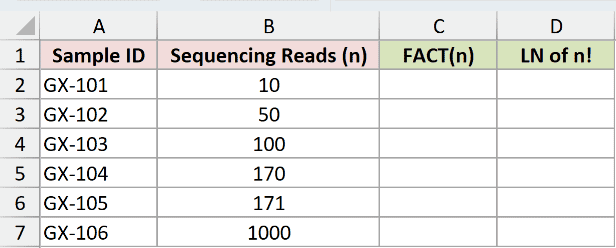
We want the natural logarithm of each read count’s factorial without calculating that factorial first.
Enter this formula in D2:
=GAMMALN.PRECISE(B2:B7+1)
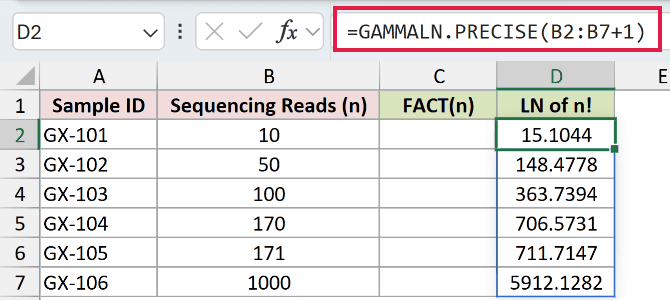
Adding +1 makes gamma match the count’s factorial because gamma at a positive integer equals the factorial of the preceding integer.
For 171 reads, the natural logarithm of the factorial is 711.7147. For 1000 reads, it is 5912.1282.
Now enter the FACT comparison in C2:
=FACT(B2:B7)
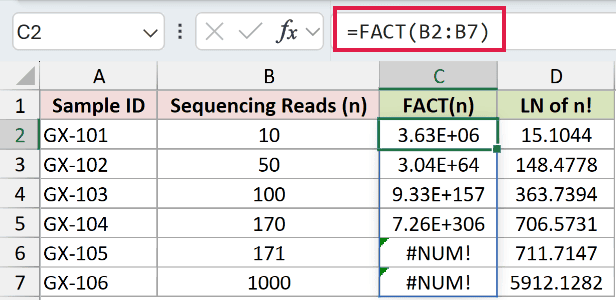
The FACT comparison includes counts that exceed Excel’s limit. It displays 7.26E+306 for 170, then returns #NUM! for 171 and 1000 because the factorials are too large.
GAMMALN.PRECISE avoids that intermediate overflow by returning the log directly.
Pro Tip: Keep huge answers in log form. Applying EXP to recover a huge factorial can overflow again, even when its log calculated successfully.
Example 3: Calculate a Poisson Log Probability
A log factorial also appears in the Poisson probability formula for counts.
Below is the dataset. Columns B and C contain expected and actual signups; columns D through F will hold log probabilities, probabilities, and a POISSON.DIST check.
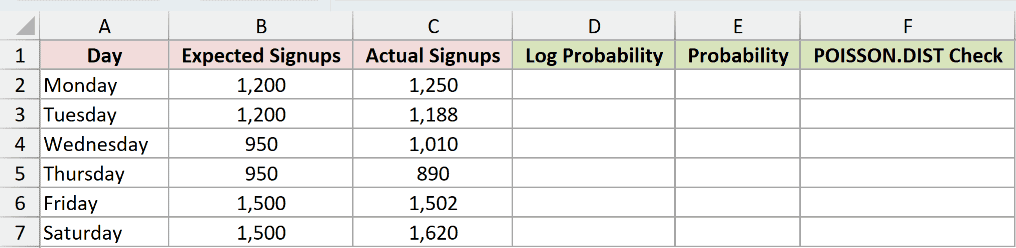
We want the probability of each day’s exact signup count under a Poisson model with that day’s expected count.
Enter the log-probability formula in D2:
=C2:C7*LN(B2:B7)-B2:B7-GAMMALN.PRECISE(C2:C7+1)
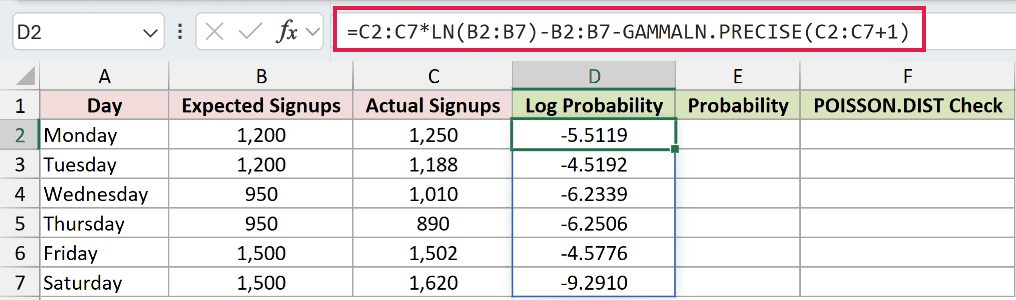
How this formula works:
- It multiplies each actual count by the natural log of its expected count.
- It subtracts the expected count.
- GAMMALN.PRECISE calculates the actual count’s log factorial, which is also subtracted.
Monday’s log probability is -5.5119. Saturday’s is -9.2910, the lowest log probability in this dataset.
To convert the logs back to probabilities, enter this in E2:
=EXP(D2:D7)
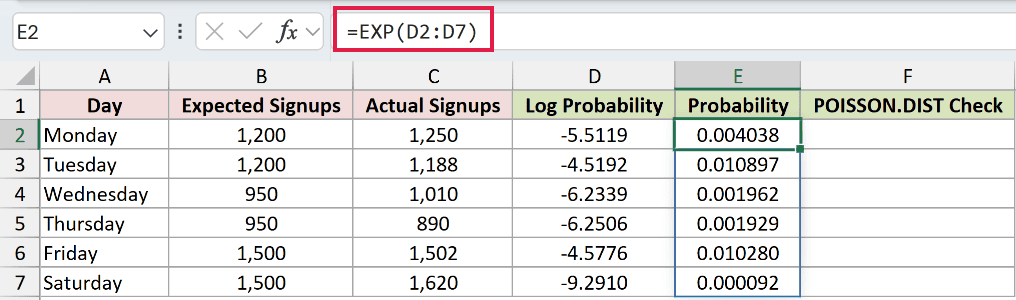
Monday returns 0.004038, while Saturday returns 0.000092. These describe the exact observed counts, not the probability of reaching or exceeding them.
Enter the direct POISSON.DIST check in F2:
=POISSON.DIST(C2:C7,B2:B7,FALSE)
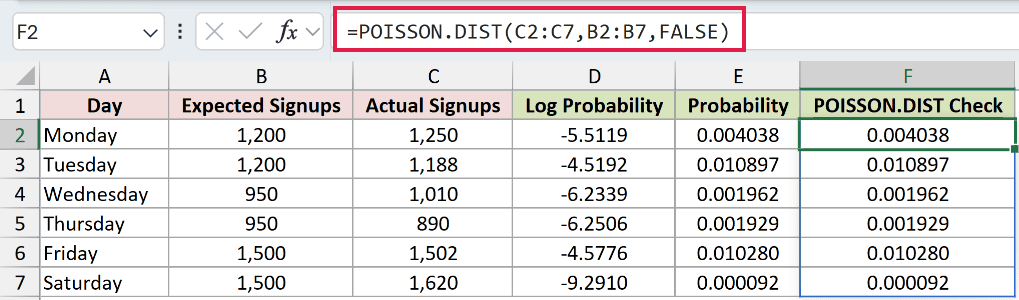
The check matches the displayed probabilities in column E. FALSE requests an exact-count probability rather than a cumulative probability.
POISSON.DIST is more direct when you only need a probability. The log form is useful when later calculations need log-likelihoods.
Example 4: Forecast an Exact Conversion Count
A beta-binomial model uses log gamma terms to allow uncertainty in the conversion rate.
Below is the dataset. The card holds alpha, beta, upcoming visitors, and target conversions, followed by labelled cells for the log Beta terms and final probability.
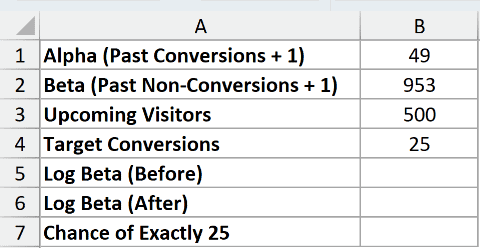
We want the chance of exactly 25 conversions among 500 upcoming visitors under this model.
The typed inputs in B1:B4 are 49, 953, 500, and 25. Alpha and beta represent past conversions and non-conversions, each with one added.
First, calculate the starting log Beta term in B5:
=GAMMALN.PRECISE(B1)+GAMMALN.PRECISE(B2)-GAMMALN.PRECISE(B1+B2)
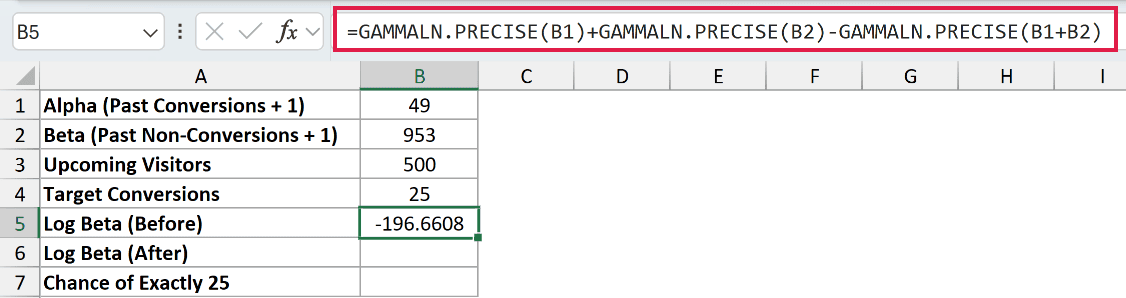
This returns -196.6608. It adds the log gamma values for alpha and beta, then subtracts log gamma of their sum.
Next, calculate the log Beta term for the target outcome in B6:
=GAMMALN.PRECISE(B1+B4)+GAMMALN.PRECISE(B2+B3-B4)-GAMMALN.PRECISE(B1+B2+B3)
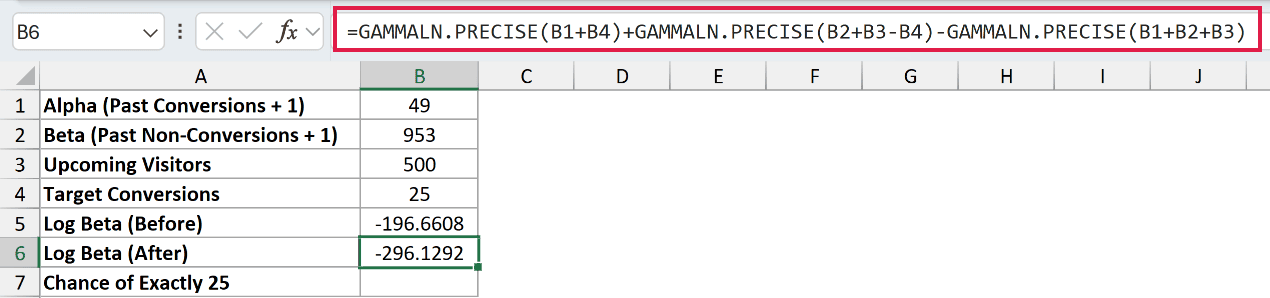
This returns -296.1292. The formula adds target conversions to alpha and the remaining visitors to beta.
The label “After” refers to that hypothetical outcome, not newly observed data.
Finally, calculate the probability in B7:
=COMBIN(B3,B4)*EXP(B6-B5)
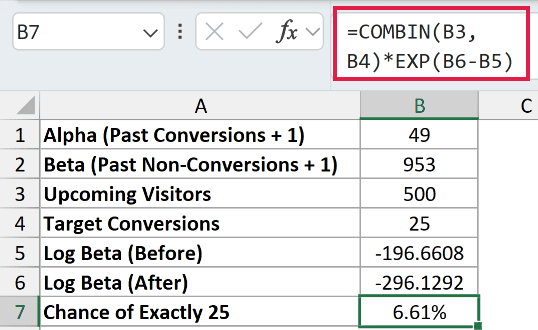
The result is 6.61%, the model’s chance of exactly 25 conversions.
Subtracting the log Beta terms and applying EXP recovers their ratio. COMBIN accounts for the possible placements of the conversions among the visitors.
Excel has no built-in beta-binomial probability function. BETA.DIST describes the conversion-rate distribution, so it doesn’t directly replace this calculation.
Example 5: Compare Large Multinomial Counts
For DNA fragments, the same base counts can be arranged into many different sequences.
Below is the dataset. Columns B through E contain DNA base counts, column F holds typed fragment lengths, and column G will show log10 sequence counts.
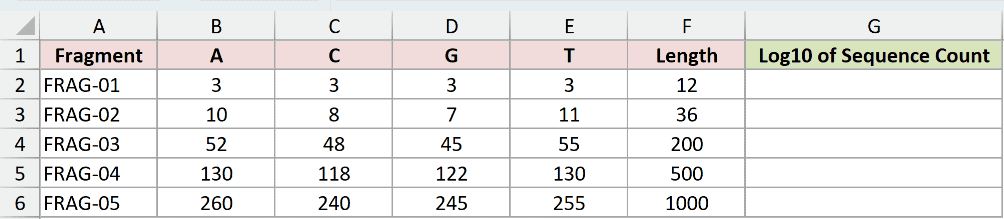
We want the base-ten logarithm of the number of distinct sequences possible for each fragment’s fixed base counts.
Enter this formula in G2, then copy it down through G6:
=(GAMMALN.PRECISE(F2+1)-SUM(GAMMALN.PRECISE(B2:E2+1)))/LN(10)
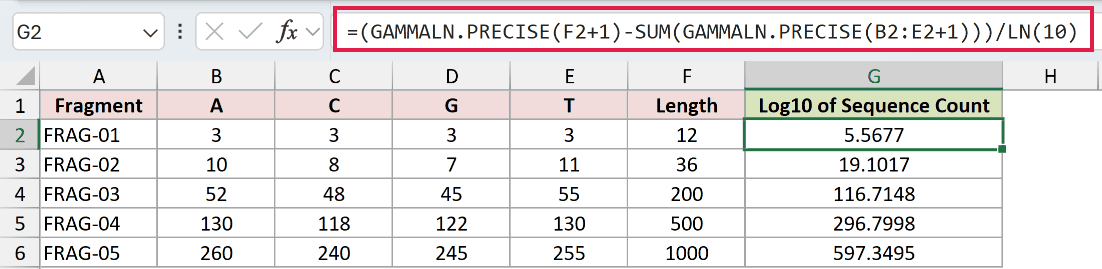
This example stays per-row because SUM collapses each row’s log factorials into a single number. It doesn’t spill down column G.
How this formula works:
- GAMMALN.PRECISE calculates the log factorial of the total length in column F.
- SUM adds the log factorials of the individual base counts. Subtracting that sum accounts for repeated bases.
- Dividing by
LN(10)converts the natural logarithm to a base-ten logarithm.
FRAG-01 returns 5.5677. FRAG-05 returns 597.3495. These log10 values let you compare the sequence counts without storing either full count.
These results are logarithms, not sequence counts or rounded digit counts. MULTINOMIAL is an alternative for returning a manageable count directly.
Example 6: Identify Invalid Inputs
These test cases show which inputs GAMMALN.PRECISE rejects.
Below is the dataset. Column A contains test inputs, column B will show log gamma results or deliberate errors, and column C explains each case.
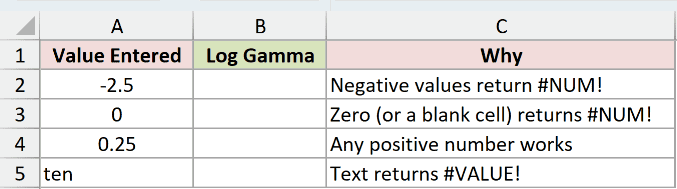
We want to see which inputs calculate successfully and why the others fail.
Enter this formula in B2:
=GAMMALN.PRECISE(A2:A5)
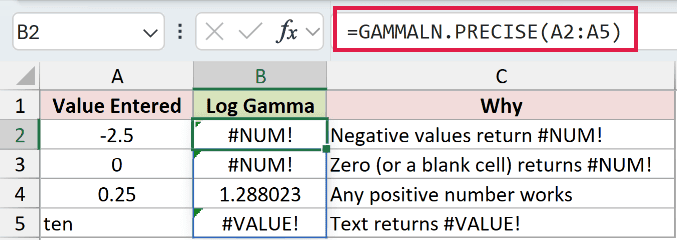
The spill shows each case separately:
B2returns#NUM!because -2.5 is negative.B3returns#NUM!because the input is 0.B4returns 1.288023 for 0.25. Positive decimals are valid.B5returns#VALUE!because “ten” isn’t numeric text Excel can convert.
Correct the underlying input when it should be positive and numeric. Hiding these errors wouldn’t make the input valid.
Tips & Common Mistakes
- Don’t confuse gamma with log gamma. GAMMA returns gamma itself; GAMMALN.PRECISE returns its natural logarithm. GAMMALN.PRECISE also rejects negative inputs that GAMMA can sometimes accept.
- Check empty inputs. A truly blank referenced cell counts as zero and returns
#NUM!. It isn’t skipped. - Numeric text can convert. A number stored as text can work, while a word such as “ten” returns
#VALUE!. Don’t treat all text inputs as equivalent. - Keep spill destinations clear. Existing content in the output range can cause
#SPILL!. An inserted@can restrict a range calculation to a single value. - Keep full precision between steps. Reference the calculated log cells, as Example 4 does, rather than typing their displayed rounded values into the next formula.
Related Excel Functions / Articles:
