
Excel’s COUNT function counts numeric values, including dates and times stored as numbers.
In referenced ranges, it ignores text, blank cells, logical values, and errors. Use COUNTA when you need to count nonempty cells regardless of their value type.
In this article, I’ll show you how to count numeric entries across separate ranges, handle mixed data, and count values in a filtered subset.
COUNT Function Syntax in Excel
The COUNT function takes one or more values and returns a count of how many of them are numbers.
=COUNT(value1, [value2], ...)
- value1 – the first value or range to count. Required.
- value2, … – additional values or ranges. Optional. You can pass up to 255 arguments in total.
When to Use COUNT Function
COUNT comes in handy whenever you need to know how many numeric entries are in a list. A few common cases:
- Counting how many test scores were actually recorded (skipping absent students).
- Tracking how many cells in a price column have numeric values, ignoring blanks and “N/A” entries.
- Counting numeric measurements across several columns at once.
- Counting only the numeric entries in a filtered subset by combining COUNT with FILTER.
- Verifying that all rows in a range have a number before running a calculation that requires one.
Example 1: Count Numeric Cells in a Single Column
Let’s start with the most common use of COUNT: pointing it at a single column of numbers and reading the count.
Below is a dataset of seven students in column A and their math scores in column B. Two students were absent on test day, so those cells are blank.
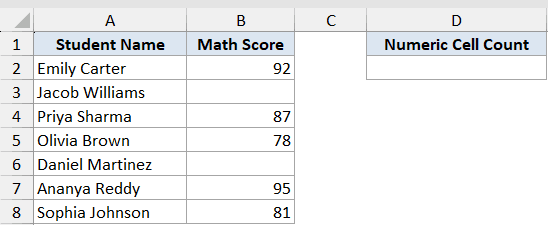
I want to know how many students actually took the test, without counting the absent rows.
Here is the formula:
=COUNT(B2:B8)
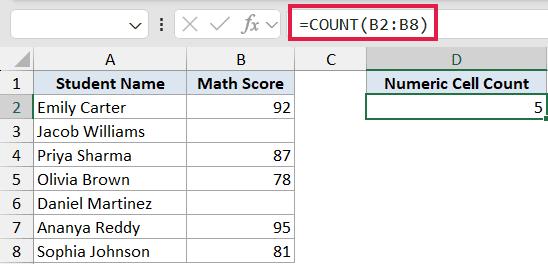
COUNT walks through B2:B8 and counts every cell that contains a number. Five students have a score, so the result is 5.
Jacob and Daniel were absent (blank cells), and COUNT skips those automatically. No filtering or IF wrapping needed.
Pro Tip: If you want to count anything in the column (text, errors, blanks-from-formulas), use COUNTA instead. COUNT is specifically for numbers.
Example 2: Count Across Multiple Non-Contiguous Ranges
Here’s a feature that’s easy to miss: COUNT can take up to 255 separate arguments, not just one range.
Below is a quarterly sales tracker for six reps in column A, with Q1, Q2, and Q3 amounts in columns B, C, and D. A few cells are blank where a rep had no recorded sales for that quarter.
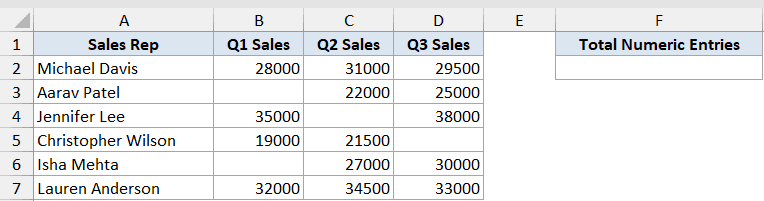
I want a single count of how many quarterly sales figures were recorded across all three quarters.
Here is the formula:
=COUNT(B2:B7, C2:C7, D2:D7)
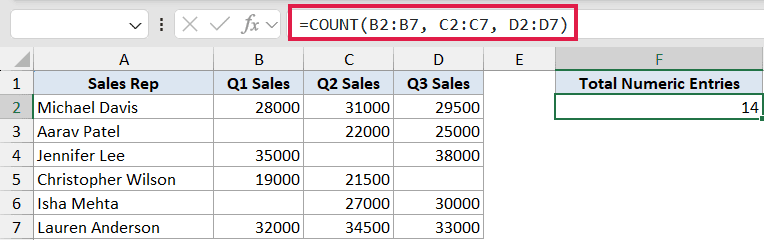
COUNT treats each range as a separate argument and counts the numbers across all three. There are 4 numeric entries in Q1, 5 in Q2, and 5 in Q3, for a total of 14.
The blank cells (where a rep had no sales that quarter) are skipped. If a rep had a “Pending” status instead of a number, COUNT would skip that too.
Pro Tip: The ranges in a COUNT formula don’t have to be the same size or even on the same sheet. =COUNT(A:A, Sheet2!B:B) happily counts numeric cells in two full columns across two sheets.
Example 3: Count Numeric Entries in a Mixed-Content Column
This next example makes the difference between COUNT and COUNTA concrete.
Below is an order log with nine rows in column A and an Amount Paid column in column B. Some orders have numeric amounts, two have text (“Refunded” and “Pending”), and a couple are blank because the order hasn’t been processed yet.
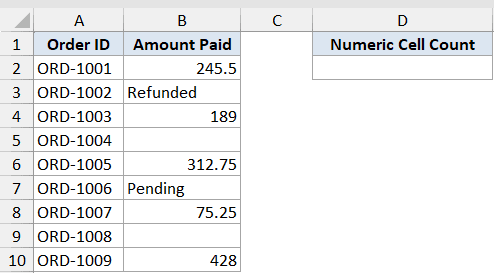
I want to know how many orders actually have a numeric amount, ignoring the text statuses and the blanks.
Here is the formula:
=COUNT(B2:B10)
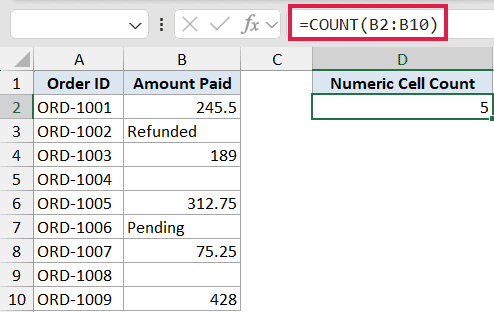
COUNT counts only the cells containing numbers, so 5 out of 9 orders qualify. The two text cells (“Refunded”, “Pending”) are skipped, and so are the two blank cells.
If you ran COUNTA on the same column, you’d get 7 instead. COUNT and COUNTA only diverge on columns like this, where some cells have non-numeric content.
Pro Tip: Dates are stored as numbers internally, so COUNT counts a column of dates without any special handling. But a date entered as text (a leading apostrophe like '25-May-2026, for example) is not counted because Excel treats it as a string, not a date value.
Example 4: Count Filtered Numeric Values With FILTER
For the final example, compose COUNT with FILTER to count only the numeric sales in a specific region.
Below is a sales tracker for nine reps in column A, with the region in column B and the sale amount in column C. Some West-region reps didn’t record a sale, so their amounts are blank.
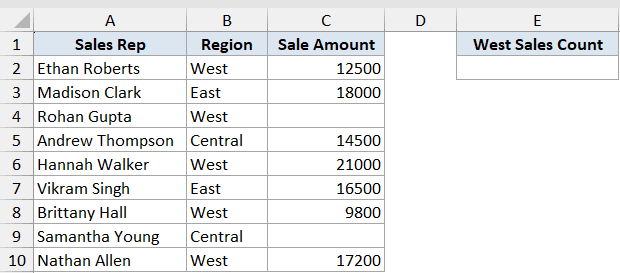
I want to know how many West-region reps actually have a recorded sale, ignoring the ones with blank amounts.
Here is the formula:
=COUNT(FILTER(C2:C10, B2:B10="West"))
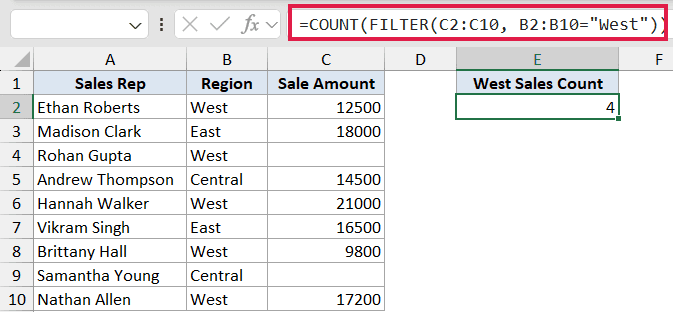
How this formula works:
FILTER(C2:C10, B2:B10="West")returns just the sale-amount cells for West-region reps, as a spilled array of five values (one of which is blank).COUNT(...)counts only the numeric ones in that filtered array. Rohan Gupta’s blank amount gets skipped, so the count is 4 even though five West-region reps exist.
Before dynamic arrays, this kind of filtered numeric count needed COUNTIFS (which can’t easily handle “non-empty AND in this region” without quirks) or a SUMPRODUCT trick. With FILTER, the formula is short and reads naturally.
Pro Tip: Swap COUNT for COUNTA if you want a count of how many West-region reps exist in the list, regardless of whether they have a recorded sale. COUNT(FILTER(...)) answers “how many have a number”; COUNTA(FILTER(...)) answers “how many rows match the condition”.
Tips & Common Mistakes
- COUNT only counts cells with numbers. Text, blanks, logical values inside ranges, and errors are all ignored. If you want a count of any non-empty cell, use COUNTA.
- Dates and times are stored as numbers internally, so COUNT counts a column of dates without any special handling.
- A number stored as text (with a leading apostrophe, or in a cell formatted as Text) is not counted. If COUNT returns a lower count than you expect on a numeric-looking column, this is usually why.
- Direct arguments behave a bit differently from cells in a range.
=COUNT(TRUE, FALSE, "5", 7)returns 4 because logicals and parseable text-numbers are counted when passed as direct arguments. The same values sitting inside a referenced range would be ignored. - For conditional counts (like counting numbers between two thresholds, or any “count if X” check), reach for COUNTIF or COUNTIFS, not COUNT. COUNT can’t filter on its own. You’ll need either FILTER (modern, shown in Example 4) or the IFS-family functions (legacy).
- COUNT accepts up to 255 arguments and the ranges don’t have to be contiguous or even on the same sheet.
- To do the opposite job (count just the text cells in a column), see how to count cells with text in Excel.
COUNT is one of the first functions most people learn, and it stays useful for as long as you work with Excel.
Knowing exactly what counts and what doesn’t (numbers in, everything else out) saves a lot of “why is this returning the wrong number” debugging later.
Across these four examples, you’ve seen COUNT on a single column, across multiple ranges, on a mixed-type column where it shines against COUNTA, and composed with FILTER for a conditional numeric count.
Related Excel Functions / Articles:
- COUNTA Function in Excel
- ISNUMBER Function in Excel
- AVERAGE Function in Excel
- ISBLANK Function in Excel
- ISTEXT Function in Excel
- SUBTOTAL Function in Excel
- Count the Number of Yes in Excel (Using COUNTIF)
- How to Count Unique Values in Excel (Formulas)
- How to Count Filtered Rows in Excel?
- Count How Many Times a Word Appears in Excel (Easy Formulas)
