
The CONCATENATE function in Excel combines individual text values into one string.
It remains available for compatibility, but Microsoft has replaced it with the CONCAT function. TEXTJOIN is another option when you need separators or want to ignore empty cells.
In this article, I’ll show you how to combine names and addresses, preserve date and number formatting, and add line breaks to joined text.
CONCATENATE Function Syntax in Excel
The CONCATENATE function joins two or more text values into a single string.
=CONCATENATE(text1, [text2], ...)
text1(required). The first item to join. Can be a literal text string, a number, or a cell reference.text2, ...(optional). Up to 254 additional items to join, in the order they should appear.
CONCATENATE accepts up to 255 arguments total, and the combined result can be at most 8,192 characters. The output is always a text string, even when the inputs are numbers or dates.
When to Use CONCATENATE Function
- Combine first and last name into a single “Full Name” column.
- Build a mailing address from separate Street, City, State, and ZIP columns.
- Create personalized sentences (order summaries, email lines, report headers) by mixing cell values with literal text.
- Format numbers or dates inside a sentence using
TEXT()so they keep their original formatting. - Stack values across multiple lines inside one cell with
CHAR(10)line breaks.
Example 1: Combine First and Last Name
Let’s start with the most common use case for combining two columns. Joining a first name and a last name into a single “Full Name” column.
Below is the dataset, with first names in column A and last names in column B.
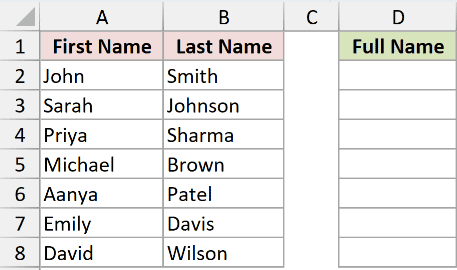
We want a single column that shows “John Smith”, “Sarah Johnson”, and so on, with a space between the two parts.
Here is the formula:
=CONCATENATE(A2:A8, " ", B2:B8)
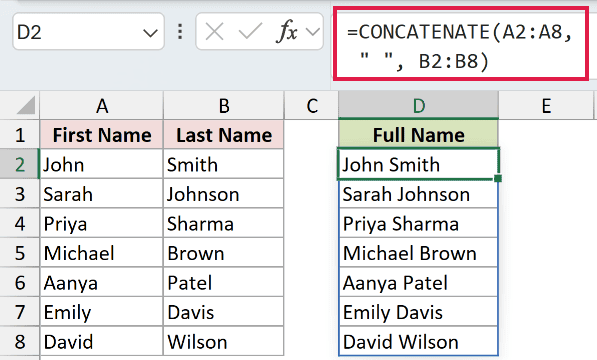
How this formula works. CONCATENATE joins three things in order. The value from column A, then a space character, then the value from column B.
Because we passed it the ranges A2:A8 and B2:B8, Excel 365 spills the result down all seven rows automatically. One formula in D2, the whole column filled.
Pro Tip: If you’re on Excel 2019 or older, the spill won’t happen. Enter the formula in D2 with single-cell references like =CONCATENATE(A2, " ", B2) and drag it down to fill D2:D8.
Example 2: Build a Mailing Address from Multiple Parts
Here’s another practical scenario. Assembling a single-line mailing address from separate Street, City, State, and ZIP columns.
Below is the dataset.
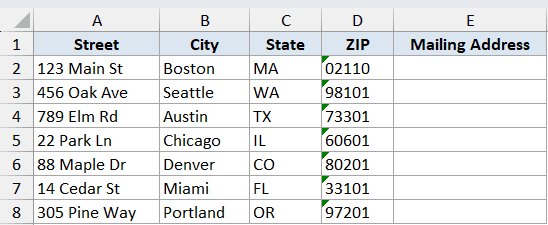
We want to combine all four columns into one “Mailing Address” column, with commas after the street and city and a space before the ZIP code.
Here is the formula:
=CONCATENATE(A2:A8, ", ", B2:B8, ", ", C2:C8, " ", D2:D8)
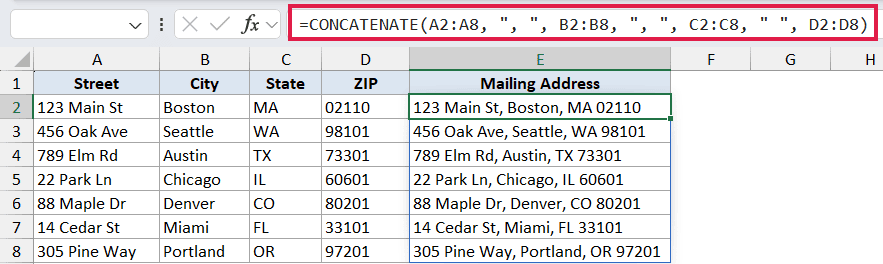
How this formula works. Each cell range is followed by the separator that should appear after it. Street, then ", ", then City, then ", ", then State, then a single " ", then ZIP.
This text-separator-text-separator pattern is how you handle any multi-part assembly. Order summaries, product descriptions, ID codes, anything where the building blocks live in separate columns.
Pro Tip: If any of the parts might be blank (say a suite-number column that’s empty for some rows), CONCATENATE still inserts the separator. You’ll see results like "123 Main St, , Boston, MA 02110" with a stray comma. TEXTJOIN with its ignore-empty flag handles that cleanly. See Example 6.
Example 3: Combine Text with Dates and Numbers Using TEXT
When you mix numbers or dates into a CONCATENATE result, Excel strips their formatting by default. A date becomes a serial number like 45759, and a dollar amount loses its commas and decimals, showing up as 1250.75 instead of $1,250.75.
The fix is to wrap those cells in the TEXT function so they keep their formatting.
Below is the dataset. Customer name, order date, and order amount.
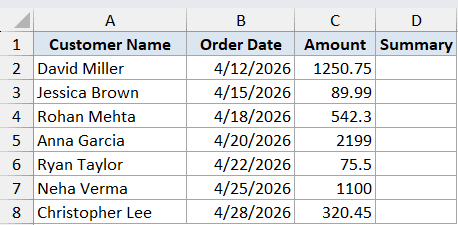
For each row, we want a sentence like “David Miller placed an order on Apr 12, 2026 for $1,250.75”.
Here is the formula:
=CONCATENATE(A2:A8, " placed an order on ", TEXT(B2:B8, "mmm d, yyyy"), " for $", TEXT(C2:C8, "#,##0.00"))

How this formula works:
TEXT(B2:B8, "mmm d, yyyy")converts the raw date in column B into the readable “Apr 12, 2026” form.TEXT(C2:C8, "#,##0.00")formats the amount with a comma thousands separator and two decimal places.- CONCATENATE then stitches the customer name, the prefix text, the formatted date, the middle text, the dollar sign, and the formatted amount into one string.
Without the TEXT wrappers, the same formula would return something like “David Miller placed an order on 45759 for $1250.75”. Accurate, but not what you’d put in front of a customer.
Pro Tip: Excel’s TEXT function supports the same format codes you’d type into the Format Cells dialog. "mm/dd/yyyy" for US-style dates, "dddd" for a full weekday name, "0.00%" for percentages, "$#,##0.00" to roll the dollar sign into the number format itself.
Example 4: Insert Line Breaks Inside the Combined Text
Sometimes you want to concatenate with line breaks inside a single cell, like a stacked address label. The trick is CHAR(10), which inserts a line break wherever you place it inside the formula.
Below is the dataset. A name, a street, and a city/state/ZIP line for each contact.
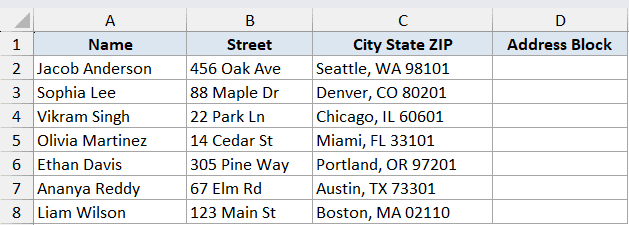
We want the result to look like a three-line address block.
Jacob Anderson
456 Oak Ave
Seattle, WA 98101
Here is the formula:
=CONCATENATE(A2:A8, CHAR(10), B2:B8, CHAR(10), C2:C8)
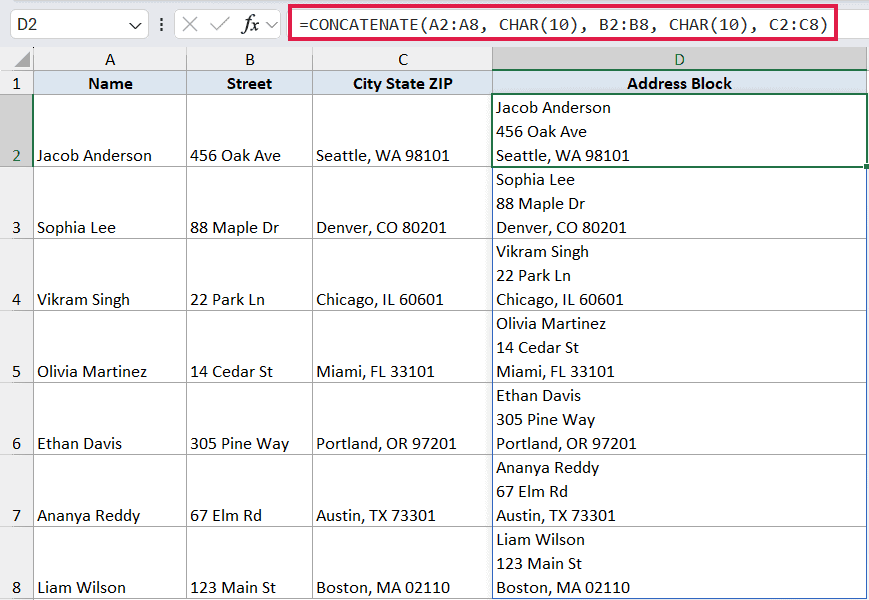
How this formula works. CHAR(10) is the character code for a line feed (the newline character). Wherever you place it inside CONCATENATE, Excel inserts a line break in the output string.
Pro Tip: For the line breaks to actually show, the result cell must have Wrap Text turned on. Select the column, then go to Home tab > Wrap Text (shortcut: Alt + H + W). Without Wrap Text, you’ll see a thin square character in place of each break. On Mac, use CHAR(13) instead of CHAR(10).
Example 5: Use the & Operator as a Simpler Alternative
Excel gives you another way to do exactly what CONCATENATE does, with shorter syntax. The ampersand operator (&). It’s a built-in operator, not a function, so there are no parentheses or argument commas to manage.
Below is a small dataset of products and prices.
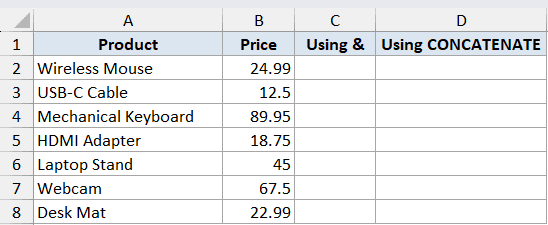
We’ll build a “Product – $Price” string two different ways. Column C uses the ampersand, column D uses CONCATENATE. Both produce the exact same result, side by side.
Here is the ampersand formula in column C:
=A2:A8 & " - $" & TEXT(B2:B8, "0.00")
And here’s the equivalent CONCATENATE formula in column D:
=CONCATENATE(A2:A8, " - $", TEXT(B2:B8, "0.00"))
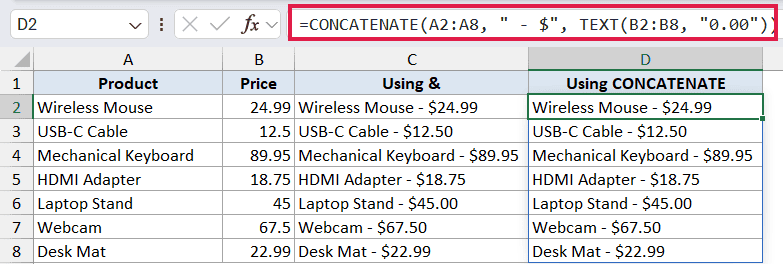
How this formula works. Instead of passing each piece as a separate argument to a function, the & operator joins the pieces directly. Read it left to right. Take the product name, then add " - $", then add the TEXT-formatted price.
Both columns return the same string, so it really is a matter of preference. The ampersand is shorter to type and easier to scan, especially for joins of three or four pieces.
Pro Tip: The ampersand has no 255-argument limit and no 8,192-character cap. CONCATENATE has both. For long concatenations or for joining a variable number of values, & is the more flexible choice. For a quick one or two-cell join, the two are equally good.
Example 6: Join an Entire Range with TEXTJOIN
Here’s something CONCATENATE genuinely can’t do. Take a single range like A2:A7 and join every value inside it into one string. The TEXTJOIN function (Excel 2019 and later) was built for exactly this.
Below is a list of team members in column A.
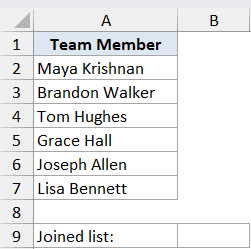
We want a single comma-separated string with all six names. “Maya Krishnan, Brandon Walker, Tom Hughes, Grace Hall, Joseph Allen, Lisa Bennett”.
Here is the formula:
=TEXTJOIN(", ", TRUE, A2:A7)
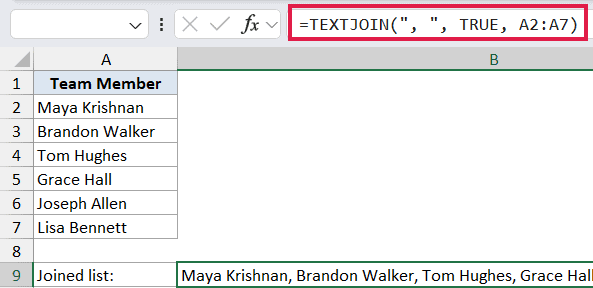
How this formula works:
- The first argument (
", ") is the delimiter that goes between each value in the result. - The second argument (
TRUE) tells TEXTJOIN to ignore empty cells in the range. Setting it toFALSEwould keep blanks and produce back-to-back delimiters. - The third argument is the range to join. You can pass multiple ranges or individual cells if you need to.
TEXTJOIN is the cleanest replacement for CONCATENATE whenever you’re joining a list of values from a single range. If you don’t need a delimiter at all, the CONCAT function does the same thing without a separator. =CONCAT(A2:A7) returns "Maya KrishnanBrandon Walker..." with everything jammed together.
Pro Tip: TEXTJOIN’s ignore-empty flag is what makes it stand out. If your range has occasional blank rows, CONCATENATE and CONCAT will still include the delimiter for each empty cell, leaving you with strings like "A, , B, , C". TEXTJOIN with TRUE skips the blanks cleanly.
Tips & Common Mistakes
- The result is always text. Even when you concatenate numbers, the output comes back as a text string. Math operations on the result won’t work unless you convert it back with
VALUE(). - Use TEXT for numbers and dates. Without it, dates show as serial numbers and decimals lose their commas. See Example 3.
- CONCATENATE has been replaced. Microsoft says the function may not be available in future versions of Excel. CONCAT (Excel 2016 and later) and TEXTJOIN (Excel 2019 and later) are the modern replacements. The ampersand
&works in every Excel version. - The 255-argument limit. CONCATENATE caps at 255 individual arguments and a combined result of 8,192 characters. For longer joins, switch to TEXTJOIN or the
&operator. - Don’t forget separators.
=CONCATENATE(A2, B2)produces"JohnSmith"with no space. Either add" "as a separate argument, or include the space at the end of one of the cells. - #NAME? error. Usually means a text literal is missing its quotes.
=CONCATENATE(A2, and, B2)fails.=CONCATENATE(A2, " and ", B2)works.
CONCATENATE is the original way to glue text together in Excel, and it’s still useful when you only need to join a small handful of pieces with named arguments. For longer joins, or for joining an entire range, reach for TEXTJOIN, CONCAT, or the & operator instead.
The patterns above (multi-argument assembly, TEXT formatting, CHAR(10) line breaks) work the same way in those newer functions. Once you’ve got CONCATENATE down, the rest is mostly the same idea with better syntax.
Related Excel Functions / Articles:
- Concatenate in Power Query (Columns, Text, Numbers)
- Switch First and Last Name with Comma in Excel (Reverse Names)
- How To Combine Date and Time in Excel?
- Microsoft Excel Terminology (Glossary)
- Merge Cells Without Losing Data in Excel
- Control E in Excel – What Does it Do?
- Remove Middle Name from Full Name in Excel
- ASCII in EXCEL
- Opposite of Concatenate in Excel (Reverse Concatenate)
- How to Merge First and Last Name in Excel?
- How to Add Text to the Beginning or End of all Cells in Excel
- How to Add Comma Between Names in Excel
