
Excel’s CONCAT function combines text from individual values and ranges into one text string.
It does not insert separators automatically. Add spaces or punctuation as arguments, or use TEXTJOIN when you need the same separator between items.
In this article, I’ll show you how to combine names, build product codes, and join text with formatted numbers.
CONCAT Function Syntax in Excel
The CONCAT function joins two or more text items into one string.
=CONCAT(text1, [text2], ...)
- text1 – The first item to join. This can be a text value, a cell reference, or a whole range.
- [text2], … – Optional. Any additional items you want to join, up to 253 of them.
When to Use CONCAT Function
- Combine first and last names into a single full name.
- Build IDs, SKUs, or product codes from separate columns.
- Merge address parts into one line.
- Mash an entire range of cells into one continuous string.
Example 1: Combine First and Last Name with a Space
Let’s start with the most common use of CONCAT.
Below is the dataset with first names in column A and last names in column B.
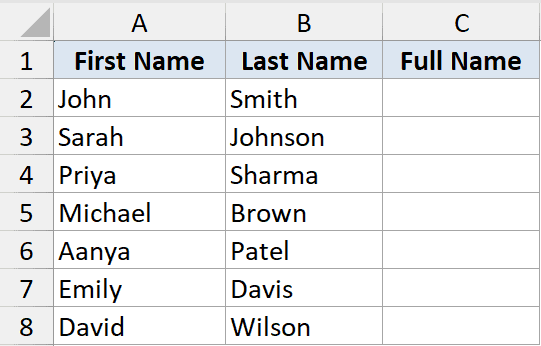
I want to join each first and last name into a full name in column C, with a space in between.
Here is the formula:
=CONCAT(A2," ",B2)
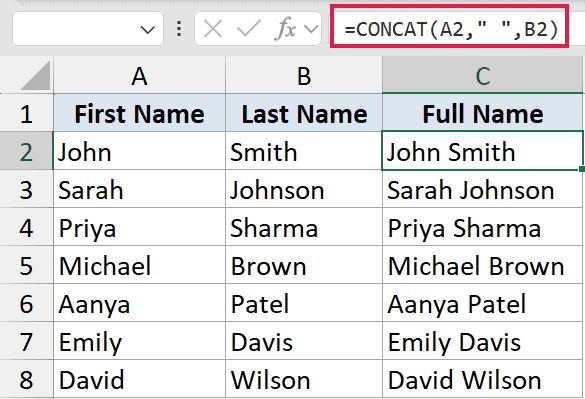
CONCAT takes each item in order and sticks them together. Here that’s the first name, then a space in quotes, then the last name.
Since this works one row at a time, I entered it in C2 and filled it down the column.
Example 2: Build a Product SKU from Several Columns
Here’s a practical scenario from inventory work.
Below is the dataset with a category code, a number, and a year spread across three columns.
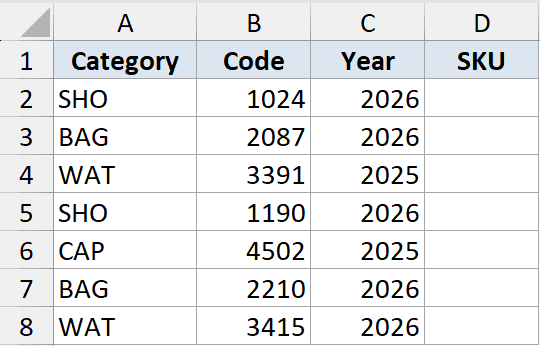
I want to stitch these three parts into a single SKU, separated by dashes.
Here is the formula:
=CONCAT(A2,"-",B2,"-",C2)
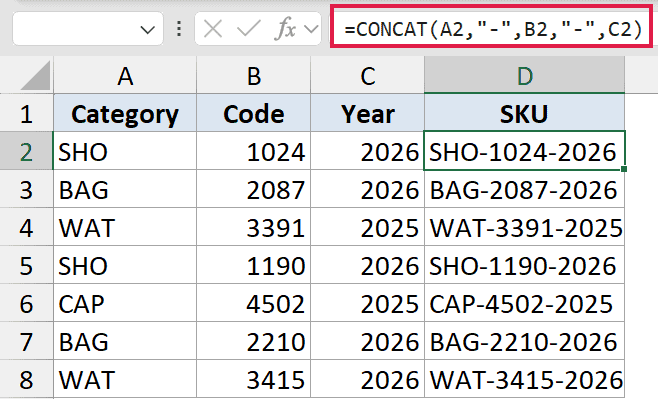
Each cell reference and each dash is just another item passed to CONCAT. It joins them left to right into something like SHO-1024-2026.
You can add as many parts and separators as you need this way.
Example 3: Combine Text with a Formatted Number
Numbers need a little care when you join them to text, because CONCAT drops their formatting.
Below is the dataset with customer names in column A and account balances in column B.
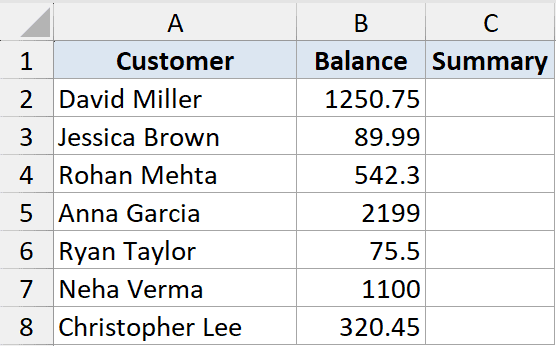
I want a sentence for each customer that shows the balance with a dollar sign and two decimals.
Here is the formula:
=CONCAT(A2," owes $",TEXT(B2,"#,##0.00"))
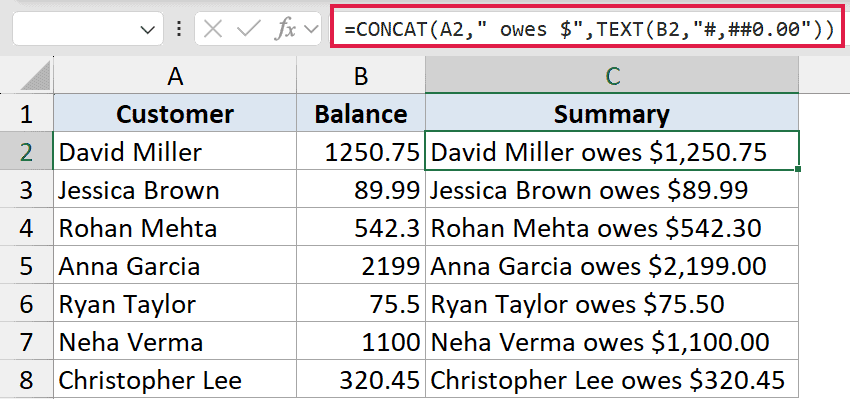
The TEXT function formats the number before CONCAT joins it. Without it, 1250.75 would join fine, but a value like 1250.5 would lose its trailing zero.
Pro Tip: Whenever you join a number, date, or currency value to text, wrap it in TEXT first so it shows up the way you want.
Example 4: Merge a Whole Column into One Cell
This is where CONCAT does something the older CONCATENATE could not. You can hand it an entire range.
Below is a column of single letters in column A.
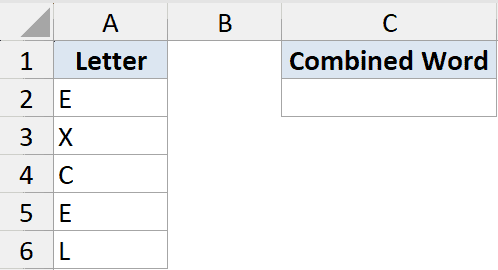
I want to fold every letter in that range into one cell.
Here is the formula:
=CONCAT(A2:A6)
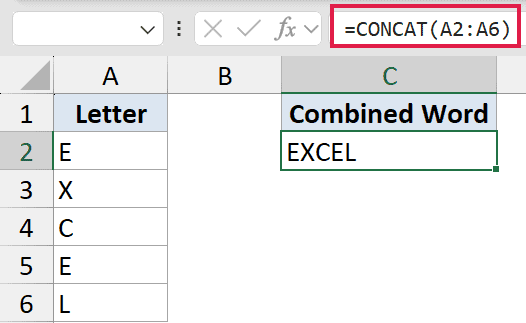
When you give CONCAT a range, it joins every value in that range in order. The five letters here combine into the word EXCEL in a single cell.
Notice there’s no space or comma between them. CONCAT has no separator option, so the values run straight together.
Pro Tip: If you want a delimiter like a comma or space between the joined values, use TEXTJOIN instead. It has a dedicated delimiter argument that CONCAT lacks.
Example 5: CONCAT vs the Ampersand Operator
You don’t always need a function to join text. The ampersand operator does the same job.
Below is the dataset with first and last names again, this time joined two different ways.
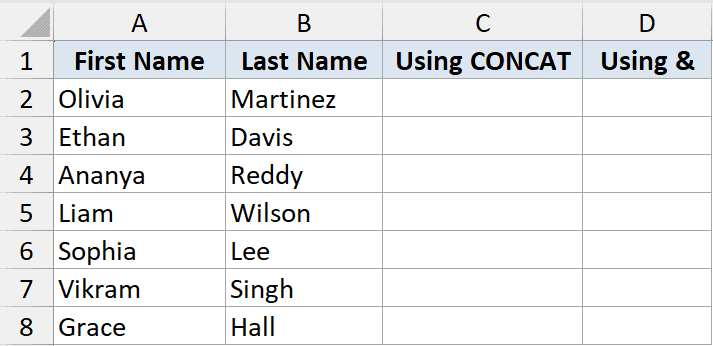
I want to show that CONCAT and the ampersand operator give the exact same result.
Here is the formula in column C:
=CONCAT(A2," ",B2)
And the ampersand version in column D:
=A2&" "&B2
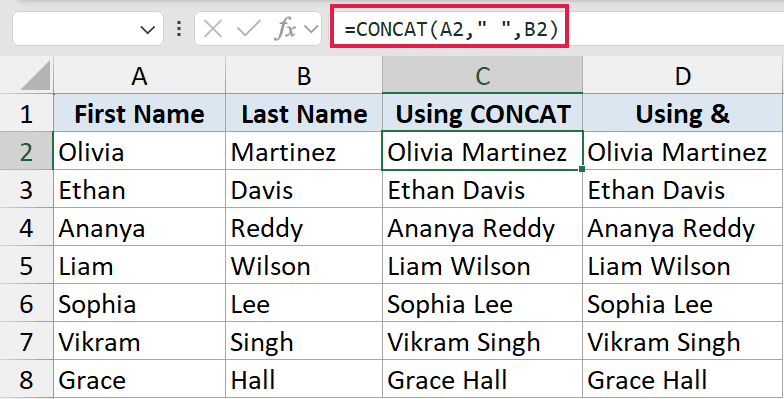
Both produce the same full name. The ampersand is quicker to type for short joins, while CONCAT reads more clearly when you have many parts.
CONCAT is also the modern replacement for the older CONCATENATE function. They work almost the same way, but CONCAT can take whole ranges and CONCATENATE cannot.
Tips & Common Mistakes
- CONCAT has no delimiter. It joins values with nothing in between. Add your own separators as quoted text, or switch to TEXTJOIN when you want one delimiter applied throughout.
- Numbers lose their formatting. A currency or date value joins as its raw number. Wrap it in TEXT to control how it looks.
- A range gets flattened, not spilled. Giving CONCAT a range like A2:A6 mashes every cell into one string. For a per-row join, point it at single cells and fill the formula down.
- CONCAT replaces CONCATENATE. Both still work, but CONCAT is the newer one and handles ranges, so prefer it going forward.
CONCAT is one of those small functions you’ll reach for constantly once it’s in your toolkit. Whether you’re building names, codes, or full sentences, it joins text cleanly with very little effort.
Try it on your own data and you’ll see how quickly it ties separate columns together.
Related Excel Functions / Articles:
- How to Add Text to the Beginning or End of all Cells in Excel
- How to Add Comma Between Names in Excel
- How to Concatenate with Line Breaks in Excel?
- Opposite of Concatenate in Excel (Reverse Concatenate)
- TEXTSPLIT Function in Excel
- VSTACK Function in Excel
- REPT Function in Excel
- HYPERLINK Function in Excel
- How to Combine Cells in Excel
