
The COMPLEX function in Excel combines real and imaginary coefficients and returns a complex number as text in standard i or j notation.
It handles signs and compact forms for you, so a zero component disappears and an imaginary coefficient of one appears without its digit.
In this article, I’ll show you how to build complex values, convert phasors, and total component impedances correctly.
COMPLEX Function Syntax in Excel
The COMPLEX function takes real and imaginary coefficients, plus an optional suffix.
=COMPLEX(real_num, i_num, [suffix])
- real_num (required) is the real coefficient.
- i_num (required) is the imaginary coefficient.
- suffix (optional) is the lowercase letter “i” or “j”. If omitted, Excel uses “i”.
When to Use COMPLEX Function
- Build valid complex-number text from separate real and imaginary values.
- Use j notation for electrical impedance and phasor calculations.
- Convert magnitude and angle data into rectangular form.
- Pass complex values into functions such as IMSUM and IMABS.
- Handle negative, zero, or unit imaginary coefficients without joining text manually.
Example 1: Build Complex Numbers from Worksheet Parts
Start with separate real and imaginary values.
Below is the dataset. Columns A and B hold the two input parts. Column C will show the complex number for each row.
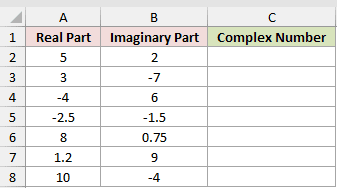
We want to combine the parts on each row into valid complex-number text.
Here is the formula:
=COMPLEX(A2,B2)
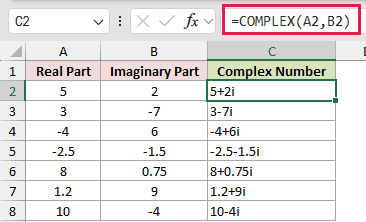
Enter the formula in the first result cell and copy it down.
Excel handles the sign automatically. The first row returns 5+2i, while the second data row, with inputs 3 and -7, returns 3-7i.
Pro Tip: In Excel 2021, Excel 2024, and Microsoft 365, =COMPLEX(A2:A8+0,B2:B8+0) coerces both ranges and spills the results. Without +0, a bare range returns one #VALUE! error.
Example 2: See How Zero and One Print
Some COMPLEX results look shorter than you might expect.
Below is the dataset. It pairs labelled scenarios with real and imaginary inputs. The COMPLEX Result column is empty until we add the formula.
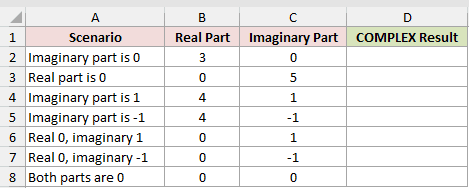
We want to see how Excel writes results when either part is zero or the imaginary coefficient is 1 or -1.
Here is the formula:
=COMPLEX(B2,C2)
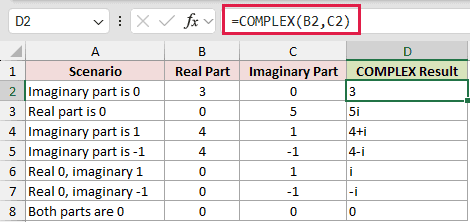
COMPLEX drops any zero part. That is why the rows return 3, 5i, and 0 instead of showing both components.
An imaginary coefficient of 1 or -1 loses its digit, while the minus sign stays. The workbook returns 4+i, 4-i, i, and -i.
These are text values, even when they look like ordinary numbers.
Example 3: Create Electrical Impedance with j
The optional suffix becomes useful in an electrical calculation.
Below is the dataset. It lists circuit resistance and two reactance inputs, with the final column prepared for impedance in j notation.
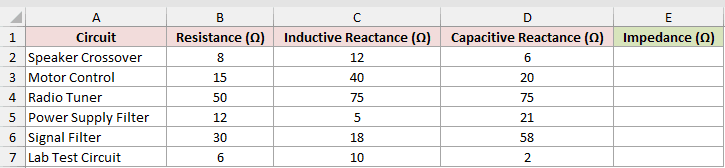
We want to build each impedance after subtracting capacitive reactance from inductive reactance.
Here is the formula:
=COMPLEX(B2,C2-D2,"j")
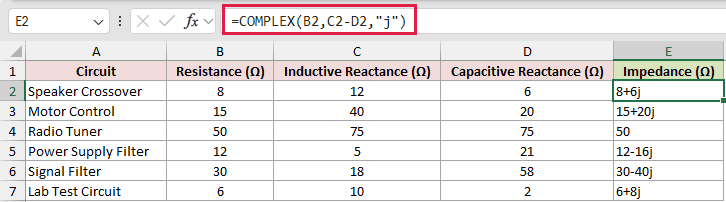
The imaginary argument performs the subtraction before COMPLEX assembles the text. Using "j" changes only the suffix.
The Speaker Crossover returns 8+6j. The Radio Tuner returns 50 because its reactance inputs cancel.
When capacitive reactance is larger, the imaginary part becomes negative. The Power Supply Filter returns 12-16j.
Example 4: Convert Phasors to Rectangular Form
Here’s a more involved use that starts with magnitude and angle.
Below is the dataset. Each phasor has a magnitude and angle. The Rectangular Form column will hold the converted phasors.
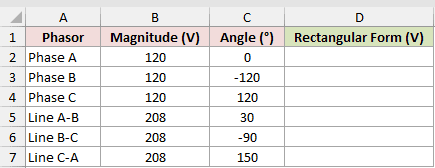
We want to convert each polar phasor into real and imaginary components with a j suffix.
Here is the formula:
=COMPLEX(ROUND(B2*COS(RADIANS(C2)),2),ROUND(B2*SIN(RADIANS(C2)),2),"j")
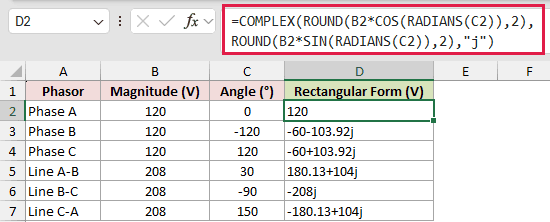
How this formula works:
- RADIANS converts the angles from degrees to radians because COS and SIN expect radians.
- The magnitude is multiplied by the cosine for the real component and by SIN for the imaginary component.
- ROUND rounds each component before COMPLEX builds the text, because number formatting cannot round a text result.
Phase B returns -60-103.92j, while Line A-B returns 180.13+104j. Line B-C becomes -208j because its real component rounds to zero.
Example 5: Total Complex Impedance Correctly
The last example totals the impedances of several components.
Below is the dataset. The component inputs feed an impedance column, and labelled cells below are ready for the total, magnitude, and wrong-way comparison.
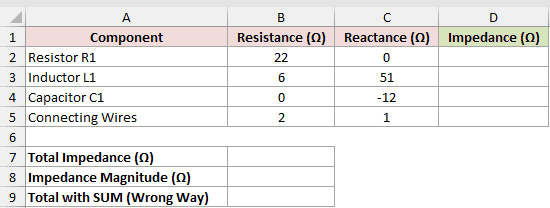
We want to build each impedance, total the complex values, find their magnitude, and compare the result with ordinary SUM.
First, build the component impedances with this formula:
=COMPLEX(B2,C2,"j")
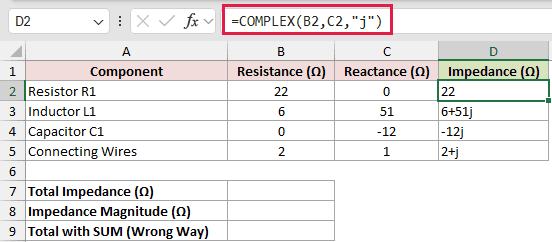
Copied down, the formula returns 22, 6+51j, -12j, and 2+j for the listed components.
Now total those complex values with IMSUM:
=IMSUM(D2:D5)
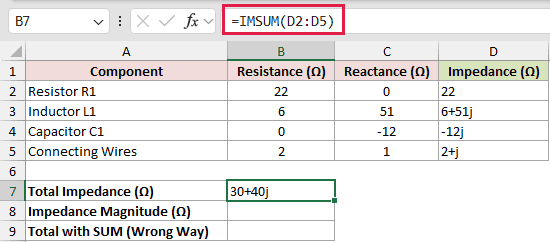
IMSUM interprets the text as complex numbers and returns 30+40j.
Use IMABS on that total to find its magnitude:
=IMABS(B7)
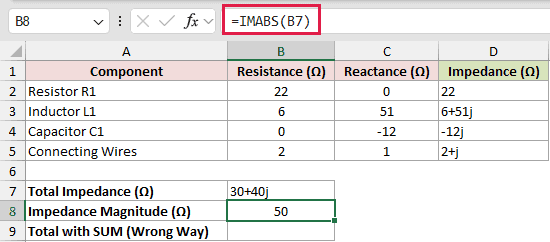
IMABS returns 50, which is an ordinary numeric value.
Here is the plain SUM formula shown as the wrong-way comparison:
=SUM(D2:D5)
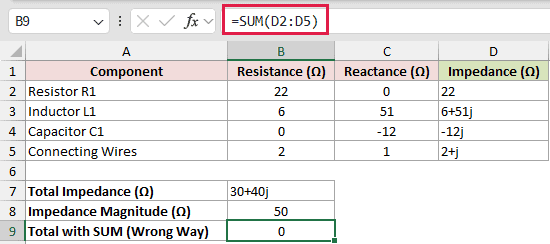
This white cell is the deliberate mistake. SUM ignores the complex-number text and returns 0, so it is not a valid impedance total.
Tips & Common Mistakes
- COMPLEX returns text. Number formats cannot round it, so round real and imaginary calculations before passing them to the function.
- Use only lowercase
iorjas the suffix. Uppercase or unsupported suffixes return#VALUE!. - Keep one suffix across complex values used together. IMSUM returns
#VALUE!when i and j values are mixed. - Blank coefficient cells act like zero. Clean the input first if a blank should mean missing data.
- Keep real_num and i_num numeric. Nonnumeric inputs return
#VALUE!, and hand-typed complex text fails with ordinary arithmetic. For example,="3+4i"+1returns#VALUE!. - Use IMREAL and IMAGINARY to extract the components again. Use IMABS for magnitude, or IMSUB to subtract one complex value from another.
COMPLEX is most useful when you build the real and imaginary parts from worksheet values instead of typing complex-number text by hand.
Once created, the text can pass directly into Excel’s IM functions for calculation.
Related Excel Functions / Articles:
