
Excel’s COUPDAYBS function returns the number of days from the previous coupon date to a bond’s settlement date. Excel finds that coupon by counting backward from maturity.
The bond’s issue date does not set the starting point.
That count becomes useful when you calculate accrued interest or turn a quoted clean price into the dirty price paid at settlement.
In this article, I’ll show you how to count accrued days across purchase tickets, calculate accrued interest, and compare day count conventions.
COUPDAYBS Function Syntax in Excel
The COUPDAYBS function uses a settlement date, maturity date, payment frequency, and optional day count basis.
=COUPDAYBS(settlement, maturity, frequency, [basis])
- settlement (required) is the date the bond changes hands.
- maturity (required) is the date the bond matures.
- frequency (required) is the number of coupon payments per year: 1 for annual, 2 for semiannual, or 4 for quarterly.
- basis (optional) sets the day count convention. Omitting basis is the same as 0, US (NASD) 30/360. Use 1 for actual/actual, 2 for actual/360, 3 for actual/365, or 4 for European 30/360.
When to Use COUPDAYBS Function
- Find how many coupon-period days have accrued before a bond purchase settles.
- Calculate accrued interest from the previous coupon date through settlement.
- Add accrued interest to a clean bond price to find the dirty price.
- Compare how different day count conventions affect accrued days and interest.
Example 1: Count Days Since Last Coupon
Let’s start with a single bond purchase.
Below is a parameter card with settlement, maturity, frequency, and basis inputs. The final labeled cell will hold the days since the last coupon.
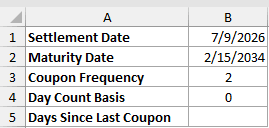
We want to count the accrued days from the previous coupon date through settlement.
Here is the formula:
=COUPDAYBS(B1,B2,B3,B4)
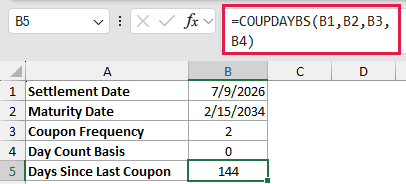
Excel returns 144. The function finds the previous coupon date by counting backward from maturity, then counts forward to settlement under the selected basis.
Frequency 2 means semiannual payments, while basis 0 uses the US (NASD) 30/360 convention.
Example 2: Process Multiple Bond Purchase Tickets
Here’s a purchase list where each bond has its own terms.
Below is the dataset with ticket, issuer, settlement, maturity, frequency, and basis columns. Column G is ready for the days since the last coupon.
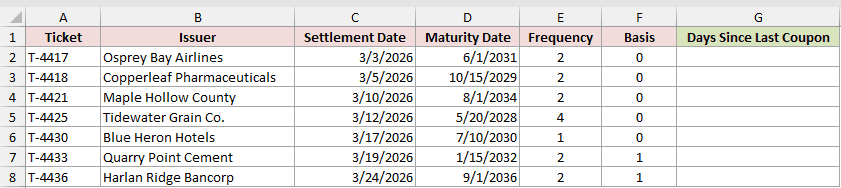
We want to calculate the day count for every ticket using its row’s inputs.
Enter this formula in G2 and copy it down the result column:
=COUPDAYBS(C2,D2,E2,F2)
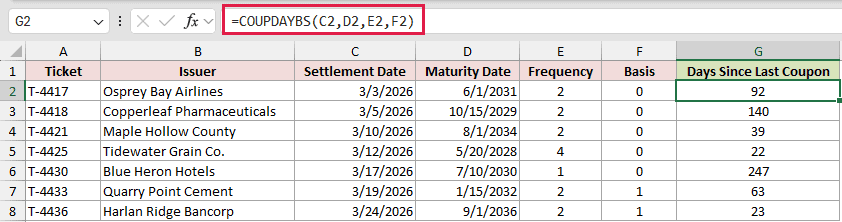
The results range from 22 days for Tidewater Grain Co. to 247 days for Blue Heron Hotels because their coupon schedules differ.
Quarry Point Cement returns 63 days under actual/actual, while Harlan Ridge Bancorp returns 23 days using the same basis and frequency.
Plain range arguments return one #VALUE! error, so copying the row formula down is the default approach for COUPDAYBS.
Pro Tip: You can spill the calculation by adding +0 to every range argument in Excel 2021, Excel 2024, and Microsoft 365. MAP is another route in Microsoft 365 and Excel 2024.
Example 3: Calculate Accrued Bond Interest
Now let’s turn the day count into an accrued-interest amount.
Below is a bond input card with settlement, maturity, coupon rate, face amount, frequency, and basis. Separate labeled cells will hold the calculation steps.
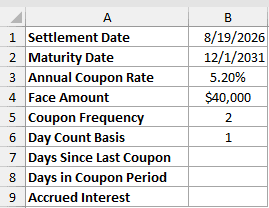
We want to calculate the accrued interest owed to the seller at settlement.
First, calculate the days since the last coupon:
=COUPDAYBS(B1,B2,B5,B6)
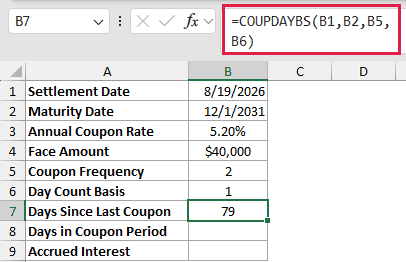
COUPDAYBS returns 79 days under the actual/actual basis.
Next, calculate the length of the coupon period:
=COUPDAYS(B1,B2,B5,B6)
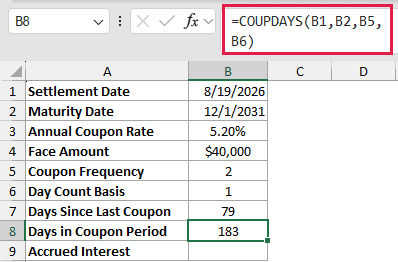
COUPDAYS returns 183 days. That value is the denominator for the accrued fraction, so a flat 180 would be wrong here.
Finally, calculate the accrued interest:
=B4*B3/B5*B7/B8
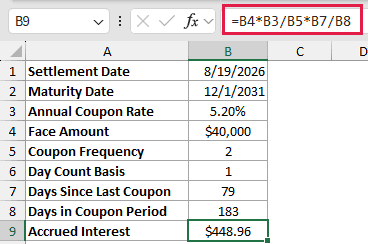
The formula returns $448.96. It calculates one coupon payment, then multiplies it by the share of the coupon period already accrued.
ACCRINT can check this result when you pass it the previous and next coupon dates. In testing, both methods returned the same accrued interest.
Example 4: Track Dirty Price Around Coupon Dates
Next, let’s watch accrued interest reset when a coupon is paid.
Below is a settlement-date list beside a bond input card. The result columns will hold accrued days, accrued interest, and dirty price.
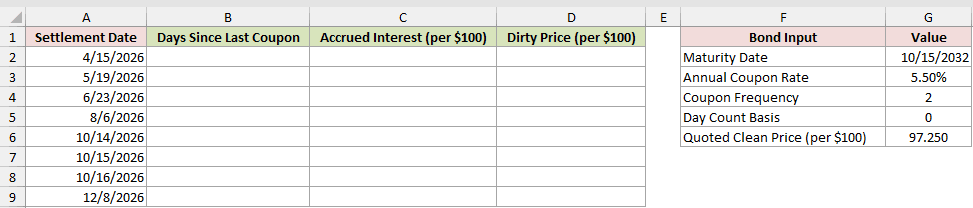
We want to track how accrued days move the buyer’s invoice price as settlement crosses a coupon date.
First, enter this formula in B2 and copy it down column B:
=COUPDAYBS(A2,$G$2,$G$4,$G$5)
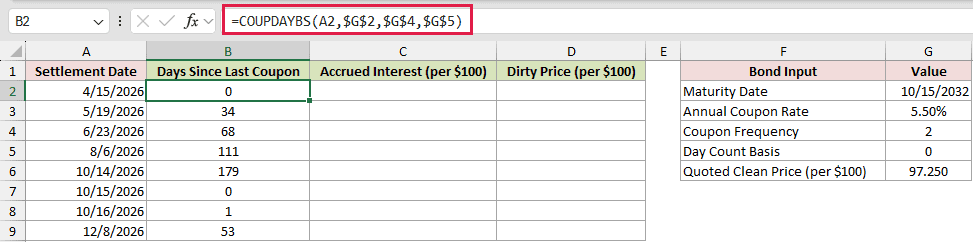
COUPDAYBS returns 0 on 4/15/2026 and 10/15/2026. It reaches 179 on 10/14/2026, then resets when the coupon is paid.
Next, enter the accrued-interest formula in C2 and copy it down. The 100 represents the $100 of face value behind the per-$100 quote.
COUPDAYS supplies the coupon period length, just as it did in Example 3.
=100*$G$3/$G$4*B2/COUPDAYS(A2,$G$2,$G$4,$G$5)
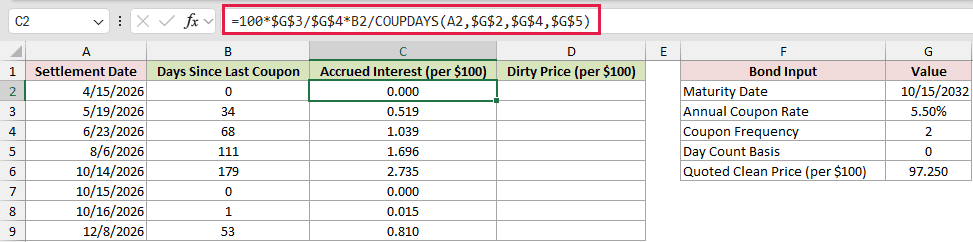
Accrued interest reaches 2.735 per $100 on 10/14/2026 and returns to 0.000 on the coupon date.
Finally, add the accrued interest to the clean price in D2 and copy the formula down:
=$G$6+C2
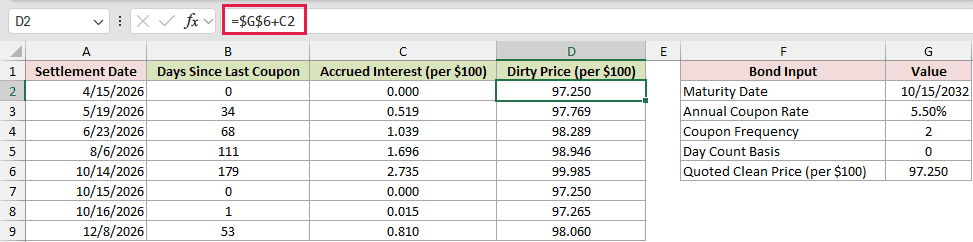
The dirty price climbs to 99.985, then falls to 97.250 on 10/15/2026.
The clean price stays fixed at 97.250, leaving YIELD outside this example so the accrued-interest effect stands alone.
The dirty price is the buyer’s invoice price. On the coupon date, the seller has received the coupon, so no accrued interest remains to add.
Example 5: Compare Day Count Conventions
Finally, let’s compare valid day count conventions on the same trade.
Below is a convention table beside the trade inputs. The result columns will hold the days since the last coupon and accrued interest.

We want to see how each basis changes the day count and the resulting accrued interest.
Enter this formula in C2 and copy it down for the three basis codes:
=COUPDAYBS($G$2,$G$3,$G$6,B2)
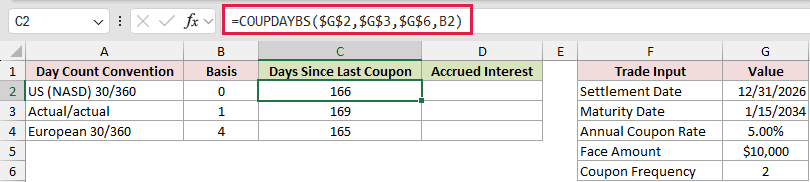
US (NASD) 30/360 returns 166 days, actual/actual returns 169, and European 30/360 returns 165.
Next, calculate the accrued interest in D2 and copy it down:
=$G$5*$G$4/$G$6*C2/COUPDAYS($G$2,$G$3,$G$6,B2)
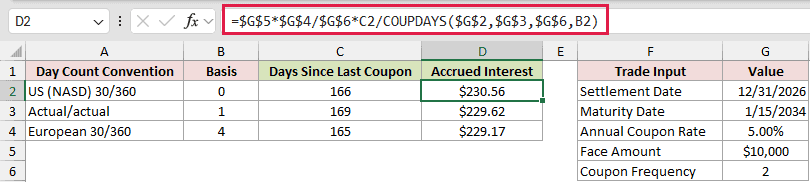
The three results are $230.56, $229.62, and $229.17. All three are valid convention results.
The bond’s governing convention determines which one applies.
A convention can return fewer accrued days but more accrued dollars because it also changes the COUPDAYS denominator.
Pro Tip: Bases 1, 2, and 3 count the same actual days in the numerator. Their accrued-interest results can still differ because COUPDAYS changes the denominator.
Tips & Common Mistakes
- Excel finds the starting coupon by counting backward from maturity. The bond’s issue date is outside the calculation.
- Frequency must be 1, 2, or 4. Using 12 for monthly coupons returns #NUM!.
- Settlement must be earlier than maturity. Equal or later dates return #NUM!, while text that Excel cannot read as a date returns #VALUE!.
- A date typed as text can work, but real Excel dates are safer when data comes from imports or external systems.
- Settlement on a coupon date returns 0 because a new coupon period begins that day.
- COUPDAYBS returns a day count, so format the result as a number instead of a date.
- In testing, COUPDAYBS plus COUPDAYSNC equaled COUPDAYS for ordinary bonds. For an 8/31/2030 maturity settled 3/10/2026 under actual/actual (basis 1), 10 + 174 = 184 while COUPDAYS returned 181. February month ends can also break the relationship under 30/360.
- COUPDAYBS is available in every current version of Excel.
COUPDAYBS has a narrow job, but that focus makes bond worksheets easier to audit.
For dependable results, keep the settlement, maturity, frequency, and basis inputs beside the calculation.
Related Excel Functions / Articles:
