
Excel’s COUPNCD function returns the next coupon payment date after a bond’s settlement date.
Excel stores the answer as a date serial. The result cell needs a date format before it reads like a calendar date.
COUPNCD follows the schedule set by maturity. This matters for month-end bonds, where adding months from one coupon can quietly drift off schedule.
In this article, I’ll show you how to build a bond income calendar, filter payments due this month, and preserve month-end coupon dates.
COUPNCD Function Syntax in Excel
COUPNCD uses the settlement date, maturity date, payment frequency, and an optional day-count basis.
=COUPNCD(settlement, maturity, frequency, [basis])
- settlement (required) is the date when the bond passes to the buyer, after its issue date.
- maturity (required) is the date when the bond matures.
- frequency (required) is 1 for annual, 2 for semiannual, or 4 for quarterly coupon payments.
- basis (optional) sets the day-count convention. Use 0, or leave it out, for US 30/360. Use 1 for actual/actual, 2 for actual/360, 3 for actual/365, or 4 for European 30/360.
When to Use COUPNCD Function
- Find the next scheduled coupon date for a bond after settlement.
- Build a payment calendar for a portfolio with mixed coupon frequencies.
- Filter holdings whose next coupon falls before a reporting cutoff.
- Generate future coupon dates without losing a month-end schedule.
- Check whether invalid dates or frequency inputs are causing formula errors.
Example 1: Find the Next Coupon Date
Let’s start with one bond and the standard COUPNCD arguments.
Below is a parameter card with settlement, maturity, frequency, and basis inputs. Two labelled cells are waiting for the next coupon date.
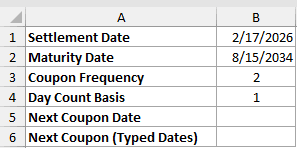
We want the first coupon date that falls after the settlement date.
Here is the formula using cell references:
=COUPNCD(B1,B2,B3,B4)
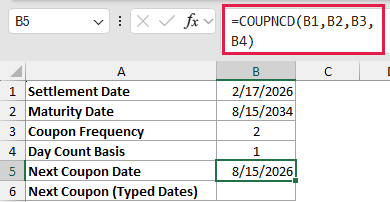
The formula returns 8/15/2026 in B5.
You can also place fixed dates inside the formula with DATE:
=COUPNCD(DATE(2026,2,17),DATE(2034,8,15),2,1)
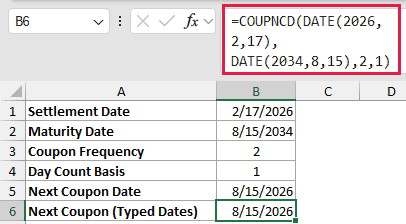
The typed-date formula returns the same 8/15/2026 result in B6. DATE keeps each year, month, and day explicit.
Pro Tip: COUPNCD returns a serial number when the result uses General format. Apply a date format, or use TEXT when you need a display label.
Example 2: Build a Bond Income Calendar
Here’s a practical way to organize the next payments in a bond ladder.
Below is a holdings table with Bond, Maturity Date, Frequency, and Annual Interest columns.
Empty Next Coupon Date and Next Payment columns use the card’s As Of Date and Day Count Basis.
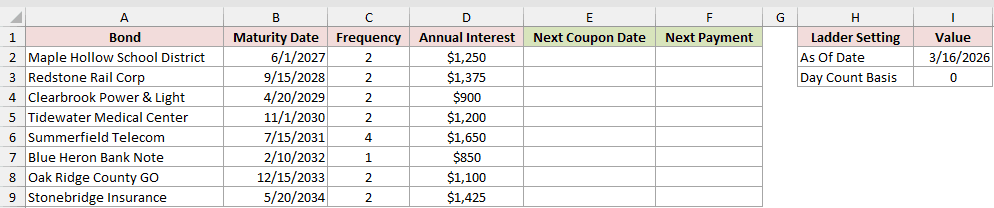
We want the next coupon date and payment amount for every holding.
Enter this formula in E2 and copy it down:
=COUPNCD($I$2,B2,C2,$I$3)
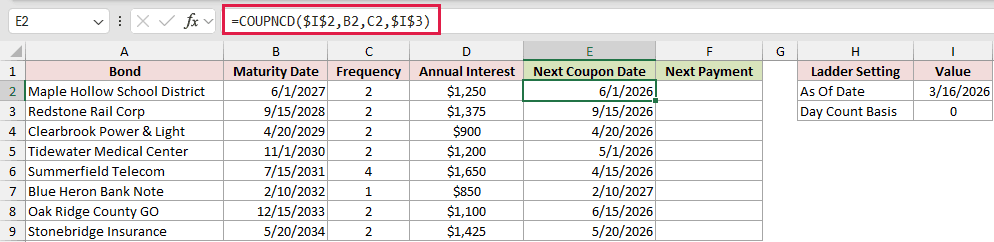
COUPNCD does not accept a plain range, so this formula is copied down rather than spilled.
Maple Hollow School District returns 6/1/2026. Redstone Rail Corp returns 9/15/2026 because its current coupon date has already passed the as-of date.
The payment amount is a separate helper calculation. Enter this in F2 and copy it down:
=D2/C2
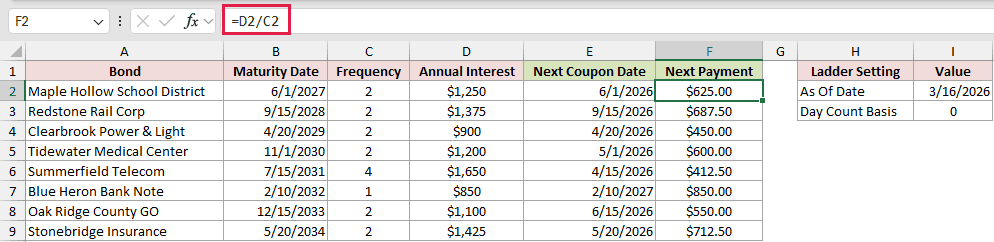
The formula divides annual interest by the payment frequency. The first two payments are $625.00 and $687.50.
Example 3: Find Coupons Due This Month
Now let’s turn the next coupon dates into a monthly payment report.
Below is a table with Bond and Maturity Date columns. The card holds As Of Date, Coupon Frequency, and Day Count Basis.
The empty Next Coupon Date column feeds a report area headed Bond, Maturity Date, and Next Coupon Date.
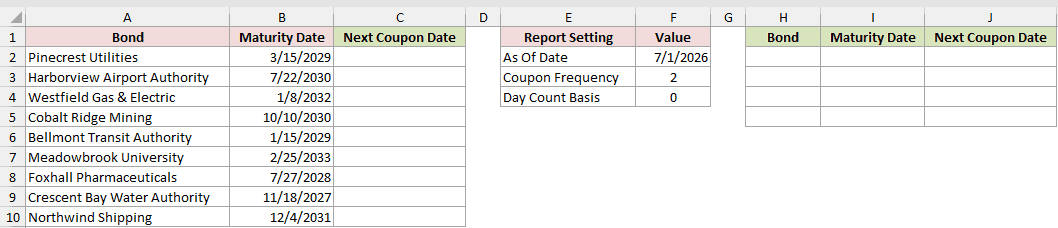
We want to calculate every next coupon date, then list the holdings paying by the end of the as-of month.
Enter this formula in C2 and copy it down:
=COUPNCD($F$2,B2,$F$3,$F$4)
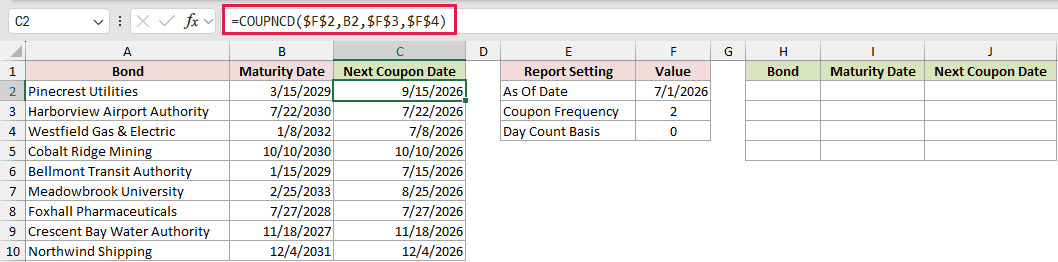
The column returns dates from 7/8/2026 through 12/4/2026 for the holdings shown. Each result follows its bond’s maturity schedule.
Next, filter the rows through month end and sort them by the next coupon date:
=SORT(FILTER(A2:C10,C2:C10<=EOMONTH(F2,0)),3)
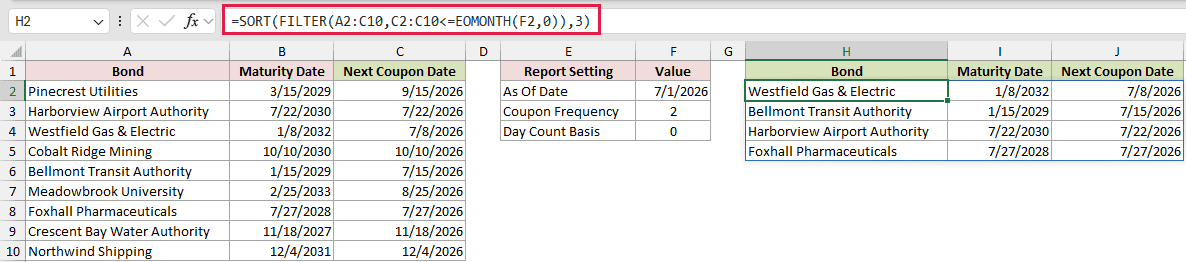
The spilled report returns these rows in date order:
- Westfield Gas & Electric, maturity 1/8/2032, next coupon 7/8/2026.
- Bellmont Transit Authority, maturity 1/15/2029, next coupon 7/15/2026.
- Harborview Airport Authority, maturity 7/22/2030, next coupon 7/22/2026.
- Foxhall Pharmaceuticals, maturity 7/27/2028, next coupon 7/27/2026.
FILTER, SORT, and the spilled report need Excel 2021 or later. EOMONTH works in every current version of Excel.
Example 4: Preserve Month-End Coupon Dates
Month-end bonds are where COUPNCD earns its keep.
Below is a table of bonds with different settlement dates, maturity dates, frequencies, and bases. The final column is ready for each next coupon date.
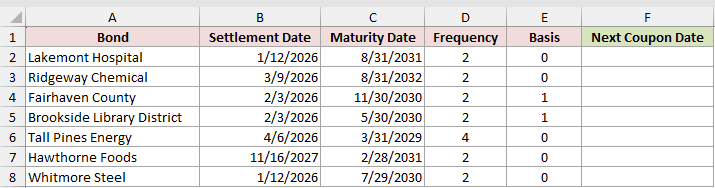
We want to see how the maturity date controls each future coupon date.
Enter this formula in F2 and copy it down:
=COUPNCD(B2,C2,D2,E2)
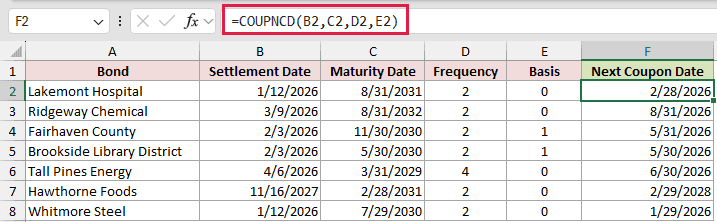
The results show Excel’s month-end rule clearly:
- An 8/31 maturity can return 2/28/2026 or 8/31/2026, depending on settlement.
- An 11/30 maturity returns 5/31/2026.
- A 5/30 maturity is not month-end, so it returns 5/30/2026.
- The quarterly 3/31 maturity returns 6/30/2026.
- A 2/28 maturity can return the leap-day coupon 2/29/2028.
- A 7/29 maturity keeps that day and returns 1/29/2026.
The basis changes day counts, but it does not move the coupon date.
Example 5: Generate a Month-End Payment Schedule
Let’s build several coupon dates without letting February pull the schedule off month-end.
Below is a payment sequence with an empty COUPNCD column and an EDATE mistake column. The card supplies the bond’s settlement, maturity, frequency, and basis.
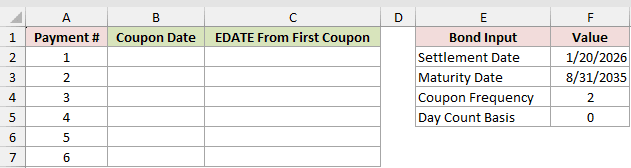
We want to generate the next coupon, continue the schedule, and expose the common EDATE mistake.
First, find the coupon after the original settlement date:
=COUPNCD($F$2,$F$3,$F$4,$F$5)
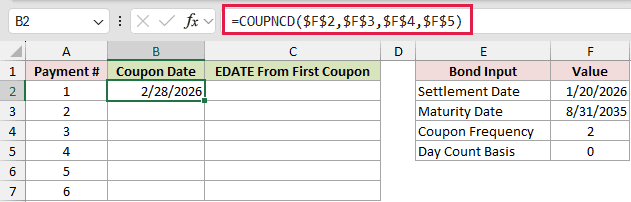
The first coupon date in B2 is 2/28/2026.
Now feed that coupon date back into COUPNCD. Enter this formula in B3 and copy it down:
=COUPNCD(B2,$F$3,$F$4,$F$5)
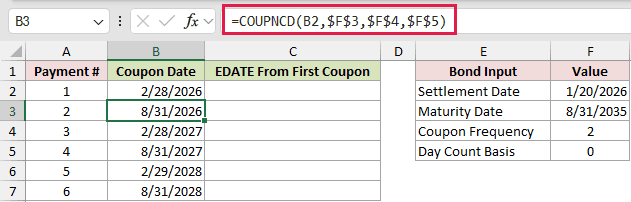
The chain continues with 8/31/2026, 2/28/2027, 8/31/2027, 2/29/2028, and 8/31/2028.
This works because settlement on a coupon date makes COUPNCD return the following coupon.
Enter the next formula in C2 and copy it down to C7. It fills the EDATE mistake column from the first coupon:
=EDATE($B$2,12/$F$4*(A2-1))
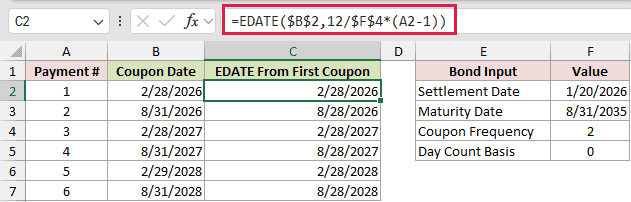
The EDATE mistake agrees at 2/28/2026 and 2/28/2027, but it drifts in four of the six rows.
It returns 8/28/2026, 8/28/2027, 2/28/2028, and 8/28/2028 where the month-end coupon dates differ.
Pro Tip: In Microsoft 365 and Excel 2024, SCAN can generate the same chained schedule with one spilled formula while keeping COUPNCD in control of every date.
Example 6: Spill COUPNCD Across a List
Here’s how to make COUPNCD spill across a list of trades.
Below is a trade list with Bond, Settlement Date, and Maturity Date columns. The empty Next Coupon Date column uses the card’s Coupon Frequency and Day Count Basis.
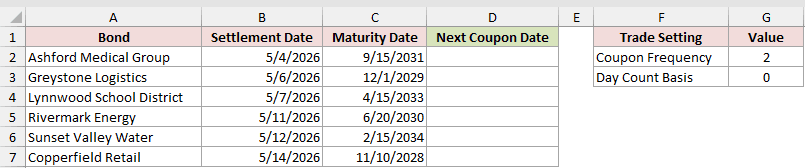
We want one formula to return the next coupon date for every trade.
Here is the formula:
=COUPNCD(B2:B7+0,C2:C7+0,G2,G3)
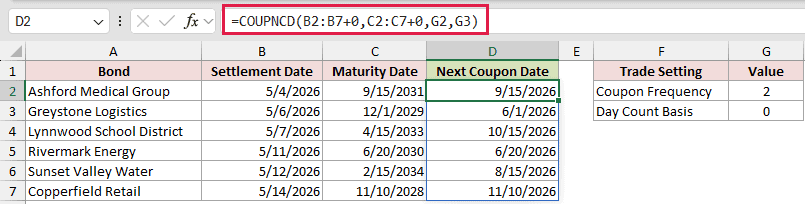
The spill returns 9/15/2026, 6/1/2026, 10/15/2026, 6/20/2026, 8/15/2026, and 11/10/2026.
The +0 coerces both date ranges into computed arrays. A plain range returns one #VALUE! instead of spilling.
Coercing only one range produces #VALUE! in every result cell. Every range argument needs coercion, while single-cell references do not.
Range spills work in Excel 2021, Excel 2024, and Microsoft 365. MAP with LAMBDA is another option in Microsoft 365 and Excel 2024.
Example 7: Fix COUPNCD Formula Errors
Finally, let’s separate valid last-period behavior from genuine input errors.
Below is a table of settlement dates, maturities, frequencies, and bases. Its result column includes a valid date plus three rows set up to show one error each.
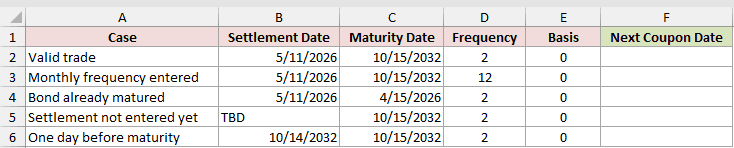
We want to identify what each result means and fix the inputs that fail.
Enter this formula in F2 and copy it down:
=COUPNCD(B2,C2,D2,E2)
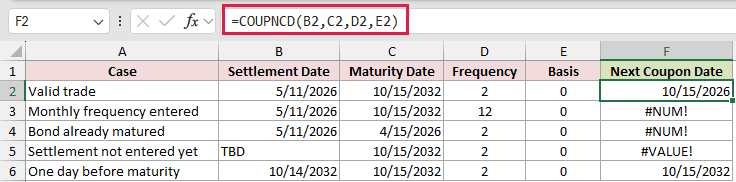
The table includes three rows set up to show one error each:
- The valid trade returns 10/15/2026.
- The monthly frequency of 12 returns #NUM! because COUPNCD accepts only 1, 2, or 4. Change D3 to 1, 2, or 4.
- The matured bond returns #NUM! because settlement is after maturity. Enter a maturity later than the settlement date in C4, or drop the matured bond from the list.
- The missing settlement entry “TBD” returns #VALUE! because it is not a date. Replace “TBD” in B5 with a real date.
- The one-day-before-maturity row returns 10/15/2032, which is the maturity date and the final coupon date.
Tips & Common Mistakes
- Apply a date format to every COUPNCD result. Otherwise, Excel shows the underlying serial number.
- Basis never changes a COUPNCD date. It affects day-count functions such as COUPDAYBS, COUPDAYS, and COUPDAYSNC.
- Frequency must be annual, semiannual, or quarterly. Monthly frequency returns #NUM!.
- COUPNCD accepts a text date when Excel recognizes it, but DATE or real worksheet dates make the inputs clearer.
- TODAY() works as the settlement argument when a report should follow the current date.
- Subtracting settlement from COUPNCD returns actual days, but Excel may display the difference as a date. Apply a number format such as
0. COUPDAYSNC uses the selected day-count convention. - COUPNCD is available in every current version of Excel.
Format every COUPNCD result as a date before you use it in a report.
For month-end schedules, let the function advance each coupon instead of adding months from the first date.
Other Excel articles you may also like:
