
A treemap chart in Excel helps you compare each category’s share of a total and see which items contribute most.
It fills the chart with rectangles, called tiles, whose sizes match their values.
Items in the same category share a color, but only when their rows sit together in the data.
I’ll show you how to create a treemap, make its labels and colors easier to read, and fix categories that appear in separate blocks.
How to Create a Treemap Chart in Excel
Below I have a dataset showing one month of coffee shop sales, with a category and sales amount for each menu item.
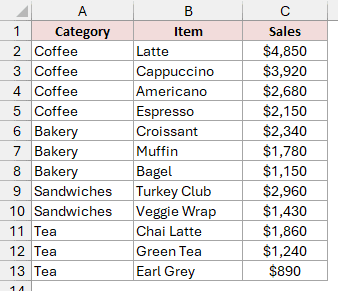
On the Menu Sales sheet, the data is in A1:C13. Arrange your own data the same way:
- Put the Category column first.
- Put the Item column next and the numbers, Sales, last. Use one row per item.
- Keep each category’s rows together. This matters because scattered rows create separate blocks, as I’ll show in the section on fixing split categories.
The download has this data on Menu Sales and a finished chart on Finished Treemap for you to compare against.
Here are the steps to turn this sales list into a treemap:
- Select A1:C13, including the headers.
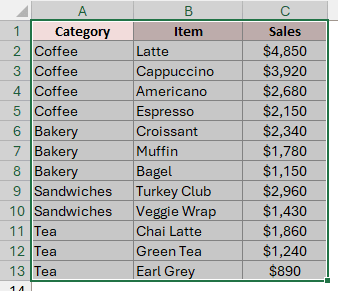
- On the Insert tab, in the Charts group, click Insert Hierarchy Chart and choose Treemap.
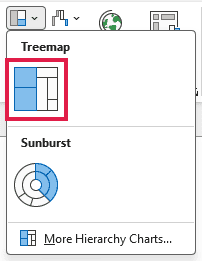
Note: Treemap charts are available in Excel 2016 and later, including Microsoft 365. On a Mac, use Insert > Hierarchy > Treemap.
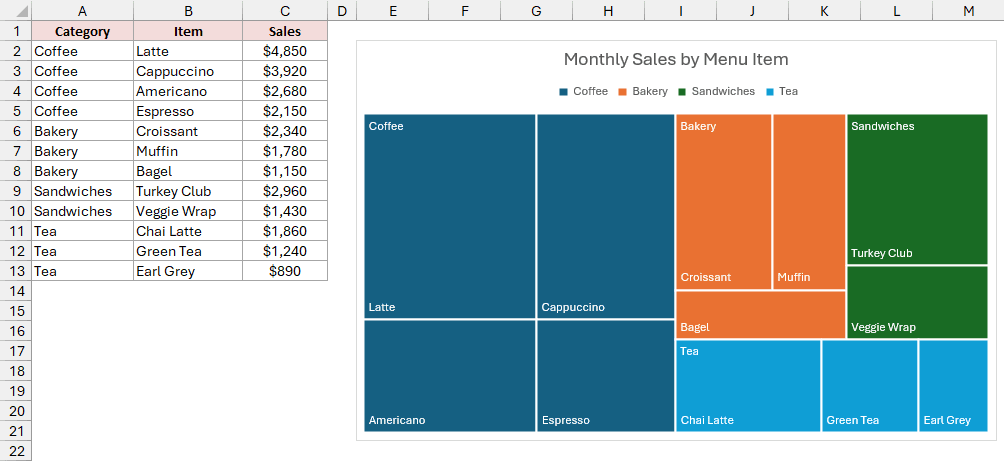
Excel adds a treemap to the sheet. Each menu item gets a tile sized by its sales, and each category gets its own color.
Coffee’s block is the biggest and sits at the top left. Its $13,600 accounts for roughly half of the month’s $27,250 in sales.
Latte is the biggest individual tile. At the top, you’ll see the default Chart Title text and a legend listing the four categories.
Inside the chart, you’ll also see item names and category names. I’ll make those labels clearer in the customization section.
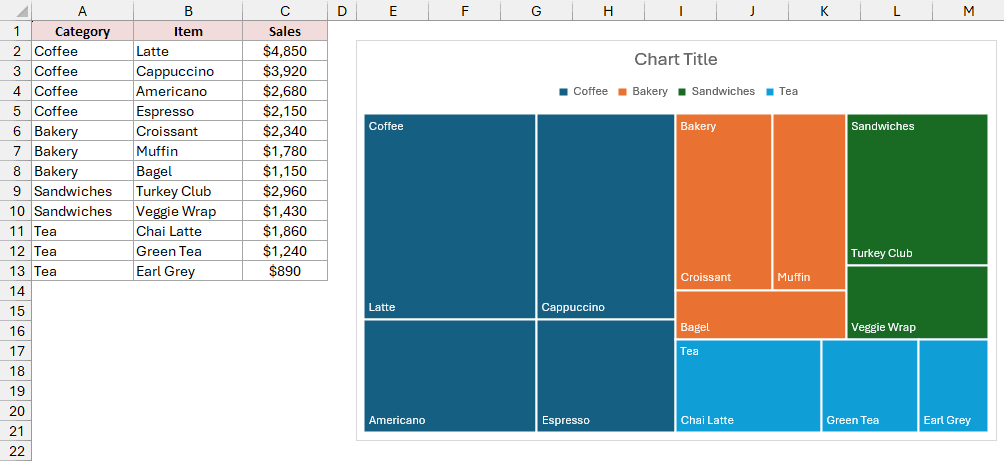
Give the chart a title that tells you what the numbers represent:
- Click the Chart Title box, type Monthly Sales by Menu Item, and press Enter.
How to Customize a Treemap Chart in Excel
I’ll keep working with the coffee shop treemap from above, starting with the labels so you can read the categories and sales amounts more easily.
Change the Category Labels to Banners
By default, each category’s name sits on top of its first tile. Excel calls this Overlapping, and the category name can collide with the item’s label.
You can move the category name into its own strip by choosing Banner. These are the three category label options:
- Overlapping: Places the category name over the first tile in its block.
- Banner: Places the category name in a strip across the top of its block.
- None: Hides the category names.
Here are the steps to give each category its own label strip:
- Right-click any tile in the treemap and choose Format Data Series.
- In the Format Data Series pane, under Series Options, go to Label Options and select Banner.
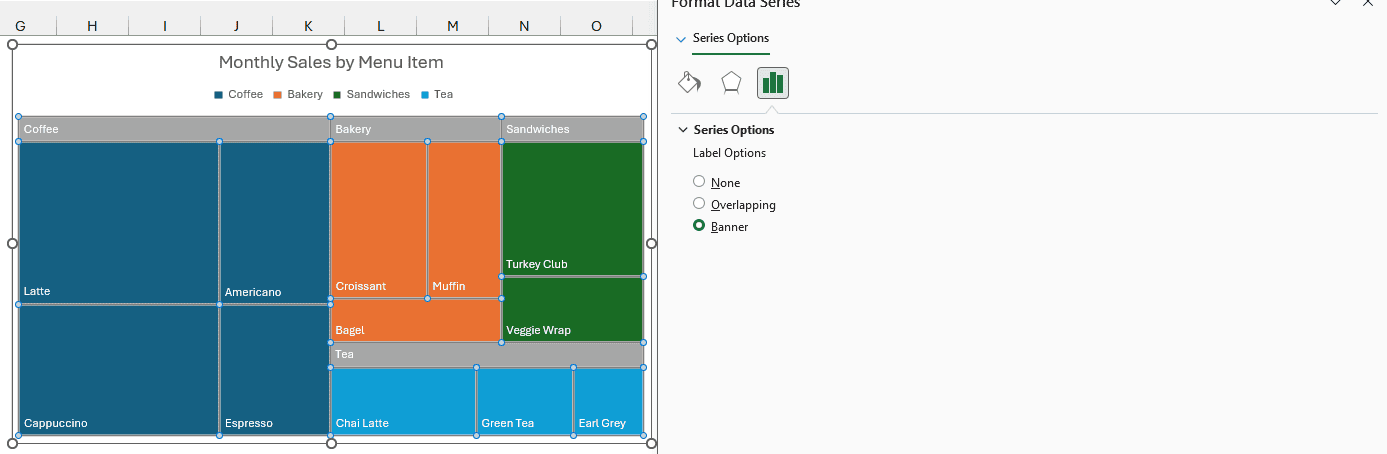
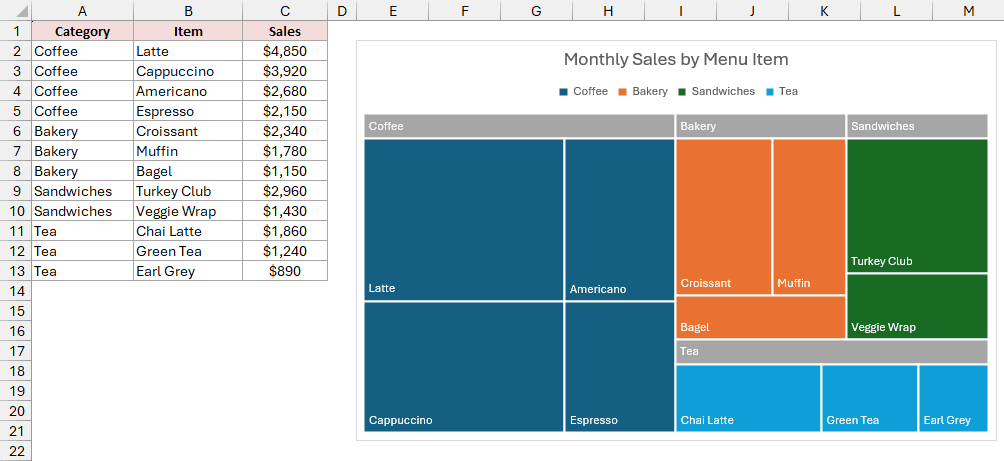
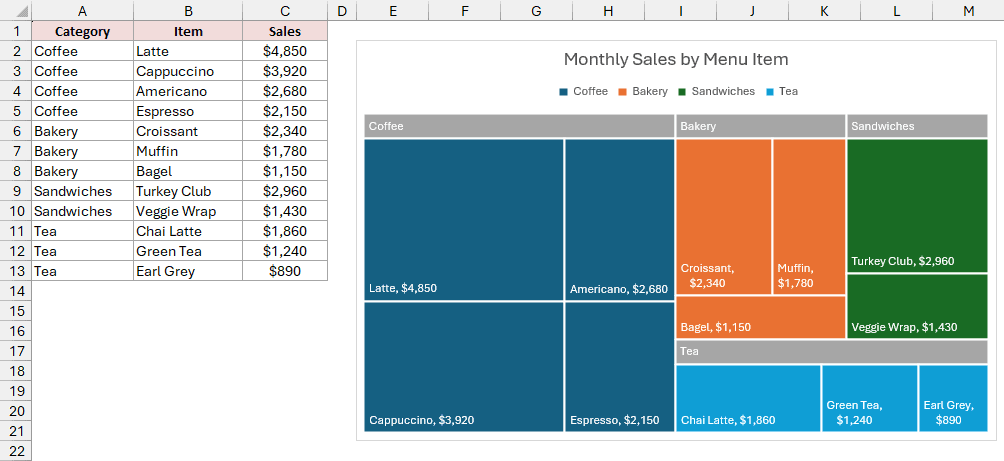
Each category’s name now sits in a gray strip across the top of its block, separate from the menu item labels.
Show the Sales Values in the Tiles
By default, each tile shows only the item name.
You can see which tile is bigger, but you can’t read the difference in sales from its size alone.
Here are the steps to display sales inside the tiles:
- Right-click any item name inside the treemap and choose Format Data Labels.
- In the Format Data Labels pane, under Label Options, check Value. Leave Category Name checked to keep the item names.
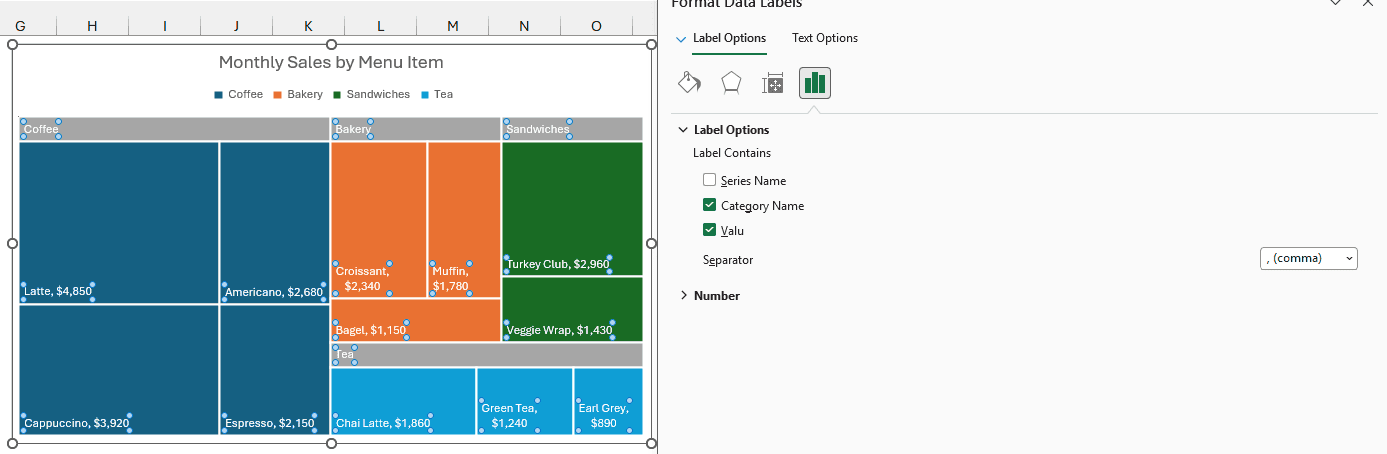
Each tile now shows the item name followed by its sales amount, separated by a comma. For example, the Latte tile reads Latte, $4,850.
The values keep the cells’ currency format. If you want a different number format, change it in the Sales column, and the labels follow.
Change the Treemap Colors
Excel colors each category using your current theme. You can switch to another palette from the ribbon.
Here are the steps to change the palette:
- Click anywhere on the chart to select it.
- On the Chart Design tab, click Change Colors and choose a palette. I’m using Colorful Palette 3.
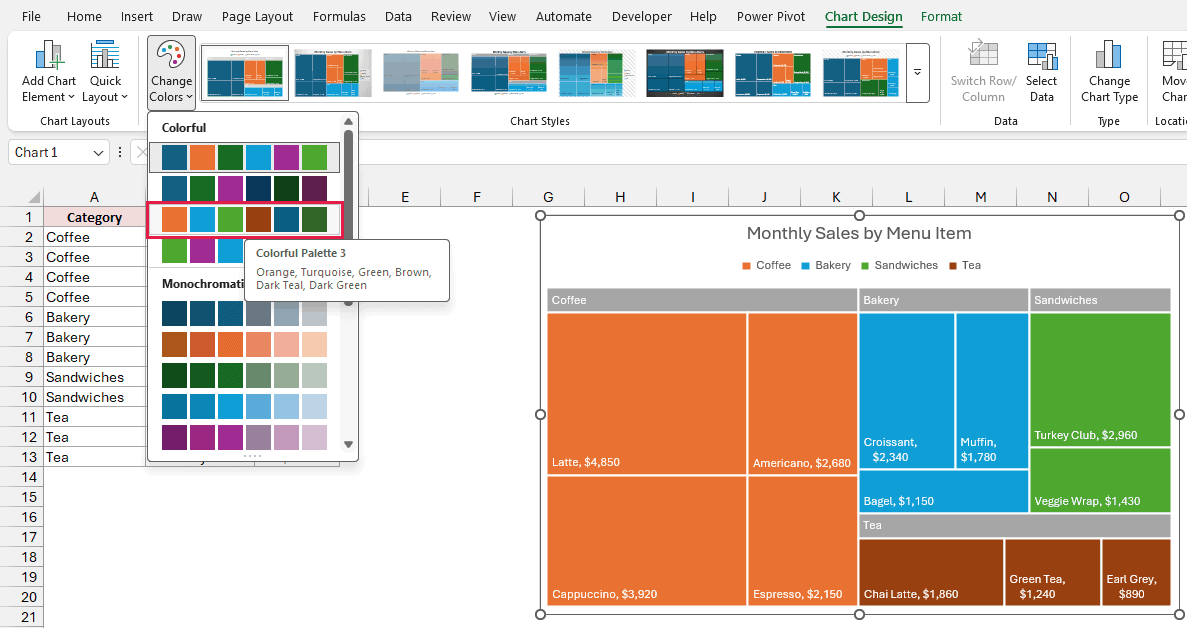
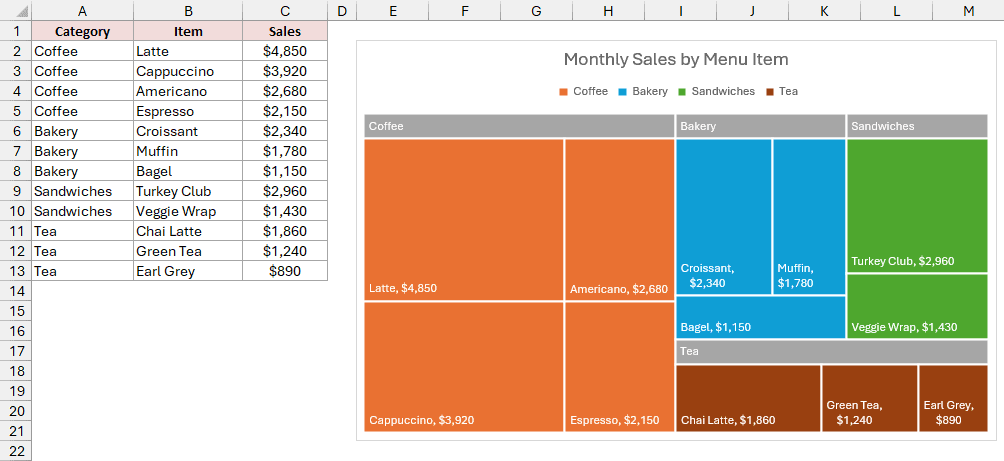
Every category gets a new color. Tiles in the same category still share one color, so you can recognize each group at a glance.
Remove the Legend
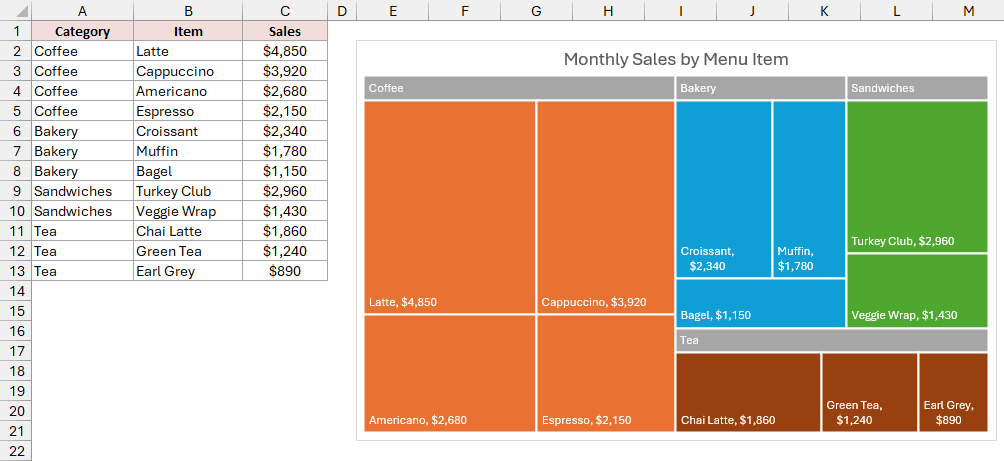
With banner labels on, the legend repeats the four category names you can already see. Removing it gives the tiles a little more room.
Here’s the step to remove it:
- Click the legend once to select it and press Delete.
The legend disappears and the tiles become a little larger. You can still identify each category by the name in its banner.
How to Fix a Treemap That Splits the Same Category
If you see the same category in several colored blocks, check the order of your rows. Excel groups a category’s rows only when they’re next to each other.
When those rows are scattered, Excel treats each separate run as a different group, even if the category name is identical.
Below I have the same sales entered in the order they were recorded, so the categories are mixed up, with the treemap made from that list.
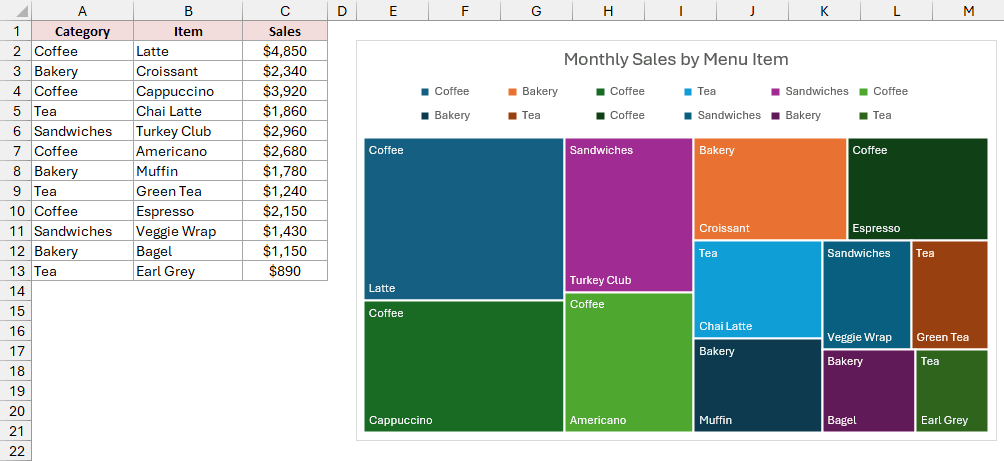
On the Unsorted Data sheet, the list is in A1:C13. Each row becomes its own colored block, and the legend repeats category names.
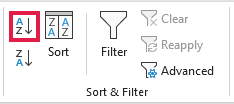
You can fix the grouping by sorting the category column:
- Click any cell in the Category column, for example A2.
- On the Data tab, click Sort A to Z.
The rows are now grouped by category, in the order Bakery, Coffee, Sandwiches, and Tea.
The treemap updates on its own. You now have four category blocks and four legend entries, with each category’s items together.
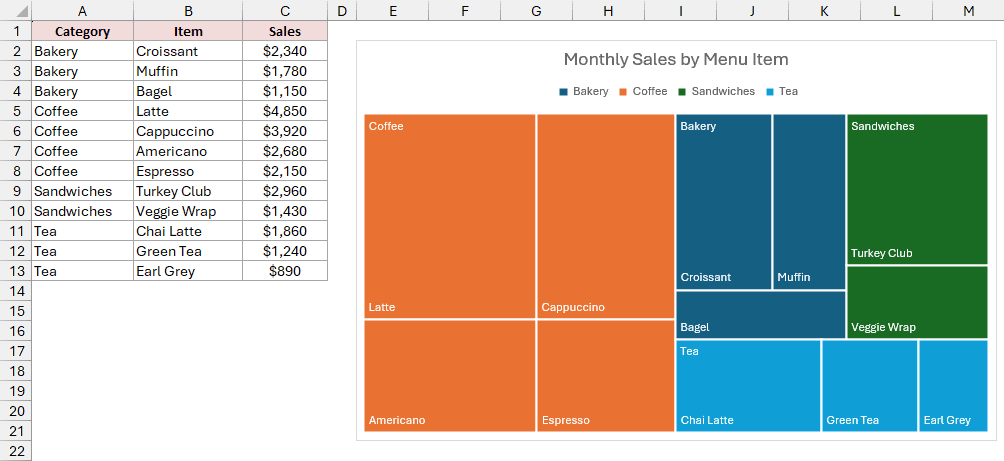
Excel still places blocks by size, so Coffee, the biggest category, stays at the top left. Colors can shift because Excel assigns them in category order.
Additional Notes About Treemap Charts in Excel
- You can’t choose the tile order. Excel arranges tiles by size, largest first, starting at the top left. There’s no setting to reorder them.
- Zero, negative, and blank values don’t get tiles. If an item seems missing, check its value in the source data.
- You don’t have to repeat category names. You can type a category once and leave the cells below it blank until the next category.
- A single level works too. Select just an item column and a number column when you want to compare items without category groups.
- A treemap can’t be a PivotChart. Copy the pivot table and use Paste Special > Values to paste it as a normal range. Then create the treemap from that range. For two levels, first switch the pivot table to Tabular Form with repeated item labels.
- Small tiles can hide their labels. If a name or value is missing, make the chart bigger.
Frequently Asked Questions
Here are a few other questions you might have about treemap charts.
What is the difference between a treemap and a sunburst chart in Excel?
A treemap uses nested rectangles that fill the chart, making it useful for comparing sizes.
A sunburst uses rings, with one ring for each category level. It makes the levels easier to follow but leaves the chart’s corners empty.
Why is the treemap option greyed out in Excel?
Check whether your workbook is an old .xls file open in Compatibility Mode.
If it is, use File > Info > Convert, or save it as .xlsx, then close and reopen the file.
The button is also unavailable while a cell inside a pivot table is selected.
Also check your Excel version. Excel 2013 and earlier don’t have treemap charts.
Can I show percentages in a treemap?
There’s no Percentage checkbox for treemap labels. You can show the Series Name, Category Name, or Value, but not each item’s share of the total.
To show percentages for this sales list, enter this formula in a new column:
=C2/SUM($C$2:$C$13)
Copy it down through row 13 and format the new column as a percentage.
Select the Category and Item columns, then hold Ctrl and select the new percentage column. Insert the treemap using those columns.
In Format Data Labels, check Value to show the percentages.
The relative tile sizes stay the same because each share is proportional to the original sales amount.
Conclusion
I’ve covered creating a treemap and fixing split categories, along with four changes to make the chart easier to read.
I’d start with Insert Hierarchy Chart to create the treemap. Then add banner labels and sales values so you can read each category and its items clearly.
Other Excel articles you may also like:
