
Excel’s TEXTJOIN function combines text from cells or ranges using a separator you choose, with an option to ignore empty cells.
That helps build readable lists without doubled-up separators from blank cells. For a separate joined result on each row, BYROW can apply TEXTJOIN row by row.
In this article, I’ll show you how to combine names, join only matching items, and build summary text with formatted numbers.
TEXTJOIN Function Syntax in Excel
Here is the syntax of the TEXTJOIN function:
=TEXTJOIN(delimiter,ignore_empty,text1,[text2],...)
- delimiter: The separator to place between each value, like “, ” or ” “. Use “” for no separator.
- ignore_empty: TRUE to skip blank cells, or FALSE to keep them (which leaves the separators in place).
- text1: The first value, cell, or range to join.
- [text2], …: Any further values or ranges you want to add.
When to Use TEXTJOIN Function
- When you want to merge a column of values into a single, separated list.
- When you’re building full names or addresses from separate columns.
- When you need to pull together every item that matches a condition into one cell.
- When you want to combine labels and numbers into a readable summary line.
Example 1: Join a Column into One List
Let’s start by turning a whole column into a single list.
Below is the dataset. Column A holds the names of seven team members.
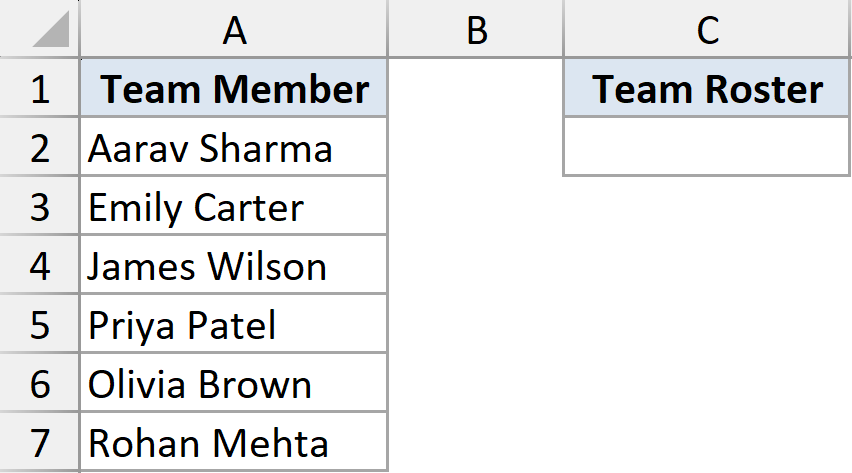
I want all of those names in one cell, separated by commas.
Here is the formula:
=TEXTJOIN(", ",TRUE,A2:A7)
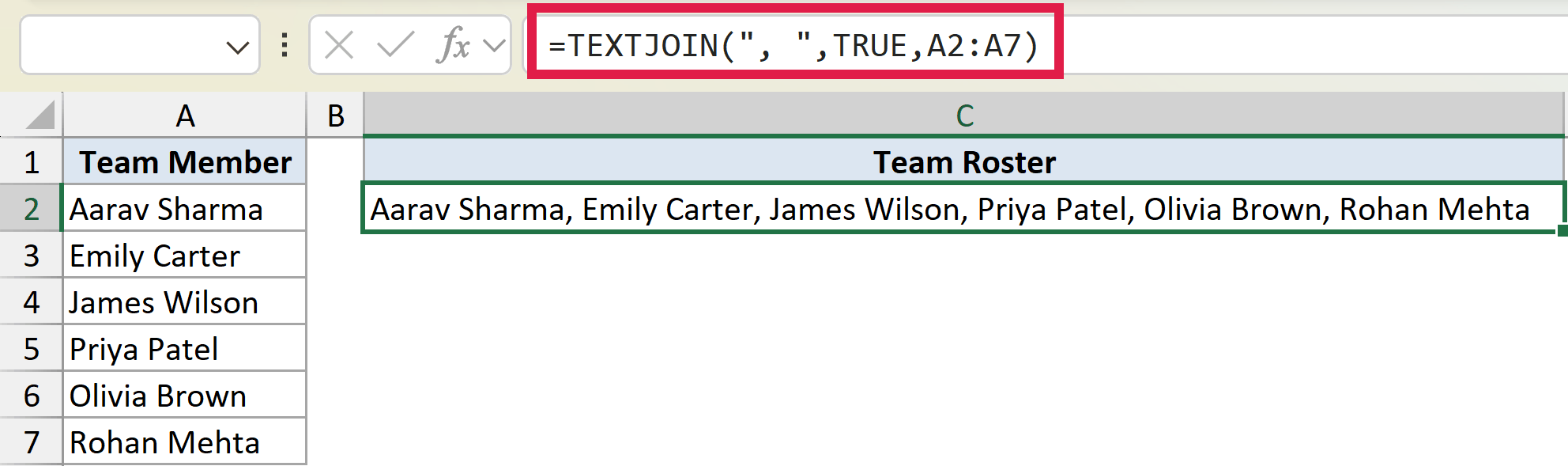
TEXTJOIN takes every name in A2:A7 and strings them together with a comma and a space between each one. The result is a clean roster in a single cell.
The TRUE in the middle tells it to skip any blank cells, so a gap in the column won’t leave you with two commas in a row.
Example 2: Build Full Names from Separate Columns
A very common job is stitching name parts back together across columns.
Below is the dataset. Columns A, B, and C hold the first, middle, and last names, and some people have no middle name.
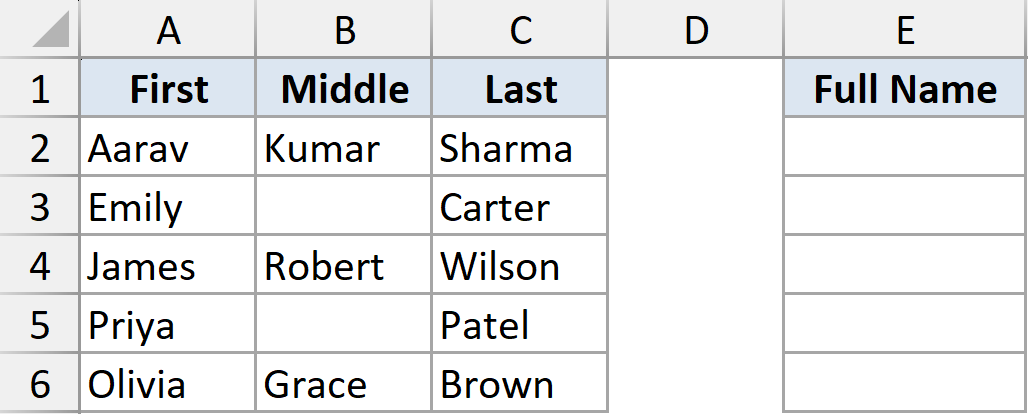
I want the full name for each person in column E, joined with spaces.
Here is the formula:
=TEXTJOIN(" ",TRUE,A2:C2)
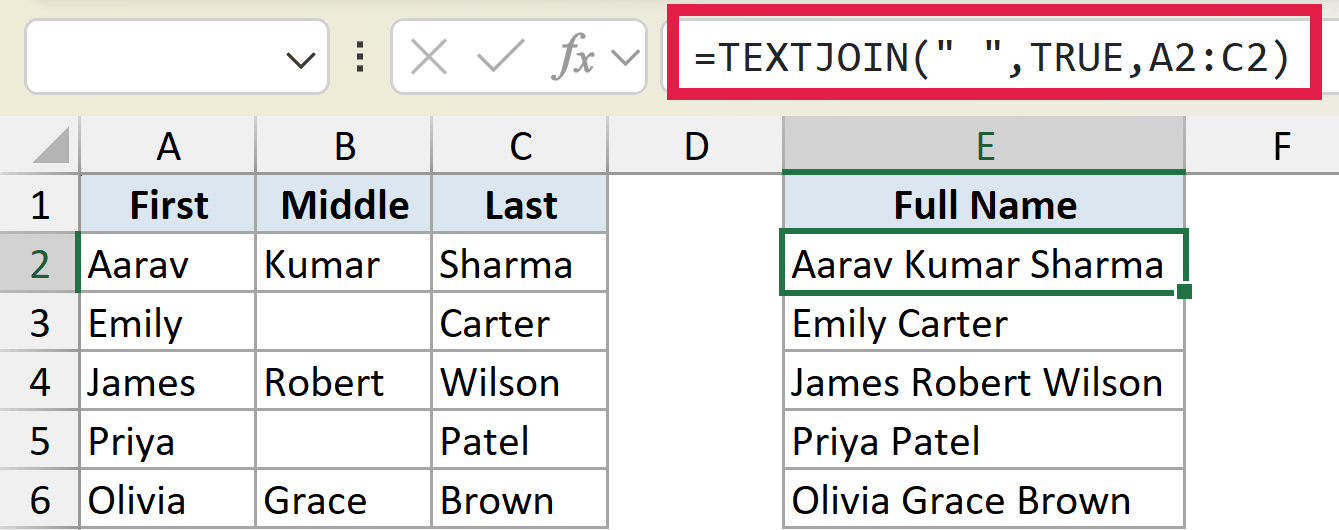
For each row, TEXTJOIN joins the first, middle, and last name with a space. Because ignore_empty is set to TRUE, the blank middle names are skipped.
That’s the real win here. Without it, “Emily Carter” would come out as “Emily Carter” with an awkward double space where the middle name should be.
Example 3: Conditionally Join Matching Items
TEXTJOIN can also pull together only the values that meet a condition, all in one cell.
Below is the dataset. Column A lists products and column B lists each product’s category. Cell D2 holds the category I’m interested in.
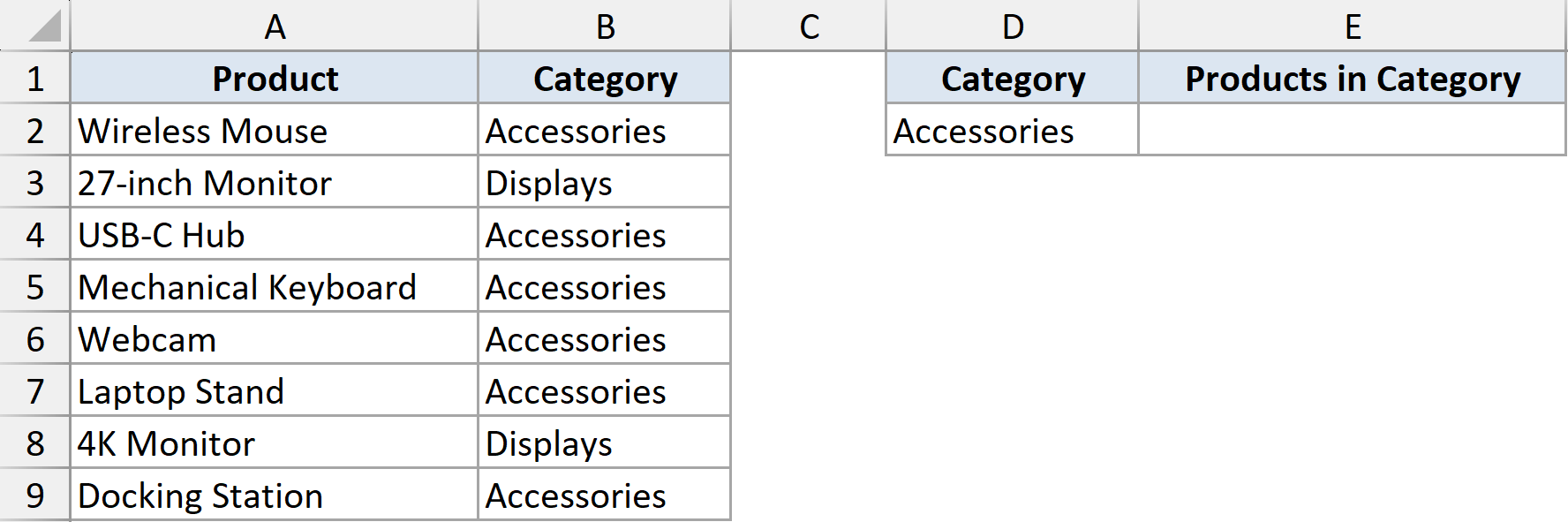
I want a single list of every product in the “Accessories” category named in D2.
Here is the formula:
=TEXTJOIN(", ",TRUE,IF(B2:B9=D2,A2:A9,""))
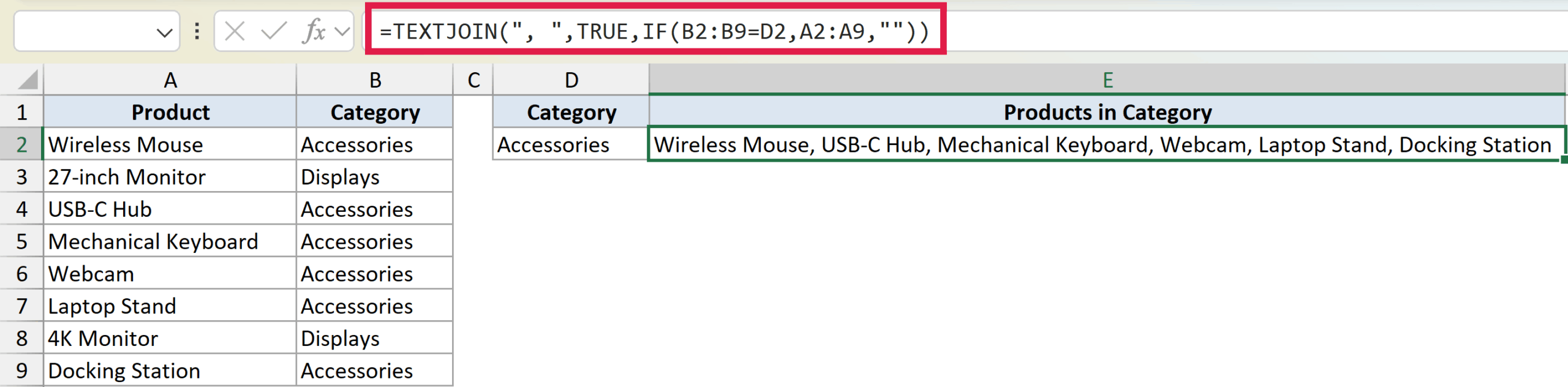
The IF part checks each category against D2. Where it matches, it hands back the product name. Where it doesn’t, it returns an empty string.
TEXTJOIN then joins the results, and because ignore_empty is TRUE, only the real matches make the list. You get every accessory in one tidy cell.
Example 4: Build a Summary Line with Formatted Numbers
When you join numbers, they lose their formatting. Wrapping them in TEXT keeps things looking right.
Below is the dataset. Column A lists the quarters and column B lists the revenue for each one.
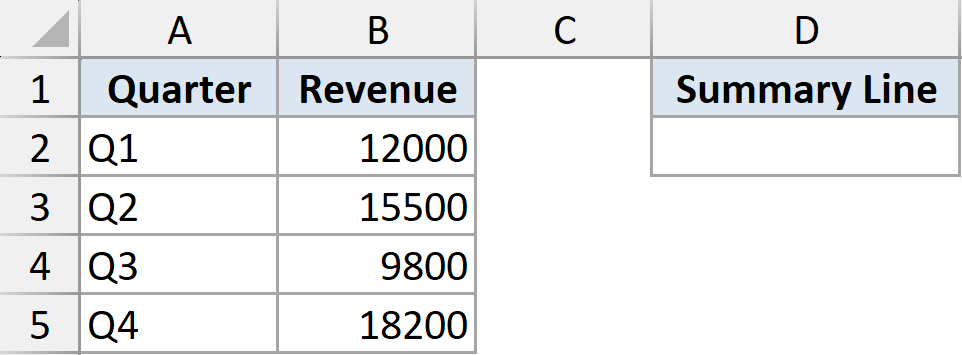
I want a one-line summary that pairs each quarter with its revenue, formatted with a dollar sign and thousands separator.
Here is the formula:
=TEXTJOIN(", ",TRUE,A2:A5&": $"&TEXT(B2:B5,"#,##0"))
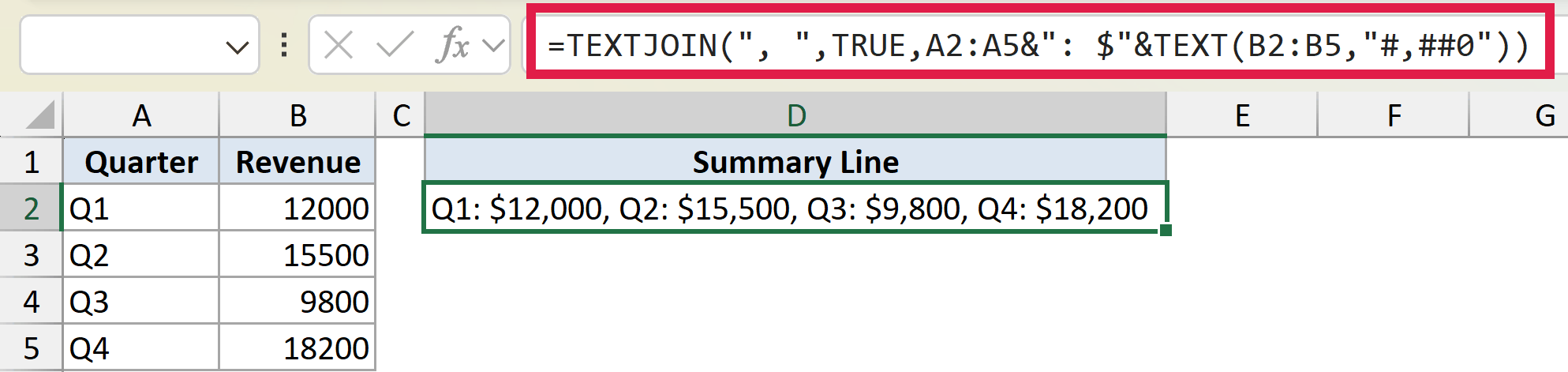
For each quarter, the formula joins the label, a colon and dollar sign, and the revenue run through TEXT. TEXTJOIN then strings the four pieces together.
The result reads “Q1: $12,000, Q2: $15,500” and so on. Without TEXT, the numbers would show as plain digits with no separators.
Example 5: Join Each Row with BYROW
TEXTJOIN doesn’t spill on its own. To get a joined result for every row in one formula, wrap it in BYROW.
Below is the dataset. Columns A, B, and C hold the color, size, and material for four products.
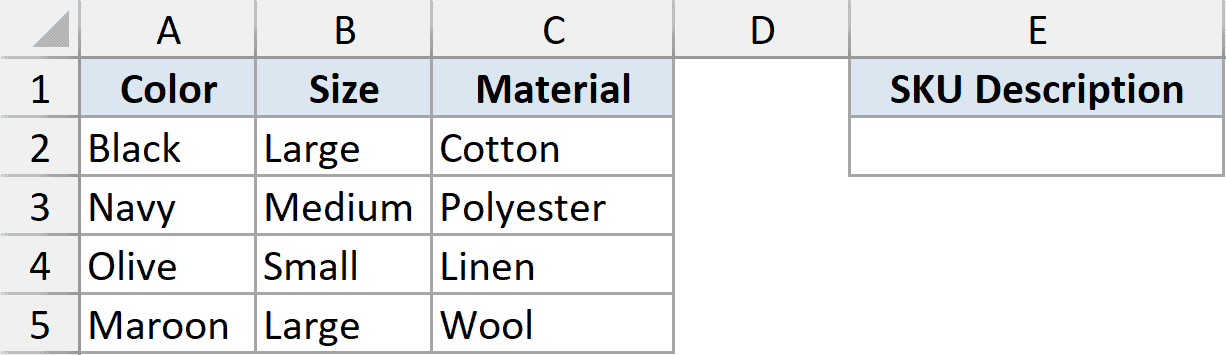
I want a single SKU description for each row, joining the three attributes with a slash.
Here is the formula:
=BYROW(A2:C5,LAMBDA(r,TEXTJOIN(" / ",TRUE,r)))
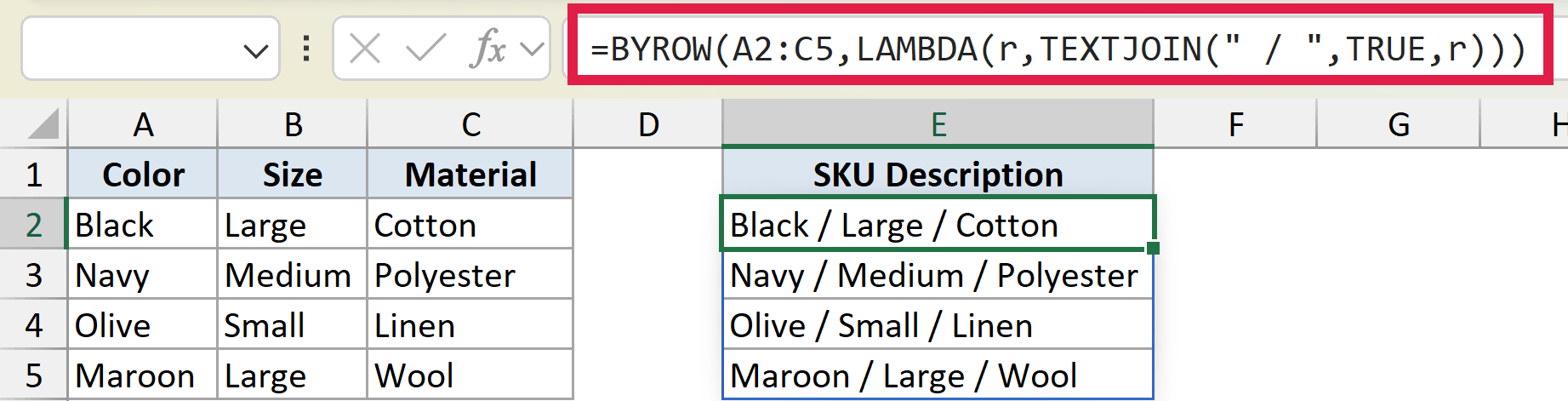
BYROW walks through the table one row at a time. For each row, the LAMBDA runs TEXTJOIN to join that row’s three values with a slash between them.
The results spill down column E, giving you “Black / Large / Cotton” and so on, all from a single formula. This is the modern way to get a per-row join without copying anything down.
Tips & Common Mistakes
- TEXTJOIN is available in Excel 2019, 2021, 2024, and Microsoft 365. It won’t work in Excel 2016 or earlier.
- The result of one cell can’t be longer than 32,767 characters. Go over that and you’ll get a #VALUE! error.
- If you want to join values with no separator at all, the CONCAT function does the same thing without the delimiter and skip-blank options.
- Set ignore_empty to FALSE when you want to keep blank positions visible, for example to line up data where some entries are missing on purpose.
TEXTJOIN takes the pain out of combining text, whether you’re building a quick list, assembling names, or summarizing a row of data.
Try the examples above and you’ll find plenty of places it saves you a fiddly mess of ampersands.
Related Excel Functions / Articles:
- CONCAT Function in Excel
- TEXTSPLIT Function in Excel
- Opposite of Concatenate in Excel (Reverse Concatenate)
- How to Merge First and Last Name in Excel?
- How to Concatenate with Line Breaks in Excel?
- TEXT Function in Excel
- VSTACK Function in Excel
- UNIQUE Function in Excel
- Convert a Column to a Comma-Separated List in Excel
- How to Combine Cells in Excel
