
When you export data from a database, an API, or a server log, dates often show up as Unix timestamps like 1720096496 instead of something you can read.
A Unix timestamp, also called epoch time, counts the seconds since midnight on January 1, 1970, in UTC.
Excel counts days instead, so it can’t read that number as a date on its own.
The conversion is one short formula. The part that trips people up is the unit, because some systems store seconds and others store milliseconds.
In this article, I’ll show you how to convert seconds and milliseconds, handle a column that mixes both, switch to local time, and turn a date back into a timestamp.
Method #1: Dividing Seconds by 86,400
This is the formula I use for 10-digit Unix timestamps, which is what most systems store. A day has 86,400 seconds, so dividing by 86,400 turns seconds into days.
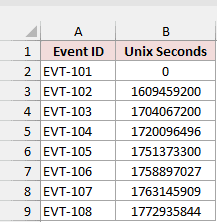
Below I have a dataset on the Seconds sheet with event IDs in column A and Unix seconds in column B.
I want the UTC date and time in column C.
Here is the formula to enter in cell C2:
=B2:B9/86400+DATE(1970,1,1)
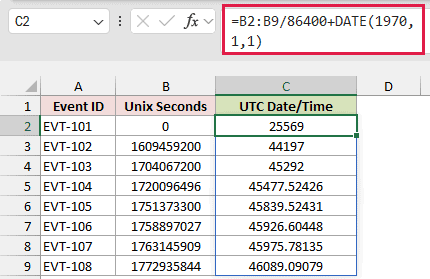
The formula spills down the column automatically, so you only enter it once. In Excel 2019 or older, enter =B2/86400+DATE(1970,1,1) in C2 and copy it down to C9.
How does this formula work?
B2:B9/86400 turns each timestamp from seconds into days. The DATE function returns Excel’s date value for January 1, 1970, and adding the two lands on the right day and time.
When you press Enter, you’ll see numbers like 25569 and 44197 instead of dates.
These are Excel date serial numbers, and they’re correct. They just need a date and time format.
Here are the steps to show them as dates and times:
- Select C2:C9 and press Ctrl+1 (Cmd+1 on Mac) to open the Format Cells dialog.
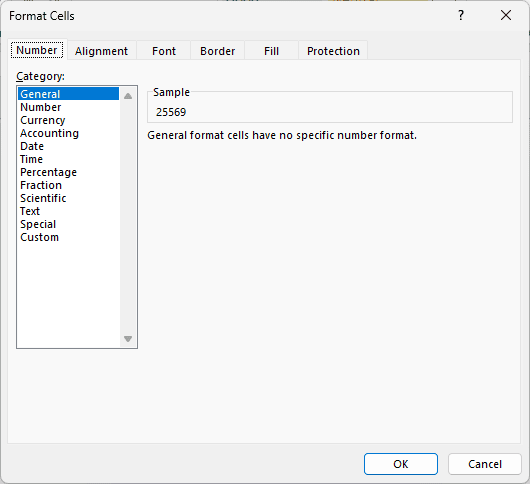
- On the Number tab, click Custom in the Category list, type m/d/yyyy h:mm:ss in the Type box, and click OK.
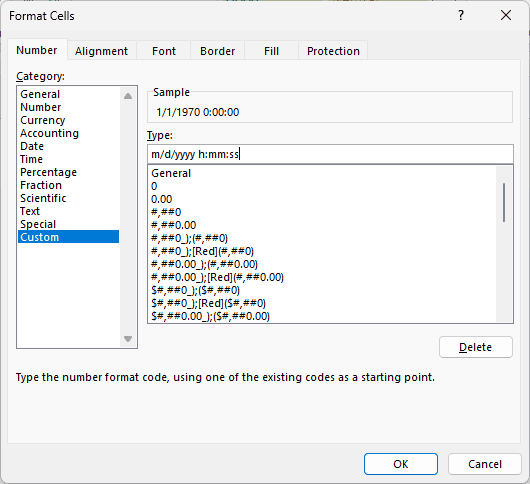
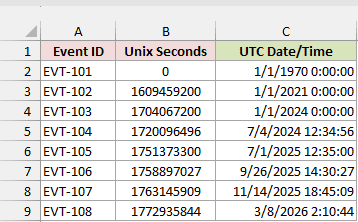
Column C now shows real dates and times. For example, 1609459200 in B3 becomes 1/1/2021 0:00:00, and 1720096496 in B5 becomes 7/4/2024 12:34:56.
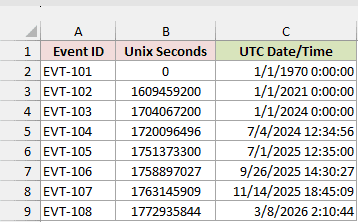
This format uses a 24-hour clock. If you’d rather see 12-hour time, use m/d/yyyy h:mm:ss AM/PM as the custom format instead.
Note: You’ll often see =B2/86400+25569 online. 25569 is simply the date value of January 1, 1970, which is why the zero in B2 first showed as 25569. I prefer DATE(1970,1,1) because it also works in workbooks that use the 1904 date system, where the 25569 version lands 4 years and 1 day late.
Method #2: Dividing Milliseconds by 86,400,000
If your timestamps have 13 digits, they’re in milliseconds, not seconds. JavaScript, Java, and a lot of web APIs store time this way.
Below I have a dataset on the Milliseconds sheet. It has the same events as the Seconds sheet, but column B stores each moment as Unix milliseconds.
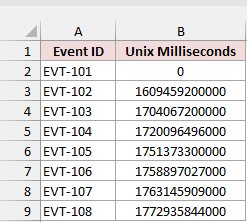
Here is the formula to enter in cell C2:
=B2:B9/86400000+DATE(1970,1,1)
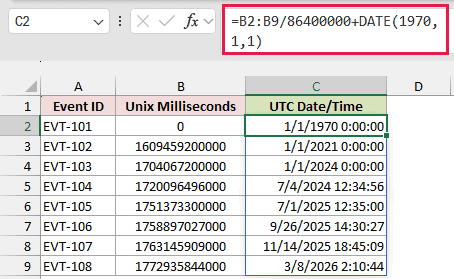
The formula spills down to C9. Column C already has the m/d/yyyy h:mm:ss format from Method #1 applied, so you see dates and times right away.
How does this formula work?
A day has 86,400,000 milliseconds (86,400 seconds times 1,000). Dividing by that number turns each value into days, and DATE(1970,1,1) adds the Unix starting point.
The results match Method #1 row for row. For example, 1720096496000 in B5 returns 7/4/2024 12:34:56, the same moment as 1720096496 seconds.
Note: Check the digit count before you pick a formula. Formatting can’t repair a value that was converted with the wrong divisor.
Method #3: Using IF and LEN for Mixed Seconds and Milliseconds
Here’s what to do when one column holds both kinds of values. This happens when two systems write to the same log, and a single divisor can’t handle both.
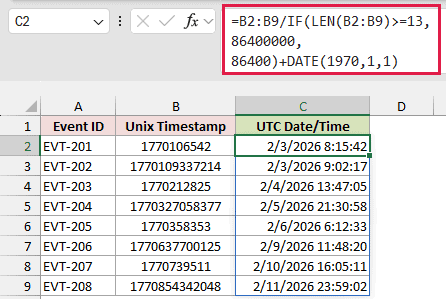
Below I have a dataset on the Mixed Units sheet. Some timestamps in column B are 10-digit seconds, and others are 13-digit milliseconds.
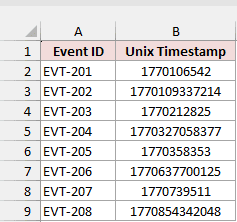
Here is the formula to enter in cell C2:
=B2:B9/IF(LEN(B2:B9)>=13,86400000,86400)+DATE(1970,1,1)
How does this formula work?
LEN(B2:B9) counts the digits in each timestamp. IF then returns 86,400,000 for values with 13 or more digits and 86,400 for everything else.
Each timestamp gets divided by its own divisor, and DATE(1970,1,1) adds the starting point as before. The formula spills down the column automatically.
So 1770109337214 in B3 (milliseconds) returns 2/3/2026 9:02:17, and 1770212825 in B4 (seconds) returns 2/4/2026 13:47:05.
Note: This works for millisecond timestamps from September 2001 onward. Older millisecond values have only 12 digits, so the formula treats them as seconds and the cell fills with ####.
Method #4: Adding a UTC Offset for Local Time
Everything so far returns UTC, because that’s what a Unix timestamp stores. If you want your local time instead, add your UTC offset to the result.
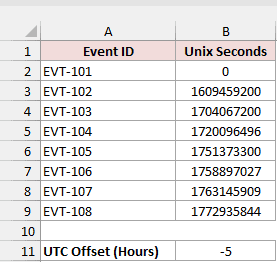
Below I have a dataset on the Local Time sheet with Unix seconds in column B.
Cell B11 holds the UTC offset in hours, where -5 means five hours behind UTC.
Here is the formula to enter in cell C2:
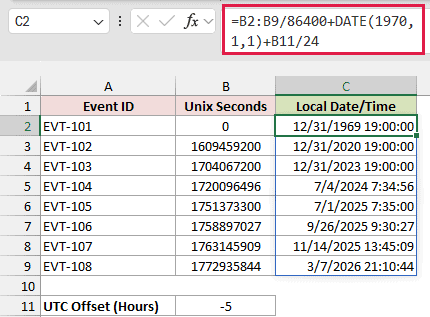
=B2:B9/86400+DATE(1970,1,1)+B11/24
How does this formula work?
The first part is the Method #1 formula. Excel stores time as a fraction of a day, so B11/24 turns the offset hours into days before adding them.
With -5 in B11, 1609459200 (midnight UTC on January 1, 2021) shows as 12/31/2020 19:00:00. For a time zone ahead of UTC, enter a positive number in B11.
This is a fixed offset, so it doesn’t follow daylight saving time.
The July rows here use -5 even though New York is on UTC-4 in summer, so change B11 for the season you need.
Keeping Only the Date From a Unix Timestamp
Sometimes you only need the date, for example to count events per day.
A date-only format hides the time, but the time is still in the cell, so a lookup for 7/4/2024 won’t find 7/4/2024 12:34:56.
Below I have the Seconds sheet again, with the Method #1 formula already in column C. I want just the date in column D.
Here is the formula to enter in cell D2:
=INT(B2:B9/86400+DATE(1970,1,1))
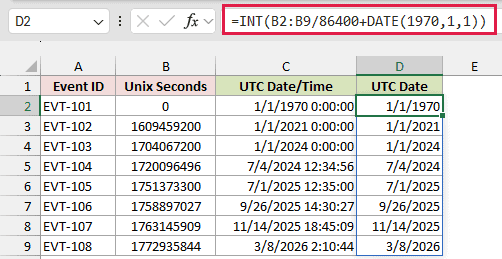
How does this formula work?
Excel stores a date as a whole number and the time as the decimal part.
The INT function rounds down to the nearest whole number, so it drops the time and keeps the date.
That’s why 7/4/2024 12:34:56 in C5 becomes 7/4/2024 in D5. Column D uses the m/d/yyyy format, since there’s no time left to show.
Converting a Date Back to a Unix Timestamp
You can go the other way too. This comes up when an API or a database query wants a Unix timestamp instead of a date.
Below I have a dataset on the Date to Unix sheet. Column B has UTC dates and times, and I want the matching Unix timestamps in column C.
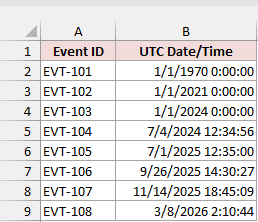
Here is the formula to enter in cell C2:
=ROUND((B2:B9-DATE(1970,1,1))*86400,0)
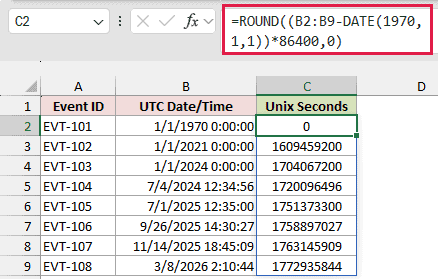
How does this formula work?
Subtracting DATE(1970,1,1) gives the number of days since the Unix starting point. Multiplying by 86,400 turns those days into seconds.
ROUND is there because Excel stores times as fractions of a day.
Without it, some results land a tiny fraction off the whole number and won’t match the real timestamp in a lookup.
The results match the Seconds sheet exactly. For example, 7/4/2024 12:34:56 returns 1720096496.
If you need milliseconds instead, multiply by 86,400,000. Here is the formula to enter in cell D2:
=ROUND((B2:B9-DATE(1970,1,1))*86400000,0)
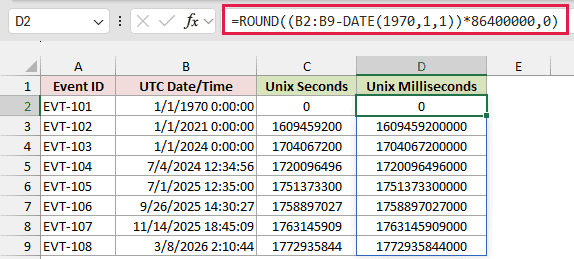
Note: These formulas assume the dates in column B are in UTC. If your dates are in local time, subtract your UTC offset divided by 24 from the date before you convert it.
Additional Notes About Converting Unix Timestamps in Excel
The number of digits tells you the unit, and each unit needs its own divisor:
| Digits | Unit | Divide by |
|---|---|---|
| 10 | Seconds | 86,400 |
| 13 | Milliseconds | 86,400,000 |
| 16 | Microseconds | 86,400,000,000 |
| 19 | Nanoseconds | 86,400,000,000,000 |
A few more things worth knowing:
- Excel keeps only 15 significant digits. If you type a 16-digit timestamp like 1720096496123456, Excel stores 1720096496123450. That doesn’t change the date, but keep the column as text if you need the exact value.
- Your results stay in UTC until you add an offset. Your computer’s time zone never changes these formulas.
- The spilling formulas need Excel 365 or Excel 2021. In older versions, use B2 instead of B2:B9 and copy the formula down.
- Some regional settings use semicolons between arguments. In that case, the formula looks like =B2/86400+DATE(1970;1;1).
- #### in a date cell usually means the column is too narrow. Widen the column before you check the formula.
Frequently Asked Questions
Here are answers to a few common questions about converting Unix timestamps in Excel.
Does Excel have a built-in function to convert a Unix timestamp?
No. Excel doesn’t have a dedicated function for it.
The formulas in this article divide by the number of seconds (or milliseconds) in a day and add DATE(1970,1,1), which does the same job.
Is epoch time the same as a Unix timestamp?
Yes. Both count time from the Unix epoch, which is midnight UTC on January 1, 1970. You’ll see “epoch time”, “Unix time”, and “POSIX time” used for the same thing.
How do I get the current Unix timestamp in Excel?
The NOW function returns your computer’s local time, not UTC. So a plain =(NOW()-DATE(1970,1,1))*86400 is off by your UTC offset.
To get true UTC, put your offset in hours in B1 and use this formula:
=ROUND((NOW()-B1/24-DATE(1970,1,1))*86400,0)
NOW updates every time the sheet recalculates, so the result changes too. The Current Timestamp sheet in the download has this set up for you.
Why do I get #VALUE! when my timestamps were imported as text?
Plain text timestamps usually convert fine, because Excel turns number-like text into numbers when it does math. Regular spaces around the digits don’t break it either.
#VALUE! usually means a hidden non-breaking space, which is common when you copy data from a web page. You can remove it with the SUBSTITUTE function:
=SUBSTITUTE(B2:B7,CHAR(160),"")/86400+DATE(1970,1,1)
On the Text Timestamps sheet, the plain formula returns #VALUE! for EVT-303 and EVT-305. This version converts all six values.
Conclusion
Converting a Unix timestamp in Excel comes down to dividing by the right number and adding DATE(1970,1,1).
I reach for the seconds formula first, since most timestamps are 10 digits, and switch to the milliseconds or mixed version when the digit count says so.
I hope you found this article helpful.
Other Excel articles you may also like:
- How to Convert Julian Date to Calendar Date in Excel (5-Digit, 7-Digit, and JDE)
- How to Convert Date to Serial Number in Excel?
- How to Convert Text to Date in Excel?
- How To Combine Date and Time in Excel?
- SECOND Function in Excel
- DATEVALUE Function in Excel
- TIME Function in Excel
- DateTime.From Function (Power Query M)
