
Excel uses double quotes to mark text in a formula, so typing a quote you want to display can confuse it.
To display that character, you need to tell Excel that the quote belongs inside the text.
I’ll show you doubled quotes and wrapping values with four quotes. Then we’ll try CHAR(34), TEXTJOIN, and a custom number format.
Method #1: Using Two Double Quotes Inside the Text
When you want a double quote inside some text, type two double quotes together. Excel treats that pair as one quote character in the result.
For example, ="Robert ""Bobby"" Hayes" returns Robert "Bobby" Hayes.
Below I have a dataset with employee IDs, first names, nicknames, and last names. I want to put quotes around each nickname.
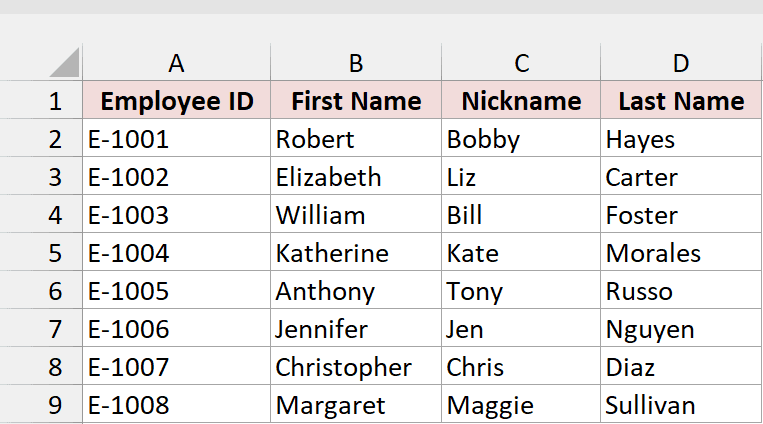
In Microsoft 365 or Excel 2021 and later, you’ll get all eight names automatically in E2:E9. Returning results into neighboring cells like this is called spilling.
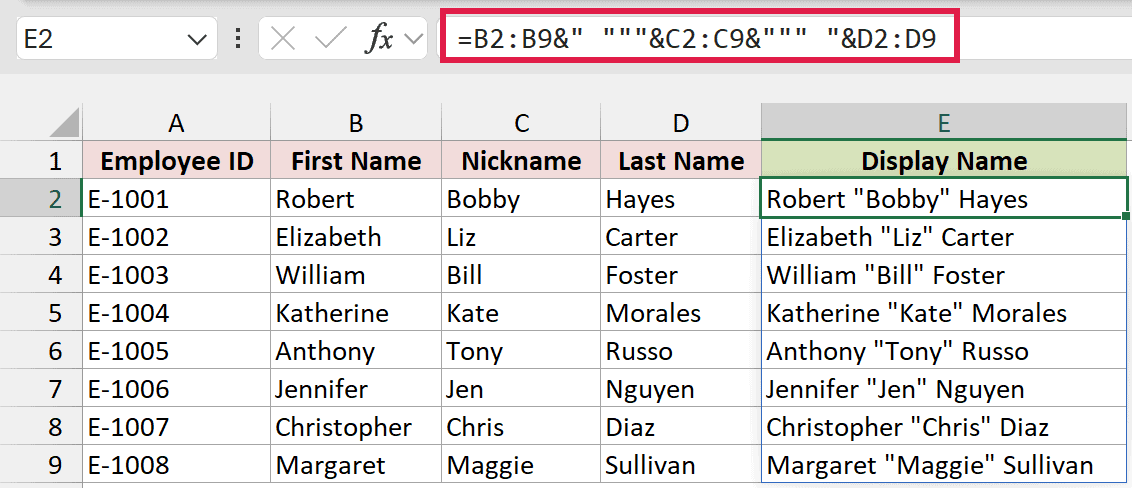
Here is the formula that goes in E2:
=B2:B9&" """&C2:C9&""" "&D2:D9
How does this formula work?
You’ll see Robert "Bobby" Hayes in E2 and Elizabeth "Liz" Carter in E3. The remaining names follow the same pattern through E9.
I start with the first names in B2:B9. Then I add a space and an opening quote before each nickname from C2:C9.
Look at " """: the first quote opens the text, followed by a space. The next two quotes represent one quote character, and the final quote closes the text.
After the nickname, """ " adds a closing quote character and a space. Finally, I add the last names from D2:D9.
To join all those pieces, I use &, called the ampersand.
In Excel 2019 or earlier, use =B2&" """&C2&""" "&D2 in E2 and drag it down to E9.
Method #2: Using Four Double Quotes Around a Cell Value
You can use the same doubling rule to put quotes around an entire cell value. Here, I want each employee ID surrounded by quote marks.
That’s useful when you’re preparing values for a CSV file. You may also need quoted values for code or a query.
Below I have a dataset with employee IDs, first names, nicknames, and last names. I want each ID to appear inside double quotes.
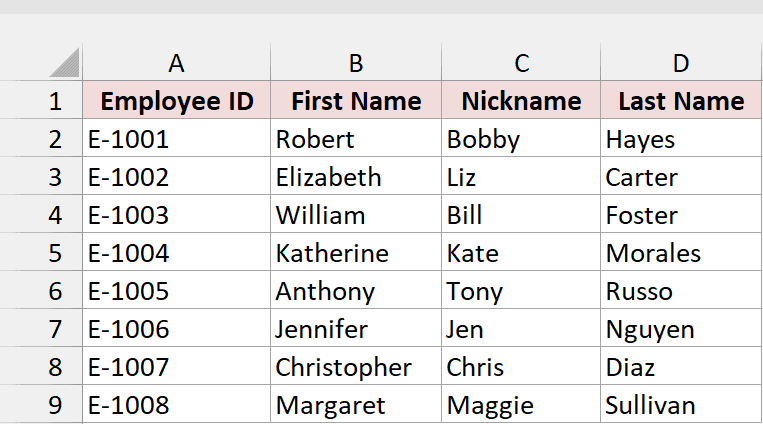
In Microsoft 365 or Excel 2021 and later, the formula spills down to E9, so you don’t need to drag it.
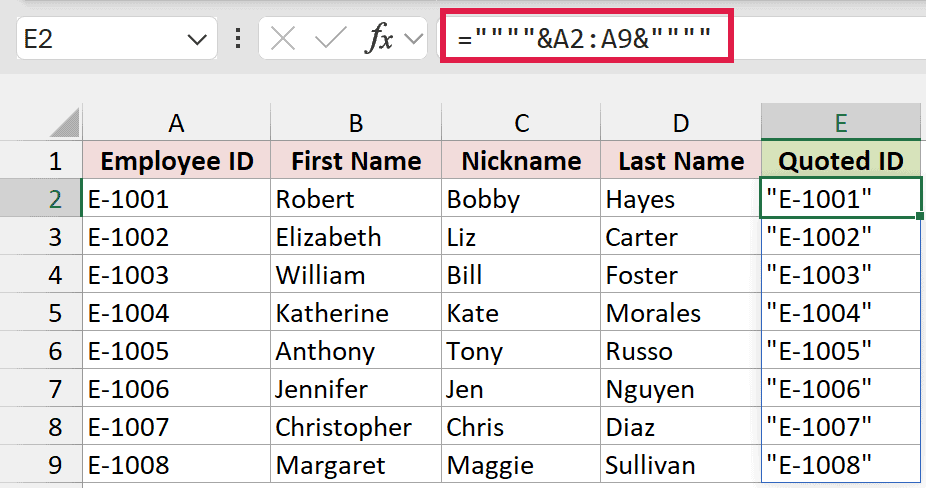
Here is the formula that goes in E2:
=""""&A2:A9&""""
How does this formula work?
You’ll get "E-1001" in E2, continuing through "E-1008" in E9.
Each """" holds exactly one double quote character. The outer two quotes open and close the text, while the inner two represent the quote you want.
To check how many characters the text contains, I use LEN. The formula =LEN("""") returns 1.
I join that quote character to each ID in A2:A9, then add another quote character after it.
Don’t confuse """" with "". The latter contains no characters, so =LEN("") returns 0. It’s an empty string.
In Excel 2019 or earlier, enter =""""&A2&"""" in E2 and drag it down to E9.
Method #3: Using the CHAR(34) Function
If counting quotes feels awkward, you can insert the quote character using its code number instead. This is the approach I’d use most.
CHAR returns the character for a code number. The code for a double quote is 34, so CHAR(34) returns ".
Below I have a dataset with employee IDs, first names, nicknames, and last names. I want to combine the names with quotes around the nicknames.
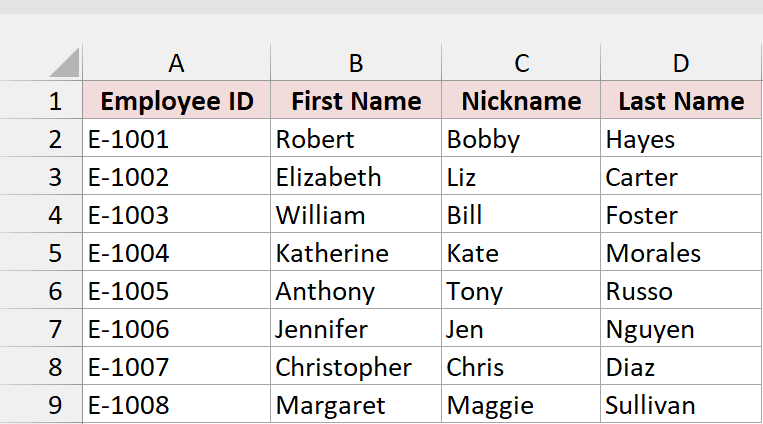
In Microsoft 365 or Excel 2021 and later, you’ll get the full set of names in E2:E9 automatically.
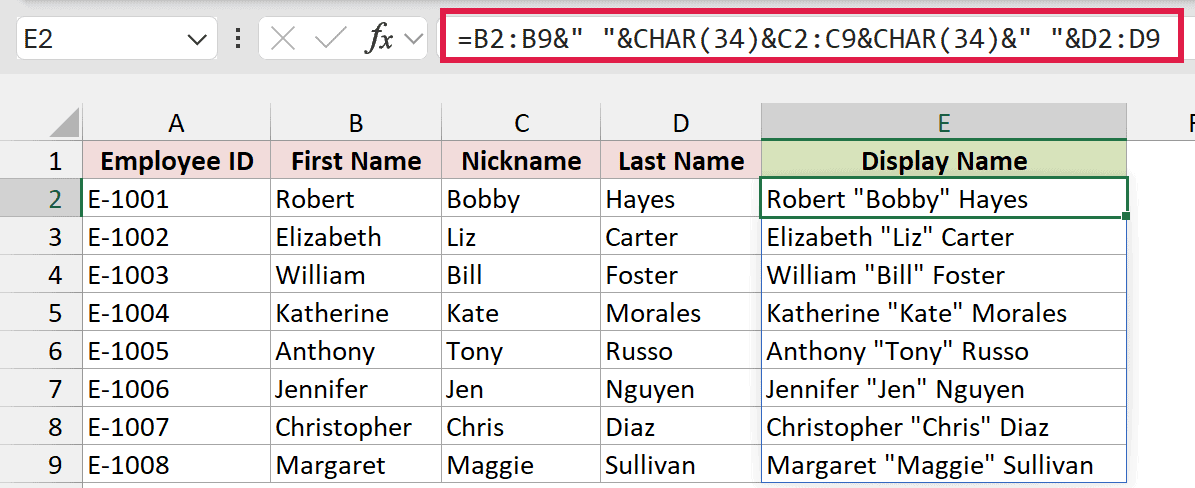
Here is the formula that goes in E2:
=B2:B9&" "&CHAR(34)&C2:C9&CHAR(34)&" "&D2:D9
How does this formula work?
You’ll get Robert "Bobby" Hayes in E2 and the other seven display names beneath it.
I join the first name to a space, then use CHAR(34) to insert the opening quote.
Next comes the nickname, followed by another CHAR(34) for the closing quote. A space separates it from the last name.
You don’t have to count escaped quotes here. I find this easier to read, especially when you come back later to change the formula.
In Excel 2019 or earlier, use =B2&" "&CHAR(34)&C2&CHAR(34)&" "&D2 in E2 and drag it down.
You can also give the quote character a name inside a formula using LET. That’s available in Microsoft 365 or Excel 2021 and later.
For example, =LET(q,CHAR(34),"Robert "&q&"Bobby"&q&" Hayes") returns Robert "Bobby" Hayes.
Method #4: Using TEXTJOIN With CHAR(34)
When you need all the quoted values in one cell, you can join them with commas. Here, I’ll build a quoted list of employee IDs.
You can paste that list into code or another tool that expects quoted items. For a SQL query, check which quote characters your database requires.
Below I have a dataset with employee IDs, first names, nicknames, and last names. I want one comma-separated list of quoted IDs.
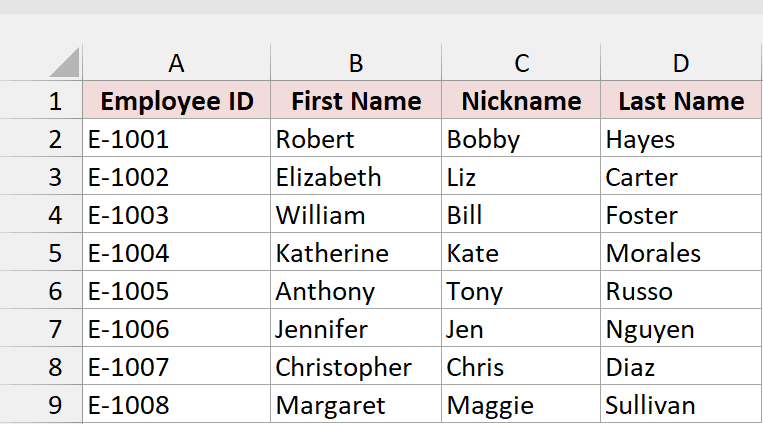
You’ll need Excel 2019 or later for TEXTJOIN. Here, it combines the items into one result in F2, so there’s no spill or dragging down.
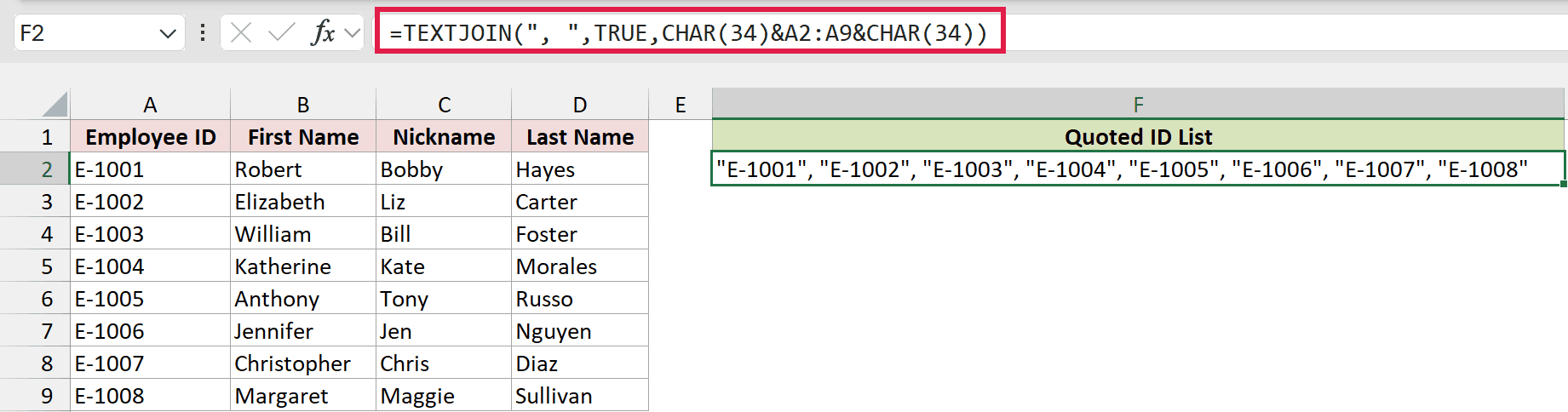
Here is the formula that goes in F2:
=TEXTJOIN(", ",TRUE,CHAR(34)&A2:A9&CHAR(34))
How does this formula work?
First, I wrap each ID using CHAR(34)&A2:A9&CHAR(34). That produces a set of eight quoted IDs, which is an array.
To combine them into one cell with a separator between items, I use TEXTJOIN.
The first argument, ", ", puts a comma and a space between each quoted ID. That separator is called the delimiter.
With TRUE as the second argument, TEXTJOIN ignores empty items. A blank ID still gets wrapped, leaving a pair of quote marks with nothing between them. TEXTJOIN won’t skip that.
Our eight IDs are filled, so you’ll get every ID from "E-1001" through "E-1008" in F2, separated by commas and spaces.
Method #5: Using a Custom Number Format (No Formula)
If you only want quotes to appear on the worksheet, you can change how Excel displays the text. You won’t need a formula.
You’ll keep the original cell values and add the visible quotes through a custom number format.
Below I have a dataset with employee IDs, first names, nicknames, and last names. I want the nicknames to display inside double quotes.
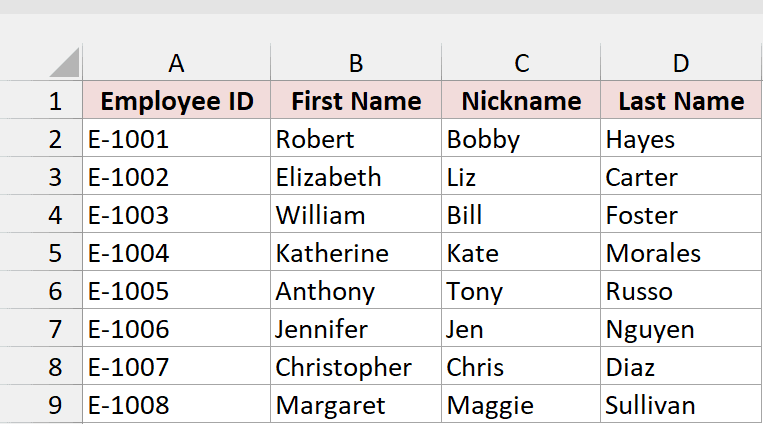
Here are the steps to show the nicknames in quotes:
- Select the nickname cells C2:C9.
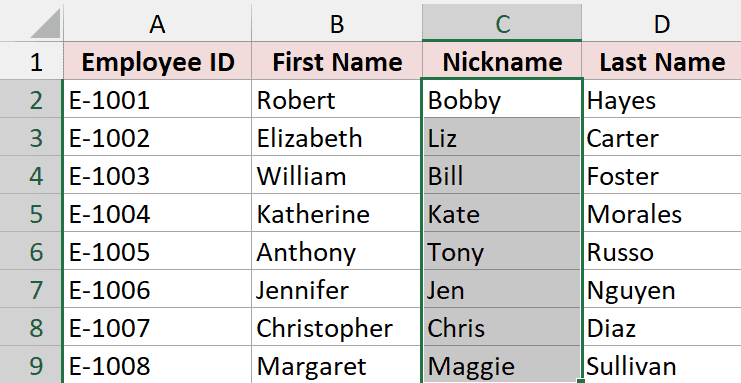
- Press Ctrl + 1 (Command + 1 on a Mac) to open the Format Cells dialog box. Then, on the Number tab, click Custom in the Category list and type
\"@\"in the Type box.
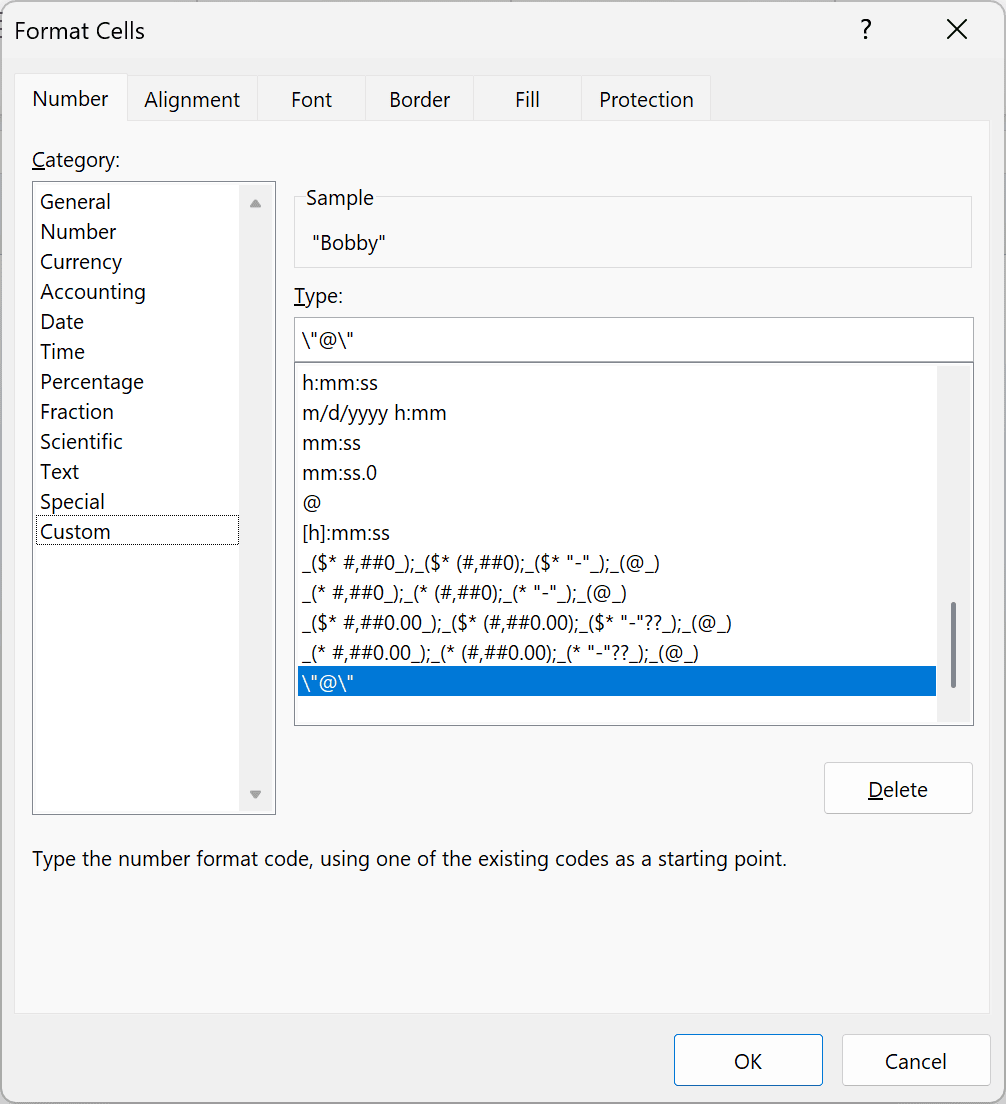
- Click OK.
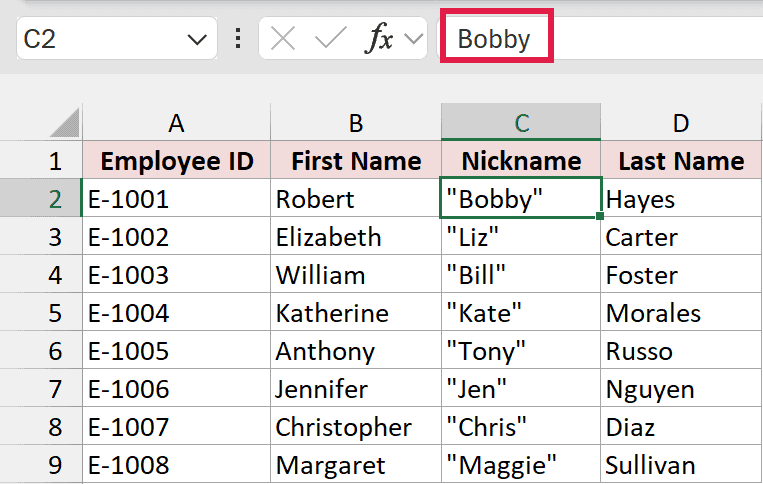
You’ll see "Bobby" through "Maggie" in C2:C9. Select C2, and the formula bar will still show Bobby without quotes.
In \"@\", each backslash tells Excel to show the next character literally. The @ stands for the text already in the cell.
Remember, you’re changing the display only. The quotes won’t come along when you copy and paste values or use the cell in another formula.
Note: \"@\" adds visible quotes to text only. For numbers, use \"0\" instead. For example, 250 will display as “250”.
Additional Notes About Adding Double Quotes in Excel
Keep these details in mind when you’re adding quote characters to a formula:
- Use straight quotes. Curly quotes copied from Word, an email, or a website aren’t formula delimiters. Retype them in Excel if you get
#NAME?. - Keep your quotes balanced. An unmatched quote can make Excel refuse the formula with its “There’s a problem with this formula” message.
- Quoting a number produces text. For example,
=ISTEXT(""""&100&"""")returns TRUE, so you shouldn’t treat the quoted result as a number. - Format a number before adding quotes when its appearance matters.
=CHAR(34)&TEXT(1250,"$#,##0")&CHAR(34)returns"$1,250". TEXT applies the currency format before I wrap the result. - Remember that
""contains no characters, while""""represents one double quote character. Use the latter when you want a visible quote in the result.
Frequently Asked Questions
Here are a few related questions you might have when working with quote characters.
How do I add single quotes in an Excel formula?
You don’t need to double single quotes inside a text string. Use ="'"&A2&"'" to turn the employee ID E-1001 into 'E-1001'.
How do I remove double quotes from a cell in Excel?
Use =SUBSTITUTE(A2,CHAR(34),"") when A2 contains the quoted text. SUBSTITUTE replaces each quote with nothing, so Robert "Bobby" Hayes becomes Robert Bobby Hayes.
You can also press Ctrl + H, enter " in Find what, leave Replace with empty, and click Replace All.
How do I count double quotes in a cell in Excel?
Use =LEN(A2)-LEN(SUBSTITUTE(A2,CHAR(34),"")) when A2 contains the text you want to check.
I subtract the length without quotes from the original length. For Robert "Bobby" Hayes, you’ll get 2.
Why does my CSV file show extra double quotes?
When you save a field containing quotes as CSV, Excel wraps the field in quotes and doubles the quotes inside it.
For example, Robert "Bobby" Hayes becomes "Robert ""Bobby"" Hayes" in the CSV file. Other programs read this standard CSV representation back correctly.
How do I add double quotes in VBA?
Inside VBA text, you also double the quote character. For example, Range("A1").Value = "Robert ""Bobby"" Hayes" writes Robert "Bobby" Hayes into A1.
You can also insert a quote character using Chr(34).
Conclusion
I’ve covered doubled quotes, CHAR(34), TEXTJOIN for lists, and a custom number format for displaying quotes.
CHAR(34) is the one I reach for most.
I hope you found this article helpful.
Other Excel articles you may also like:
- How to Concatenate with Line Breaks in Excel? 3 Easy Ways
- How to Add Text to the Beginning or End of all Cells in Excel
- How to Combine Two Columns in Excel (with Space/Comma)
- CONCATENATE Function in Excel (6 Easy Examples)
- VALUETOTEXT Function in Excel (5 Easy Examples)
- How to Combine Cells in Excel (7 Easy Ways)
- CONCAT Function in Excel (5 Easy Examples)
