
Listing all permutations in Excel means writing out every possible order of your items, so A then B counts as different from B then A.
Excel can count these arrangements, but it has no function that lists them.
The list grows quickly: four items have 24 orders, seven have 5,040, and ten have 3,628,800, more than a worksheet can hold.
I’ll show you formulas for using all or some items, plus Power Query and VBA alternatives.
Method #1: Using LET, SEQUENCE, and FILTER
I recommend this formula for Microsoft 365 or Excel 2024 users with up to seven items. You enter it once, and each order spills into a separate row.
Although LET, SEQUENCE, FILTER, and UNIQUE are available in Excel 2021, this formula also needs BYROW and LAMBDA.
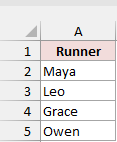
Below I have a dataset of four relay runners in A2:A5: Maya, Leo, Grace, and Owen. I want every possible running order.
Type the headers Position 1 to Position 4 in C1:F1. Then enter this formula in C2:
=LET(items,A2:A5,n,ROWS(items),counter,SEQUENCE(n^n,,0),picks,MOD(INT(counter/n^SEQUENCE(1,n,n-1,-1)),n)+1,keep,BYROW(picks,LAMBDA(p,COLUMNS(UNIQUE(p,TRUE))=n)),FILTER(INDEX(items,picks),keep))
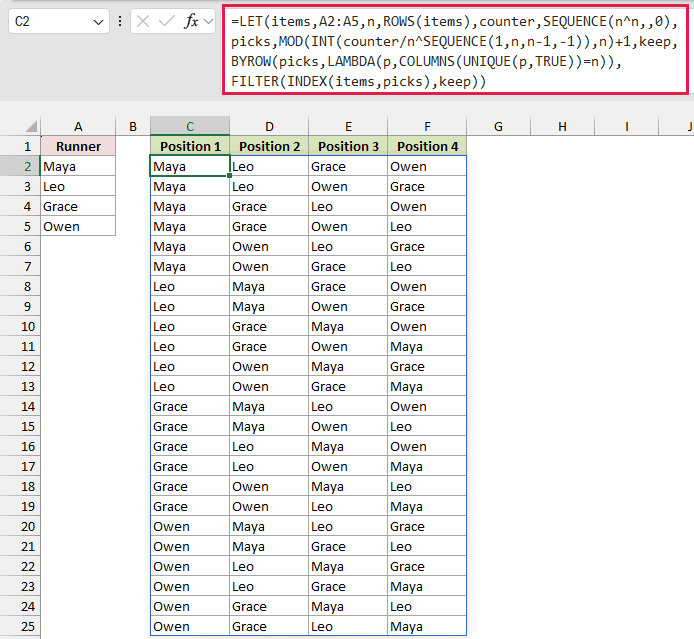
The formula spills 24 orders into C2:F25, with six starting with each runner. You don’t need to copy it down.
The first order is Maya, Leo, Grace, Owen. The last is Owen, Grace, Leo, Maya.
How does this formula work?
LET lets me name the parts of the calculation, so you can follow what each part does:
- items: A2:A5 is your list of runners.
- n: ROWS counts the items. Here, n is 4.
- counter: SEQUENCE(n^n,,0) generates the numbers 0 to 255, giving the formula 256 candidate arrangements to check.
- picks: MOD and INT turn each counter into four position numbers, like reading base-4 digits. Adding 1 makes the positions run from 1 to 4. Repeated picks, such as 1,1,1,1, are included at this stage.
- keep: BYROW checks each candidate. UNIQUE(p,TRUE) removes repeated position numbers across the row, and COLUMNS counts what’s left. Only rows with all four positions different pass.
- The final result: INDEX(items,picks) replaces the position numbers with names. FILTER keeps the rows that passed the keep test, reducing 256 candidates to 24 permutations.
If you want each running order in one cell, type Running Order in H1 and enter this formula in H2:
=BYROW(C2#,LAMBDA(p,TEXTJOIN(", ",,p)))
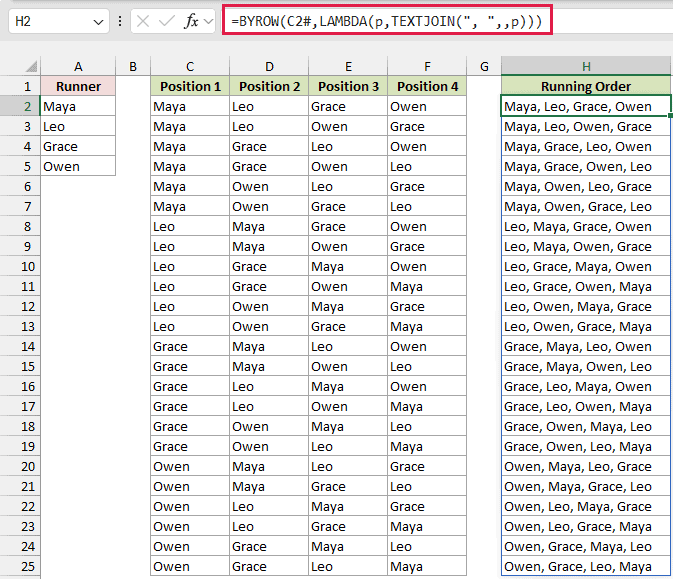
C2# means the whole spill range starting in C2. BYROW passes each order to TEXTJOIN, which joins its names with commas and spaces, spilling into H2:H25.
Note: This formula recalculates when you change a name in A2:A5. If you add names, extend that range in the formula. It works for up to seven items, but seven take several seconds, about 7 seconds when I tested. Eight items return #CALC! because the counter would need 16,777,216 numbers, an array too large for SEQUENCE.
Method #2: Using LET, SEQUENCE, and FILTER (Picking Some Items)
You can adapt the first formula when you only need some of the items in each arrangement.
You might choose two of four candidates, or three of ten. These ordered selections are what PERMUT counts, often written as nPr.
You need Microsoft 365 or Excel 2024 for this formula because it uses BYROW and LAMBDA.
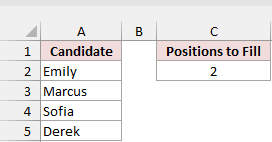
Below I have a dataset of four candidates in A2:A5: Emily, Marcus, Sofia, and Derek. Positions to Fill is in C1, with 2 in C2.
I want every President and Vice President pair. Emily as President with Marcus as Vice President is a different arrangement from the reverse.
Type President in E1 and Vice President in F1. Then enter this formula in E2:
=LET(items,A2:A5,n,ROWS(items),k,C2,counter,SEQUENCE(n^k,,0),picks,MOD(INT(counter/n^SEQUENCE(1,k,k-1,-1)),n)+1,keep,BYROW(picks,LAMBDA(p,COLUMNS(UNIQUE(p,TRUE))=k)),FILTER(INDEX(items,picks),keep))
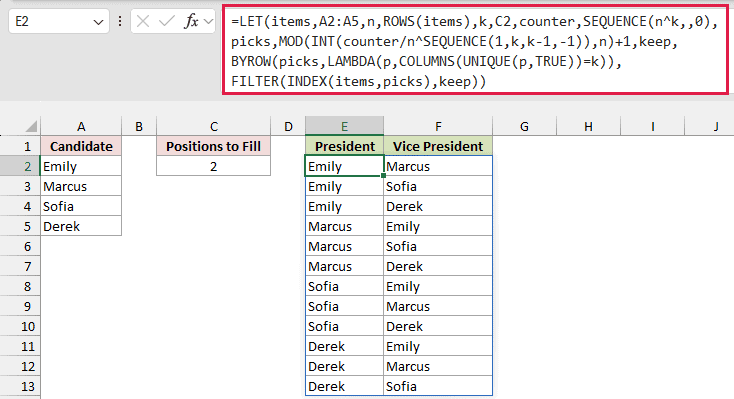
You get 12 pairs in E2:F13. The first is Emily and Marcus, and the last is Derek and Sofia.
The difference from Method #1 is k, the number of positions you want to fill. It takes its value from C2.
The counter uses n^k, the second SEQUENCE generates k positions, and keep checks for k different position numbers. PERMUT(4,2) returns 12, matching the spilled result.
Change C2 to 3 and you get 24 arrangements across three columns, so add a third header.
Set C2 to 4 to use all four candidates, and add a fourth header.
If you set C2 to 5, you get #CALC!. You can’t fill five positions with four candidates without repeats, so FILTER has no rows left.
Method #3: Using Power Query
If you’d rather avoid formulas and macros, you can build the list with Power Query in Excel 2016 or later, including Microsoft 365.
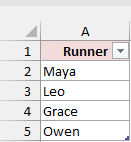
Below I have a dataset of four runners in A2:A5: Maya, Leo, Grace, and Owen. I want all 24 running orders.
The list is already an Excel Table named Runners, with Runner as the column header. The code below assumes each item is different.
Here are the steps to generate the running orders:
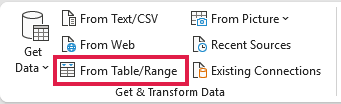
- Select any cell in the table, then go to Data > From Table/Range in the Get & Transform Data group. In Excel 2016, the button is called From Table, on the Data tab in the Get & Transform group.
If your list isn’t already a table, Excel shows the Create Table dialog. Keep My table has headers checked and click OK.
Excel names the new table and query Table1. Change Runners in the code’s first line to Table1, or rename the table first on the Table Design tab.
- In the Power Query Editor, click Home > Advanced Editor.
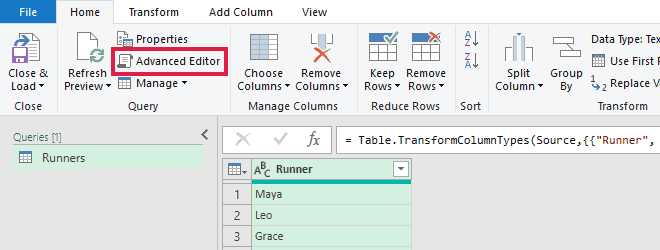
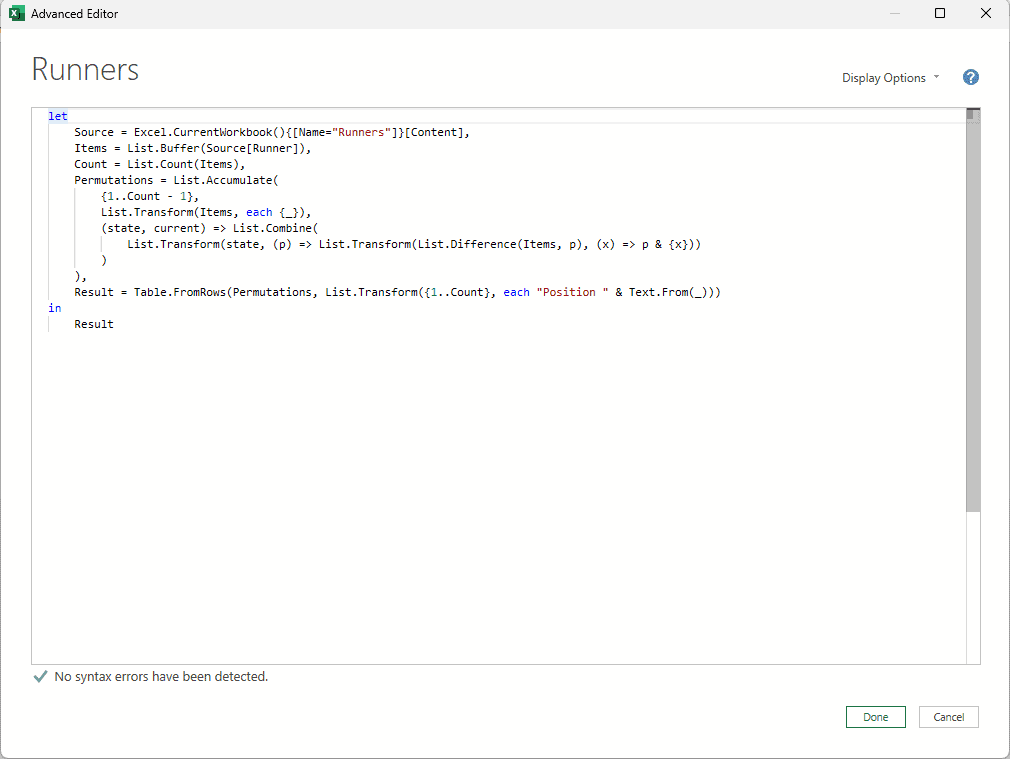
- Delete the code that’s there, paste the code below, and click Done.
let
    Source = Excel.CurrentWorkbook(){[Name="Runners"]}[Content],
    Items = List.Buffer(Source[Runner]),
    Count = List.Count(Items),
    Permutations = List.Accumulate(
        {1..Count - 1},
        List.Transform(Items, each {_}),
        (state, current) => List.Combine(
            List.Transform(state, (p) => List.Transform(List.Difference(Items, p), (x) => p & {x}))
        )
    ),
    Result = Table.FromRows(Permutations, List.Transform({1..Count}, each "Position " & Text.From(_)))
in
    Result
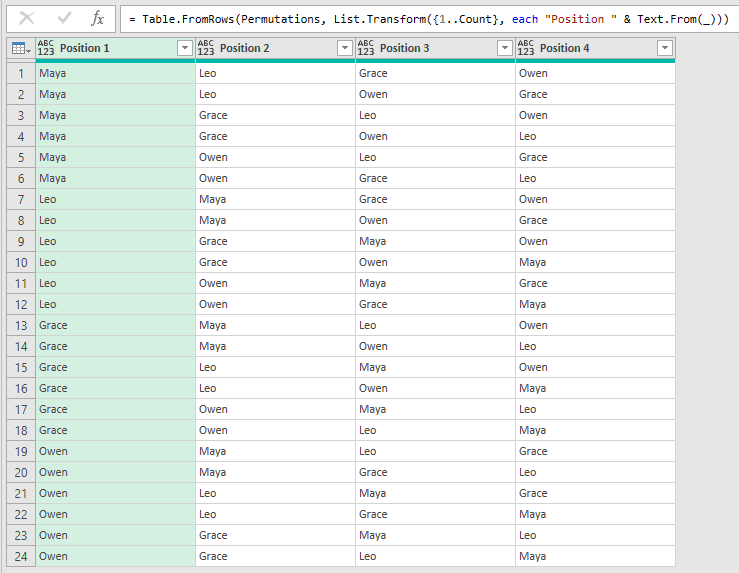
The preview now shows all 24 orders, with columns named Position 1 to Position 4.
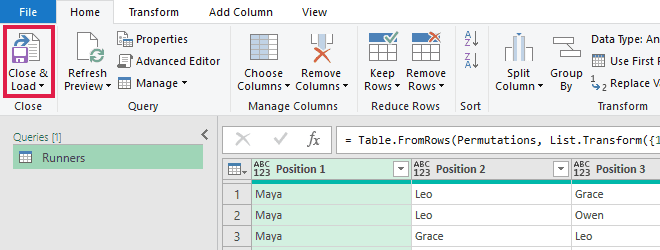
- Click Home > Close & Load.
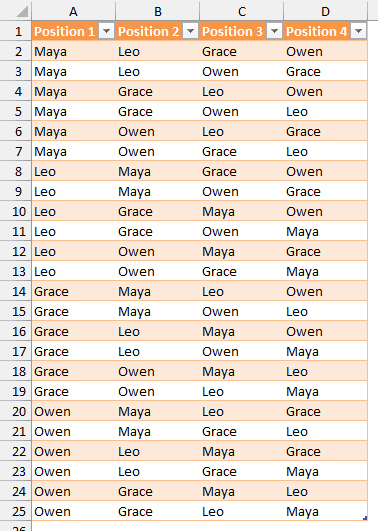
Excel adds a new worksheet with the 24 permutations in a table. The example’s result is on the PQ Output sheet.
How does this code work?
Source reads the Runners table, and Items takes its Runner column. Count records how many runners the list contains.
List.Buffer loads the list into memory once, so Power Query doesn’t reread the table at every step.
List.Accumulate starts with each runner on its own, then builds the orders one position at a time.
List.Difference finds runners that aren’t already in an order, so each new position uses a different runner.
Table.FromRows turns the finished orders into a table and names the columns Position 1 through Position n.
If your column header isn’t Runner, change Runner in the Items line.
After changing the runner list, use Data > Refresh All, or right-click the result table and choose Refresh. Power Query doesn’t update the result automatically.
Method #4: Using a VBA Macro
For more than seven items, you can use a macro to write the orders directly to your sheet. This works in every desktop version of Excel.
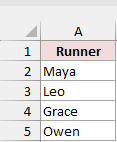
Below I have a dataset of four runners in A2:A5: Maya, Leo, Grace, and Owen. I want every running order written into columns starting at C.
Before running the macro, keep column B empty. Otherwise, the clear step reaches across and also clears your list in column A.
Keep the output area around C1 separate from other data too. The code clears the connected region containing C1, including any adjoining data.
Here is the VBA code:
Dim Items As Variant
Dim Used() As Boolean
Dim Current() As Variant
Dim Results() As Variant
Dim ItemCount As Long
Dim ResultRow As Long

Sub ListAllPermutations()
    Dim Total As Double
    Dim j As Long

    If Range("A3").Value = "" Then
        MsgBox "Enter at least two items in column A, starting in cell A2."
        Exit Sub
    End If

    Items = Range("A2", Cells(Rows.Count, "A").End(xlUp)).Value
    ItemCount = UBound(Items, 1)
    Total = Application.WorksheetFunction.Fact(ItemCount)

    If Total > Rows.Count - 1 Then
        MsgBox "That is " & Format(Total, "#,##0") & " permutations, more than a worksheet can hold."
        Exit Sub
    End If

    ReDim Used(1 To ItemCount)
    ReDim Current(1 To ItemCount)
    ReDim Results(1 To Total, 1 To ItemCount)
    ResultRow = 0

    BuildPermutations 1

    Range("C1").CurrentRegion.ClearContents
    For j = 1 To ItemCount
        Cells(1, 2 + j).Value = "Position " & j
    Next j
    Range("C2").Resize(Total, ItemCount).Value = Results
End Sub

Sub BuildPermutations(Position As Long)
    Dim i As Long
    Dim j As Long

    If Position > ItemCount Then
        ResultRow = ResultRow + 1
        For j = 1 To ItemCount
            Results(ResultRow, j) = Current(j)
        Next j
        Exit Sub
    End If

    For i = 1 To ItemCount
        If Not Used(i) Then
            Used(i) = True
            Current(Position) = Items(i, 1)
            BuildPermutations Position + 1
            Used(i) = False
        End If
    Next i
End SubHere are the steps to add and run the macro:
- Press Alt+F11 to open the VBA editor.
- Click Insert > Module.
- Paste the code above into the module.
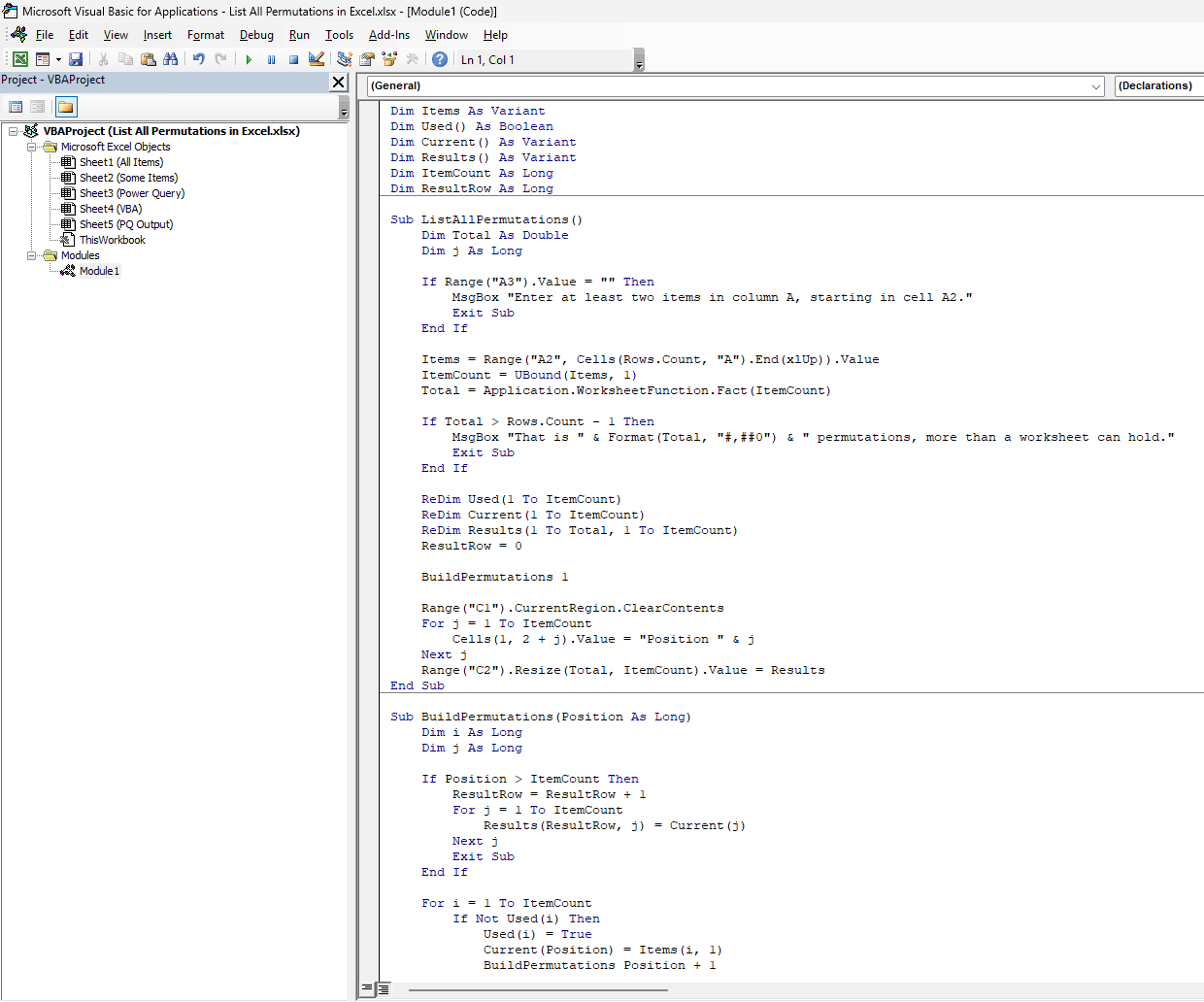
The macro works on the active sheet. Make sure the sheet with your list is active in Excel before you press F5.
- Put the cursor anywhere inside ListAllPermutations and press F5. Alternatively, in Excel press Alt+F8, select ListAllPermutations, and click Run.
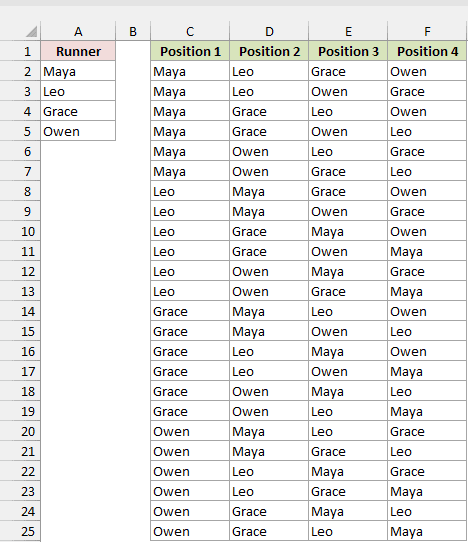
The macro fills C1:F25 with the Position 1 to Position 4 headers and all 24 running orders, in the same order as the Method #1 formula.
The macro reads column A from A2 down to its last filled cell. It calculates the permutation count before building the output.
BuildPermutations calls itself to fill one position at a time, skipping items already used. The finished orders go into an array, then onto the sheet all at once.
It clears the old output around C1, writes Position 1 through Position n in row 1, and writes the arrangements starting in C2.
The macro stops with a message if you have fewer than two items or the result won’t fit. Ten items produce 3,628,800 rows, exceeding the worksheet limit.
You can list up to nine items with this macro. I successfully ran it with nine items in testing, producing 362,880 rows, though it takes a while.
Save as .xlsm, choosing Excel Macro-Enabled Workbook, to keep the code.
The example .xlsx contains the macro’s output, but it doesn’t contain the macro itself.
Additional Notes About Listing Permutations in Excel
Before generating a list, check these points:
- Count before you list: FACT(n) counts arrangements using all n items; PERMUT(n,k) counts ordered selections of k items. FACT(4) returns 24, and PERMUT(4,2) returns 12.
- Check the size: Seven items mean 5,040 orders, nine mean 362,880, and ten mean 3,628,800. That last list exceeds a worksheet’s 1,048,576 rows.
- Exclude blank cells: Adjust A2:A5 to fit your actual list. A blank inside the formula’s input range becomes an item and appears as 0 in the output.
- Check for duplicate items: Red, Red, Blue gives six rows, but only three distinct orders. Wrap the formula in UNIQUE to remove duplicates. Power Query assumes different items.
- Decide whether order matters: Permutations treat Emily/Marcus and Marcus/Emily as different. Combinations treat them as the same selection, so you need a different test in the formula.
Frequently Asked Questions
Here are answers to a few questions you might have about listing and counting arrangements.
How do I list permutations with repetition in Excel?
Remove the keep test and return INDEX(items,picks) directly. That lets the same item occupy more than one position, as you might need for PIN codes.
With your four candidates in A2:A5 and 2 in C2, use this formula:
=LET(items,A2:A5,n,ROWS(items),k,C2,counter,SEQUENCE(n^k,,0),picks,MOD(INT(counter/n^SEQUENCE(1,k,k-1,-1)),n)+1,INDEX(items,picks))
You get 16 rows, with Emily, Emily first. Unlike the Method #2 formula, this includes pairs where both positions contain the same name.
This version has no BYROW or LAMBDA, so it also works in Excel 2021.
How do I list all combinations instead of permutations?
Keep only rows whose position numbers increase from left to right. This removes reversed versions of the same selection.
With four candidates in A2:A5 and 2 in C2, use this formula:
=LET(items,A2:A5,n,ROWS(items),k,C2,counter,SEQUENCE(n^k,,0),picks,MOD(INT(counter/n^SEQUENCE(1,k,k-1,-1)),n)+1,keep,BYROW(picks,LAMBDA(p,AND(DROP(p,,1)>DROP(p,,-1)))),FILTER(INDEX(items,picks),keep))
You get six pairs: Emily/Marcus, Emily/Sofia, Emily/Derek, Marcus/Sofia, Marcus/Derek, and Sofia/Derek.
Change C2 to 3 for four combinations across three columns.
This version needs k to be at least 2. DROP compares neighboring position numbers, and AND checks that each number is greater than the previous one.
How many permutations can Excel list?
Your worksheet has 1,048,576 rows, and a header uses one of them. The usable limit also depends on how you generate the list.
The all-items formula handles up to seven items because its counter includes repeated picks before filtering. The VBA macro handles nine and checks the row count before writing.
Power Query runs into the same 1,048,576-row limit when it loads the result to a worksheet.
What is the difference between PERMUT and PERMUTATIONA?
PERMUT counts ordered selections without repeats. PERMUTATIONA counts ordered selections with repeats allowed. Neither function lists the arrangements.
PERMUT(4,2) returns 12, while PERMUTATIONA(4,2) returns 16. Use the count that matches whether you allow the same item in more than one position.
Conclusion
I’d start with the spilling formula for Microsoft 365 or Excel 2024 and a list of up to seven items.
You can use the Method #2 version to pick only some items, Power Query to avoid macros, or VBA to list all orders for up to nine items.
Other Excel articles you may also like:
