
Excel’s equation editor lets you show math with stacked fractions and raised exponents, so you can display a model’s calculation in familiar mathematical form.
An equation sits in a box above the grid. It doesn’t calculate anything or act as a cell formula; formulas in cells still do the math.
I’ll show you how to type equations or build them from layouts called structures. You can also use built-in equations or handwriting with Ink Equation, then edit the result.
Method #1: Using the Equation Button
I recommend the Equation button as the fastest way for most people to insert an equation in Excel.
You type the equation in one line, the way you’d write it in a text message, and Excel turns it into proper math.
Below I have a dataset of compound interest calculations, and I want to show the matching math equation beside the table.

The table is in A1:F5. The formula in F2 calculates the final amounts and spills down to F5:
=B2:B5*(1+C2:C5/D2:D5)^(D2:D5*E2:E5)
I’ll display that calculation as A = P(1 + r/n)^nt beside the table. Here’s how to add it:
- Click the Insert tab. In the Symbols group at the far right, click the Equation symbol itself, not the arrow below it.

- A box saying Type equation here. appears in the middle of the visible worksheet, and the Equation tab opens. Click inside the box.
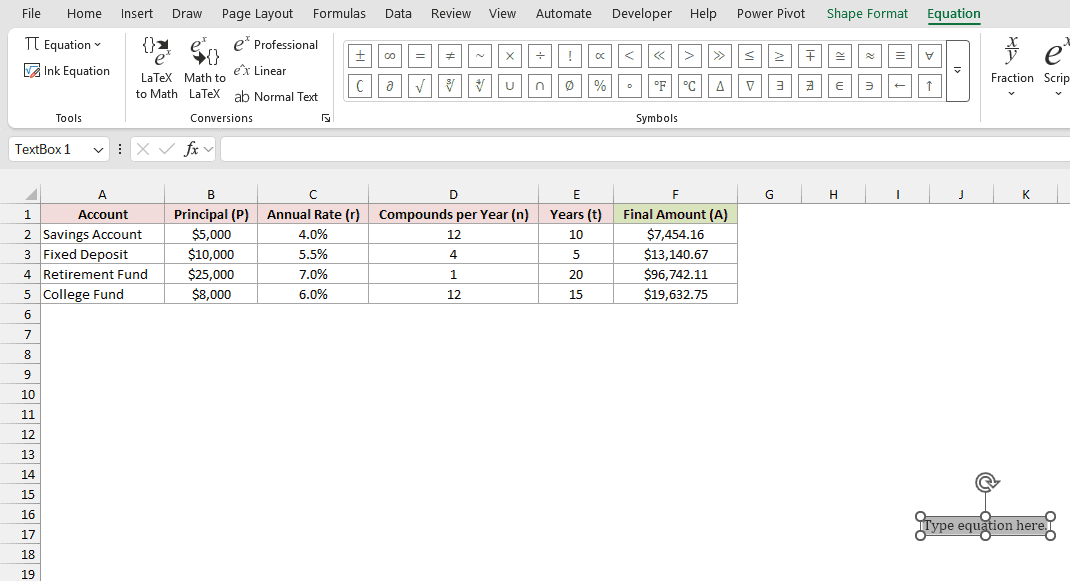
- Type the following text, then press the Space bar.
A=P(1+r/n)^(nt)
Excel builds the equation when you press Space:
- The slash puts r above n in a stacked fraction.
- The caret raises nt as an exponent, without the grouping parentheses.
- Spaces appear around = and + automatically.
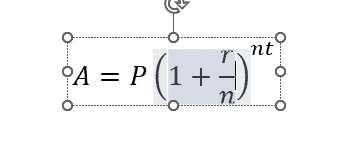
- Drag the equation box by its border so it sits beside the table. Click any cell to finish.

Note: The equation is only a picture of the math. It doesn’t calculate or change when your numbers change. The formula in column F does the work.
To insert a blank equation using the keyboard, press Alt, N, E, then I, one after another.
Method #2: Using the Structures on the Equation Tab
If you’re unsure how to type part of an equation in one line, you can click the layout you need instead.
I find this useful for a stacked fraction or a square root. You can also build a grid of entries called a matrix.
I’ll use r = I / (Pt), which shows the simple interest rate as interest divided by the product of principal and time.
Here’s how to build the fraction using the Structures group:
- On the Insert tab, click the Equation symbol to insert a new equation. Type
r=inside the box.
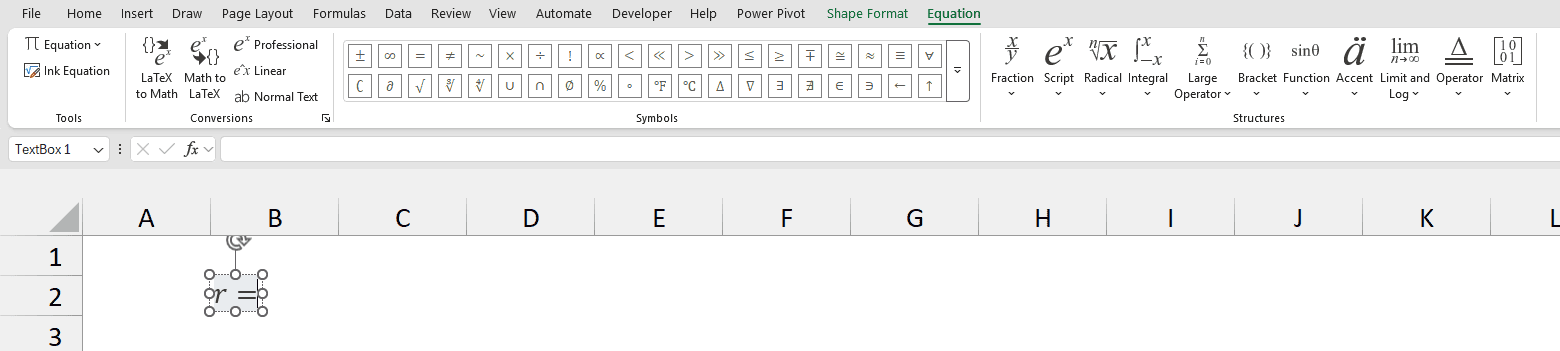
- On the Equation tab, find the Structures group. Click Fraction and choose Stacked Fraction, the first option.
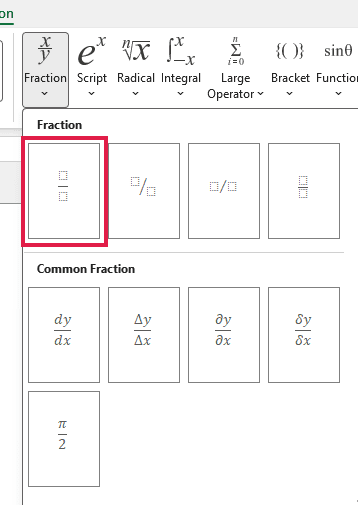
Excel adds a fraction with two empty dotted boxes. These are placeholders where you enter the top and bottom parts of the fraction.
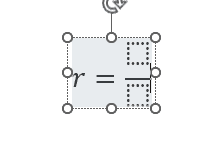
- Click the top placeholder and type
I. Click the bottom placeholder and typePt.
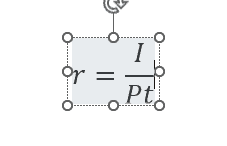
Your equation now shows I above Pt, with r = on the left.
You can build other parts of an equation using these buttons:
- Script adds raised powers called exponents, or small characters below the line called subscripts.
- Radical adds square roots.
- Bracket adds brackets around parts of an equation.
- Matrix adds a grid of entries.
- Large Operator adds sums using symbols such as Σ.
Method #3: Using a Built-In Equation
You don’t always need to build an equation yourself. Excel includes nine ready-made equations that you can insert and edit.
For example, you’ll find Area of Circle and Pythagorean Theorem in the gallery. I’ll insert the Quadratic Formula here.
Here are the steps to add that equation:
- On the Insert tab, click the small arrow under Equation. Click Quadratic Formula in the gallery.
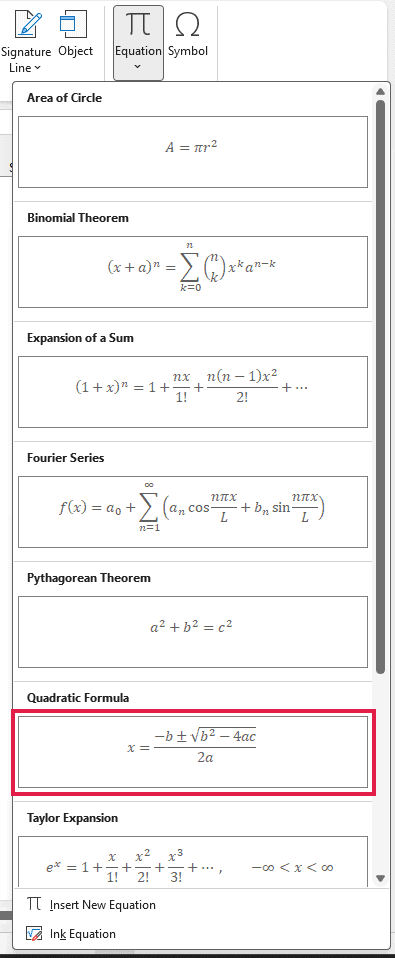
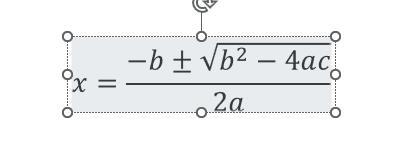
The quadratic formula appears on the worksheet, ready to edit like any other equation.
Method #4: Using Ink Equation (Handwriting)
If you’d rather write your equation by hand, use Ink Equation. A pen or touch screen works best, but you can use a mouse too.
Here’s how to turn your handwriting into an equation on the sheet:
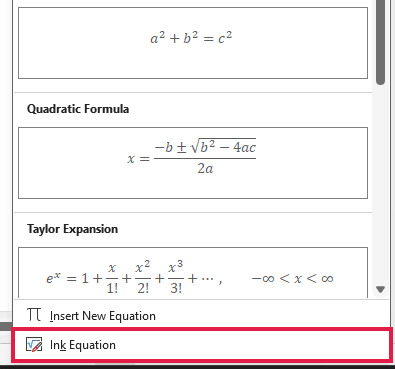
- On the Insert tab, click the arrow under Equation. Click Ink Equation at the bottom of the gallery.
- In the Math Input Control window, write your equation in the yellow area. The preview at the top shows what Excel reads as you write.
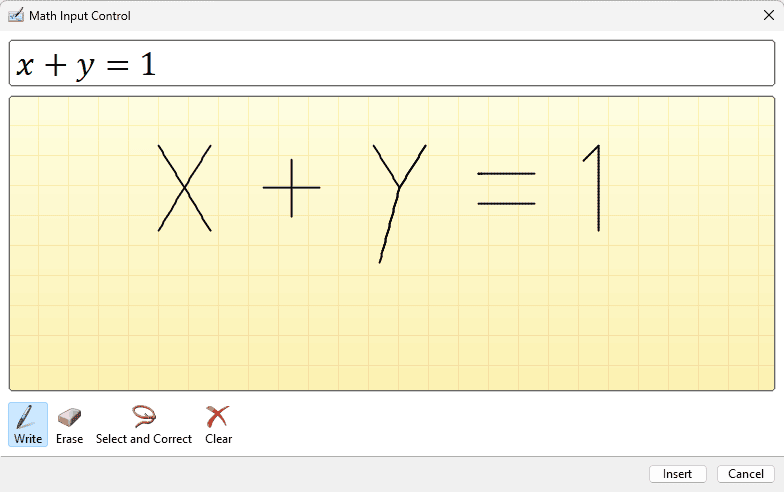
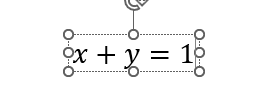
- If Excel reads a character incorrectly, use Erase or Select and Correct to fix it. Click Insert to put the equation on your sheet.
How to Edit an Equation in Excel
Once you’ve inserted an equation, you can change its contents or adjust how it looks. I’ll show you the controls for each.
Change Part of an Equation
Click inside the equation to put the cursor in it. The Equation tab opens while you’re working inside the box.
Select the part you want to change and type over it. You can also use the Symbols or Structures galleries to replace or add parts.
Switch Between Professional and Linear Format
You can view the equation as built-up math with stacked fractions, or as one line of editable text.
Excel calls these Professional and Linear formats. I use Linear when I want to fix a typo in a long equation.
To switch to the one-line view:
- Click inside the equation. On the Equation tab, in the Conversions group, click Linear.
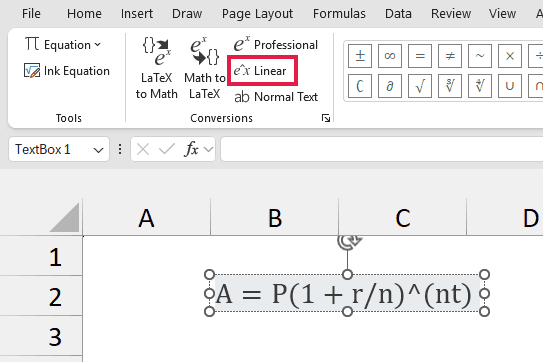
Click Professional in the same group to switch back to the built-up display.
Convert an Equation to LaTeX and Back
Many academic tools use a plain-text way of writing math called LaTeX. You might need it to copy your equation into another tool.
You can also convert LaTeX you already have into a built-up equation. These conversion buttons require Microsoft 365.
Here’s how to turn your equation into LaTeX code:
- Click inside the equation. On the Equation tab, in the Conversions group, click Math to LaTeX.
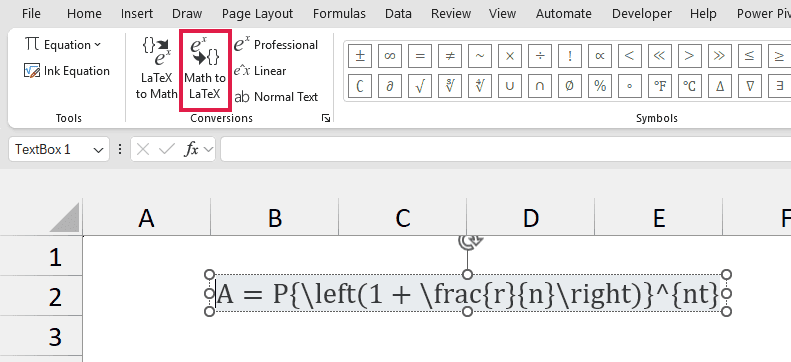
Click LaTeX to Math to convert the code back into a built-up equation.
Make an Equation Bigger
A new equation uses Cambria Math at 11 pt, so it can look small beside your worksheet data.
Here’s how I make the whole equation bigger:
- Click the equation box’s border, rather than inside it, to select the whole box. On the Home tab, change Font Size to 20.
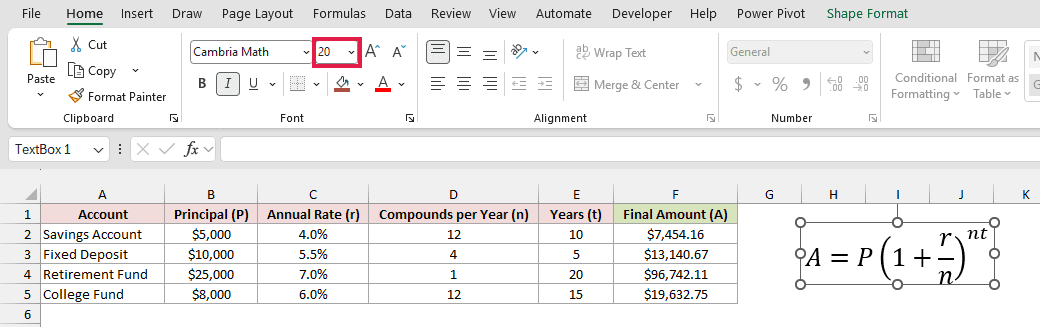
Other Home tab font controls, such as Font Color and Bold, work the same way on a selected equation.
Move or Delete an Equation
You can adjust the equation box as well as the math inside it:
- Drag the box’s border to move it.
- The box grows and shrinks with its content. Use Font Size above to make the equation bigger or smaller, rather than dragging.
- To delete it, click the border and press Delete.
Additional Notes About Equations in Excel
- An equation is a shape that floats above the grid. It isn’t tied to a cell value.
- The formula bar stays empty when you select an equation, because the equation isn’t a cell formula.
- While you work inside an equation, you’ll see Shape Format as well as the Equation tab.
- In older versions of Excel, these tools are on the Design tab under Equation Tools. Ink Equation requires Excel 2016 or later.
- These steps and screenshots use Excel for Microsoft 365 on Windows. The Mac version’s menus differ.
Frequently Asked Questions
Here are answers to a few questions about equation shortcuts and putting math on your worksheet.
Is there a keyboard shortcut to insert an equation in Excel?
In Excel, Alt + = runs AutoSum and inserts a SUM formula. It doesn’t insert an equation.
That shortcut inserts an equation only in Word. For Excel, use the keytips in Method #1.
Can I put an equation inside a cell?
No. An equation always sits in its own box above the cells.
To display a cell’s formula as text in another cell, use the FORMULATEXT function. It shows the formula rather than its calculated result.
How do I add Greek letters or math symbols to an equation?
Click inside the equation where you want the symbol. On the Equation tab, choose it from the Symbols gallery.
You can insert Greek letters such as alpha or pi. The gallery also includes symbols such as plus-minus or infinity.
Conclusion
You can type equations or build them from structures. I’ve also covered built-in equations and Ink Equation, along with editing their contents and appearance.
For most equations, I’d start with Method #1: type the one-line version and let Excel turn it into math.
Other Excel articles you may also like:
