
Calculating years of service in Excel starts with an employee’s hire date and the date you want to measure their service through.
First, decide whether you need completed years or a decimal value. Someone who has worked for 8 years and 11 months has completed 8 years of service, even though their tenure is close to 9 years.
In this article, I’ll show you how to count completed years with DATEDIF, return decimal years with YEARFRAC, and build a service report in Power Query. I’ll also cover an alternative formula that checks whether the employee’s anniversary has passed.
Method #1: Using the DATEDIF Function
I recommend DATEDIF when you want completed years of service. It counts whole years between two dates, so the result increases when the employee reaches their next anniversary.
Below I have eight employees with a Hire Date and a Service Through date. These are the input columns on the Service Summary sheet: names in A2:A9, hire dates in B2:B9, and end dates in C2:C9.
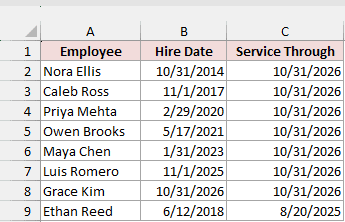
Most rows use October 31, 2026 as the reporting date. Ethan Reed left on August 20, 2025, so his row uses that date instead. This keeps his service from continuing to grow after he leaves.
Enter this formula in D2:
=DATEDIF(B2:B9,C2:C9,"Y")
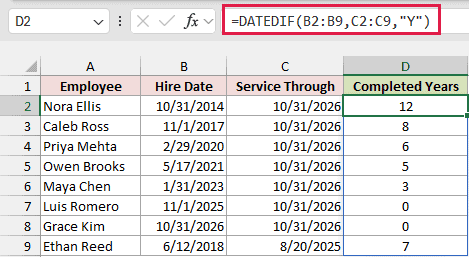
In Microsoft 365, Excel 2024, and Excel 2021, the formula spills down through D9. You enter it once, and Excel calculates a result for each pair of dates. Keep the cells below D2 clear when setting up your own sheet.
The download already contains the formulas and results. You can change the input dates to try another example.
How does this formula work?
DATEDIF takes a starting date, an ending date, and a unit. Here, B2:B9 supplies the hire dates, C2:C9 supplies the service-through dates, and "Y" asks for complete years.
Nora Ellis reaches her anniversary on October 31, 2026, so her result is 12. Caleb Ross started on November 1, 2017. He is one day short of his ninth anniversary, so his result is 8.
Luis Romero has not completed a year, and Grace Kim starts on the reporting date itself. Both return 0.
For Excel 2019 or earlier, use the first row’s references, B2 and C2, in place of the ranges, then copy that formula down. The range-based version above needs dynamic-array support.
Note: The ending date must be on or after the hire date. DATEDIF returns #NUM! when the starting date is later. Check future hires and missing dates before calculating service.
Showing Years and Months
If you want a more descriptive result, you can join completed years with the remaining whole months. On the Service Summary sheet, enter this formula in E2:
=DATEDIF(B2:B9,C2:C9,"Y")&" years, "&DATEDIF(B2:B9,C2:C9,"YM")&" months"
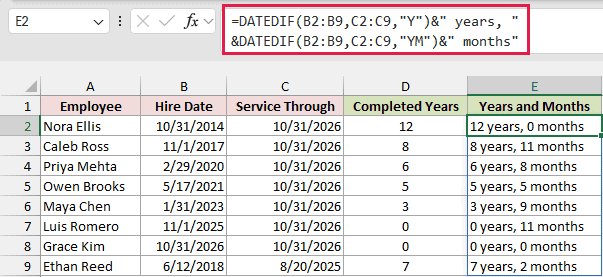
The first DATEDIF returns complete years. The second uses "YM" to return the whole months remaining after those years. The ampersands join the numbers and labels into one text value.
Caleb’s result is 8 years, 11 months. Ethan’s is 7 years, 2 months, measured through his leaving date.
This is useful for a readable staff report. Keep the numeric Completed Years column as well if you need to average or compare the results. The combined text is for display, and it does not include leftover days.
Calculating Service Through Today
For current employees, TODAY can supply the ending date automatically. Below is the Current Staff sheet, with six active employees in A2:A7 and their hire dates in B2:B7.
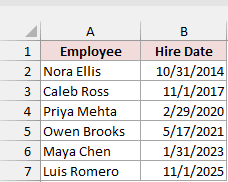
Enter this formula in C2:
=DATEDIF(B2:B7,TODAY(),"Y")
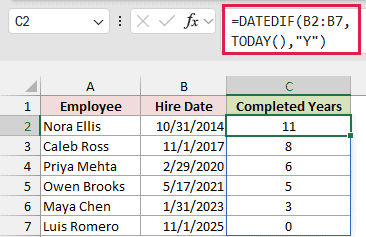
TODAY returns the current date from your computer. DATEDIF then counts completed years from each hire date through that date. The results update when Excel recalculates, including when you reopen the workbook with automatic calculation enabled.
For example, on October 29, 2026, Nora’s result is 11. It becomes 12 on October 31. Your results may differ because your current date is different.
Use a fixed Service Through date for a historical report or someone who has left. The Current Staff example excludes Ethan, who left, and Grace, whose start date was still in the future when the example was prepared.
Method #2: Using the YEARFRAC Function
If you need service as a decimal, YEARFRAC includes the fraction of a year as well. This is useful when a report needs values such as 5.46 years instead of a whole-year count.
Below I have the same employees, hire dates, and service-through dates. We want a decimal-year result for each employee.
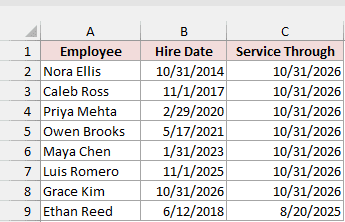
On the Service Summary sheet, the Decimal Years column is F. Enter this formula in F2, then copy it down through F9:
=YEARFRAC(B2,C2,1)
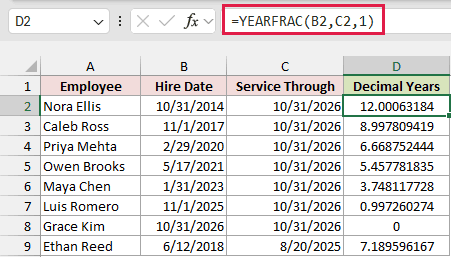
The screenshot isolates the decimal result beside its inputs. In the download, column F sits beside the two DATEDIF result columns.
I use a formula for each row here because YEARFRAC does not spill cleanly with these range inputs. The workbook has the formulas filled down already.
How does this formula work?
B2 is the hire date, C2 is the ending date, and 1 selects the actual/actual day-count basis. YEARFRAC uses the actual days between the dates and accounts for the lengths of the relevant years.
Owen Brooks returns approximately 5.4578 years. Caleb Ross returns approximately 8.9978 years, which is close to 9 because his anniversary is the following day.
You can display fewer decimal places for a report. Formatting the result to two decimals changes what you see, but it does not change the underlying value.
Do not use a rounded decimal to decide whether an anniversary has occurred. Caleb’s value displays as 9.00 at two decimal places even though he has completed only 8 years.
Note: Keep the final argument, 1. Omitting it makes YEARFRAC use the US 30/360 basis, a different day-count convention. For completed anniversaries, use DATEDIF or the next method instead of rounding or truncating a decimal-year estimate.
Method #3: Using YEAR and DATE
You can also count completed years without DATEDIF. The formula subtracts the hire year from the ending year, then checks whether the anniversary has happened yet.
Below is the Anniversary Formula sheet. It contains the same eight employees, with hire dates in B2:B9 and service-through dates in C2:C9.
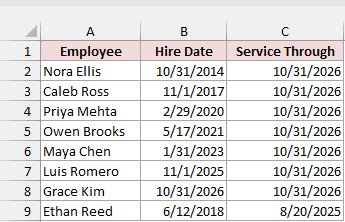
Enter this formula in D2:
=YEAR(C2:C9)-YEAR(B2:B9)-(C2:C9<DATE(YEAR(C2:C9),MONTH(B2:B9),DAY(B2:B9)))
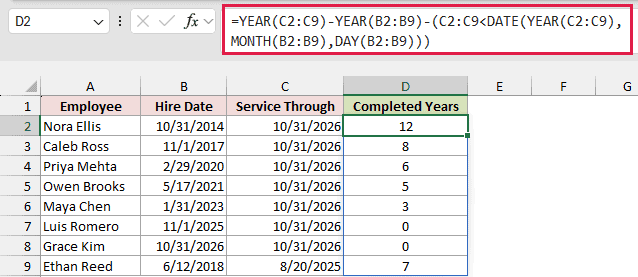
The formula spills through D9 in Excel 2021, Excel 2024, and Microsoft 365. It returns the same completed-year counts as the DATEDIF example.
How does this formula work?
YEAR extracts the year from each date. Subtracting the hire year from the ending year gives an initial count, but that count is one too high if the anniversary is still ahead.
DATE builds each anniversary using the ending year and the hire date’s month and day. MONTH and DAY extract those two parts from the hire date.
The comparison checks whether the service-through date falls before that anniversary. When it does, the comparison returns TRUE, which becomes 1 during subtraction. Otherwise it returns FALSE, which becomes 0.
For Caleb, subtracting 2017 from 2026 gives 9. His anniversary is November 1, and the reporting date is October 31. The formula subtracts 1 and returns 8.
For Nora, the reporting date is her anniversary, so the formula subtracts 0 and returns 12. This extra check is why subtracting the two years alone is not enough.
Note: For a February 29 hire, this formula treats March 1 as the anniversary in a non-leap year. DATE rolls the nonexistent February 29 forward. The DATEDIF and Power Query examples here follow the same convention. Confirm that this matches the convention your report needs.
Method #4: Using Power Query
For a report you rebuild regularly, Power Query can calculate completed years as part of loading the employee data. You refresh the query after changing the source table, and Excel updates a separate results table.
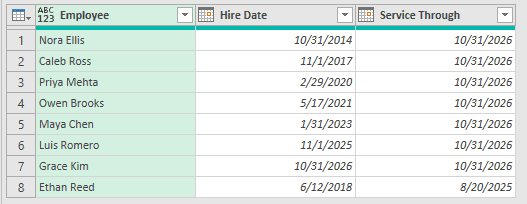
Below I have the employee names, hire dates, and service-through dates for our eight employees. We want to add a Completed Years column without changing the source columns.
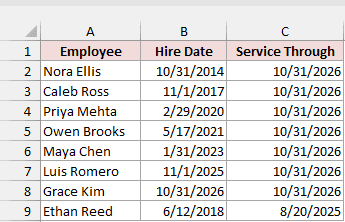
The download already has the ServiceDates table on Query Source and the finished query loaded to Query Results. You can inspect the existing query through Data > Queries & Connections. The steps below show how to build the same query from your own three-column range.
These steps use Excel for Windows. Start with the column names Employee, Hire Date, and Service Through, matching the example.
Here are the steps to build the report:
- Select A1:C9, including the headers.
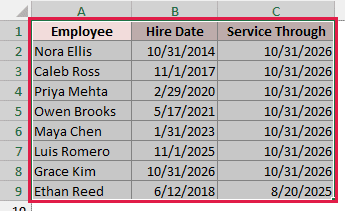
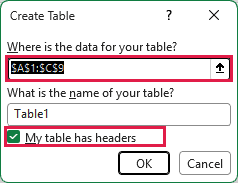
- Press Ctrl+T. Check that the range is correct and My table has headers is selected, then click OK.
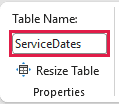
- With a cell in the table selected, open the Table Design tab. Change the Table Name to ServiceDates and press Enter.
- On the Data tab, click From Table/Range to open the table in Power Query Editor.
- In Power Query Editor, select Home > Advanced Editor. Replace the existing code with the code below.
let
    Source = Excel.CurrentWorkbook(){[Name="ServiceDates"]}[Content],
    Dates = Table.TransformColumnTypes(Source,{{"Hire Date", type date}, {"Service Through", type date}}),
    Service = Table.AddColumn(Dates, "Completed Years", each
        let
            start = [Hire Date],
            finish = [Service Through],
            years = Date.Year(finish) - Date.Year(start),
            beforeAnniversary = Date.Month(finish)*100 + Date.Day(finish) < Date.Month(start)*100 + Date.Day(start)
        in years - (if beforeAnniversary then 1 else 0), Int64.Type)
in
    Service
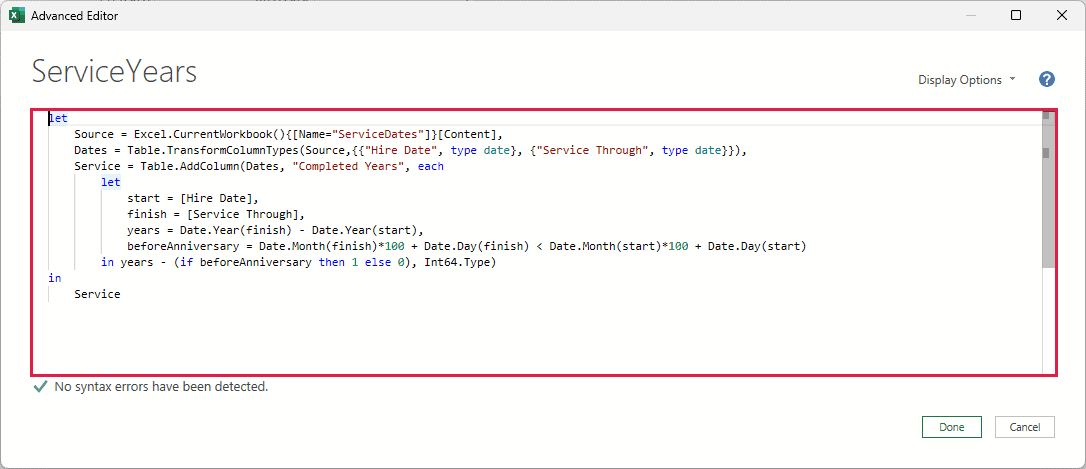
The Source step reads the ServiceDates table. Dates converts both date columns to the Date type. Service adds a whole-number Completed Years column.
Inside that last step, Date.Year calculates the difference between the years. Date.Month and Date.Day create comparable month-and-day numbers. If the ending month and day come before the hire month and day, the calculation subtracts one year.
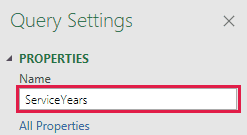
- Click Done to return to the preview. In Query Settings, change the query name to ServiceYears and press Enter.
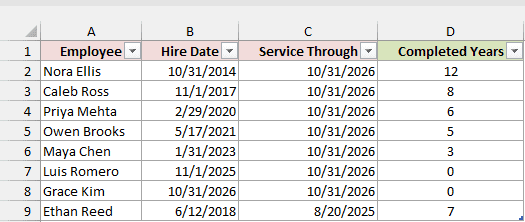
Check the Completed Years column. Nora should have 12, Caleb 8, and Ethan 7. The source columns remain in the result.
- Select Home > Close & Load to load the result to a new worksheet.
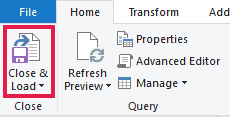
Excel creates a separate results table. In the download, that worksheet is named Query Results.
Change employee dates in the source table, rather than typing over the query’s output. Power Query does not immediately recalculate when you edit a source cell.
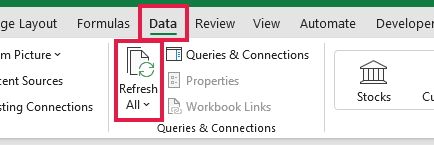
- After changing the source dates, select Data > Refresh All to update the results.
Note: This query expects valid dates and a Service Through date on or after each Hire Date. Correct missing dates or reversed date pairs in the source before using the results. The query does not validate employment records for you.
Additional Notes About Calculating Years of Service in Excel
A few choices affect the report whichever method you use:
- Use real Excel dates rather than text that only looks like a date. The screenshots use month/day/year; your display may follow another regional setting. Check that each ending date is on or after its hire date.
- Keep a consistent reporting date for active employees when comparing tenure at a fixed point in time. Use the leaving date for former employees.
- These examples measure elapsed calendar service. They do not automatically exclude unpaid leave, career breaks, or other periods your reporting rules might omit.
- A result of 0 can be correct. An employee who started less than a year ago has not completed a full year, even if they have worked for several months.
Frequently Asked Questions
These questions come up when you adapt the examples for a larger employee list.
Why Doesn’t DATEDIF Appear in Excel’s Autocomplete?
DATEDIF is a compatibility function retained for older workbooks. It may not appear in formula autocomplete, but you can type its name and arguments directly. Make sure you spell it DATEDIF, with one F, and put the unit in quotation marks.
How Do I Calculate Average Years of Service?
Use the numeric result column for the employees you want to include. Averaging Completed Years gives the average of their whole-year counts. Averaging Decimal Years includes fractional years, so decide which measure your report needs before calculating the average.
How Do I Combine Separate Periods of Employment?
Keep each employment period’s start and end dates separately, then apply your organization’s rule for combining them. Do not add separately rounded-down year counts if partial years should carry over. Two nine-month periods would otherwise both contribute zero completed years.
Conclusion
I’ve covered completed years, years and months, decimal years, and a refreshable Power Query report. For a straightforward count of completed years of service, I’d start with DATEDIF and choose the ending date carefully.
Other Excel articles you may also like:
- How to Subtract Dates in Excel
- How to Calculate Age in Excel From Date of Birth
- How to Convert Days to Years in Excel (Formulas)
- How to Calculate Employee Retirement Dates in Excel
- How to Calculate the Number of Months Between Two Dates in Excel?
- Calculate Date Difference in Power Query (Days, Months, Years)
- Calculate pro rata amounts for partial periods
