
Excel’s ROUNDDOWN function rounds a number toward zero to the specified number of digits.
It always discards the extra digits rather than rounding to the nearest value. For negative numbers, that means the result becomes less negative.
In this article, I’ll show you how to round costs downward, calculate whole units within a budget, and compare results with INT and TRUNC.
ROUNDDOWN Function Syntax in Excel
The ROUNDDOWN function takes a number and rounds it toward zero at the position you specify.
=ROUNDDOWN(number, num_digits)
- number (required) is the number or cell reference you want to round down.
- num_digits (required) sets where Excel rounds. Use a positive number for decimal places, zero for an integer, or a negative number for digits left of the decimal point.
When to Use ROUNDDOWN Function
- Keep a fixed number of decimal places without bumping the last digit up.
- Calculate how many complete items fit within a budget or limit.
- Reduce large values to a lower hundred, thousand, or another place value.
- Count completed periods, such as full years of service.
- Round a value down to a custom multiple by dividing, rounding, and multiplying.
Example 1: Round Unit Costs Down to Two Decimals
Let’s start with unit costs calculated from bulk case prices.
Below is the dataset. Columns B and C contain case prices and quantities, while columns D through F show the raw and rounded unit costs.
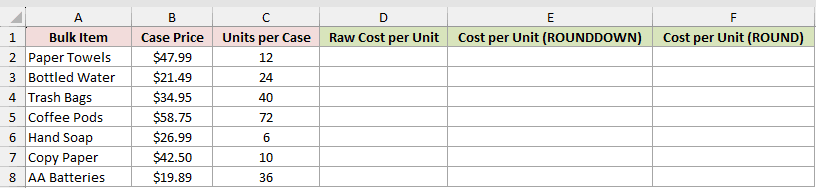
We want to calculate each raw unit cost, round it down to two decimals, and compare it with regular rounding.
First, here is the formula for the raw cost per unit:
=B2:B8/C2:C8
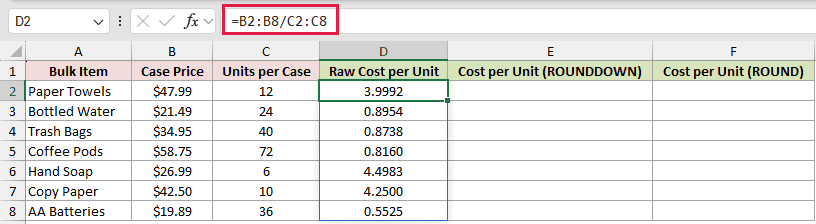
Here is the ROUNDDOWN formula:
=ROUNDDOWN(D2:D8,2)
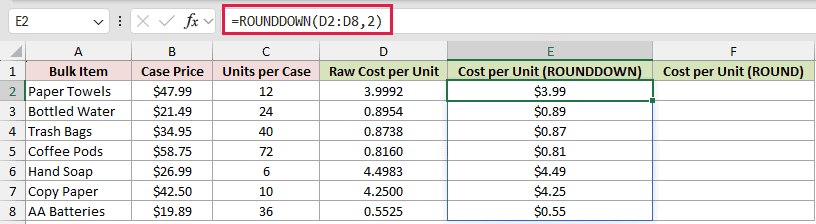
And here is the ROUND formula for comparison:
=ROUND(D2:D8,2)
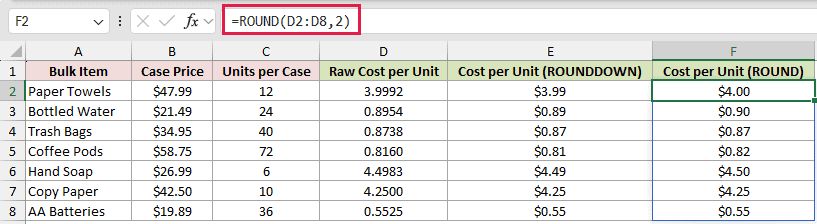
The number 2 tells Excel to keep two decimal places. ROUNDDOWN discards everything after the second decimal without bumping the last digit up.
Paper Towels cost 3.9992 per unit. ROUNDDOWN returns $3.99, while ROUND returns $4.00.
For Bottled Water, the raw cost is 0.8954. The two formulas return $0.89 and $0.90 respectively.
Pro Tip: TRUNC returns the same result as ROUNDDOWN for any number and digit setting. Unlike ROUNDDOWN, TRUNC lets you omit num_digits when you want an integer.
Example 2: Calculate Whole Units Within a Budget
Below is the dataset for a purchasing estimate that must stay within budget. It lists seven safety supplies, their unit prices, available budgets, and a blank results column.
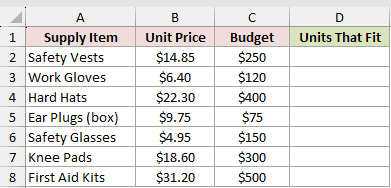
We want to find how many complete units of each supply item the available budget can cover.
Here is the formula:
=ROUNDDOWN(C2:C8/B2:B8,0)
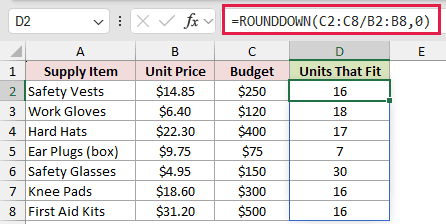
The formula divides each budget by its unit price. A num_digits value of 0 then removes the decimal portion and returns a whole number.
For example, $250 covers 16 Safety Vests at $14.85 each. The seven results are 16, 18, 17, 7, 30, 16, and 16.
INT gives the same answers here because every input is positive. The difference matters when you work with negative numbers, as you’ll see in Example 4.
Example 3: Round Down to Hundreds or Thousands
Now let’s use negative digit settings to reduce contract values by place value.
Below is the dataset. Column B contains seven contract values, while columns C and D will round them down to hundreds and thousands.
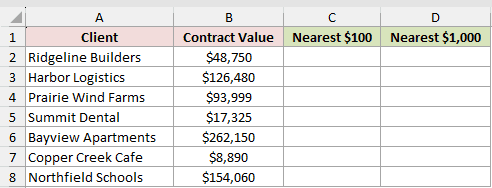
We want to create lower estimates at two different levels of precision.
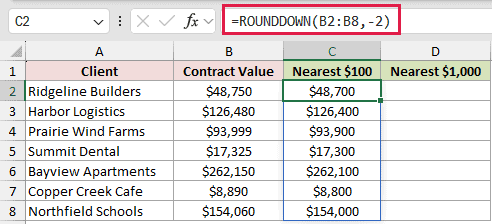
Here is the formula for rounding down to the nearest hundred:
=ROUNDDOWN(B2:B8,-2)
And here is the formula for rounding down to the nearest thousand:
=ROUNDDOWN(B2:B8,-3)
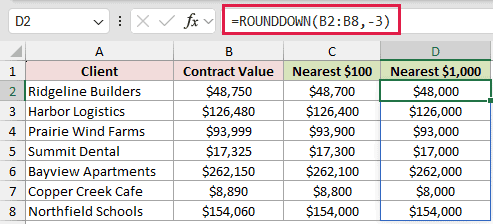
A negative num_digits value moves the rounding position left of the decimal point. The values -2 and -3 target the hundreds and thousands positions.
Ridgeline Builders’ $48,750 contract becomes $48,700 and $48,000. Prairie Wind Farms’ $93,999 contract becomes $93,900 and $93,000.
Pro Tip: ROUNDDOWN changes the stored value. A number format can hide digits on screen, but calculations still use the original number.
Example 4: Compare ROUNDDOWN, INT, and TRUNC
Below is the dataset for comparing positive and negative monthly net cash flows. Column B contains the values, followed by three comparison columns.
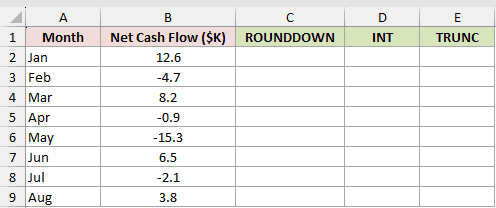
We want to convert each cash flow value to an integer and compare how the three functions treat negative numbers.
Here is the ROUNDDOWN formula:
=ROUNDDOWN(B2:B9,0)
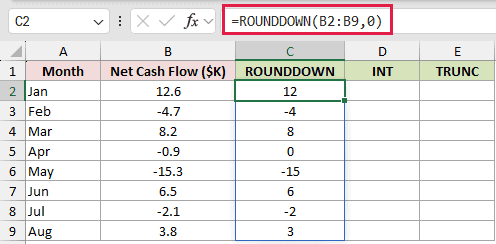
Here is the INT formula:
=INT(B2:B9)
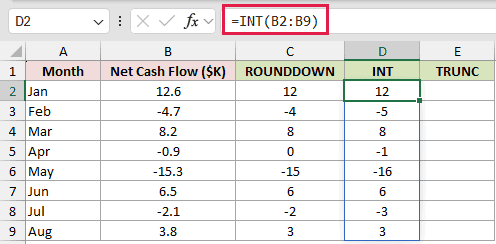
And here is the TRUNC formula:
=TRUNC(B2:B9)
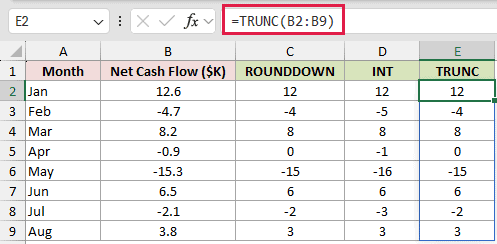
ROUNDDOWN and TRUNC move toward zero. INT moves down toward negative infinity, so its result can be one lower for a negative decimal.
For -4.7, ROUNDDOWN and TRUNC return -4, while INT returns -5. For -0.9, the three results are 0, -1, and 0.
All three functions return the same integer for the positive values in this dataset.
Example 5: Count Full Years of Service
Next, let’s count only completed years between a hire date and a fixed reporting date.
Below is the dataset. Columns A and B list employees and hire dates, column C holds the results, and E2 contains the as-of date.
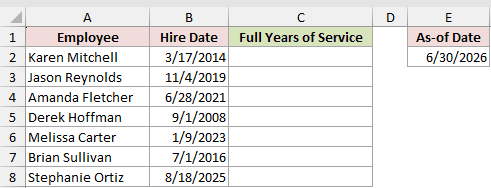
We want to calculate each employee’s full years of service as of June 30, 2026.
Enter this formula in C2, then copy it down through C8:
=ROUNDDOWN(YEARFRAC(B2,$E$2),0)
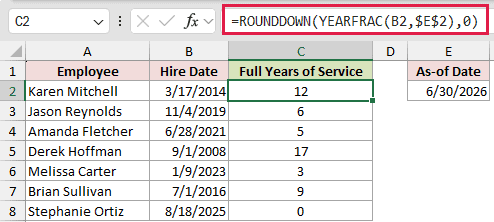
YEARFRAC returns the years between each hire date and the fixed date in E2, including a decimal portion. ROUNDDOWN keeps only completed years.
Karen Mitchell has 12 full years of service. Brian Sullivan’s YEARFRAC result is about 9.997, so ROUNDDOWN returns 9 on the day before his anniversary.
Stephanie Ortiz has not reached her first anniversary, so the formula returns 0.
DATEDIF can calculate completed years more directly with =DATEDIF(B2,$E$2,"Y"). The ROUNDDOWN approach remains useful when you already need YEARFRAC’s decimal-year result.
Example 6: Round Prices Down to 25 Cents
Finally, let’s round menu prices down to the nearest quarter dollar.
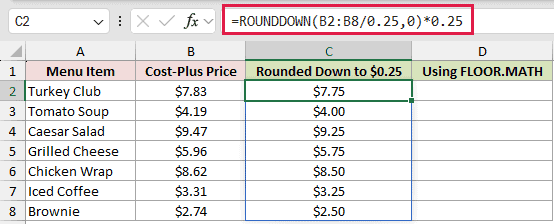
Below is the dataset. Column B contains seven cost-plus prices, while columns C and D will calculate the quarter-dollar values with two methods.
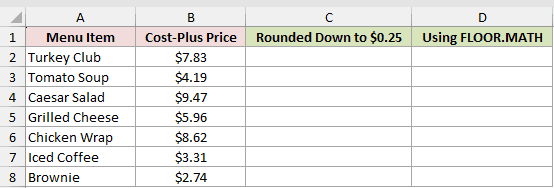
We want to keep each price at a multiple of $0.25 without going above its original value.
Here is the ROUNDDOWN formula:
=ROUNDDOWN(B2:B8/0.25,0)*0.25
And here is the FLOOR.MATH formula:
=FLOOR.MATH(B2:B8,0.25)
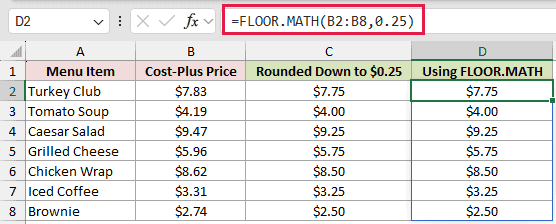
The first formula divides each price by 0.25, rounds the quotient toward zero, then multiplies it by 0.25 to restore the price scale.
The results are $7.75, $4.00, $9.25, $5.75, $8.50, $3.25, and $2.50.
FLOOR.MATH handles the same job in one step, so it is the more direct choice for rounding positive values down to a multiple.
Pro Tip: For negative values, ROUNDDOWN works toward zero. Check whether your rule means toward zero or toward negative infinity before replacing this pattern with another floor function.
Tips & Common Mistakes
- ROUNDDOWN always moves toward zero, while ROUNDUP moves away from zero. For negative numbers, ROUNDDOWN therefore makes the result less negative.
- Use a positive
num_digitsvalue for decimal places, 0 for whole numbers, and a negative value for tens, hundreds, or thousands. - Both arguments are required. Excel will not accept the formula if you omit
num_digits, even when you want to round to an integer. - In Excel 365, range-based formulas spill automatically. Keep the output area empty to avoid a #SPILL! error.
- Do not add
@before a range-based ROUNDDOWN formula unless you deliberately want Excel to return one result instead of a spilled array. - TRUNC matches ROUNDDOWN for the same inputs. INT only matches when the number is positive or already an integer.
The key is simple: ROUNDDOWN always moves values toward zero.
Use the digit setting to choose the rounding position, and check negative values carefully when comparing ROUNDDOWN with INT or floor functions.
Related Excel Functions / Articles:
