
Excel’s RANK function returns a number’s rank within a list, ordered from largest to smallest or smallest to largest.
Tied values receive the same rank, leaving gaps afterward. RANK remains available for compatibility; RANK.EQ returns the same ranks, while RANK.AVG averages the positions occupied by ties.
In this article, I’ll show you how to rank values in either direction, handle ties, and rank products within their categories.
RANK Function Syntax in Excel
Here’s how the RANK function is written:
=RANK(number, ref, [order])
The arguments:
- number – the value you want to rank.
- ref – the range of values to rank against. Lock this with
$when filling the formula down. - [order] – 0 or omitted = descending (largest = rank 1). Use 1 for ascending (smallest = rank 1).
RANK and RANK.EQ produce identical results. RANK.AVG assigns the average rank to tied values instead of the top rank.
When to Use RANK Function
- Add a rank column to a table without re-sorting the data.
- Build a leaderboard where ties are expected and you want to show them at the same rank.
- Rank values from lowest to best (like times, errors, or costs) using the ascending order argument.
- Rank items within sub-groups (e.g., sales by region or products by category) using a SUMPRODUCT wrapper.
- In Excel 365, generate ranks for an entire list in one spilling formula with no fill-down needed.
Example 1: Rank Sales Reps From Highest to Lowest
Let’s start with a simple example.
Below is a table with seven sales reps and their Q1 sales figures. Column A has the rep names, column B has the sales amount, and column C is where the rank will go.
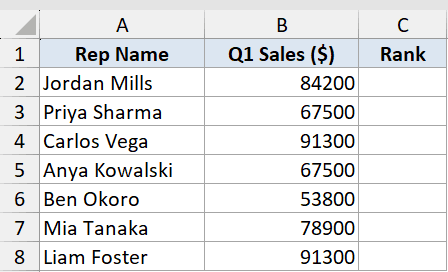
We want to rank each rep from highest to lowest, so rank 1 goes to the top earner.
Here is the formula:
=RANK.EQ(B2,$B$2:$B$8,0)
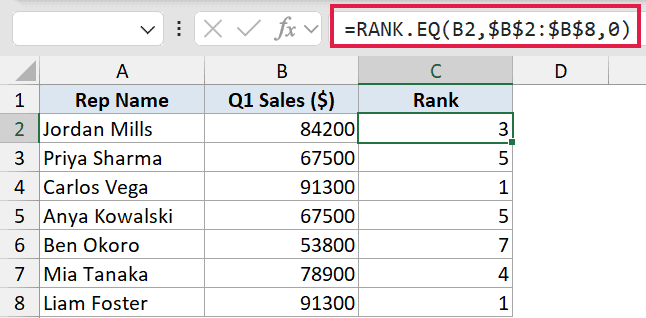
Enter this in C2 and fill it down to C8. The third argument is 0, which gives rank 1 to the largest value.
Jordan Mills (84,200) comes out at rank 3. Carlos Vega and Liam Foster both scored 91,300, the highest in the list, so they both get rank 1. Priya Sharma and Anya Kowalski both have 67,500, so they both get rank 5.
Notice that after two rank-1 ties, the next rank is 3 (not 2). RANK.EQ skips rank 2 entirely because two people already occupy that position. That’s expected behavior.
Pro Tip: RANK and RANK.EQ produce exactly the same results. Prefer RANK.EQ in new formulas. It signals that tied values get the same (equal) rank, which matches what most people expect.
Example 2: Rank Sprint Times From Fastest to Slowest
Here’s a case where lower is better.
Below is a dataset with seven athletes and their 100-meter sprint times. Column A has the athlete names, column B has the time in seconds, and column C is where the rank will go.
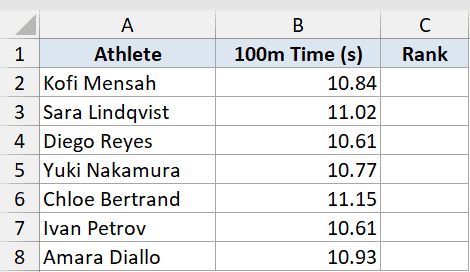
We want rank 1 to go to the fastest runner (lowest time), so we need ascending order.
Here is the formula:
=RANK.EQ(B2,$B$2:$B$8,1)
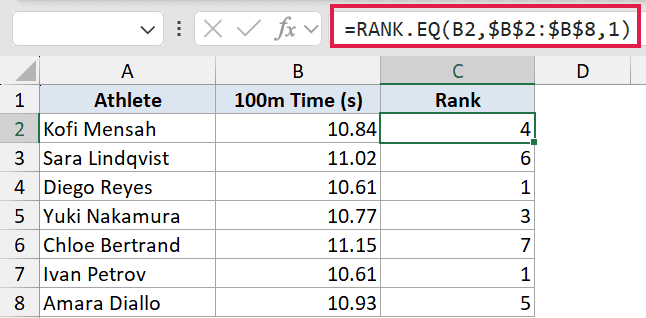
The key change here is the third argument: 1 instead of 0. That flips the order so the smallest value gets rank 1.
Diego Reyes and Ivan Petrov both ran 10.61 seconds, the fastest in the group, so they share rank 1. Kofi Mensah ran 10.84 seconds and lands at rank 4.
The order argument is easy to forget when working with times, costs, or error counts. If your results look reversed, check whether you’ve passed 1 or left it as 0.
Example 3: Handle Tied Scores: RANK.EQ vs RANK.AVG
Let’s look at how different approaches handle ties.
Below is a student scores table. Column A has student names, column B has scores, and columns C, D, and E will show three different ranking methods side by side.
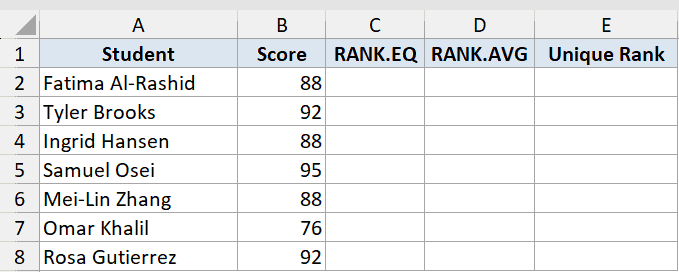
We want to compare what RANK.EQ, RANK.AVG, and a COUNTIF-based unique-rank formula each produce for the same tied scores.
Here are the three formulas:
=RANK.EQ(B2,$B$2:$B$8,0)
=RANK.AVG(B2,$B$2:$B$8,0)
=RANK.EQ(B2,$B$2:$B$8,0)+COUNTIF($B$2:B2,B2)-1
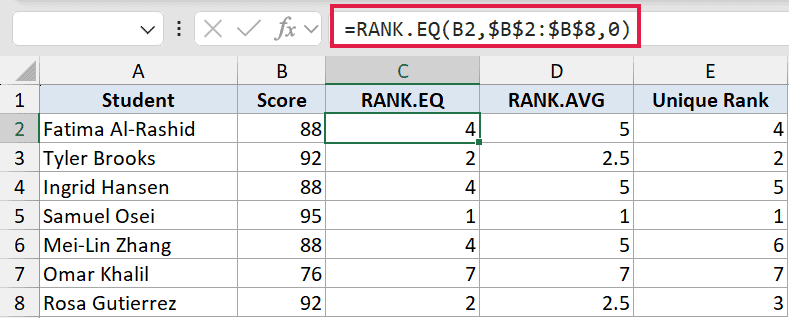
In this dataset, three students (Fatima, Ingrid, and Mei-Lin) all scored 88. Tyler and Rosa both scored 92.
Samuel Osei scored 95 and gets rank 1 across all three methods. Tyler and Rosa at 92 each get rank 2 from RANK.EQ, rank 2 from RANK.AVG, and unique ranks 2 and 3 from the COUNTIF formula.
For the three-way tie at 88:
- RANK.EQ gives all three a 4. Ranks 5 and 6 are skipped.
- RANK.AVG gives all three a 5 (the average of positions 4, 5, and 6).
- COUNTIF trick gives them unique ranks 4, 5, and 6 – in order of appearance in the list.
The COUNTIF formula works by counting how many times the current value has appeared so far in the range, then offsetting the RANK.EQ result. It breaks ties in list order, not alphabetically or by some score tiebreaker.
Pro Tip: Use RANK.EQ when ties should share the top rank (e.g., a leaderboard where two people share 1st). Use the COUNTIF trick when you need unique ranks for every row, like when assigning prizes or slots with no shared positions.
Example 4: Rank Products Within Each Category
Now for a more practical scenario: ranking within sub-groups.
Below is a product revenue table with columns for Product, Category, Revenue, and Category Rank. There are four Electronics items and four Appliances items.
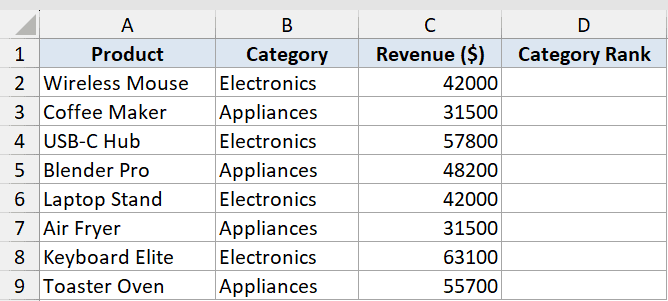
We want each product ranked only within its own category, not against the whole list.
Here is the formula:
=SUMPRODUCT(($B$2:$B$9=B2)*(C2<$C$2:$C$9))+1
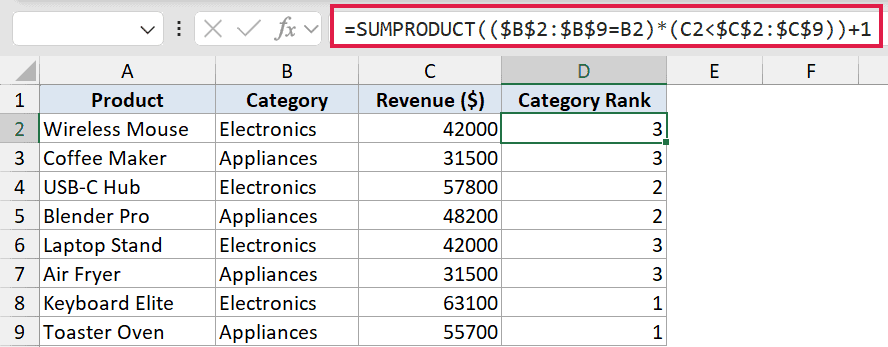
This SUMPRODUCT formula counts how many products in the same category have a higher revenue than the current row. Adding 1 gives you the rank.
Breaking it down:
$B$2:$B$9=B2: checks which rows share the same category.C2<$C$2:$C$9: checks which of those rows have a higher revenue.- Multiply both conditions together and you get a count of products ranked above the current one.
Keyboard Elite (Electronics, 63,100) has the highest revenue in Electronics, so its count is 0 and its rank is 1. Wireless Mouse (42,000) ties with Laptop Stand, so both get rank 3 in Electronics.
This formula works in every version of Excel. In Excel 365, you can do the same thing more directly with the FILTER function:
> =RANK.EQ(C2,FILTER($C$2:$C$9,$B$2:$B$9=B2),0)
This extracts only the current category’s revenue values and ranks the current row against them. Either approach works. The SUMPRODUCT version is the one to know for older Excel versions.
Example 5: Rank Every Value at Once With One Formula
This one is exclusive to Excel 365 and later.
Below is a regional sales table with columns for Region, Manager, Annual Target ($M), and Rank. Seven regions are listed in column A.
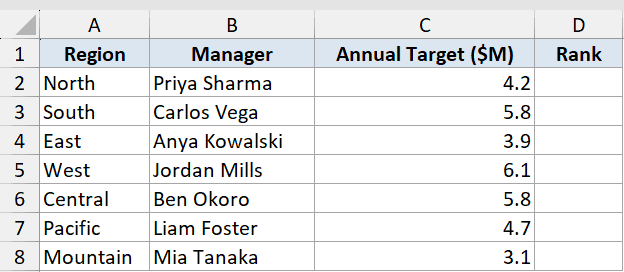
We want to rank all seven regions by their annual target in one step, without filling a formula down.
Here is the formula:
=RANK.EQ(C2:C8,C2:C8,0)
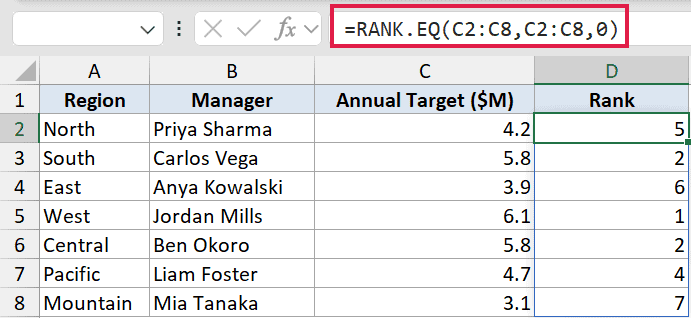
Enter this in D2 and press Enter. Excel 365 spills the results automatically into D2:D8.
The formula passes the full range C2:C8 as both the number and ref argument. Excel evaluates each value in the range against the full range and returns a rank for each.
West (6.1) gets rank 1. South and Central both have 5.8, so they share rank 2. Mountain (3.1) gets rank 7.
This is the same logic as the fill-down version in Example 1, just written once.
Pro Tip: The spilling form only works in Excel 365 and Excel for the web. In older versions (2019, 2016), you still need to enter the formula in the first cell and fill down. RANK returns a single value, so it does not automatically spill in pre-365 Excel.
Tips & Common Mistakes
- Forgetting the order argument when lower is better. RANK defaults to descending (0), so the largest value gets rank 1. If you’re ranking times, costs, error counts, or anything where lower = better, pass 1 as the third argument. Missing this is the most common RANK mistake.
- Ties leave gaps in the sequence. If two values share rank 2, the next rank is 4 – there’s no rank 3. That’s correct behavior, but it can confuse readers. If you need a gapless sequence, use the COUNTIF trick from Example 3 or use RANK.AVG for averaged ranks.
- Not locking the ref range with $. When filling the formula down, the ref range must stay fixed. Use
$B$2:$B$8– notB2:B8. Without dollar signs, the range shifts with each row and you’ll get wrong ranks for rows near the bottom.
- RANK is legacy – prefer RANK.EQ. RANK still works in modern Excel, but RANK.EQ is the current name. Use it going forward. If you also need to handle ties with averaged positions, RANK.AVG is the right tool.
- RANK.EQ vs RANK.AVG for statistical purposes. RANK.EQ assigns all tied values the same top rank (e.g., three values tied at rank 4 all get 4). RANK.AVG assigns the average rank (those three get rank 5, the midpoint of positions 4-6). For most business use cases, RANK.EQ is what you want. For statistical analysis where ranks feed into further calculations, RANK.AVG is more accurate.
- Rank vs percentile. RANK tells you a value’s position in a list. If you need to express that position as a proportion (e.g., top 10%), the PERCENTILE function is the complementary tool.
- Randomize a list using RANK. You can combine RAND with RANK to generate random numbers without duplicates – useful when you need to shuffle a list or assign random order to items.
Now you know how to use RANK, RANK.EQ, and RANK.AVG, from basic descending sorts to tied-value handling, within-group rankings, and the single-formula spill in Excel 365. The COUNTIF trick and SUMPRODUCT approach give you solid fallbacks for older Excel versions too.
Related Excel Functions / Articles:
