
The IMDIV function in Excel divides one complex number by another and returns the quotient as text in rectangular form.
It handles the arithmetic behind tasks such as AC circuit calculations, where values often use i or j to identify the imaginary part.
In this article, I’ll show you how to calculate AC circuit values, round text results, and diagnose common #NUM! errors.
IMDIV Function Syntax in Excel
The IMDIV function uses this syntax:
=IMDIV(inumber1,inumber2)
- inumber1 (required) is the complex numerator, or dividend.
- inumber2 (required) is the complex denominator, or divisor.
Both arguments can be plain numbers or complex values written with a lowercase i or j suffix.
When to Use IMDIV Function
- Divide complex numbers stored as text without working through the conjugate calculation by hand.
- Calculate AC current by dividing voltage by complex impedance.
- Combine parallel impedances with IMPRODUCT, IMSUM, and IMDIV.
- Find the reciprocal of a complex number by using 1 as the numerator.
- Rebuild a long text result as a shorter, rounded complex number.
Example 1: Divide Two Complex Numbers
Let’s start with the basic calculation and see what IMDIV returns.
Below is the dataset. Columns B and C contain six dividend and divisor pairs, while column D is ready to hold their quotients.
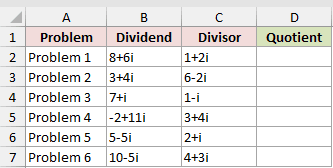
We want to divide each value in column B by the complex number beside it in column C.
Here is the formula entered in D2 and copied down:
=IMDIV(B2,C2)
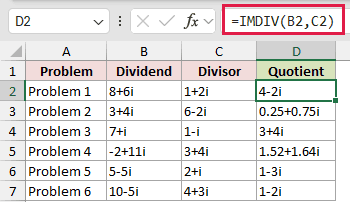
IMDIV treats the first argument as the dividend and the second as the divisor. Reversing them changes the answer.
For Problem 1, dividing 8+6i by 1+2i returns 4-2i. Problem 2 returns 0.25+0.75i.
Excel calculates the quotient using the usual complex-number conjugate method, but you don’t need to build those intermediate steps yourself.
Pro Tip: IMDIV returns text, even when the result looks like an ordinary number. Use IMREAL and IMAGINARY to extract numeric parts before later arithmetic.
Example 2: Calculate AC Current From Impedance
Here’s a practical electrical calculation using j notation.
Below is the dataset. It lists each load’s voltage, resistance, and reactance, with column E ready to show the calculated current.
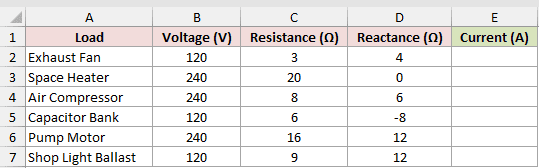
We want to build each complex impedance from columns C and D, then divide the voltage by that impedance.
Here is the formula entered in E2 and copied down:
=IMDIV(B2,COMPLEX(C2,D2,"j"))
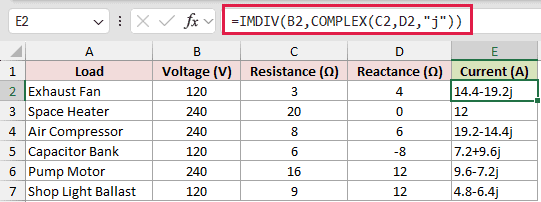
COMPLEX joins the resistance and reactance into one denominator using the j suffix. IMDIV then divides the voltage by that impedance.
The plain voltage number is treated as a real value with no imaginary component. The result keeps j because the impedance uses j.
The Exhaust Fan returns 14.4-19.2j amps. The Space Heater has no reactance, so its result is the real value 12.
The Capacitor Bank uses negative reactance and returns 7.2+9.6j, so the imaginary part of its current is positive.
Example 3: Find Parallel Circuit Impedance
Now let’s combine IMDIV with two other complex-number functions.
Below is the dataset. Columns B and C hold two branch impedances for each circuit, while column D will hold their combined impedance.
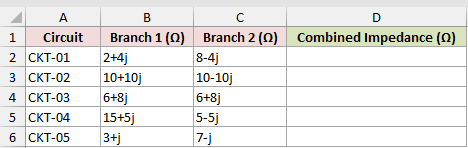
We want to calculate the equivalent impedance for each pair of parallel branches.
Here is the formula entered in D2 and copied down:
=IMDIV(IMPRODUCT(B2,C2),IMSUM(B2,C2))
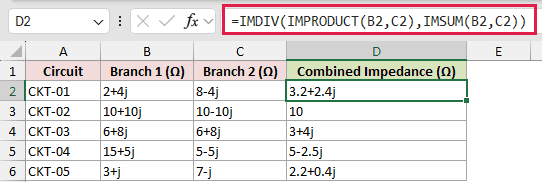
IMPRODUCT multiplies the two branch impedances. IMSUM adds them, and IMDIV divides the product by the sum.
That product-over-sum pattern is the standard two-branch parallel calculation. A regular division operator cannot perform it on complex values stored as text.
Circuit CKT-01 returns 3.2+2.4j. Two identical 6+8j branches in CKT-03 combine to 3+4j, exactly half of either branch.
Example 4: Round an IMDIV Result
Long decimal strings can make complex results hard to scan, so this example adds a rounded version.
Below is the dataset. It contains output and input voltages across six frequencies, with columns D and E reserved for raw and rounded transfer ratios.
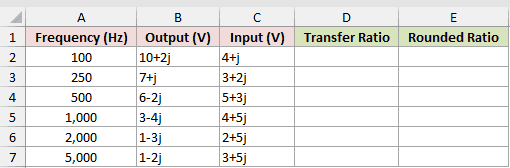
We first want the unrounded ratio between each output voltage and input voltage.
Here is the formula entered in D2 and copied down:
=IMDIV(B2,C2)
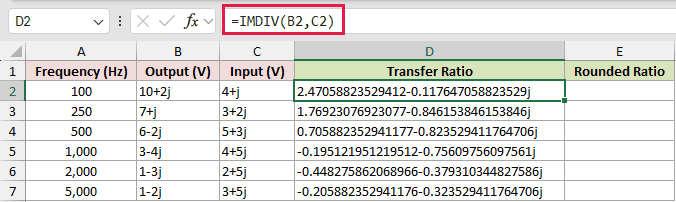
The first result is 2.47058823529412-0.117647058823529j. Changing the cell’s number format won’t shorten it because IMDIV returns text.
We therefore extract both numeric parts, round them, and rebuild the complex number.
Here is the formula entered in E2 and copied down:
=COMPLEX(ROUND(IMREAL(D2),2),ROUND(IMAGINARY(D2),2),"j")
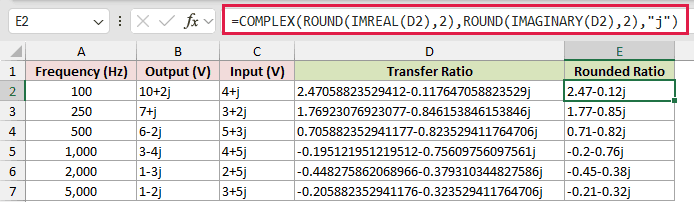
IMREAL and IMAGINARY extract numbers from the raw quotient. ROUND shortens each part to two decimal places, and COMPLEX rebuilds the result with j.
The first rounded ratio is 2.47-0.12j. At 5,000 Hz, the rounded ratio is -0.21-0.32j.
Pro Tip: Pass "j" to COMPLEX when your source data uses electrical notation. Otherwise, COMPLEX uses i by default.
Example 5: Spill Complex Reciprocals With MAP
This example handles a whole impedance column with one formula.
Below is the dataset. Column B contains six component impedances, while column C is ready to receive their admittance values.
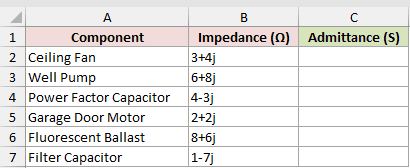
We want to find each impedance’s reciprocal and spill all six results from C2.
Here is the formula:
=MAP(B2:B7,LAMBDA(z,IMDIV(1,z)))
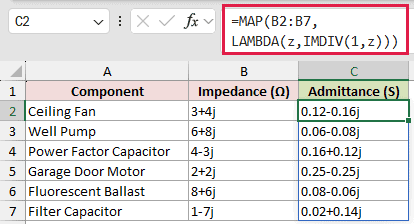
Excel has no IMRECIPROCAL function, so IMDIV divides 1 by each impedance to return its reciprocal.
MAP passes each cell from B2:B7 to LAMBDA as z. The formula returns six values in C2:C7 from one formula cell.
The Ceiling Fan returns 0.12-0.16j siemens. The Filter Capacitor returns 0.02+0.14j siemens.
Passing a range directly to IMDIV returns one #VALUE! and does not spill, which is why MAP does the row-by-row work here.
Pro Tip: MAP and LAMBDA are available in Microsoft 365 and Excel 2024. In Excel 2021 or earlier, enter =IMDIV(1,B2) and copy it down.
Example 6: Diagnose IMDIV #NUM! Errors
Finally, let’s put valid and invalid complex-number formats beside each other.
Below is the dataset. It pairs six dividends and divisors, including three deliberate mistakes, with column D ready to show each quotient or error.
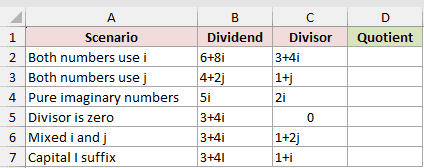
We want to see which pairs IMDIV accepts and why the remaining pairs fail.
Here is the formula entered in D2 and copied down:
=IMDIV(B2,C2)
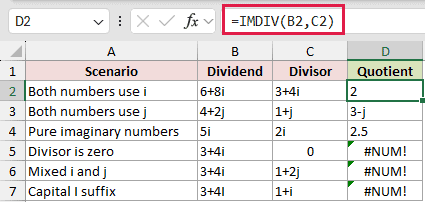
The first three rows are valid. Matching i suffixes return 2, matching j suffixes return 3-j, and two pure imaginary values return 2.5.
The last three rows deliberately return #NUM!. The causes are a zero divisor, mixed i and j suffixes, and an uppercase I suffix.
Notice that division by zero returns #NUM!, not #DIV/0!. IMDIV also requires a lowercase suffix, and both inputs must use the same one.
Pro Tip: Fix the invalid complex number before wrapping IMDIV with IFERROR. Hiding the error can make a bad suffix or zero divisor much harder to spot.
Tips & Common Mistakes
- IMDIV returns text. A number format cannot round its real and imaginary parts, so use the extraction and rebuilding method from Example 4.
- Enter
iorjin lowercase and use the same suffix in both arguments. A capital suffix or mixed suffixes returns#NUM!. - A zero divisor returns
#NUM!, not#DIV/0!. Check the denominator before assuming a standard division error occurred. - Direct range input is not supported. Fill the IMDIV formula down, or use MAP with LAMBDA in Microsoft 365 or Excel 2024.
- Spaces inside complex text are accepted. Look for a zero divisor or a suffix problem before blaming spaces for an error.
- Use 1 as the numerator when you need the reciprocal of a complex number. Excel does not have an IMRECIPROCAL function.
- Use IMSUB to subtract complex numbers, IMABS for a quotient’s magnitude, or IMARGUMENT with DEGREES for its angle as a numeric value.
For a reusable rounded result, extract both numeric parts first and rebuild the complex number with COMPLEX.
Other Excel articles you may also like:
