
The MONTH function in Excel returns the month number, from 1 to 12, for a date.
That helps group records by month or build date-based conditions. The result does not include the year, so use care when summarizing data spanning several years.
In this article, I’ll show you how to identify a target month, filter records by month and year, and number months within a fiscal year.
MONTH Function Syntax in Excel
Here is the syntax of the MONTH function:
=MONTH(serial_number)
serial_numberis the Excel date whose month you want to return. This argument is required.
Excel stores dates as serial numbers even when they display as familiar calendar dates. MONTH reads that stored value and returns an integer from 1 through 12.
Use a proper Excel date, cell reference, or formula result. A text date can be interpreted differently under another regional setting.
MONTH returns a number. If you need a label such as January or Jan, use TEXT or a custom number format instead.
When to Use MONTH Function
Use MONTH when you need to:
- Extract numeric months from one date or a range of dates.
- Flag records that occur in a target month.
- Filter data by both month and year.
- Check whether two dates fall in the same calendar month.
- Convert calendar months into fiscal month numbers.
- Build a sorted list of distinct active months.
Example 1: Extract Month Numbers from Dates
MONTH is the simplest choice when a complete date needs to become a numeric month.
The dispatch list below contains seven dates spread across 2026.
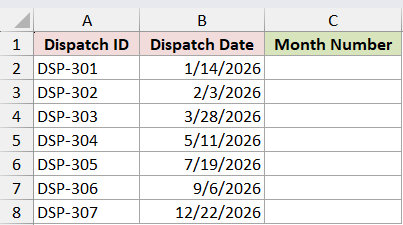
I want to return the month number for every dispatch date.
Here is the formula:
=MONTH(B2:B8)
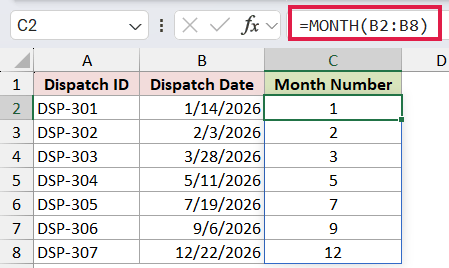
MONTH reads the seven dates in B2:B8 and spills the results into C2:C8.
The returned values are 1, 2, 3, 5, 7, 9, and 12. January 14 returns 1, while December 22 returns 12.
These results are numbers that you can sort, compare, or use in calculations. Changing the display format of column B does not change them.
Example 2: Flag Dates in a Target Month
You can compare MONTH with a target number to identify records from one month.
This campaign schedule contains launch dates from July through November 2026.
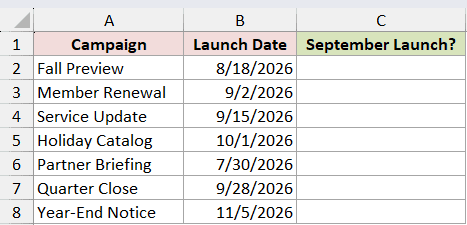
I want to flag every campaign scheduled for September.
Here is the formula:
=IF(MONTH(B2:B8)=9,"Yes","No")
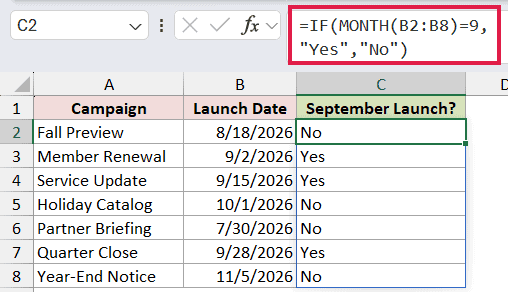
MONTH returns each launch month, and IF checks whether it equals 9. The results spill into C2:C8.
Member Renewal, Service Update, and Quarter Close return Yes because their dates fall in September. The other four campaigns return No.
Pro Tip: A MONTH-only test ignores the year. When the data spans several years and you need one specific month, include a YEAR condition or use start-date and end-date boundaries.
Example 3: Filter Records by Month and Year
MONTH can supply one criterion to FILTER, while YEAR prevents matching the same month in another year.
The renewal table below includes June records from both 2025 and 2026, along with dates from other months.
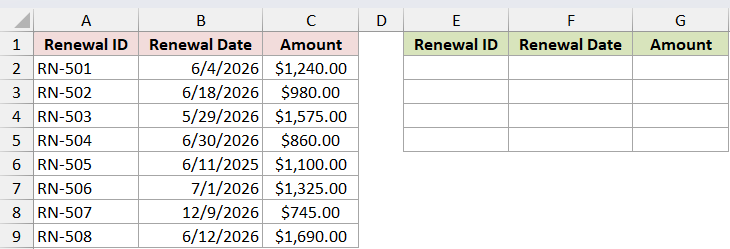
I want to return only the June 2026 renewals.
Here is the formula:
=FILTER(A2:C9,(MONTH(B2:B9)=6)*(YEAR(B2:B9)=2026),"No renewals")
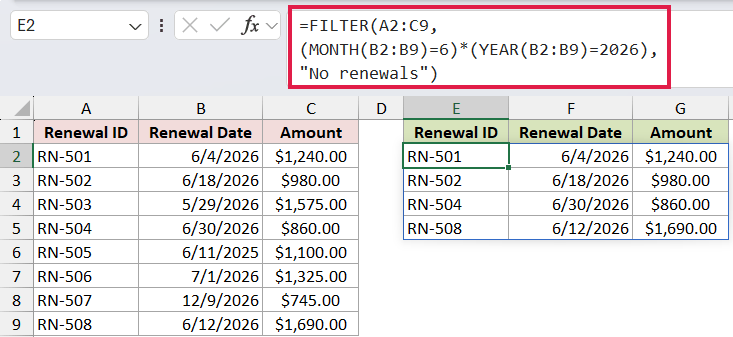
The two comparisons create TRUE and FALSE arrays. Multiplication acts as AND, so a row is included only when both the month and year match.
The FILTER function returns RN-501, RN-502, RN-504, and RN-508 with their dates and amounts. The June 2025 renewal is excluded.
For a fixed reporting period, direct date boundaries are often safer because they work as one continuous interval and avoid separate month and year calculations.
Example 4: Compare Two Dates by Calendar Month
Comparing month numbers alone is not enough when paired dates can cross a year boundary.
This contract table lists a start date and review date for seven records.
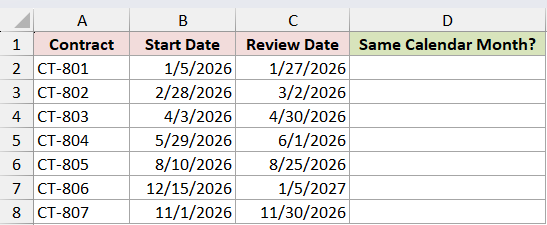
I want to check whether each pair falls in the same calendar month and year.
Here is the formula:
=IF((MONTH(B2:B8)=MONTH(C2:C8))*(YEAR(B2:B8)=YEAR(C2:C8)),"Yes","No")
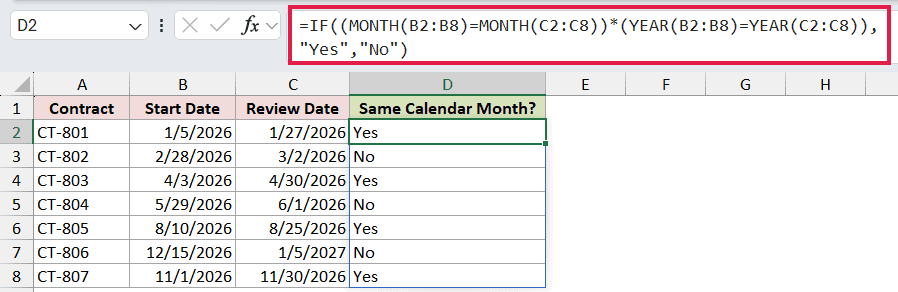
The first comparison checks the month numbers, and the second checks the years. Both must be TRUE for IF to return Yes.
CT-801, CT-803, CT-805, and CT-807 return Yes. CT-806 returns No because December 2026 and January 2027 are different calendar months and years.
An equivalent option is to compare the month-end dates returned by the EOMONTH function. Matching month ends mean both dates belong to the same calendar month and year.
Example 5: Number Months in a Fiscal Year
MOD can shift calendar month numbers when a fiscal year starts somewhere other than January.
The ledger below uses an April-to-March fiscal year. April should be month 1, and March should be month 12.
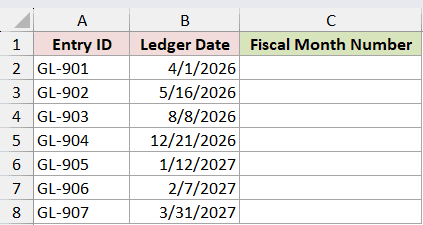
I want to return the fiscal month number for each ledger date.
Here is the formula:
=MOD(MONTH(B2:B8)-4,12)+1
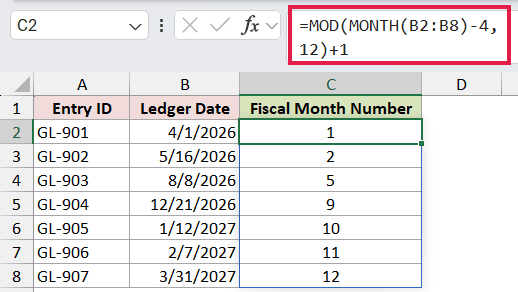
MONTH supplies the calendar month number. Subtracting 4 makes April the starting point, and MOD wraps January through March to the end of the 12-month cycle.
Adding 1 changes the zero-based remainder into a 1-through-12 month number. The results are 1, 2, 5, 9, 10, 11, and 12.
For another fiscal start month, replace 4 with that month’s number.
Example 6: List Unique Active Months
MONTH can feed UNIQUE and SORT to create a compact list for reporting or validation.
The service log below has ten dates, with several repeated months.
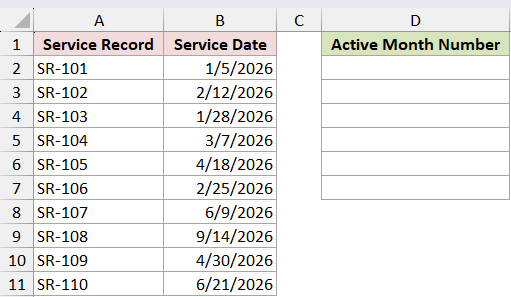
I want one ascending list that contains each active month number once.
Here is the formula:
=SORT(UNIQUE(MONTH(B2:B11)))
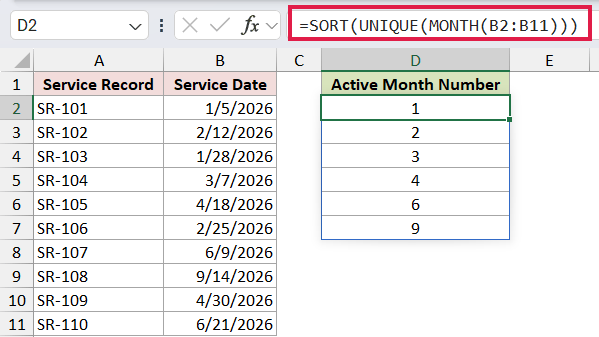
MONTH first returns ten month numbers. The UNIQUE function removes repeated values from that array.
The SORT function arranges the remaining numbers in ascending order. The result spills into D2:D7 as 1, 2, 3, 4, 6, and 9.
Keep the cells below D2 empty so the six-item result has room to spill.
Tips & Common Mistakes
- Use real Excel dates rather than typing ambiguous date text inside MONTH.
- MONTH returns a number from 1 through 12, not a month name.
- A month-only comparison ignores the year. Add YEAR or use date boundaries when the year matters.
- Remember that date formatting changes appearance only. MONTH reads the stored date serial number.
- MONTH returns Gregorian month values even when the supplied date uses another display calendar.
- Keep the result area empty when a range formula spills in current Excel.
- Use direct date boundaries for fixed reporting periods when you want the clearest inclusion rules.
I covered month extraction, target-month flags, filtered records, paired-date checks, fiscal months, and unique month lists. I hope you found this article helpful.
Related Excel Functions / Articles:
