
A slicer is the easy way to filter a PivotTable or Table in Excel, so it’s annoying when the button is greyed out or the slicer stops responding.
The cause usually isn’t the slicer itself.
It’s usually a setting nearby, like an old file format, a protected sheet, or a PivotTable that reads from a different copy of the data.
Each symptom has its own short list of causes, so you can go straight to the one you’re seeing.
In this article, I’ll show you how to fix a greyed-out Insert Slicer button, a PivotTable missing from Report Connections, and a slicer that shows old items or won’t filter.
Find Your Symptom
Here’s a quick map of what you might be seeing and where to look first.
| What you see | Most likely cause |
|---|---|
| Insert Slicer is greyed out | Compatibility Mode, an old PivotTable, a protected sheet, or grouped sheets |
| Excel shows “No connections found” | The selected cell isn’t inside a Table or PivotTable |
| Report Connections is greyed out or a PivotTable is missing | A Table slicer, or PivotTables on different data caches |
| The slicer doesn’t change your totals | A SUM formula, an unconnected PivotTable, or manual calculation |
| Old items stay, or new ones never show up | The PivotTable needs a refresh, a wider source range, or new retain settings |
| Some slicer buttons are grey | Another slicer is filtering the data (this is normal) |
| Clicking the slicer does nothing | The slicer is locked on a protected sheet |
| The slicer vanished | Hidden objects, hidden rows, or a file saved as .xls |
Insert Slicer Is Greyed Out
This is the most common slicer problem. Excel greys out the Slicer button whenever something about the file or the sheet blocks new objects.
Fix #1: Converting a Compatibility Mode File
Slicers need the modern Excel file format.
If your workbook is an old .xls file, Excel opens it in Compatibility Mode and switches off features that the old format can’t store.
You can spot this in the title bar, where Excel shows Compatibility Mode next to the file name.
The Slicer button on the Insert tab stays grey no matter where you click.

Here are the steps to convert the file:
- Go to File and click Save As.
- In the Save as type drop-down, choose Excel Workbook (*.xlsx) and click Save.

- Close the workbook and open the new .xlsx file.
After you reopen it, the Compatibility Mode label is gone and the Slicer button works again.
You can also go to File > Info and click Convert, which converts the workbook in place instead of saving a copy.
Note: Going the other way deletes your slicers. When I saved a workbook with slicers as .xls and reopened it, every slicer was gone. Keep slicer workbooks as .xlsx.
Fix #2: Rebuilding a PivotTable Made in an Older Version
Sometimes the file is a proper .xlsx and the Slicer button still won’t light up for one PivotTable.
That usually means the PivotTable itself was created in an older version of Excel.
Excel stores each PivotTable with the version it was made in.
Slicers only work with PivotTables from Excel 2007 or later, and an old PivotTable keeps its old version even inside an .xlsx file.
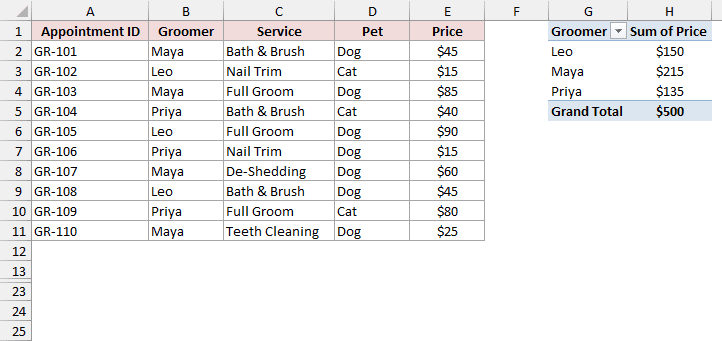
Below I have a dataset of grooming appointments at a pet salon, with a PivotTable next to it that shows the total price by groomer.
This PivotTable was created in the Excel 2003 format.
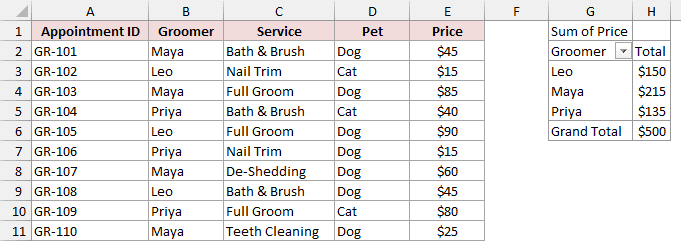
When I select a cell in this PivotTable, Insert Slicer on the PivotTable Analyze tab is greyed out.

The fix is to build a fresh PivotTable from the same data. Here are the steps:
- Select any cell in the dataset (A1:E11 here).
- Go to Insert and click PivotTable. Choose where to place it and click OK.
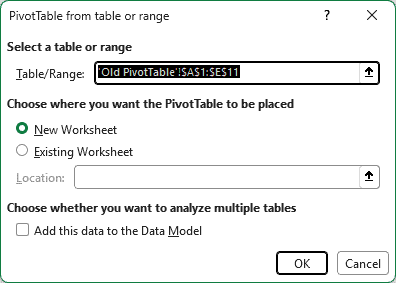
- Add the same fields as the old PivotTable (Groomer to Rows and Price to Values), then delete the old one.
The new PivotTable is created in the current format, so Insert Slicer works on it straight away.
Fix #3: Unprotecting the Sheet
A protected sheet blocks new objects, and slicers count as objects.
When the sheet is protected, the Slicer button is greyed out even with a cell inside a Table or PivotTable selected.

To fix this, go to the Review tab and click Unprotect Sheet. If the sheet has a password, Excel asks for it.
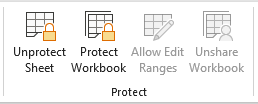
Once you’ve added the slicer, you can protect the sheet again. Fix #17 below shows which options to tick so the slicer still works on a protected sheet.
Fix #4: Ungrouping the Selected Sheets
If you’ve selected more than one sheet tab, Excel treats them as a group and turns off a lot of commands, including Insert Slicer.
You’ll see Group in the title bar next to the file name when this happens.
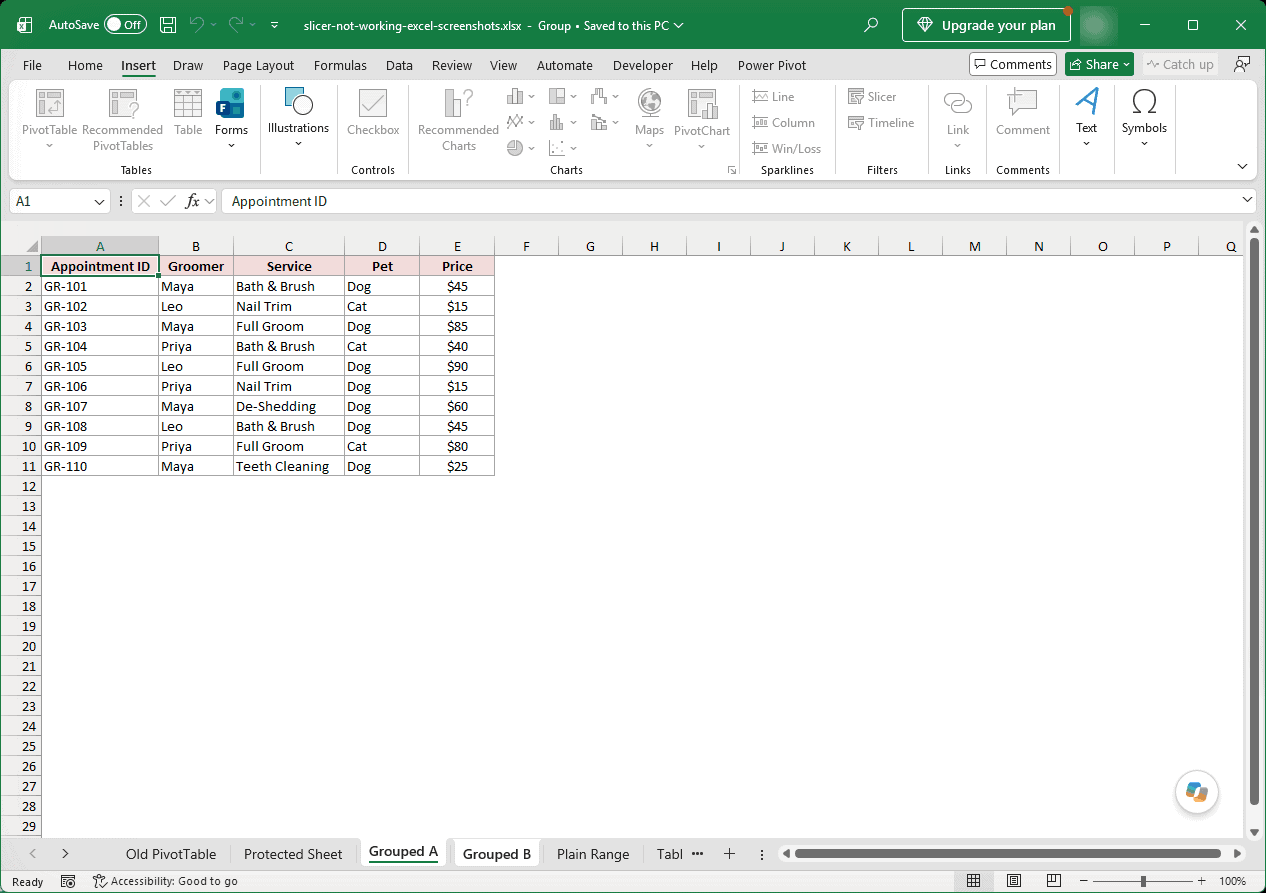
To ungroup the sheets, right-click any selected sheet tab and choose Ungroup Sheets. You can also click a sheet tab that isn’t part of the group.
Fix #5: Showing Hidden Objects (Ctrl+6)
Excel has a setting that hides every object in the workbook, including charts, shapes, and slicers. While objects are hidden, the Slicer button is greyed out too.
It’s easy to switch on by accident, because the keyboard shortcut is Ctrl + 6. Press Ctrl + 6 again to bring objects back.
The shortcut cycles between hiding objects, showing them, and showing placeholders, so you may need to press it more than once.
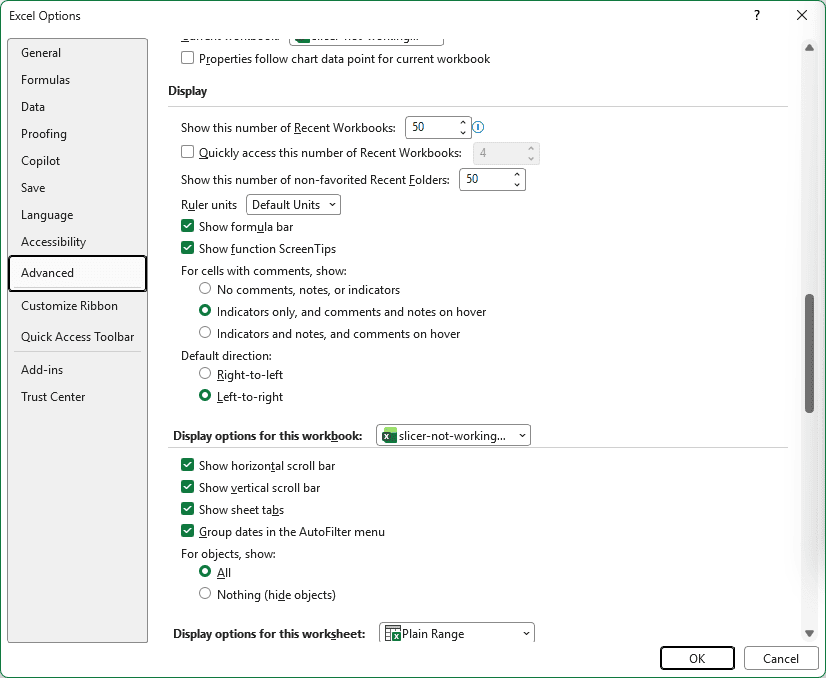
If the shortcut doesn’t work, here are the steps to change the setting:
- Go to File > Options > Advanced.
- Scroll to the display options for this workbook and set For objects, show to All, then click OK.
Fix #6: Turning Off Legacy Workbook Sharing
Older shared workbooks (the Share Workbook feature from before co-authoring) don’t support slicers.
When a workbook is shared this way, the title bar shows Shared and Insert Slicer is greyed out.
To fix this, turn off legacy sharing in the Share Workbook (Legacy) dialog.
Microsoft 365 hides this command by default, so you may need to add it to the Quick Access Toolbar first.
If other people need to edit the file at the same time, save it to OneDrive or SharePoint and use co-authoring instead.
Excel Shows “No Connections Found”
This one looks odd, because the Slicer button works but opens the wrong thing.
Fix #7: Selecting a Cell Inside a Table or PivotTable
When the selected cell isn’t inside an Excel Table or a PivotTable, Insert > Slicer opens the Existing Connections dialog instead.
Excel is looking for an external data connection to build a slicer from, and every list says No connections found.
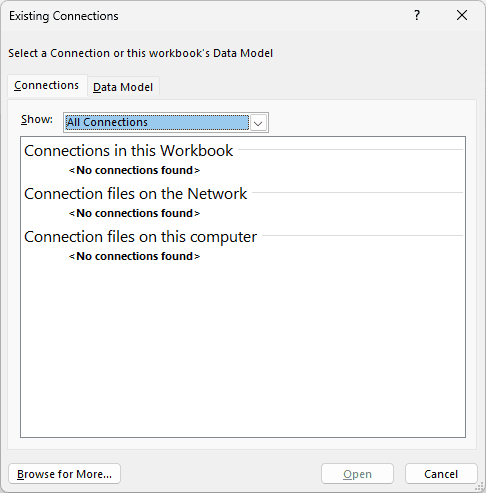
Close the dialog, click a cell inside your Table or PivotTable, and insert the slicer again.
If your data is a plain range, turn it into a Table first.
Select any cell in the data, press Ctrl + T, and click OK in the Create Table dialog.
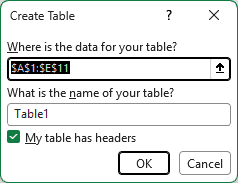
Now Insert > Slicer lists your column headers, and you can pick the fields you want.
Report Connections Is Greyed Out or a PivotTable Is Missing
Report Connections is the dialog that decides which PivotTables a slicer controls. You open it by right-clicking the slicer and choosing Report Connections.
Fix #8: Using a PivotTable Slicer (Table Slicers Can’t Connect)
A slicer made from an Excel Table filters that one Table and nothing else.
Because there’s nothing else it can connect to, Report Connections is greyed out on the Slicer tab.

Table slicers are built this way.
If you need one slicer to control several reports, build PivotTables from the Table and insert the slicer from a PivotTable instead.
My guide on how to connect a slicer to multiple PivotTables walks through that setup.
Fix #9: Building the PivotTables From the Same Source
Report Connections only lists PivotTables that share the same PivotCache, which is the copy of the data Excel keeps for a PivotTable.
A PivotTable with its own cache won’t show up, even if it reads the same cells.
Below I have the same grooming dataset with two PivotTables. The first shows the total price by groomer and the second shows the total by service.
I built them separately, so each one has its own cache.
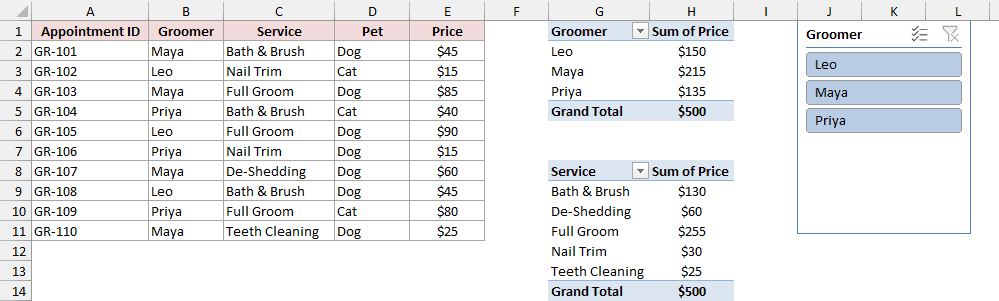
When I open Report Connections for the Groomer slicer, only the first PivotTable is listed. The service PivotTable isn’t there to tick.
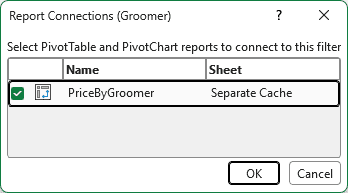
The simplest fix is to rebuild the second PivotTable as a copy of the first.
Copy the first PivotTable, paste it where you want it, and change its fields. A copied PivotTable shares the original’s cache, so it appears in Report Connections.
Note: If you try to change the data source of a PivotTable whose slicer also controls other PivotTables, Excel stops you. The message says the data source can’t be changed until you disconnect the filter controls. Untick the PivotTable in Report Connections first, change the source, then reconnect it.
The Slicer Doesn’t Filter Your Numbers
Sometimes the slicer responds to clicks, but a total somewhere on the sheet doesn’t change. Here’s what to check.
Fix #10: Ticking the PivotTable in Report Connections
A new slicer only controls the PivotTable you created it from. Any other PivotTable keeps showing every item until you connect it.
Below I have the grooming dataset with two PivotTables that share a cache, one by groomer and one by service.
The slicer filters the first to Maya ($215), but the second still shows $500.
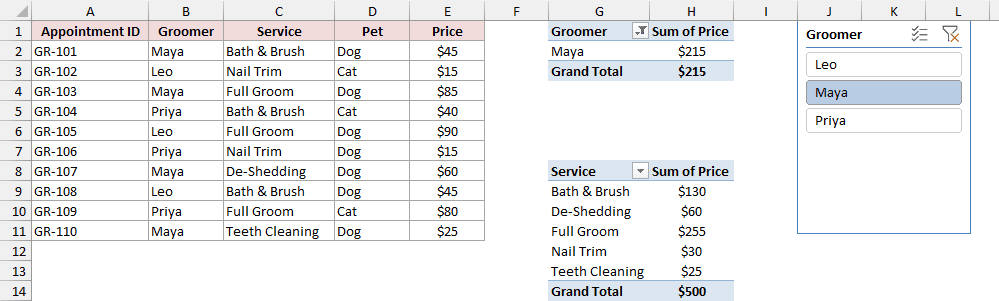
Here are the steps to connect the second PivotTable:
- Right-click the slicer and choose Report Connections.
- Tick every PivotTable the slicer should control and click OK.
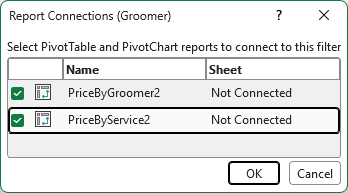
Now both PivotTables follow the slicer. If the PivotTable you need isn’t in the list at all, go back to Fix #9.
Fix #11: Using SUBTOTAL Instead of SUM
A Table slicer hides the rows you didn’t select, but a SUM formula still adds hidden rows.
So the total below your Table stays the same no matter what you click.
Below I have the grooming dataset as an Excel Table with a Groomer slicer.
I’ve selected Maya in the slicer, and the SUM total next to the Table still says $500.
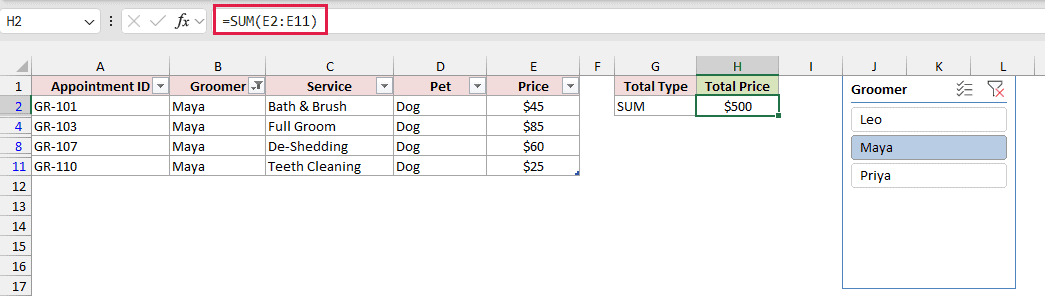
Here is the formula:
=SUM(E2:E11)
To total only the visible rows, use the SUBTOTAL function with function number 109 instead:
=SUBTOTAL(109,E2:E11)
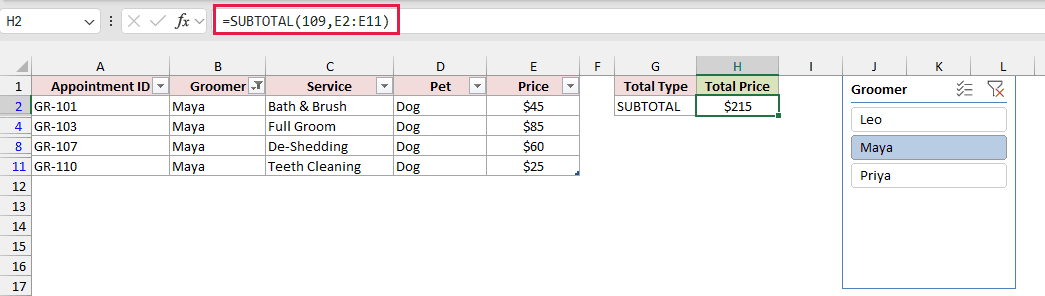
With Maya selected, SUBTOTAL returns $215, which is Maya’s four appointments. It updates every time you click a different groomer.
How does this formula work?
The first argument, 109, tells SUBTOTAL to add up the range and skip any rows that are hidden.
A slicer hides rows the same way a filter does, so SUBTOTAL ignores them.
AGGREGATE works too, but SUBTOTAL is the one to reach for. It’s also what a Table’s Total Row uses.
Fix #12: Switching Calculation Back to Automatic
This one catches people who pull numbers out of a PivotTable with formulas like GETPIVOTDATA.
The PivotTable itself updates when you click the slicer, but the formulas that read from it don’t.
That happens when the workbook is set to manual calculation. Excel only recalculates formulas when you tell it to.
To fix this, go to Formulas > Calculation Options and choose Automatic.
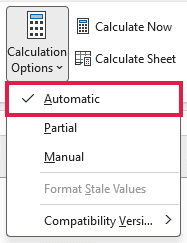
If you need to keep manual calculation for a slow workbook, press F9 after clicking the slicer to recalculate.
The Slicer Shows Old Items or Misses New Ones
A PivotTable slicer lists the items in the PivotTable’s cache, not what’s in your data right now. That’s why the items can drift out of date.
Fix #13: Refreshing the PivotTable
When you add new data, the slicer doesn’t know about it until you refresh the PivotTable. A new groomer or service won’t appear as a button until then.
To refresh, right-click the slicer and choose Refresh. You can also use PivotTable Analyze > Refresh, or Data > Refresh All to refresh everything in the workbook.
If a refresh doesn’t bring the new item in, the source range is the problem. That’s the next fix.
Fix #14: Expanding the Data Source (or Using a Table)
A PivotTable built from a normal range reads a fixed set of cells. Rows you add below that range sit outside it, so refreshing doesn’t pick them up.
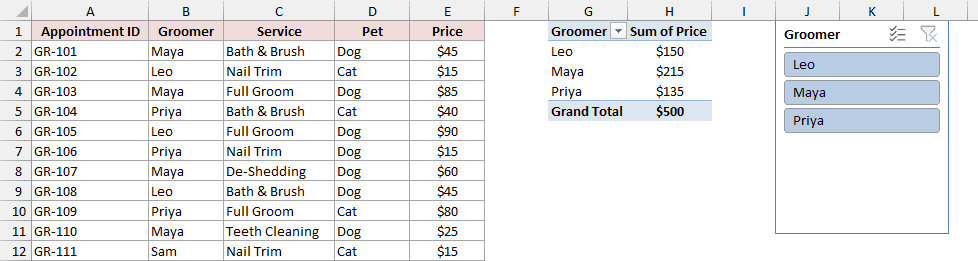
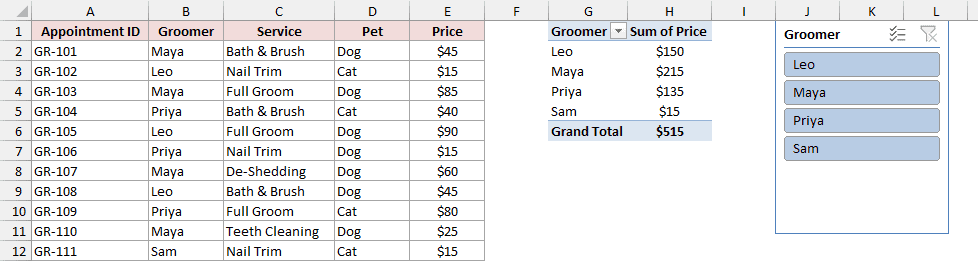
Below I have the grooming dataset with a new appointment in row 12, for a new groomer called Sam.
The PivotTable reads A1:E11, so Sam isn’t in the PivotTable or the slicer, even after a refresh.
Here are the steps to widen the source:
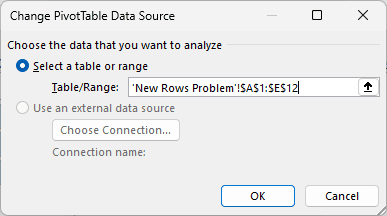
- Select a cell in the PivotTable, go to PivotTable Analyze, and click Change Data Source (here’s more on how to change the data source of a PivotTable).
- Change the range to include the new row (A1:E12 here) and click OK.
Sam now shows up in the PivotTable and as a button in the slicer.
To stop this happening again, convert the data to an Excel Table with Ctrl + T and use the Table as the PivotTable source.
A Table grows when you add rows, so the next refresh always includes them.
Fix #15: Removing Deleted Items
The opposite problem is an item you deleted from the data that won’t leave the slicer.
Excel keeps deleted items in the PivotTable cache by default, so the slicer keeps showing them as grey buttons.
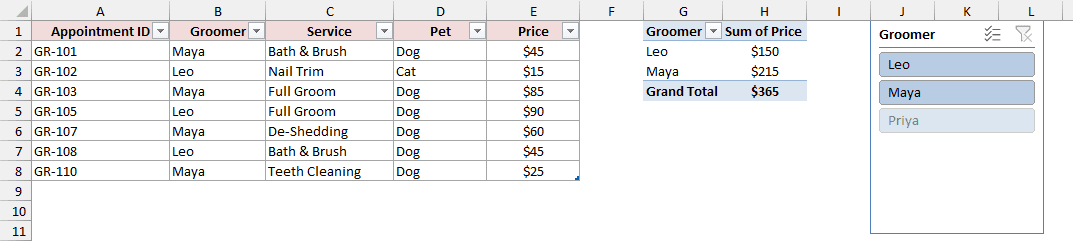
Below I have the grooming dataset after I deleted all of Priya’s appointments and refreshed the PivotTable. The PivotTable is correct, but Priya is still sitting in the slicer.
The quick fix is in the slicer’s settings. Here are the steps:
- Right-click the slicer and choose Slicer Settings.
- Uncheck Show items deleted from the data source and click OK.
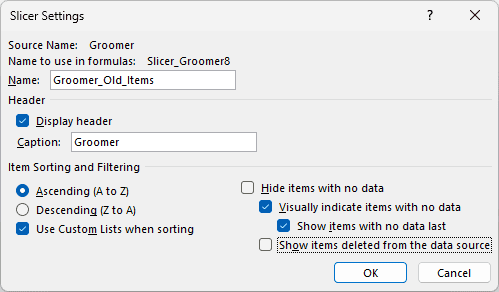
Priya disappears from the slicer. That setting only affects this slicer, though.
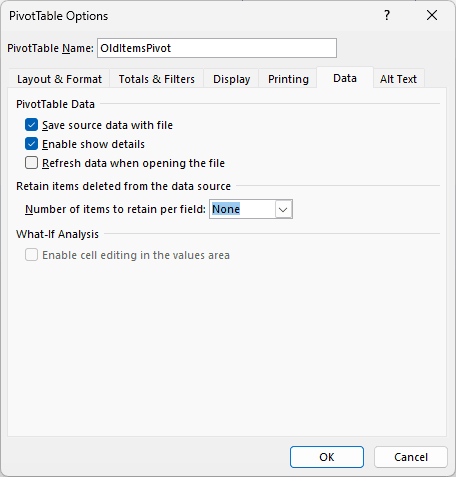
To clear deleted items from the PivotTable cache for good, right-click the PivotTable and choose PivotTable Options.
On the Data tab, set Number of items to retain per field to None, click OK, and refresh the PivotTable.
Slicer Items Are Greyed Out
This is the one symptom that isn’t a fault. Excel greys out slicer buttons on purpose.
Fix #16: Hiding Items With No Data
When one slicer filters the data, other slicers grey out the items that no longer have any matching rows. Excel also moves them to the bottom of the list.
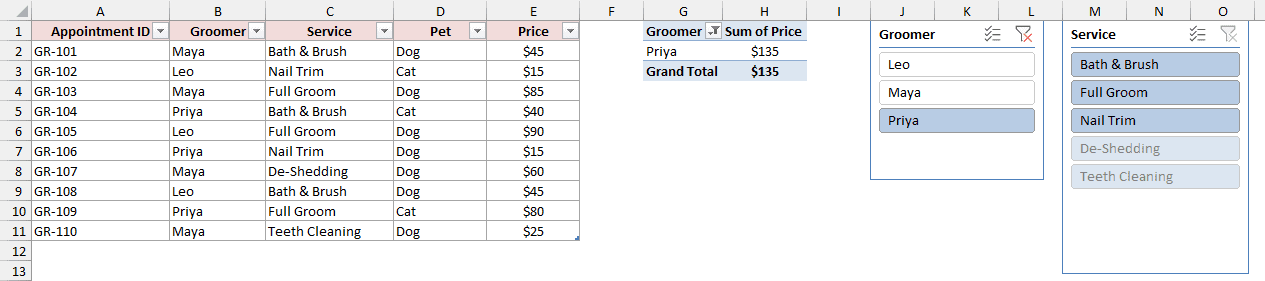
Below I have the grooming dataset with a Groomer slicer and a Service slicer.
I’ve selected Priya, and De-Shedding and Teeth Cleaning are greyed out because Priya never did those services.
If the grey buttons bother you, you can hide them. Here are the steps:
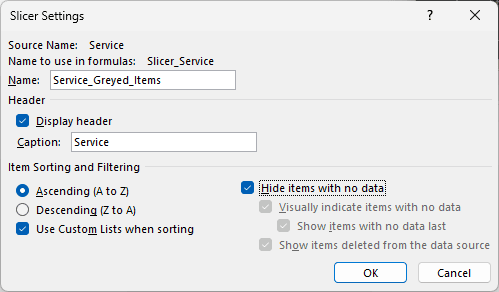
- Right-click the slicer with the grey items and choose Slicer Settings.
- Check Hide items with no data and click OK.
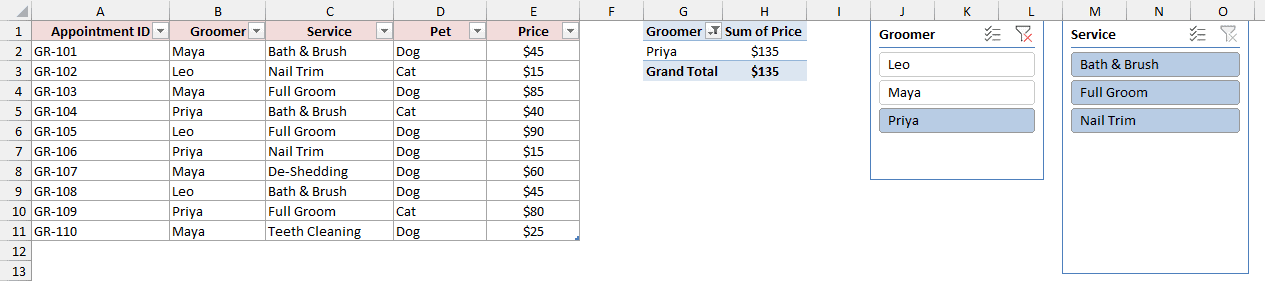
Now the Service slicer only shows the three services Priya did. The hidden items come back when you clear the Groomer selection.
Slicer Buttons Don’t Respond
You click a slicer button and nothing happens. There’s no filter and often no message either.
Fix #17: Unlocking the Slicer and Allowing PivotTable Use
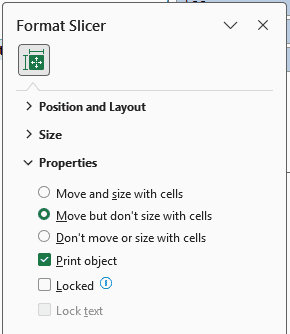
This happens on protected sheets. A slicer is Locked by default, and a locked slicer on a protected sheet ignores every click.
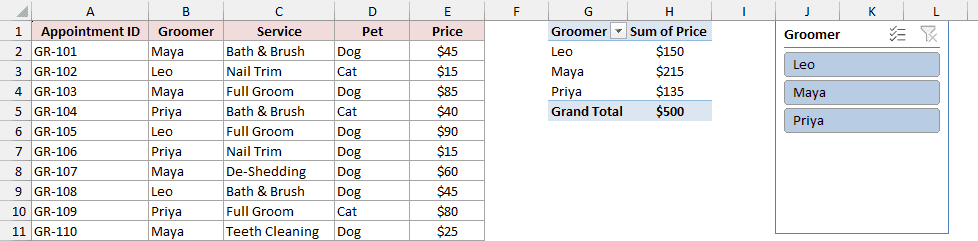
Below I have the grooming dataset with a PivotTable and a Groomer slicer on a protected sheet. Clicking Leo in the slicer does nothing.
Here are the steps to make the slicer work on a protected sheet:
- Go to Review and click Unprotect Sheet.
- Right-click the slicer, choose Size and Properties, and under Properties, uncheck Locked.
- Go to Review > Protect Sheet, check Use PivotTable and PivotChart, and click OK.
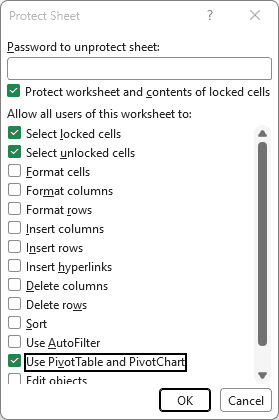
Now the slicer filters the PivotTable, and the rest of the sheet stays protected.
Both steps matter. When I left out the permission, Excel showed a message saying it can’t edit a PivotTable on a protected sheet. You don’t need Edit objects for this.
Note: For a slicer made from an Excel Table, check Use AutoFilter instead of Use PivotTable and PivotChart. Without it, Excel says you can’t use filters on this protected sheet.
The Slicer Disappeared
If a slicer was there yesterday and isn’t now, it’s usually hidden rather than deleted.
Fix #18: Showing Hidden Objects or Checking the Selection Pane
First, press Ctrl + 6. If every slicer, chart, and shape in the workbook vanished at once, objects are hidden, and this brings them back (see Fix #5).
If only one slicer is missing, open the Selection Pane from Home > Find & Select > Selection Pane.
It lists every object on the sheet, and a hidden one has a closed-eye icon you can click to show it.
Fix #19: Unhiding Rows and Changing the Slicer’s Placement
A slicer set to Move and size with cells shrinks along with the rows under it. Hide those rows and the slicer shrinks to nothing.
Below I have the grooming dataset with a PivotTable. The Groomer slicer was below the data, and hiding those rows made it disappear.
To get it back, select the rows around the gap, right-click, and choose Unhide. The slicer returns at its full size.
Then stop it happening again. Right-click the slicer, choose Size and Properties, and under Properties, pick Move but don’t size with cells.
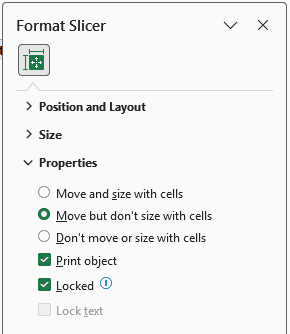
Fix #20: Keeping the File as .xlsx
If the slicers vanished after someone saved the file, check the file type. Saving as .xls (Excel 97-2003) deletes slicers, because the old format can’t store them.
Reopening the file won’t bring them back. You’ll need to rebuild the slicers in an .xlsx copy, or restore an earlier version of the file.
Slicer Not Working on Mac
Slicers work on a Mac in Microsoft 365, and most of the fixes above apply in the same way.
Older Mac versions are the exception. Excel 2011 for Mac doesn’t have slicers at all, and Excel 2016 for Mac supports PivotTable slicers but not Table slicers.
If you’re on one of those, a current version of Excel for Mac is the fix.
To select more than one slicer item on a Mac, hold Command while you click, or turn on the Multi-Select button at the top of the slicer.
Additional Notes About Slicers Not Working in Excel
- Check the title bar first. Compatibility Mode, Group, and Shared all show up next to the file name, and each one greys out Insert Slicer.
- Slicers for PivotTables arrived in Excel 2010, and slicers for Tables arrived in Excel 2013. Anyone opening your file in an older version won’t see them work.
- To clear a slicer’s selection quickly, click the Clear Filter button in its top-right corner, or select the slicer and press Alt + C.
- My guide to slicers in Excel covers how to set them up, style them, and use them in a dashboard.
Frequently Asked Questions
Here are answers to a few questions that come up a lot.
Does deleting a slicer remove its filter?
No. If a slicer is filtering a PivotTable when you delete it, the filter stays in place.
Clear the slicer before you delete it, or clear the filter from the PivotTable afterwards.
Can I use a slicer on a normal range of data?
Not directly. Slicers need an Excel Table or a PivotTable, and a Table is not the same as a normal range.
Press Ctrl + T to turn the range into a Table, then insert the slicer.
Can one slicer control PivotTables from different data sources?
Not with ordinary PivotTables, because a slicer only reaches PivotTables that share a cache.
You can do it by adding both tables to the Data Model and relating them, which the connect slicer guide explains.
Conclusion
In this article, I showed you how to fix a slicer that’s greyed out, won’t connect to a PivotTable, doesn’t filter your numbers, shows old items, or has disappeared.
When Insert Slicer is greyed out, the title bar is the first place to look, because Compatibility Mode, Group, and Shared all show up there.
I hope you found this article helpful.
Other Excel articles you may also like:
- Pivot Table Not Refreshing – How to Fix?
- How to Lock a Pivot Table in Excel
- Excel Filter Not Working – How to Fix?
- Data Source Reference is Not Valid Error in Excel – Fix!
- Pivot Table Field Name is Not Valid – How to Fix?
- Cannot Group That Selection Error in Pivot Tables
- How to Delete a Pivot Table in Excel?
- Show Slicer Selection in a Cell
- Make a Slicer Drop-Down List
